Ọrọ Iṣaaju
This manual provides detailed instructions for the setup, operation, and maintenance of your Gioteck SC3 Wireless Pro Controller. Designed for use with Nintendo Switch, PC, and mobile devices, this controller features programmable back buttons, customizable RGB lighting, and changeable magnetic thumb sticks for an enhanced gaming experience.
1. Eto
1.1 Package Awọn akoonu
- Gioteck SC3 Wireless Pro Controller
- Okun Ngba agbara USB
- Additional Magnetic Thumb Sticks (if included)
- Afowoyi Olumulo (iwe-ipamọ yii)
1.2 Gbigba agbara Adarí
Before initial use, fully charge the controller. Connect the supplied USB charging cable to the controller's charging port and the other end to a USB power source (e.g., Nintendo Switch dock, PC USB port, or USB wall adapter).
- Atọka LED yoo fihan ipo gbigba agbara.
- Gbigba agbara ni kikun maa n gba to awọn wakati 2-3.
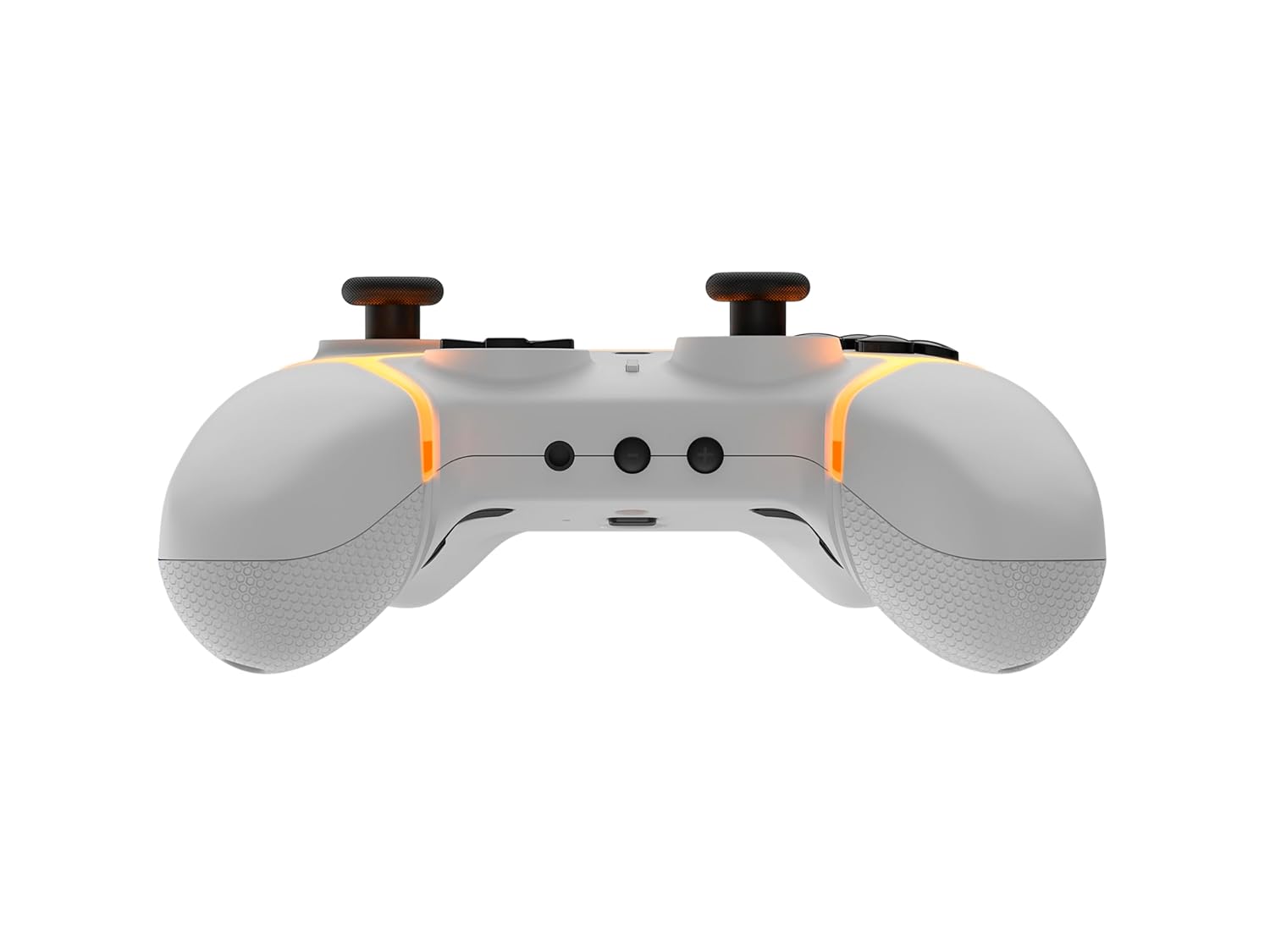
Aworan: Isalẹ view of the Gioteck SC3 controller, highlighting the USB-C charging port located between the two textured grips.
1.3 Sopọ pẹlu Nintendo Yipada
- From the Nintendo Switch HOME Menu, select Awọn oludari, lẹhinna Yi Dimu / Bere fun.
- On the SC3 controller, press and hold the Bọtini Isopọpọ (usually a small button on the top or back) for a few seconds until the LED indicators begin to flash rapidly.
- Once the controller is recognized by the Switch, the player LED(s) on the controller will illuminate solid, indicating successful pairing.
- Tẹ awọn Bọtini kan lati jẹrisi.
Note: For subsequent uses, the controller should automatically reconnect to the last paired Switch console when powered on.
1.4 Connecting to PC/Mobile (Bluetooth)
- Ensure Bluetooth is enabled on your PC or mobile device.
- On the SC3 controller, press and hold the Bọtini Isopọpọ for a few seconds until the LED indicators flash rapidly.
- On your PC/mobile device, navigate to Bluetooth settings and search for new devices.
- Select "Gioteck SC3" or similar from the list of available devices to pair.
- The controller's LED will become solid upon successful connection.
1.5 Installing Magnetic Thumb Sticks
The SC3 controller features changeable magnetic thumb sticks. To replace them:
- Gently pull the existing thumb stick straight up to remove it.
- Align the desired magnetic thumb stick with the base and gently push it down until it snaps into place.

Aworan: Iwaju view of the Gioteck SC3 controller, showcasing the magnetic thumb sticks and button layout.
2. Awọn ilana Iṣiṣẹ
2.1 Ifilelẹ bọtini
The SC3 controller features a traditional button layout. Refer to the image below for button identification.

Aworan: iwaju igun view of the Gioteck SC3 controller, displaying the full button layout including face buttons, D-pad, analog sticks, and shoulder buttons.
- Osi/Ọtun Analog Sticks: Fun gbigbe ati iṣakoso kamẹra.
- D-Pad: Ìfilọ́lẹ̀ ìtọ́sọ́nà.
- Awọn bọtini A/B/X/Y: Awọn bọtini igbese.
- Awọn bọtini L/R/ZL/ZR: Ejika ati awọn bọtini okunfa.
- +/- Awọn bọtini: Start/Select equivalents.
- Bọtini Ile: Returns to the console's home menu.
- Bọtini Yiya: Ó gba àwọn àwòrán ìkànnì.
2.2 Programmable Back Buttons
The SC3 controller includes programmable back buttons (M1, M2, M3, M4) for custom assignments.

Aworan: Ẹyin view of the Gioteck SC3 controller, clearly showing the four programmable back buttons (M1, M2, M3, M4) and textured grips.
Awọn Igbesẹ Eto:
- Tẹ mọlẹ Bọtini Eto (refer to diagram if available, usually a small button on the back) until the LED indicator flashes.
- Tẹ awọn Bọtini Pada (M1, M2, M3, or M4) you wish to program. The LED will flash slowly.
- Tẹ awọn Bọtini titẹ sii (e.g., A, B, X, Y, L, R, ZL, ZR, D-pad direction) you want to assign to the back button.
- Tẹ awọn Bọtini Eto again to save the assignment. The LED will stop flashing.
- Repeat for other back buttons as desired.
To clear a programmed button, follow steps 1-2, then press the Program Button again without pressing an input button.
2.3 RGB Lighting isọdi
The controller features customizable RGB lighting. Specific instructions for changing colors or effects are typically found in the product's quick start guide or by pressing a dedicated button combination (e.g., Function + R3).
Consult the quick start guide included with your controller for precise button combinations to adjust RGB lighting.
2.4 Motion Controls
The SC3 controller supports motion controls, allowing for immersive gameplay in compatible Nintendo Switch titles. No special setup is usually required; motion controls activate automatically when supported by the game.
2.5 Audio Headset Jack
A 3.5mm audio headset jack is located on the controller for connecting compatible headsets. It includes dedicated mute and volume control buttons.
- Iwọn didun Soke/Isalẹ: Adjust audio output.
- Bọtini Mute: Mute/unmute microphone input.

Aworan: Oke view of the Gioteck SC3 controller, highlighting the 3.5mm audio jack, volume controls, and mute button.
3. Itọju
3.1 Ninu
To clean your controller, use a soft, dry cloth. For stubborn dirt, slightly dampen awọn asọ pẹlu omi. Yẹra fun lilo awọn kẹmika lile, awọn olutọpa abrasive, tabi awọn nkanmimu, nitori iwọnyi le ba opin oludari jẹ ati awọn paati inu.
- Do not immerse the controller in water or any other liquid.
- Ensure all ports are dry before charging or connecting devices.
3.2 Ibi ipamọ
Store the controller in a cool, dry place away from direct sunlight and extreme temperatures. Avoid placing heavy objects on the controller to prevent damage.
3.3 batiri Itọju
The controller contains a rechargeable battery. To prolong battery life:
- Yago fun gbigba agbara si batiri ni kikun nigbagbogbo.
- Charge the controller regularly, even if not in use for extended periods (e.g., once every 3-6 months).
- Do not expose the controller to temperatures above 60°C (140°F).
4. Laasigbotitusita
4.1 Adarí Ko Nsopọ / so pọ
- Ṣayẹwo Batiri: Rii daju pe oludari ti gba agbara to.
- Tun-meji: Follow the pairing instructions in Section 1.3 or 1.4.
- Ìjánu: Move closer to the console/device and away from potential sources of wireless interference (e.g., Wi-Fi routers, other Bluetooth devices).
- Tun Oluṣakoso Tunṣe: Locate a small reset button (often a pinhole) on the back of the controller. Use a paperclip to press and hold it for a few seconds. Then attempt to re-pair.
- Update Console/Device Software: Ensure your Nintendo Switch, PC, or mobile device's operating system is up to date.
4.2 Buttons/Sticks Not Responding
- Àtún-múṣiṣẹ́pọ̀: Ge asopọ ko si tun adarí pọ.
- Mọ: Ensure no debris is lodged around the buttons or sticks.
- Test in another game/menu: Determine if the issue is specific to a game or system-wide.
- Tun Oluṣakoso Tunṣe: Perform a hard reset as described above.
4.3 Motion Controls Not Working
- Ibamu Ere: Verify that the game you are playing supports motion controls.
- Ṣe atunṣe: On Nintendo Switch, you can recalibrate motion controls in the system settings.
- Tun Oluṣakoso Tunṣe: Ṣe atunto lile.
5. Awọn pato
| Awoṣe: | Gioteck SC3 Wireless Pro Controller |
| Ibamu: | Nintendo Switch (Original, Lite, OLED), PC, Mobile Devices |
| Asopọmọra: | Alailowaya Bluetooth |
| Awọn iwọn (isunmọ): | 2.87 x 5.35 x 6.34 inches (7.29 x 13.59 x 16.1 cm) |
| Ìwọ̀n (isunmọ́): | 10.6 iwon (300 giramu) |
| Jack Audio: | 3.5mm with mute and volume controls |
| Awọn ẹya pataki: | Programmable back buttons, Magnetic thumb sticks, RGB lighting, Motion controls |
6. atilẹyin ọja Information
The Gioteck SC3 Wireless Pro Controller comes with a manufacturer's warranty. For specific details regarding warranty coverage, duration, and claims process, please refer to the warranty card included with your product or visit the official Gioteck webojula.
Jọwọ ṣe idaduro ẹri rira rẹ fun awọn idi atilẹyin ọja.
7. Onibara Support
If you encounter any issues or have questions not covered in this manual, please contact Gioteck customer support. Contact information can typically be found on the product packaging or the official Gioteck webojula.
Gioteck Official Webojula: www.gioteck.com


