Ọja Pariview
The Unitech HT330 is a high-performance 4-inch rugged handheld terminal designed for demanding environments such as retail and warehousing. It features Android 12 with GMS certification, a powerful 2D scan engine, and robust connectivity options. Its durable design ensures reliable operation for extended periods.
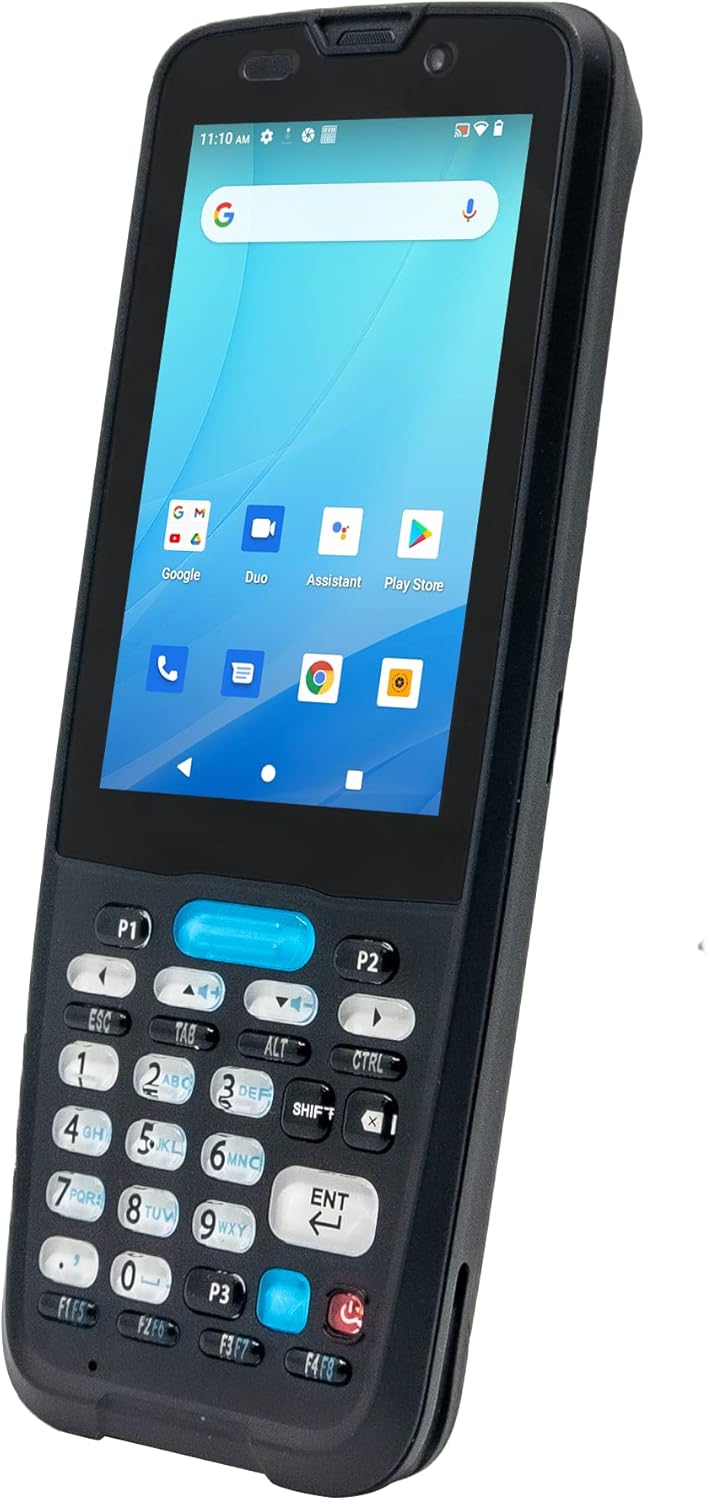
Iwaju view of the Unitech HT330 Rugged Handheld Terminal, showcasing its 4-inch display and physical keypad.
Awọn ẹya pataki:
- Android 12 OS with GMS certified for access to Google services.
- Durable 32-key physical keypad with backlight, rated for 2.5 million lifetime clicks.
- Long-lasting 5200mAh removable battery providing up to 20 hours of operation.
- Integrated 2D scan engine for reliable barcode scanning.
- IP67 protection against water and dust, and 1.5m drop-resistant housing (1.8m with bumper).
- Support for Optical Character Recognition (OCR) technology.
- Rich wireless connectivity including Bluetooth 5.0 and 2.4G+5GHz Wi-Fi.
Ohun ti o wa ninu Apoti
Upon unboxing your Unitech HT330, please verify that all the following components are included:
- Unitech HT330 Handheld Terminal (with Camera, GPS, HF RFID, 2D scan engine)
- Battery Pack (5200mAh Lithium-ion)
- Okun Ọwọ
- Okun USB
Eto Itọsọna
1. Fifi sori batiri ati gbigba agbara
The HT330 comes with a removable 5200mAh Lithium-ion battery. Ensure the device is powered off before installing or removing the battery.
- Wa yara batiri ni ẹhin ẹrọ naa.
- Ṣii ideri batiri naa.
- Insert the battery, aligning the contacts correctly.
- Pa ideri batiri naa ni aabo.
- Connect the provided USB cable to the HT330's USB port and the other end to a power adapter or computer.
- Jẹ́ kí ẹ̀rọ náà gba agbára kí ó tó bẹ̀rẹ̀ lílò. Àmì ìgba agbára náà yóò fi ipò bátírì hàn.

Ẹyìn view of the Unitech HT330, showing the battery compartment and camera.
2. Attaching the Hand Strap
The included hand strap provides a secure grip and reduces the risk of accidental drops.
- Thread the hand strap through the designated attachment points on the device.
- Adjust the strap for a comfortable and secure fit.
3. Initial Power On and Android Setup
Press and hold the Power button until the Unitech logo appears. Follow the on-screen prompts to complete the initial Android 12 setup, including Wi-Fi connection and Google account sign-in (GMS certified).
Awọn ilana Iṣiṣẹ
1. Navigating the Device
The HT330 combines a 4-inch touchscreen with a 32-key physical keypad for versatile input.
- Afi ika te: Use touch gestures (tap, swipe, pinch) to navigate the Android interface. The display is sunlight readable (450 nits).
- Bọtini foonu ti ara: Utilize the numeric and function keys for data entry and quick actions. The keypad is designed for durability with 2.5 million lifetime clicks.

Sun mo tipetipe view of the Unitech HT330's physical keypad.
2. Barcode Scanning
The integrated 2D scan engine provides reliable performance for 1D and 2D barcodes.
- Open the scanning application on your device.
- Point the scanner at the barcode, ensuring the red aiming line covers the entire code.
- Press the scan button (typically located on the side or a dedicated key on the keypad) to activate the scanner.
- A successful scan will usually be indicated by an audible beep and/or a visual confirmation on the screen.
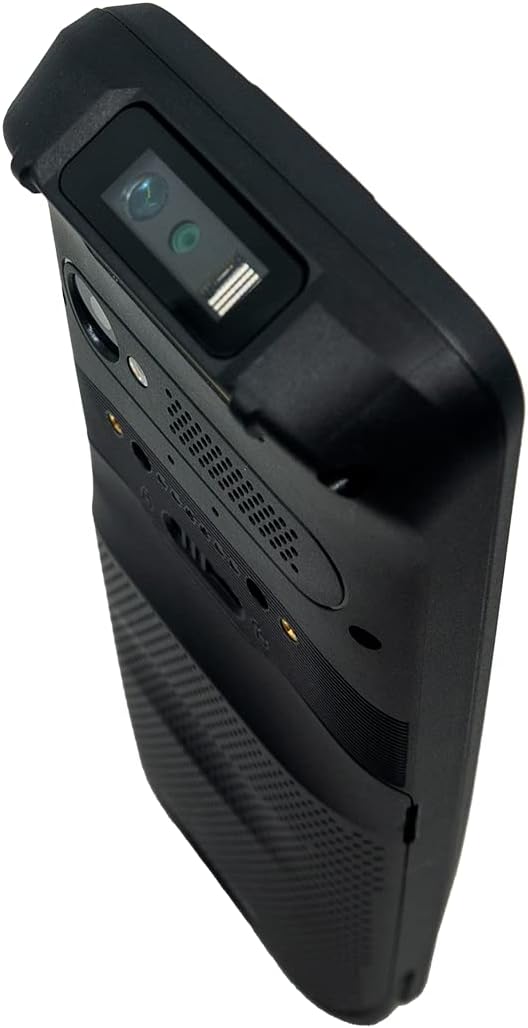
Oke view of the Unitech HT330, highlighting the integrated 2D scan engine.
3. Optical Character Recognition (OCR)
The HT330 supports OCR technology through Unitech USS software, allowing for digital conversion of numbers or characters from various surfaces.
- Launch the Unitech USS application.
- Select the OCR function.
- Position the device's camera over the text you wish to recognize.
- Capture the image, and the software will convert the characters into digital format.
4. Alailowaya Asopọmọra
- Wi-Fi: Connect to 2.4G and 5GHz Wi-Fi networks via Android settings for high-speed data transfer.
- Bluetooth: Pair with Bluetooth 5.0 compatible devices (e.g., printers, headsets) through Android's Bluetooth settings.
- GPS: The integrated GPS function allows for precise location tracking, useful for logistics and field services.
Itoju
1. Ninu ẹrọ
Thanks to its IP67 rating, the HT330 is protected against dust and temporary immersion in water. To clean the device:
- Pa ẹrọ naa kuro ṣaaju ṣiṣe mimọ.
- Lo asọ, damp cloth with mild soap or a screen cleaner for the display.
- Avoid abrasive cleaners, solvents, or spraying liquids directly onto the device.
- Rí i dájú pé gbogbo àwọn ibojú èbúté ti sé dáadáa láti lè dènà omi àti eruku.
2. Itọju batiri
- Lati mu igbesi aye batiri pọ si, yago fun awọn iwọn otutu to gaju.
- Gba agbara si batiri nigbagbogbo ki o yago fun gbigba laaye ni kikun nigbagbogbo.
- If storing the device for an extended period, charge the battery to about 50% and remove it from the device.
3. General Device Care
While rugged, proper handling extends the device's life.
- Avoid dropping the device, even though it is rated for 1.5m drops (1.8m with optional bumper).
- Do not attempt to disassemble the device or perform repairs yourself. Refer to authorized service personnel.
- Jeki ẹrọ naa kuro ni awọn aaye oofa ti o lagbara.
Laasigbotitusita
This section provides solutions to common issues you might encounter with your Unitech HT330. For more complex problems, please contact Unitech support.
| Isoro | Owun to le Fa | Ojutu |
|---|---|---|
| Ẹrọ naa ko ṣiṣẹ. | Low or depleted battery; Battery not properly installed. | Charge the battery fully. Ensure the battery is correctly inserted and the cover is secured. |
| Ko le ṣayẹwo awọn kooduopo. | Scanner not activated; Barcode damaged or poorly lit; Incorrect scanning angle. | Ensure the scanning application is open and the scan button is pressed. Check barcode condition and lighting. Adjust scanning angle. |
| Awọn iṣoro asopọ Wi-Fi tabi Bluetooth. | Out of range; Incorrect network settings; Device interference. | Move closer to the Wi-Fi access point or Bluetooth device. Verify network passwords. Restart the device. |
| Ẹ̀rọ náà lọ́ra tàbí kò dáhùn. | Too many applications running; Low memory. | Close unnecessary applications. Restart the device. Clear cache if necessary. |
Awọn pato
| Ẹya ara ẹrọ | Ẹ̀kúnrẹ́rẹ́ |
|---|---|
| Ọja Mefa | 7.6 x 2.7 x 0.9 inches |
| Iwọn Nkan | 10 iwon |
| Nọmba Awoṣe Nkan | HT330-QA62UM3G |
| Awọn batiri | Batiri Lithium ion 1 nilo (pẹlu) |
| Eto isesise | Android 12 with GMS certified |
| Ifihan | 4-inch touchscreen, Sunlight Readable 450 nits |
| Bọtini foonu | 32 keys with backlight, 2.5 million lifetime clicks |
| Iranti | 3GB RAM / 32GB Flash memory storage |
| Agbara Batiri | 5200mAh Lithium-ion (removable) |
| Ju Resistance | 1.5m (1.8m with bumper) |
| IP Rating | IP67 |
| Asopọmọra Technology | Bluetooth 5.0, 2.4G+5GHz Wi-Fi, GPS, USB Cable |
| Olupese | Unitech |
Atilẹyin ọja ati Support
The Unitech HT330 is manufactured by Unitech. For specific warranty information, including terms and conditions, please refer to the warranty card included with your product or visit the official Unitech webojula. Jeki ẹri rira rẹ fun awọn iṣeduro atilẹyin ọja.
For technical support, service, or inquiries regarding your Unitech HT330, please contact Unitech customer service directly. You can find contact information on their official webaaye tabi ni apoti ọja.
Olupese: Unitech
Awoṣe: HT330-QA62UM3G