1. Ifihan
Thank you for choosing the SEHMUA 2K Light Bulb Security Camera. This manual provides detailed instructions for the setup, operation, and maintenance of your new security camera. Please read this manual thoroughly before use to ensure proper functionality and safety.

Figure 1: SEHMUA 2K Light Bulb Security Camera and Mobile Application Interface.
2. Ọja Ipariview
2.1 Package Awọn akoonu
- SEHMUA 2K Light Bulb Security Camera (Model L1)
- Itọsọna olumulo
- Mounting Accessories (if applicable, not specified in data but common)
2.2 Key Awọn ẹya ara ẹrọ
- 2K Full HD Resolution: Pese ko o ati alaye foo fidiotage.
- 360° Pan/Tilt/Zoom (PTZ) & Remote Control: Allows for comprehensive area coverage and remote adjustment via mobile app.
- Oju Alẹ Awọ: Enhanced visibility in low-light conditions with integrated spotlight.
- Motion Detection & Siren Alert: Automatically detects movement and can trigger an audible siren for deterrence.
- Titele Aifọwọyi: Follows detected motion within its field of view.
- Audio Ọna Meji: Enables communication through the camera's built-in microphone and speaker.
- SD Card & Cloud Storage: Supports local storage (SD card not included) and optional cloud storage for continuous recording.
- Fifi sori Rọrun: Designed for E26/E27 light bulb sockets.
- Wi-Fi Asopọmọra: Sopọ̀ mọ́ nẹ́tíwọ́ọ̀kì Wi-Fi 2.4GHz ilé rẹ.
- Ibamu Alexa: Integrates with Amazon Alexa for voice control.
3. Eto
3.1 App Download ati Account Iforukọ
- Scan the QR code provided on the product packaging or in the quick start guide to download the official SEHMUA security camera application from your device's app store (iOS or Android).
- Open the application and follow the on-screen prompts to register a new account or log in if you already have one.
3.2 Fifi sori ẹrọ Kamẹra
The SEHMUA Light Bulb Security Camera is designed for easy installation into standard E26/E27 light bulb sockets. Ensure the power to the socket is turned off before installation.
- Locate a suitable E26/E27 light bulb socket where you wish to install the camera. This can be indoors or outdoors, provided the socket is protected from direct weather exposure if outdoors (IP65 rating means it's dust tight and protected against water jets, but not submersion).
- Carefully screw the camera into the light bulb socket until it is securely fastened. Do not overtighten.
- Turn on the power to the light bulb socket. The camera will power on and initiate its startup sequence.

Figure 2: Easy installation into an E27 socket.

olusin 3: Fifi sori examples for indoor and outdoor use.
3.3 Asopọ Nẹtiwọọki
Once powered on, the camera will enter pairing mode (indicated by a specific light pattern or voice prompt). Follow these steps to connect it to your Wi-Fi network:
- In the SEHMUA app, tap "Add Device" or the "+" icon.
- Yan awoṣe kamẹra rẹ lati inu atokọ naa.
- Follow the in-app instructions to connect the camera to your 2.4GHz Wi-Fi network. This typically involves entering your Wi-Fi password and scanning a QR code generated by the app with the camera's lens.
- Once connected, the camera will confirm successful pairing, and you can begin viewń gbé ìkànnì ayélujára.
4. Awọn ilana Iṣiṣẹ
4.1 Live View and Remote Control (PTZ)
Access the live video feed from your camera through the SEHMUA mobile application. The app allows you to remotely control the camera's pan (horizontal) and tilt (vertical) movements for a 360-degree viewigun igun.
- Open the SEHMUA app and select your camera from the device list.
- The live feed will display. Use the directional controls within the app to pan the camera horizontally (350°) and tilt it vertically (90°).

Figure 4: Pan, Tilt, and Zoom (PTZ) functionality.

Figure 5: The camera provides 2K Full HD resolution for clearer details.
4.2 Gbigbasilẹ ati Ibi ipamọ
The camera supports 24/7 continuous recording and event-triggered recording. Footage can be stored locally on a microSD card (not included) or via optional cloud storage.
- Kaadi MicroSD: Insert a compatible microSD card (up to 128GB, Class 10 or higher recommended) into the camera's SD card slot. The camera will automatically begin recording.
- Ibi ipamọ awọsanma: Subscribe to the cloud storage service through the SEHMUA app for secure, off-site storage of your video recordings.
- View foo ti o ti gbasilẹtage by navigating to the "History" or "Cloud" sections within the app.

Figure 6: Storage options include Cloud and SD Card (not included).
4.3 Išipopada erin ati titaniji
The camera is equipped with motion detection capabilities to alert you to activity in its monitored area.
- Mu Iwari išipopada ṣiṣẹ: In the app settings for your camera, enable motion detection. You can adjust sensitivity levels to minimize false alerts.
- Awọn agbegbe iṣẹ: Ṣetumo awọn agbegbe kan pato laarin kamẹra view where you want motion detection to be active, ignoring other areas.
- Awọn titaniji akoko gidi: Gba awọn iwifunni titari lori foonu alagbeka rẹ nigbati a ba rii išipopada.
- Titele Aifọwọyi: When enabled, the camera will automatically pan and tilt to follow detected motion.
- Siren and Strobe Light: Configure the camera to activate an audible siren and/or a bright strobe light upon motion detection for deterrence.

Figure 7: Motion detection with real-time alerts and auto tracking.

Figure 8: Adjusting activity zones for precise motion detection.

Figure 9: Auto-tracking feature in action.

Figure 10: Deterrence with siren and strobe light.
4.4 Night Vision
The camera features color night vision, providing clear images even in very low light conditions, enhanced by an integrated spotlight.
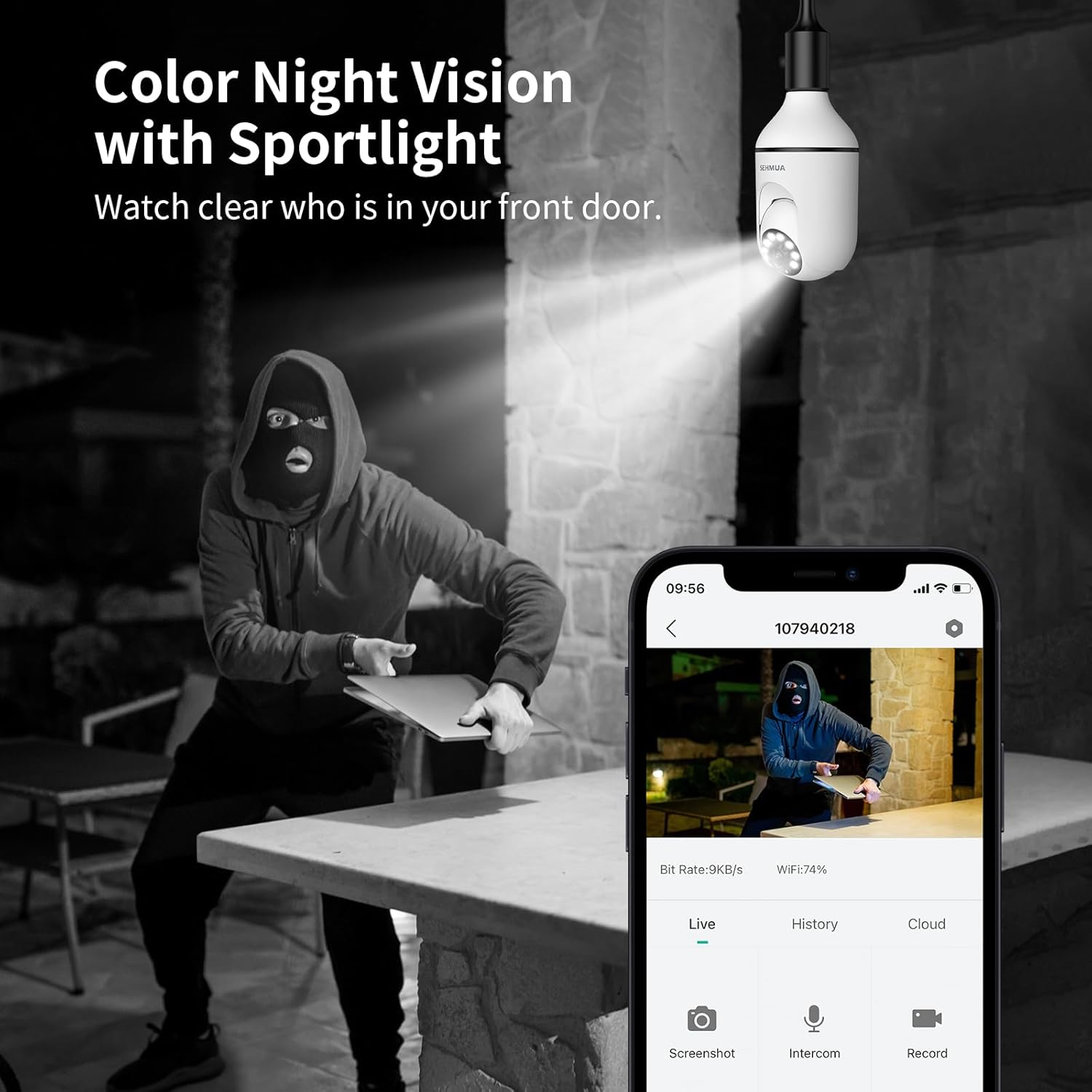
Figure 11: Color Night Vision with spotlight.
4.5 Meji-Ona Audio
Communicate with visitors or deter intruders using the camera's two-way audio feature.
- Lati igbesi aye view Nínú àpù náà, tẹ àmì gbohùngbohùn láti sọ̀rọ̀ nípasẹ̀ agbọ́hùnsọ kámẹ́rà náà.
- The camera's built-in microphone will capture audio from the camera's location, which you can hear through your phone.

Figure 12: Two-Way Audio communication.
4.6 Amazon Alexa Integration
The SEHMUA camera can be integrated with Amazon Alexa for convenient voice control and viewing lori ibaramu smati han.
- Ṣii ohun elo Alexa lori foonuiyara rẹ.
- Wa fun and enable the "SEHMUA" skill.
- Link your SEHMUA account with your Alexa account.
- Discover devices. You can now use voice commands like "Alexa, show me the [camera name]" on your Echo Show or other compatible devices.
5. Itọju
- Ninu: Fi rọra nu lẹnsi kamẹra ati ara pẹlu asọ ti o gbẹ. Maṣe lo awọn kẹmika ti o lewu tabi awọn afọmọ abrasive.
- Awọn imudojuiwọn famuwia: Regularly check the SEHMUA app for available firmware updates to ensure optimal performance and security.
- Awọn ipo Ayika: While rated IP65 for outdoor use, avoid exposing the camera to extreme temperatures, direct water submersion, or high-pressure water jets.
6. Laasigbotitusita
| Isoro | Owun to le Fa | Ojutu |
|---|---|---|
| Kamẹra ko ṣiṣẹ. | No power to the socket; camera not screwed in properly. | Ensure the light socket has power. Re-screw the camera firmly into the socket. |
| Ko le sopọ si Wi-Fi. | Ọ̀rọ̀ ìpamọ́ Wi-Fi tí kò tọ́; kámẹ́rà jìnnà jù sí rọ́wọ́ọ̀tì; Nẹ́tíwọ́ọ̀kì Wi-Fi 5GHz. | Verify Wi-Fi password. Move camera closer to the router during setup. Ensure you are connecting to a 2.4GHz Wi-Fi network. |
| Ko si awọn itaniji wiwa išipopada. | Motion detection disabled; sensitivity too low; activity zones not set correctly. | Enable motion detection in the app. Adjust sensitivity. Check and configure activity zones. |
| Didara fidio ti ko dara. | Àmì Wi-Fi tí kò lágbára; lẹ́ńsì tí ó dọ̀tí. | Improve Wi-Fi signal strength (e.g., use a Wi-Fi extender). Clean the camera lens. |
| Ohùn ọ̀nà méjì kò ṣiṣẹ́. | Microphone/speaker muted in app; volume too low. | Check audio settings in the app. Ensure microphone and speaker are not muted and volume is adequate. |
7. Awọn pato
| Ẹya ara ẹrọ | Ẹ̀kúnrẹ́rẹ́ |
|---|---|
| Nọmba awoṣe | L1 |
| Ipinnu | 2K Full HD |
| Asopọmọra | 2.4GHz Wi-Fi |
| Orisun agbara | Corded Electric (E26/E27 Socket) |
| Igun Pan / Tẹ | 350° Pan, 90° Tilt (360° Field of View) |
| Alẹ Iranran | Color Night Vision with Spotlight |
| Awọn aṣayan ipamọ | MicroSD Card (up to 128GB, not included), Cloud Storage (optional) |
| Ohun | Ona Meji Audio |
| Awọn itaniji | Motion Detection, Siren, Strobe Light |
| Ibamu | Amazon Alexa, Smartphone (iOS/Android) |
| inu ile / ita gbangba Lo | Ìta gbangba (IP65 ti a fun ni ìdíwọ̀n) |
| Iwọn Nkan | 10.5 iwon |
| Package Mefa | 6.89 x 3.31 x 3.23 inches |
8. Atilẹyin ọja ati Support
For detailed warranty information and technical support, please refer to the warranty card included with your product or visit the official SEHMUA website. You may also find additional resources and FAQs on the product support page.
For further assistance, please contact SEHMUA customer service through the contact information provided on their official website or within the mobile application.
A PDF version of the Instructions for Use (IFU) is available for download Nibi.


