Ọrọ Iṣaaju
Thank you for choosing the Cosmic Byte ARES Wireless Controller. This manual provides essential information for setting up, operating, maintaining, and troubleshooting your new controller. Please read this manual carefully before use to ensure optimal performance and longevity of your device.
The Cosmic Byte ARES Wireless Controller is designed for PC gaming, offering a reliable wireless connection, ergonomic design, and responsive controls for an enhanced gaming experience. It features pressure-sensitive analog triggers, LED-backlit buttons, and supports both Xinput and D Input modes.
Eto Itọsọna
1. Package Awọn akoonu
- Cosmic Byte ARES Wireless Controller
- USB Alailowaya Dongle
- Okun Ngba agbara USB
- Itọsọna olumulo
2. Gbigba agbara Alakoso
Before initial use, fully charge the controller. Connect the supplied USB charging cable to the USB port on the top of the controller and plug the other end into a powered USB port (e.g., PC, USB wall adapter). The LED indicator on the controller will show charging status and turn off or change color when fully charged.

Oke view of the Cosmic Byte ARES Wireless Controller showing the USB port for charging and connection, along with the V LED and ABXY button backlighting.
3. Nsopọ si PC
- Insert the USB wireless dongle into an available USB port on your PC.
- Turn on the Cosmic Byte ARES Wireless Controller by pressing the central 'Home' button.
- The controller will automatically pair with the dongle. The LED indicator on the controller will stabilize once connected.
- Your PC should automatically detect and install the necessary drivers. If not, refer to the troubleshooting section.
The controller offers a wireless range of 8-10 meters, providing flexibility during gameplay.

The Cosmic Byte ARES Wireless Controller highlighting its reliable wireless connection and 700mAh battery, providing up to 12 hours of continuous gaming.
Awọn ilana Iṣiṣẹ
1. Awọn iṣakoso ipilẹ
The controller features standard gamepad buttons and joysticks:
- Ọpá Analog Osi: Movement and navigation.
- Ọpá Analog Ọtun: Iṣakoso kamẹra ati ifojusi.
- D-Pad: Directional input, menu navigation.
- Awọn bọtini ABXY: Action buttons, typically for jumping, interacting, attacking, etc. These buttons are LED-backlit.
- Shoulder Buttons (L1/R1): Quick actions.
- Triggers (L2/R2): Pressure-sensitive analog triggers for precise input, such as acceleration or shooting.
- Àwọn bọ́tìnì BẸ̀RẸ̀/PÀDÀ: Menu access, map, inventory, etc.
- Bọtini Ile: Powers on/off the controller, accesses system menus.
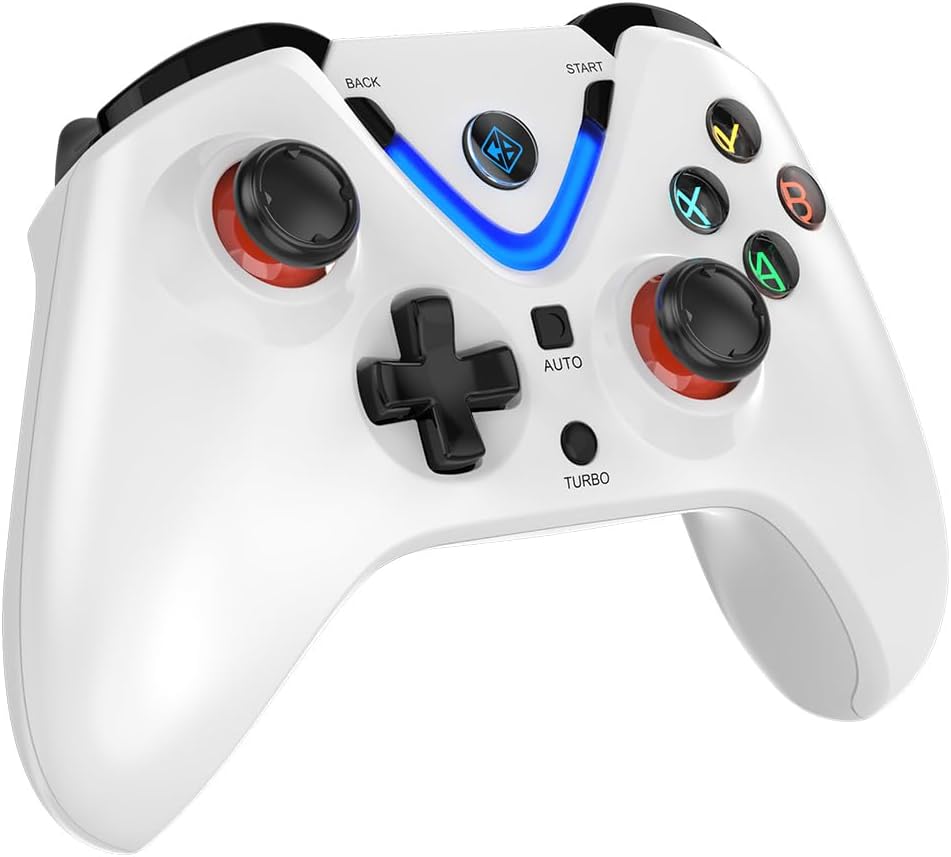
Iwaju view of the Cosmic Byte ARES Wireless Controller, showcasing the button layout, joysticks, D-pad, and central LED indicator.
2. Pataki Awọn ẹya ara ẹrọ
- Xinput and D Input Support: The controller automatically detects and supports both Xinput and D Input modes, ensuring compatibility with a wide range of PC games.
- Idahun gbigbọn: Experience immersive gameplay with the built-in vibration feature, providing tactile feedback for in-game events.
- Iṣẹ Turbo: The 'TURBO' button allows for rapid, repeated input of a selected action button. To activate, press and hold the 'TURBO' button, then press the desired action button (e.g., A, B, X, Y). To deactivate, repeat the process.
- Iṣẹ Aifọwọyi: The 'AUTO' button enables continuous, automatic input of a selected action button without holding it down. To activate, press and hold the 'AUTO' button, then press the desired action button. To deactivate, repeat the process.
- Awọn okunfa Ipa Hall: The controller is equipped with Hall Effect Triggers, providing precise and durable input for enhanced control.
- Apẹrẹ Ergonomic: The controller features ergonomic, rubberized textured sticks for improved grip and comfort during extended gaming sessions.
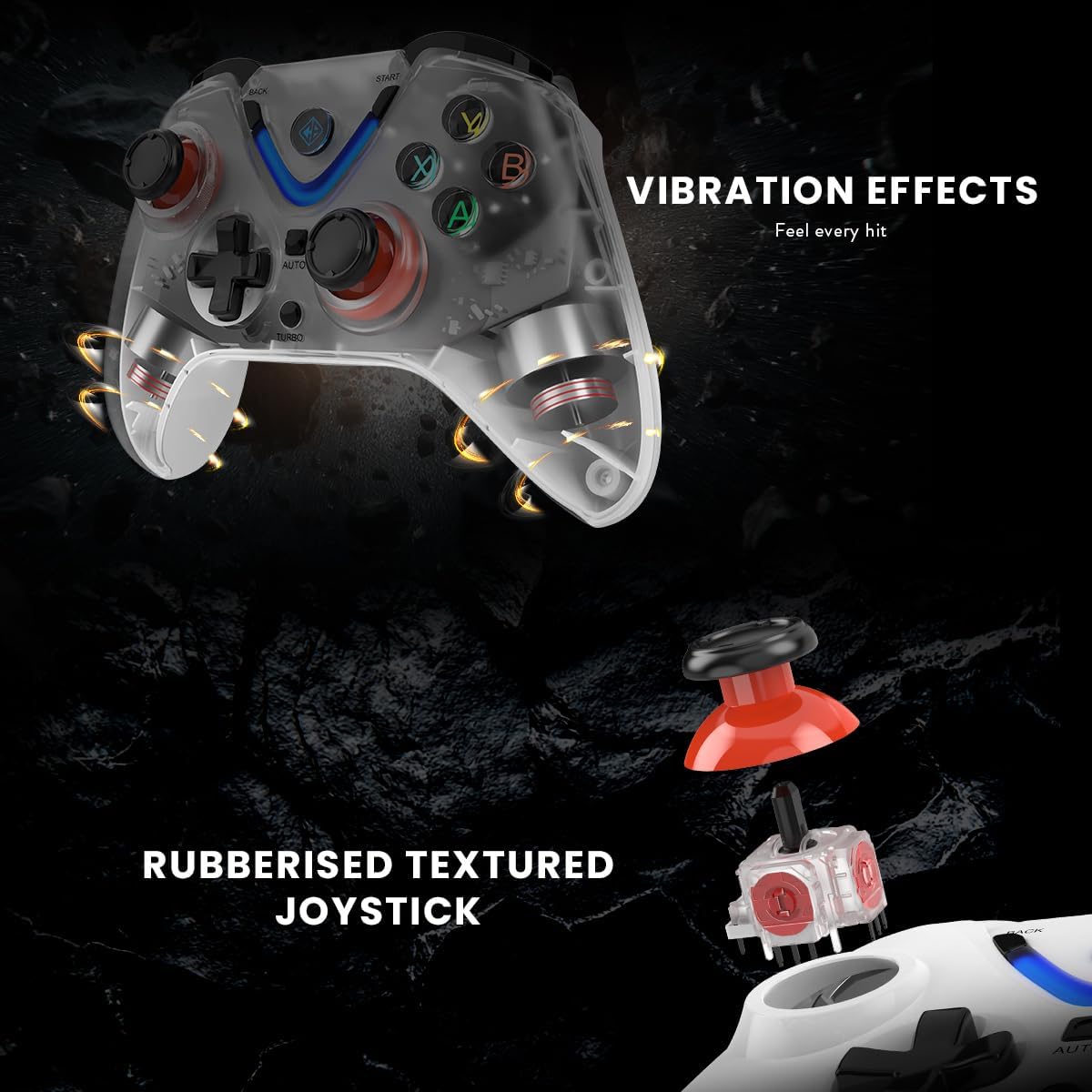
Illustration of the Cosmic Byte ARES Wireless Controller's vibration feedback feature and the design of its rubberized textured joysticks for enhanced grip.

Detail of the Cosmic Byte ARES Wireless Controller's Turbo and Auto function buttons, alongside an illustration of its Hall Effect Triggers for precise input.
Itoju
1. Ninu
To clean your controller, use a soft, dry cloth. For stubborn dirt, slightly dampen the cloth with water. Do not use harsh chemicals, solvents, or abrasive cleaners, as these can damage the controller's surface and internal components.
2. Itọju batiri
- Avoid exposing the controller to extreme temperatures (hot or cold).
- Do not leave the controller uncharged for extended periods. Charge it periodically if not in use.
- Do not attempt to replace the internal battery yourself. Contact support if battery issues arise.
Laasigbotitusita
1. Adarí Ko Nsopọ
- Ensure the USB wireless dongle is securely plugged into a working USB port on your PC.
- Make sure the controller is powered on and has sufficient battery charge.
- Try plugging the dongle into a different USB port on your PC.
- Restart your PC and try connecting again.
- If the issue persists, try re-pairing the controller by pressing the reset button (if available, usually a small pinhole on the back) on the controller and then the pairing button on the dongle (if applicable).
2. Àwọn bọ́tìnì/Joysticks kò dáhùn
- Check if the controller is properly connected to your PC.
- Rí i dájú pé eré tí o ń ṣe ń ṣe àtìlẹ́yìn fún ìtẹ̀síwájú gamepad.
- Test the controller with another game or a gamepad testing tool on your PC to rule out game-specific issues.
- Restart the controller and your PC.
3. Batiri Ko Ngba agbara
- Verify that the USB charging cable is correctly connected to both the controller and a powered USB port.
- Try using a different USB charging cable or a different USB port/power adapter.
- Ensure the charging port on the controller is free of debris.
Awọn pato
| Ẹya ara ẹrọ | Ẹ̀kúnrẹ́rẹ́ |
|---|---|
| Nọmba awoṣe | ARES Wireless White |
| Asopọmọra | Wireless (USB Dongle) |
| Alailowaya Ibiti | 8-10 mita |
| Batiri | 1 Lithium-polymer (included), 700mAh |
| Igbesi aye batiri | Up to 12 hours of continuous gaming |
| Ibamu | PC (Xinput & D Input) |
| Awọn iwọn Ọja (L x W x H) | 6 x 10 x 4 cm |
| Iwọn | 200 giramu |
| Ohun elo ita | Plastic and paper |
| Omi Resistance Ipele | Omi sooro |
| Olupese | Baiti agba aye |
Alaye atilẹyin ọja
The Cosmic Byte ARES Wireless Controller comes with a standard manufacturer's warranty. Please refer to the warranty card included in your product packaging or visit the official Cosmic Byte webAaye fun alaye atilẹyin ọja ofin ati ipo. Tọju iwe-ẹri rira rẹ bi ẹri rira fun eyikeyi awọn ibeere atilẹyin ọja.
Onibara Support
For technical assistance, troubleshooting not covered in this manual, or warranty inquiries, please contact Cosmic Byte customer support. Contact details can typically be found on the official Cosmic Byte webaaye tabi lori apoti ọja.


