1. Ifihan
This manual provides detailed instructions for the installation, operation, and maintenance of your Nivian NVS-ALARM1-W Wi-Fi Alarm System. This wireless security system is designed to protect your home or business without requiring monthly fees, offering control via the Tuya Smart App.
2. Ọja Ipariview
2.1. Package Awọn akoonu
The Nivian NVS-ALARM1-W kit includes the following components:
- Alarm Control Panel (main unit with integrated 90 dB siren)
- Alailowaya isakoṣo latọna jijin
- Magnetic Door/Window Detector
- Oluwari išipopada PIR

Image 2.1: Nivian NVS-ALARM1-W Wi-Fi Alarm System components, including the control panel, remote, door/window sensor, and PIR motion detector.
2.2. Key Awọn ẹya ara ẹrọ
- Ko si Awọn idiyele Oṣooṣu: Operate your security system without recurring subscription costs.
- Wi-Fi Asopọmọra: Connects to your home network for app control and instant notifications.
- Iṣakoso Ohun elo ọlọgbọn Tuya: Manage your system from anywhere using the compatible Android and iOS application.
- 90 dB Siren: Integrated siren in the control panel to deter intruders.
- Iṣẹ SOS: Emergency alert feature via remote or app to notify authorized contacts.
- Eto ti o le gbooro: Supports up to 60 additional wireless devices (e.g., sirens, motion detectors, panic buttons, keypads).
- Batiri Afẹyinti: Control panel includes a backup battery providing up to 4 hours of operation during power outages.

Aworan 2.2: Example floor plan illustrating the expandability of the Nivian system with various wireless sensors and devices.
3. Eto
3.1. Ibẹrẹ Agbara-soke
- Unpack all components and ensure everything listed in Section 2.1 is present.
- Connect the alarm control panel to a power outlet using the provided adapter. The panel will power on automatically.
3.2. App Download ati Account Creation
- Gba awọn Tuya Smart application from the App Store (iOS) or Google Play Store (Android).
- Ṣii app naa ki o forukọsilẹ fun akọọlẹ tuntun tabi wọle ti o ba ti ni ọkan tẹlẹ.
3.3. Nsopọ si Wi-Fi
- In the Tuya Smart app, tap the "+" icon to add a new device.
- Select "Security & Video Surveillance" and then "Alarm (Wi-Fi)" or search for your specific model.
- Follow the on-screen instructions to connect the control panel to your 2.4 GHz Wi-Fi network. Ensure your phone is connected to the same Wi-Fi network during setup.
3.4. Pairing Sensors and Remote Control
The included sensors and remote control are typically pre-paired with the control panel. If re-pairing is necessary or for adding new devices:
- Access the device management section within the Tuya Smart app for your alarm system.
- Select the option to add a new accessory or sensor.
- Follow the app's instructions to trigger the sensor or remote control for pairing. This usually involves activating the device (e.g., opening a door for a magnetic sensor, pressing a button on the remote).
3.5. Sensor Placement Recommendations
- Door/Window Detectors: Install on the frame of doors and windows. Ensure the two parts of the sensor are aligned and within 1 cm of each other when the door/window is closed.
- Àwọn Olùṣàwárí Ìṣípo PIR: Mount in corners of rooms, approximately 2-2.5 meters (6.5-8 feet) high, ensuring a clear line of sight to the area you wish to monitor. Avoid placing near heat sources or direct sunlight.

Aworan 3.1: Example placement of Nivian alarm system components within a living room environment.

Image 3.2: The Tuya Smart app interface for managing the alarm system.
4. Awọn ilana Iṣiṣẹ
4.1. Arming ati Disarming System
The system can be armed or disarmed using the remote control or the Tuya Smart app.
- Apá (Ipo Lọ): Activates all sensors. Use when leaving the premises.
- Ipò Ilé: Activates perimeter sensors (e.g., door/window sensors) while allowing movement within the property.
- Tu silẹ: Deactivates all sensors. Use when entering or staying on the premises.
4.2. Lilo isakoṣo latọna jijin
The remote control typically features buttons for Arm, Disarm, Home Mode, and SOS. Refer to the remote's markings for specific functions.
4.3. Tuya Smart App Control and Notifications
The app provides full control over your alarm system, including arming/disarming, checking sensor status, and receiving instant notifications for any triggered alarms or system changes.

Image 4.1: Family members receiving instant notifications from the alarm system on their smart devices.
4.4. SOS Išė
In an emergency, press the SOS button on the remote control or activate it via the app. This will send an immediate alert to all authorized users configured in the Tuya Smart app.

Image 4.2: The SOS function can be activated via the remote control for immediate assistance.
4.5. Smart Home Integration
The Nivian NVS-ALARM1-W system is compatible with other Nivian smart home devices and voice assistants like Amazon Alexa and Google Assistant, allowing for automated scenes and voice control.
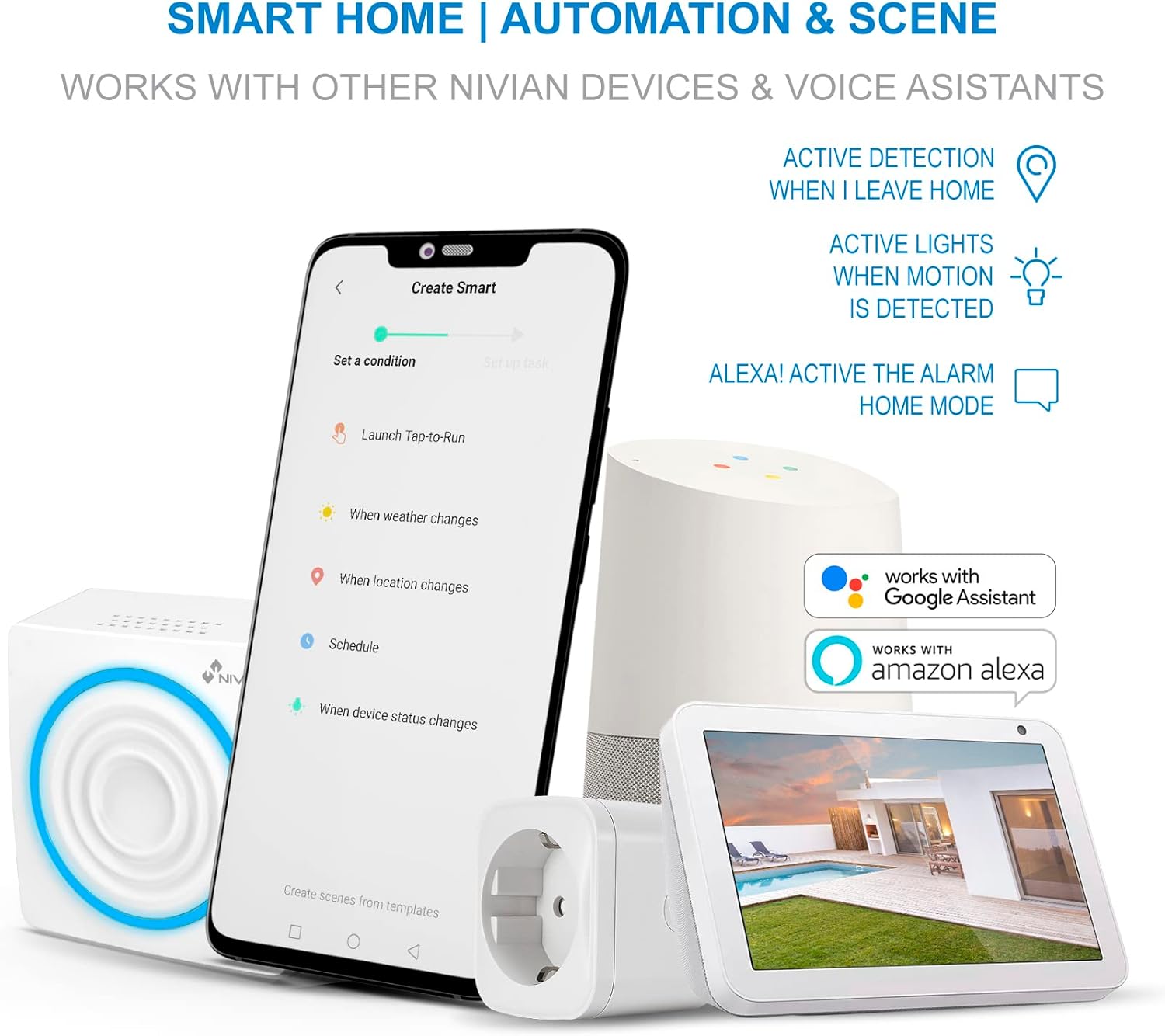
Image 4.3: The system's compatibility with Google Assistant and Amazon Alexa for smart home automation.
5. Itọju
5.1. Batiri afẹyinti
The control panel features a built-in Lithium-ion backup battery, providing approximately 4 hours of operation during a power outage. The system will notify your smartphone if a power cut occurs.
5.2. Sensor Batteries
Wireless sensors (PIR, door/window) are battery-powered. Monitor battery levels via the Tuya Smart app and replace batteries as needed to ensure continuous operation. Specific battery types for each sensor are usually indicated on the device itself or in its individual manual.
5.3. Ninu
Pa igbimọ iṣakoso ati awọn sensọ kuro pẹlu asọ ti o gbẹ. Yago fun lilo abrasive ose tabi epo.
5.4. Awọn imudojuiwọn famuwia
Periodically check the Tuya Smart app for available firmware updates for your alarm system. Updates can improve performance and add new features.
6. Laasigbotitusita
- System not connecting to Wi-Fi: Ensure your Wi-Fi network is 2.4 GHz. Verify the Wi-Fi password. Move the control panel closer to your router. Restart your router and the alarm panel.
- Sensor not triggering alarm: Check the sensor's battery level in the app. Ensure the sensor is properly paired. For magnetic sensors, verify the alignment of the two parts. For PIR motion detectors, ensure there are no obstructions and that it is placed correctly.
- PIR Motion Detector retrigger delay: The PIR motion detector has a built-in delay. After an initial detection, it will only retrigger if no movement is detected for approximately 4 minutes. Continuous movement within this period will delay subsequent triggers. This is a normal operational characteristic.
- Siren not sounding: Check the volume settings in the Tuya Smart app. Ensure the control panel is powered on and not in a silent mode.
- A ko gba awọn iwifunni ohun elo: Ensure the Tuya Smart app has notification permissions enabled on your smartphone. Check your phone's internet connection.
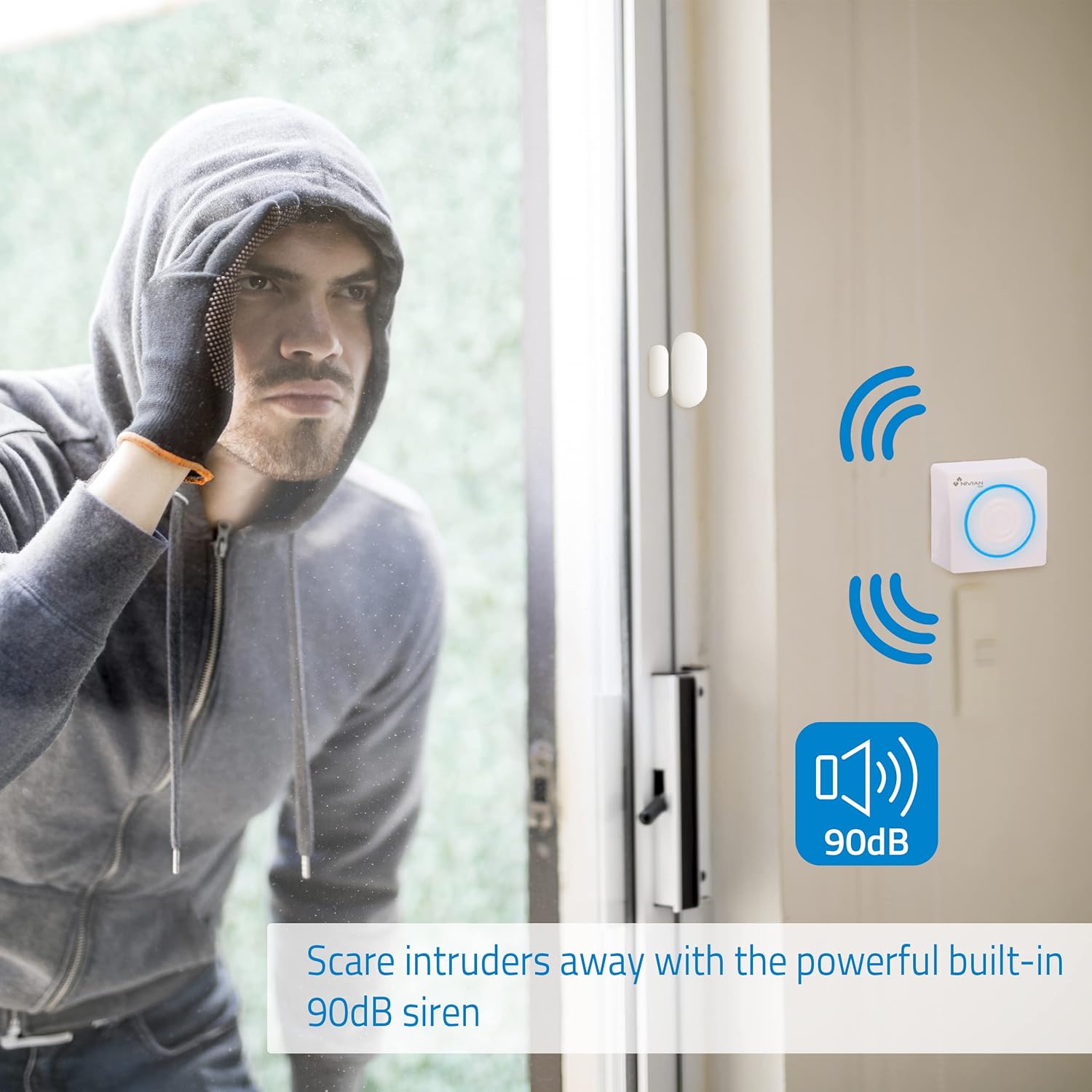
Image 6.1: The 90 dB siren is designed to deter potential intruders.
7. Awọn pato
| Nọmba awoṣe | NVS-ALARM1-W |
| Brand | NIVIAN |
| Awọn iwọn (L x W x H) | 20 x 8 x 11 cm |
| Iwọn | 360 giramu |
| Orisun agbara | Battery powered (main unit with adapter) |
| Afẹyinti Iru Batiri | Litiumu-dẹlẹ |
| Afẹyinti batiri Life | Isunmọ. wakati meji 4 |
| Asopọmọra Technology | Ailokun (Wi-Fi) |
| Ọna Iṣakoso | Application (Tuya Smart App) |
| Awọn ẹrọ ibaramu | Foonuiyara, Amazon Alexa, Google Iranlọwọ |
| Iru Itaniji | Audio ati išipopada |
| Iru fifi sori ẹrọ | DIY Alailowaya |
8. Atilẹyin ọja ati Support
For warranty information, technical support, or service inquiries, please refer to the documentation provided with your purchase or contact Nivian customer support directly. Contact details can typically be found on the manufacturer's official webojula tabi nipasẹ rẹ alagbata.


