1. Ifihan
The IFYOO GTP01 Wired USB Gaming Touchpad combines keyboard and mouse functionalities into a compact gamepad form factor. Designed for precision and comfort, it is compatible with PC (Windows 11, 10, 8, 7), Xbox One, Xbox Series S/X, PS4, and PS5. This device is intended for games that support keyboard and mouse input.
This manual provides detailed instructions for setup, operation, maintenance, and troubleshooting to ensure optimal performance and user experience.
2. Package Awọn akoonu
- 1x IFYOO GTP01 Wired USB Gaming Touchpad
- 1x Itọsọna olumulo (iwe yii)
3. Ọja Ipariview
The GTP01 features a large precision trackpad, a left joystick, and up to 24 buttons and triggers equipped with mouse micro switches for tactile feedback. It includes a scroll wheel and back buttons for enhanced control.

olusin 3.1: Oke ati isalẹ view of the IFYOO GTP01 Gaming Touchpad.
3.1 Key Awọn ẹya ara ẹrọ
- Mouse-Level Precision Trackpad: Large trackpad (8.4cm x 6.3cm) for accurate aiming, precise tracking, and fast turning.
- Micro Switch Buttons: Up to 13 buttons feature mouse micro switches for crisp, tactile feedback and a 5 million click lifespan.
- Alps Joystick: Short concave joystick for enhanced movement control.
- Apẹrẹ Ergonomic: Anti-slip textured back grip and carefully placed buttons for comfortable use.
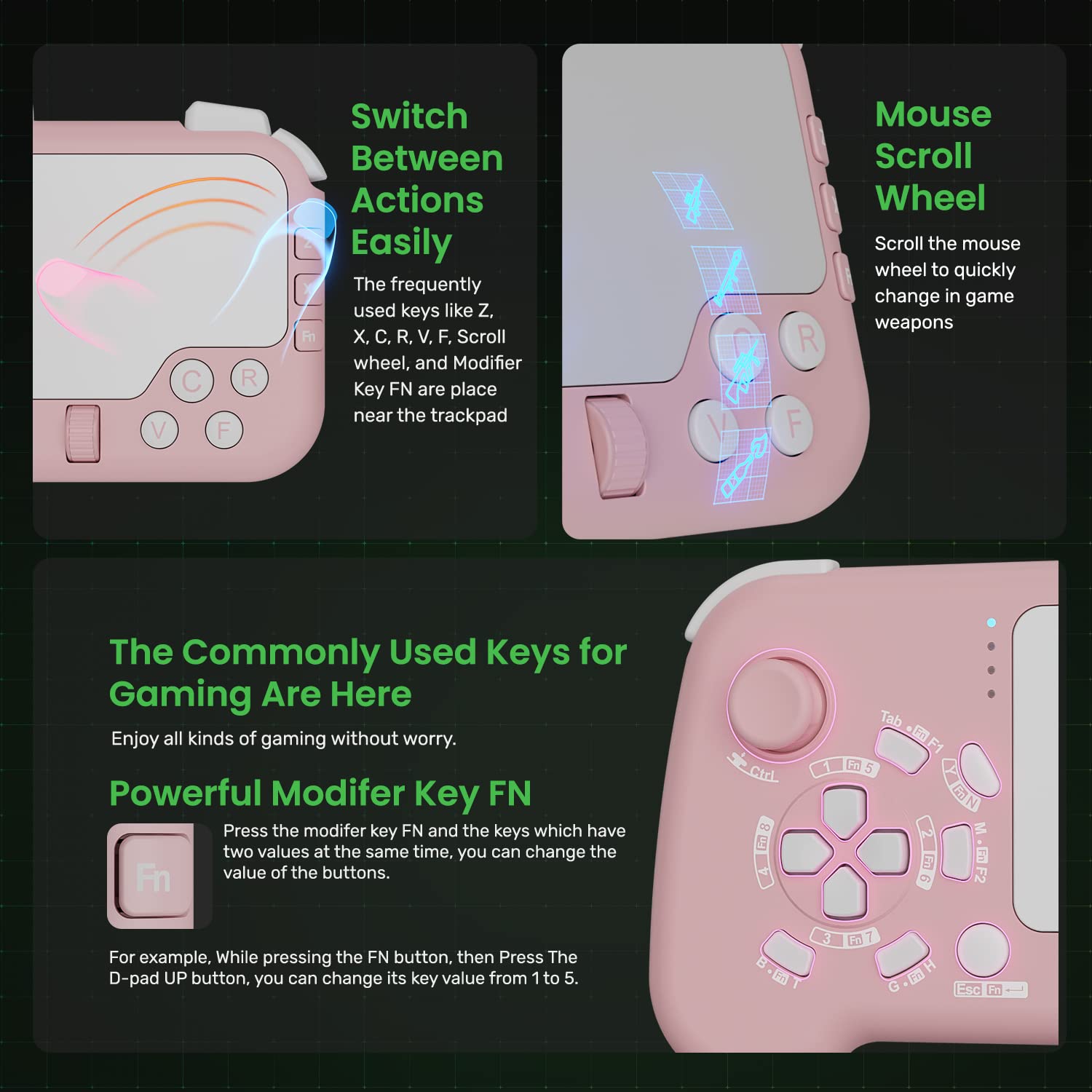
- Modifier Key (FN): Allows changing key mappings for D-pad and other buttons to suit various game requirements.
- Back Buttons & Scroll Wheel: Three programmable back buttons and a mouse scroll wheel for quick in-game actions.
- Pulọọgi & Ṣiṣẹ: Ko si awakọ ti o beere.

Figure 3.2: Detailed key layout of the IFYOO GTP01, showing primary and FN-modified functions.
4. Eto
4.1 System Awọn ibeere
- PC: Windows 11, Windows 10, Windows 8, Windows 7
- Awọn consoles ere: Xbox One, Xbox Series S/X, PS4, PS5
- Note: Console games must support keyboard and mouse input for compatibility.
4.2 Nsopọ Ẹrọ naa
- Locate an available USB port on your PC or game console.
- Plug the USB cable of the IFYOO GTP01 into the USB port.
- The device is Plug & Play and does not require additional drivers. Your system should automatically recognize the device.
- For console use, ensure the game you intend to play supports keyboard and mouse input.

Figure 4.1: The GTP01 connected via its 10-foot USB cable to a gaming console.
5. Awọn ilana Iṣiṣẹ
5.1 Recommended Holding Posture
For optimal control and comfort, fit the right side of the device to the joints of your fingers and palm. Use your thumb tip to slide on the touchpad for precise control. This allows for a larger slide range and easier access to the right-side buttons.

Figure 5.1: Illustration of the recommended ergonomic grip for the GTP01.
Video 5.1: Demonstration of recommended and non-recommended holding gestures for the GTP01. This video highlights how to properly grip the device for optimal thumb movement on the touchpad and easy access to side buttons, contrasting it with incorrect grips that limit control.
5.2 Iṣẹ́ Fọwọ́kàn
- Gbigbe: Slide your finger across the touchpad to move the mouse pointer or control in-game camera/view.
- Backward Key: Press the touchpad down to activate the Backward Key function.
Video 5.2: Demonstration of touchpad functionality, including mouse pointer movement and activating the backward key by pressing the touchpad. This video also shows in-game view movement using the touchpad.
5.3 Joystick isẹ
The left joystick controls movement. The up, down, left, and right directions correspond to W, S, A, and D key values respectively. Pressing the joystick down outputs the Ctrl key value.
Video 5.3: Demonstration of joystick operation, showing how directional inputs map to W, S, A, D keys and how pressing the joystick down activates the Ctrl key.
5.4 FN Modifier Key
The FN modifier key allows you to access secondary functions for certain buttons. To use a secondary function, hold down the FN key and then press the desired button. For example, holding FN and pressing the D-pad Up button will output key value 5 instead of 1.
Video 5.4: Demonstration of the FN key functionality, illustrating how to activate secondary key values for buttons like the D-pad.
5.5 Mouse Buttons and Scroll Wheel
- Tẹ osi: Located on the left shoulder button (Q).
- Tẹ-ọtun: Located on the right shoulder button (E).
- Yi lọ Kẹkẹ: Functions identically to a standard mouse scroll wheel for scrolling. Pressing the scroll wheel down activates its middle mouse button function.
Video 5.5: Demonstration of mouse button and scroll wheel operations, including left click, right click, scrolling, and pressing the scroll wheel for its middle button function.
Àwọn bọ́tìnì ẹ̀yìn méjì
The GTP01 includes three back buttons (Space, Left Shift, Left Alt) for additional customizable controls, allowing for quick access to frequently used actions.
Nọmba 5.2: View of the back buttons and the anti-slip textured grip.
6. Itọju
- Jeki ẹrọ naa di mimọ nipa fifẹ rẹ pẹlu asọ ti o gbẹ.
- Yago fun ṣiṣafihan ẹrọ naa si awọn iwọn otutu to gaju, ọriniinitutu, tabi oorun taara.
- Do not attempt to disassemble the device, as this may void the warranty.
- Tọju ẹrọ naa si aaye ailewu nigbati o ko ba wa ni lilo lati ṣe idiwọ ibajẹ.
7. Laasigbotitusita
7.1 A ko mọ ẹ̀rọ naa
- Ensure the USB cable is securely plugged into both the device and the computer/console.
- Try plugging the device into a different USB port.
- Tun kọmputa rẹ tabi console bẹrẹ.
- For PC, check Device Manager to see if the device is listed and if there are any driver issues (though no specific drivers are typically needed).
7.2 Input Lag or Unresponsive Controls
- Rii daju wipe okun USB ko baje.
- Verify that the game you are playing supports keyboard and mouse input.
- Reduce other USB device connections to free up bandwidth if experiencing issues on PC.
7.3 Touchpad Precision Issues
- Ensure your thumb is clean and dry when using the touchpad.
- Adjust in-game mouse sensitivity settings to find your preferred precision level.
- Practice the recommended holding posture (refer to Section 5.1) for better control.
8. Awọn pato
| Nọmba awoṣe | GTP01 |
| Brand | IFYOO |
| Asopọmọra | USB ti a firanṣẹ |
| USB Ipari | 10 Feet (approximately 3 meters) |
| Ibamu | PC (Windows 11/10/8/7), Xbox One, Xbox Series S/X, PS4, PS5 (games must support KBM) |
| Awọn iwọn | 6.77 x 4.25 x 1.65 inches |
| Iwọn | 10.6 iwon |
| Ìwọ̀n Pádì Ìtọ́pasẹ̀ | 8.4cm x 6.3cm (approximate) |
| Bọtini Igbesi aye | 5 Million Clicks (Micro Switches) |
9. Atilẹyin ọja ati Support
For warranty information and technical support, please refer to the official IFYOO webojula tabi kan si wọn onibara iṣẹ taara. Tọju iwe-ẹri rira rẹ bi ẹri rira fun awọn iṣeduro atilẹyin ọja.
IFYOO Official Webojula: Visit IFYOO Store on Amazon


