1. Ifihan
O ṣeun fun riraasing the NEDIS SmartLife Wi-Fi Smart Plug with Power Meter. This device allows you to control connected appliances remotely via the SmartLife app on your smartphone or through voice commands with compatible smart home assistants like Google Home and Amazon Alexa. It also features a power meter to monitor energy consumption.
Please read this manual carefully before use to ensure proper operation and to prevent damage.
2. Alaye Aabo
- Ensure the smart plug is used within its specified voltage àti àwọn ìdíyelé lọ́wọ́lọ́wọ́ (240V, 16A, 3680W).
- Ma ṣe tuka tabi yi ẹrọ naa pada.
- Yago fun ṣiṣafihan ẹrọ naa si omi, ọrinrin, tabi awọn iwọn otutu to gaju.
- Jeki kuro ni arọwọto awọn ọmọde.
- Do not connect appliances that exceed the maximum load capacity.
- Fun lilo inu ile nikan.
3. Package Awọn akoonu
- NEDIS SmartLife Wi-Fi Smart Plug (WIFIP121FWT3)
- Ilana itọnisọna
Note: The product is typically sold in packs of 3. This manual covers the operation of a single unit.
4. Eto
4.1. Download the SmartLife App
- Wa fun "SmartLife" in the Apple App Store (for iOS devices) or Google Play Store (for Android devices).
- Ṣe igbasilẹ ati fi sori ẹrọ ohun elo naa.
- Forukọsilẹ iroyin titun tabi wọle ti o ba ti ni ọkan tẹlẹ.
4.2. Connect the Smart Plug
- Plug the NEDIS SmartLife Wi-Fi Smart Plug into a standard wall outlet.
- Ensure your smartphone is connected to a 2.4 GHz Wi-Fi network. The smart plug does not support 5 GHz Wi-Fi.
- Open the SmartLife app.
- Fọwọ ba aami "+" ni igun apa ọtun loke lati fi ẹrọ kan kun.
- Yan "Ibusọ ina" tabi "Smart Plug" lati inu akojọ awọn ẹrọ.
- Follow the on-screen instructions to put the smart plug into pairing mode. This usually involves pressing and holding the power button on the plug until the indicator light flashes rapidly.
- Confirm the indicator light is flashing rapidly in the app.
- Tẹ ọrọ igbaniwọle nẹtiwọọki Wi-Fi rẹ sii.
- Wait for the app to connect to the smart plug. Once connected, you can rename the device for easier identification.
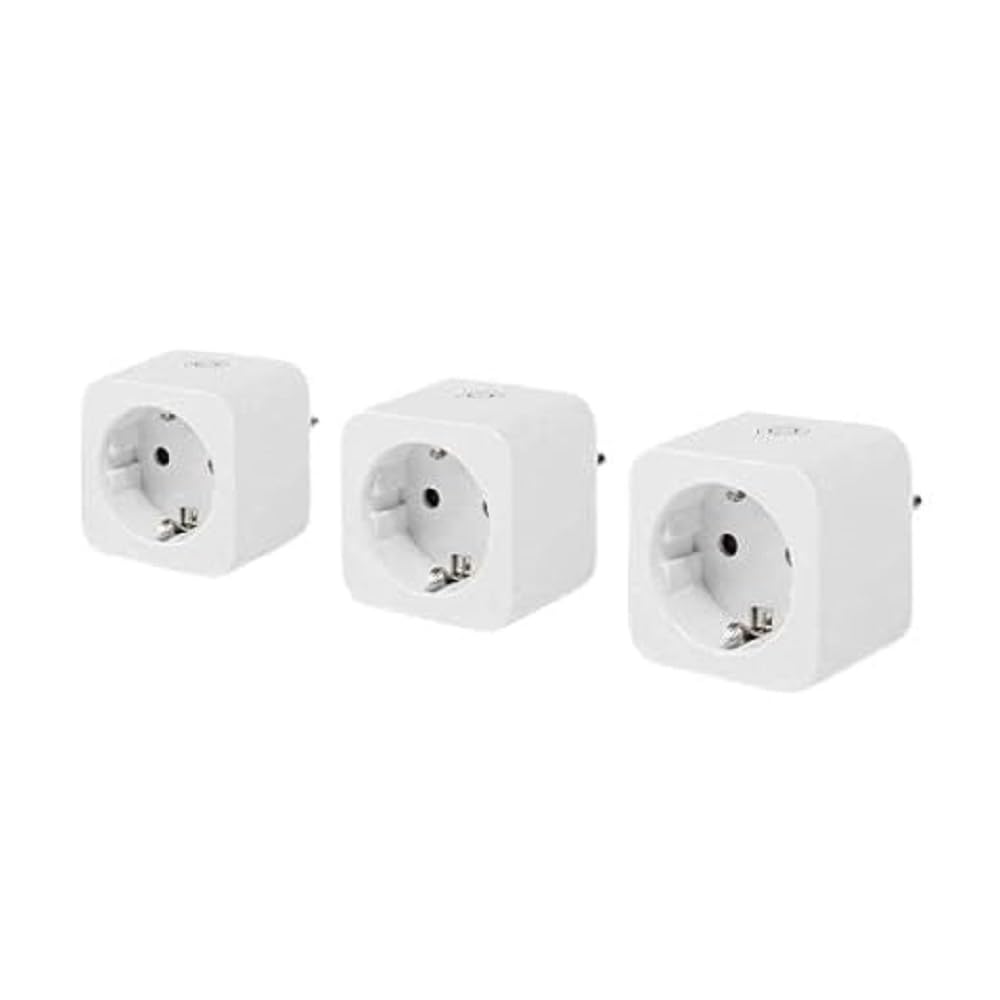
Image: The NEDIS SmartLife Wi-Fi Smart Plug. This image shows the compact design of the smart plug, which connects directly to a wall outlet.
5. Awọn ilana Iṣiṣẹ
5.1. Ipilẹ Tan / Pa Iṣakoso
- Iṣakoso Afowoyi: Press the physical button on the smart plug to turn the connected appliance on or off.
- Ohun elo Iṣakoso: Open the SmartLife app, select your smart plug, and tap the power icon to toggle its state.
5.2. Ṣíṣètò àti Àkókò
The SmartLife app allows you to set schedules and timers for your smart plug:
- Eto: Set specific times for the plug to turn on or off daily or on selected days of the week.
- Aago: Set a countdown timer for the plug to turn off after a certain duration.
- Yi kaakiri: Configure the plug to cycle on and off at regular intervals.
5.3. Abojuto Agbara
The integrated power meter allows you to monitor the energy consumption of the connected appliance. In the SmartLife app, navigate to the smart plug's details page to view real-time power usage, current, voltage, and historical consumption data.
5.4. Iṣakoso ohun Integration
Lati mu iṣakoso ohun ṣiṣẹ pẹlu Ile Google tabi Amazon Alexa:
- Ensure your smart plug is successfully added to the SmartLife app.
- Ṣii ohun elo Google Home tabi Amazon Alexa.
- Go to the "Skills & Games" (Alexa) or "Works with Google" (Google Home) section.
- Wa fun and enable the "SmartLife" skill/service.
- Link your SmartLife account when prompted.
- Discover devices. Your smart plug should now appear and be controllable via voice commands (e.g., "Alexa, turn on Living Room Plug" or "Hey Google, turn off Fan").
6. Itọju
- Fi aṣọ gbígbẹ tí ó rọ, fọ pulọọgi onímọ̀-ẹ̀rọ náà. Má ṣe lo àwọn ohun ìfọṣọ omi tàbí àwọn aerosol.
- Rii daju pe ẹrọ naa ti yọọ kuro ṣaaju ṣiṣe mimọ.
- Regularly check for firmware updates in the SmartLife app to ensure optimal performance and security.
7. Laasigbotitusita
| Isoro | Owun to le Fa | Ojutu |
|---|---|---|
| Pulọọgi Smart ko sopọ si Wi-Fi. | Incorrect Wi-Fi password, 5 GHz Wi-Fi network, plug too far from router, incorrect pairing mode. |
|
| Device not responding to app commands. | No internet connection, smart plug offline, app glitch. |
|
| Iṣakoso ohun ko ṣiṣẹ. | SmartLife skill not enabled, account not linked, device not discovered. |
|
8. Awọn pato
| Ẹya ara ẹrọ | Ẹ̀kúnrẹ́rẹ́ |
|---|---|
| Brand | NEDIS |
| Nọmba awoṣe | WIFIP121FWT3 |
| Awọn iwọn Ọja (L x W x H) | 8 x 6 x 5.5 cm |
| Iwọn | 320 giramu |
| Ohun elo | Ṣiṣu |
| Max Power fifuye | 3680 Wattis |
| Ti isiyi Rating | 16 A |
| Awọn ọna Voltage | 240 Volts |
| Electrical Outlet Type | Type F (CEE 7/7), Wall Mount |
| Alailowaya Asopọmọra | Wi-Fi 2.4 GHz |
| Awọn iwọn otutu ti nṣiṣẹ | 0-55 °C |
| Ibamu | Android™, iOS, Google Home, Amazon Alexa |
| Awọn iwe-ẹri | CE |
| Ilu isenbale | China |
9. Atilẹyin ọja ati Support
Specific warranty information for the NEDIS SmartLife Wi-Fi Smart Plug (WIFIP121FWT3) is not available in the provided product data. Please refer to the warranty card included with your purchase or contact NEDIS customer support directly for detailed warranty terms and conditions.
For technical support or further assistance, please visit the official NEDIS website or contact their customer service department. Contact details are typically found on the product packaging or on the manufacturer's webojula.


