Homatics DONGLE G 4K HDMI Streaming Device
Itọsọna olumulo
1. Ifihan
The Homatics DONGLE G is a compact and powerful 4K HDMI streaming device designed to transform any compatible display into a smart Google TV experience. Running on Android Google TV 11, it provides access to a vast library of applications, movies, and shows. With integrated Wi-Fi, LAN connectivity, and a voice-enabled remote control, it offers a comprehensive and user-friendly entertainment solution.

Image: The Homatics DONGLE G streaming dongle and its accompanying voice remote control, shown alongside the product packaging.
2. Ohun ti o wa ninu Apoti
Jẹrisi pe gbogbo awọn paati wa ninu package:
- Homatics DONGLE G (Model 700D)
- Iṣakoso Latọna jijin (Ohùn ṣiṣẹ)
- Adapter agbara
- Okun agbara
- Afowoyi Olumulo (iwe-ipamọ yii)

Image: A visual representation of the Homatics DONGLE G package contents, including the dongle, remote, power adapter, power cable, and manual.
3. Ọja Ipariview
Familiarize yourself with the Homatics DONGLE G and its remote control:
3.1. Homatics DONGLE G Device
The dongle features an integrated HDMI connector for direct plug-in to your TV. It includes a USB-C port for power and potential expansion, and an RJ45 Ethernet port for wired network connectivity.
3.2. Iṣakoso Latọna jijin Ohùn
The remote control allows for intuitive navigation and voice commands. Key buttons include Power, Home, Back, Volume Up/Down, Channel Up/Down, and dedicated buttons for popular streaming services like YouTube and Netflix. The central directional pad is used for menu navigation.

Aworan: A sunmọ-soke view of the Homatics DONGLE G, highlighting its HDMI connector, USB-C port, and RJ45 port, alongside the voice remote control.
4. Eto Itọsọna
- So Dongle pọ: Plug the Homatics DONGLE G directly into an available HDMI port on your television or display.
- So agbara: Connect the provided power cable to the USB-C port on the dongle and then plug the power adapter into a wall outlet. The device will power on automatically.
- Yan Iṣawọle HDMI: Using your TV's remote control, select the corresponding HDMI input source to which the Homatics DONGLE G is connected.
- Pọ Iṣakoso Latọna jijin: Follow the on-screen instructions to pair the Homatics remote control via Bluetooth. This typically involves holding down specific buttons on the remote until a pairing confirmation appears.
- Iṣeto akọkọ: Follow the on-screen prompts to complete the initial setup, which includes connecting to your Wi-Fi network (or using the LAN port), logging into your Google account, and installing essential apps.

Image: The Homatics DONGLE G connected to the HDMI port of a television, illustrating its compact form factor and ease of integration.
5. Awọn ilana Iṣiṣẹ
5.1. Lilọ kiri
Use the directional pad on the remote control to navigate through menus and select items on the Google TV interface. The 'OK' button in the center confirms selections. The 'Back' button returns to the previous screen, and the 'Home' button takes you to the main Google TV home screen.
5.2. Iṣakoso Ohun (Oluranlọwọ Google)
Press the Google Assistant button on your remote (usually a microphone icon) and speak clearly into the remote to issue commands. You can search for content, open apps, control smart home devices, and get information.
5.3. App Installation and Management
Access the Google Play Store from the home screen to download and install a wide variety of streaming apps, games, and utilities. Apps can be managed (moved, uninstalled) from the 'Apps' section in the Google TV interface settings.

Image: The Homatics DONGLE G displaying the Google TV interface on a television screen, showcasing various streaming service icons and content recommendations.
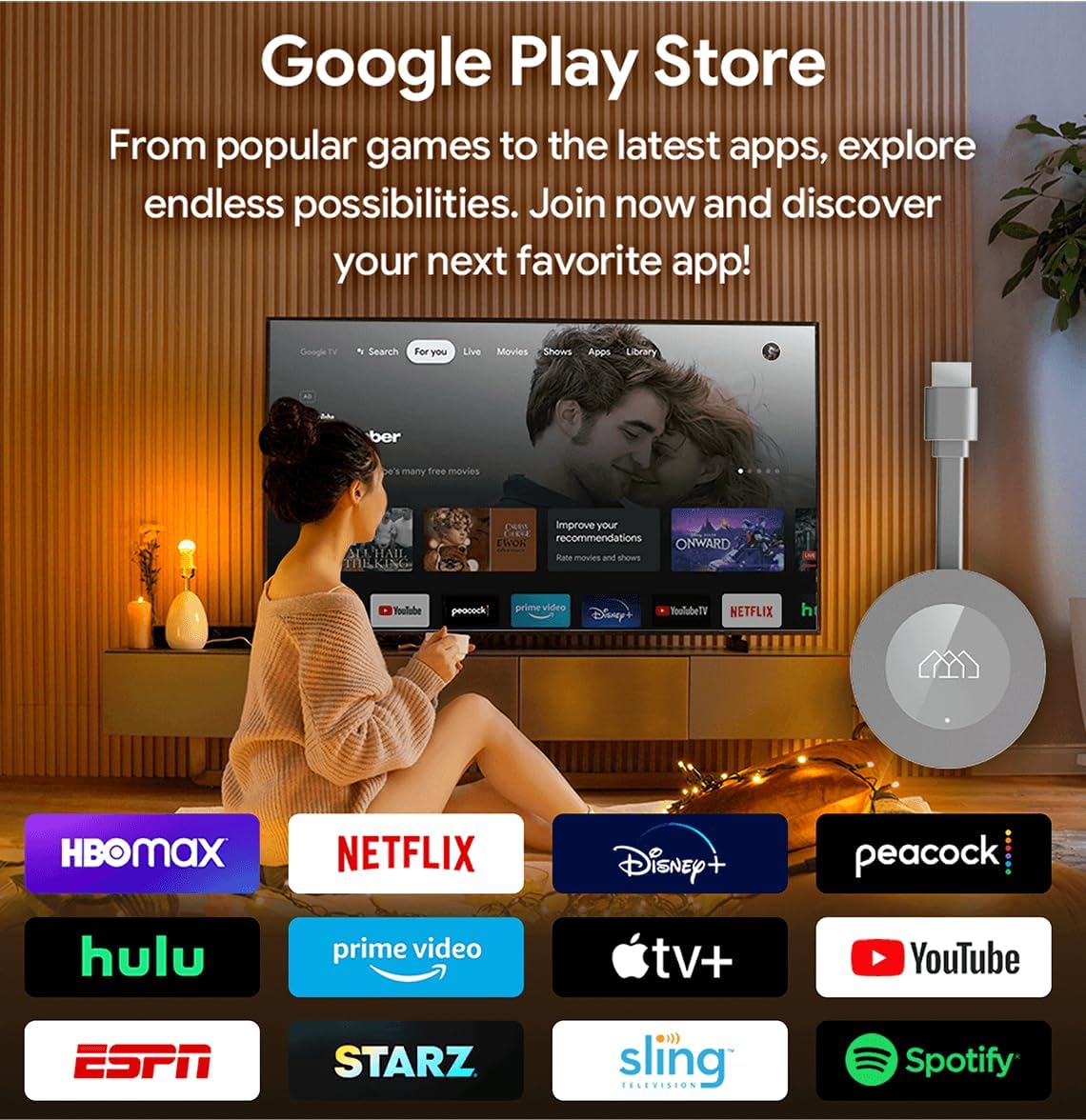
Image: The Google Play Store interface as seen on a television screen via the Homatics DONGLE G, illustrating the availability of numerous applications.
6. Asopọmọra
6.1. Asopọ Wi-Fi
The device supports Wi-Fi 5 (802.11 b/g/n/ac) for wireless internet access. During initial setup, you will be prompted to select your Wi-Fi network and enter the password. To change Wi-Fi settings later, navigate to Settings > Network & Internet.
6.2. LAN (Ethernet) Connection
For a more stable and potentially faster internet connection, connect an Ethernet cable from your router to the RJ45 port on the Homatics DONGLE G. The device will automatically detect and prioritize the wired connection.
6.3. Bluetooth Asopọmọra
The Homatics DONGLE G features Bluetooth 5.0, allowing you to connect compatible accessories such as headphones, gamepads, or external speakers. To pair a new Bluetooth device, go to Settings > Remotes & Accessories > Pair new device.
6.4. USB-C Expansion
The USB-C port on the dongle can be used for power and also supports connection of certain USB accessories via a compatible hub (not included). This allows for expanded storage (SSD), gamepads, or webcams for enhanced functionality.
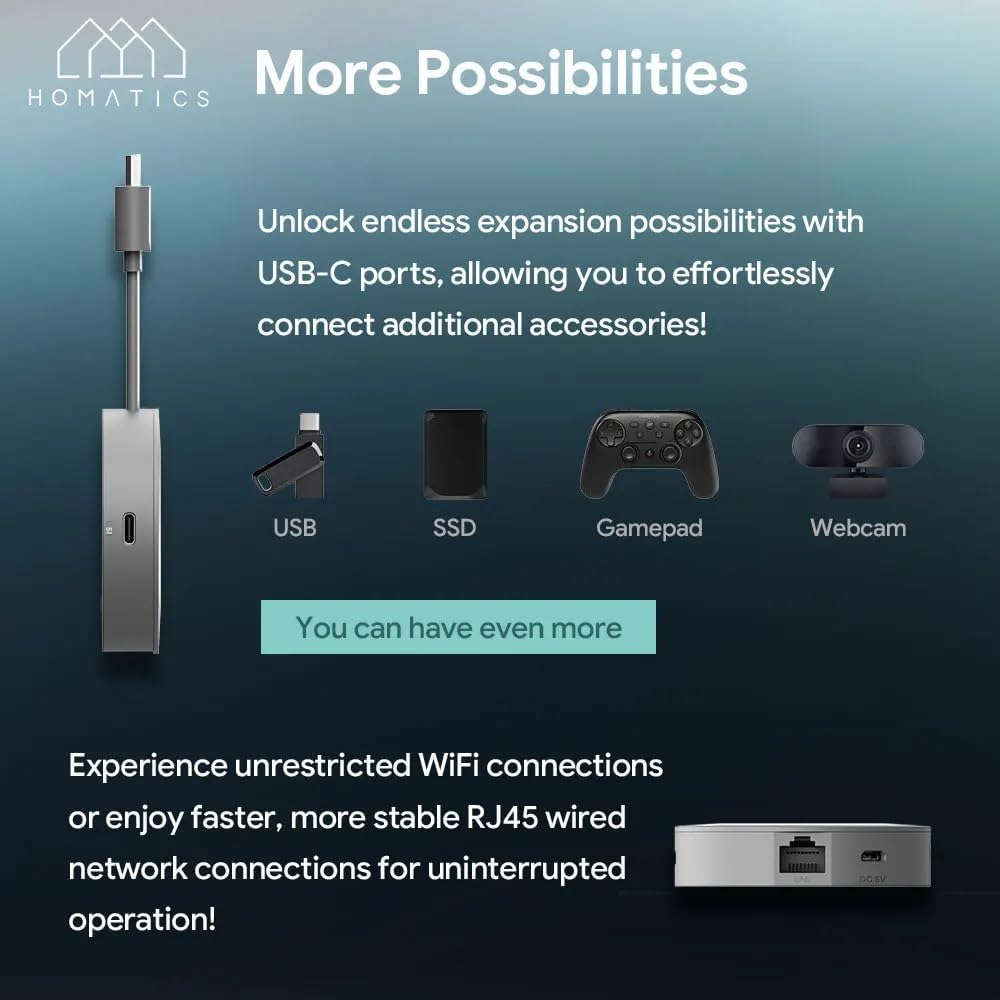
Image: The Homatics DONGLE G connected to a USB-C hub, illustrating the potential for connecting various accessories such as USB drives, SSDs, gamepads, and webawọn kamẹra.
7. Itọju
- Ninu: Use a soft, dry cloth to clean the device and remote. Do not use liquid cleaners or aerosols.
- Afẹfẹ: Ensure the device is placed in a well-ventilated area to prevent overheating. Do not cover the dongle.
- Awọn imudojuiwọn sọfitiwia: The device will periodically receive software updates. Ensure it is connected to the internet to receive these updates, which improve performance and add new features.
- Ibi ipamọ: Nigbati o ko ba wa ni lilo fun awọn akoko ti o gbooro sii, fi ẹrọ naa pamọ si ibi ti o tutu, ti o gbẹ.
8. Laasigbotitusita
| Isoro | Owun to le Solusan |
|---|---|
| Ko si agbara/Ẹrọ ti ko tan | Ensure the power cable is securely connected to the dongle and the power adapter is plugged into a working electrical outlet. Try a different outlet. |
| Ko si ifihan agbara lori TV | Verify the dongle is fully inserted into the HDMI port. Check that your TV is set to the correct HDMI input source. Try a different HDMI port. |
| Isakoṣo latọna jijin ko dahun | Ensure the remote has fresh batteries. Re-pair the remote by following the on-screen instructions during initial setup or via Settings > Remotes & Accessories. |
| Ko le sopọ si Wi-Fi | Check your Wi-Fi password. Ensure your router is working correctly. Try restarting your router and the Homatics DONGLE G. Move the device closer to the router if possible. |
| Ohun èlò náà máa ń wó lulẹ̀ tàbí ó máa ń dì | Try force-stopping the app (Settings > Apps > [App Name] > Force stop). Clear the app's cache (Settings > Apps > [App Name] > Clear cache). If the problem persists, uninstall and reinstall the app. |
9. Awọn pato
Technical specifications for the Homatics DONGLE G:
| Ẹya ara ẹrọ | Ẹ̀kúnrẹ́rẹ́ |
|---|---|
| Orukọ awoṣe | DONGLE G |
| Eto isesise | Android Google TV 11 |
| Ipinnu | Titi di 4K UHD |
| isise | Quad Core Cortex-A35 (Amlogic S905Y4) |
| Àgbo | 2GB LPDDR4 |
| Filaṣi Ibi ipamọ | 8GB eMMC Flash |
| Asopọmọra | Wi-Fi 5 (802.11 b/g/n/ac), Bluetooth 5.0, RJ45 (10/100M Ethernet) |
| Ijade fidio | HDMI 2.1 |
| Atilẹyin ohun | Audio Dolby, Dolby Atmos |
| Pataki Awọn ẹya ara ẹrọ | Chromecast built-in, Google Assistant |
| Agbara Input | DC 5V (via USB-C) |

Image: A visual summary of the Homatics DONGLE G's technical specifications, including processor, RAM, storage, connectivity, and audio support.

Image: Illustration highlighting the Homatics DONGLE G's support for Dolby Atmos and Dolby Audio technologies, enhancing the immersive sound experience.
10. Atilẹyin ọja ati Support
For warranty information and technical support, please refer to the official Homatics webojula tabi kan si wọn onibara iṣẹ Eka. Tọju iwe-ẹri rira rẹ bi ẹri rira fun awọn iṣeduro atilẹyin ọja.

Image: The Homatics remote control, emphasizing its integration with Google Assistant for voice commands and Chromecast built-in for casting content.


