Ọrọ Iṣaaju
This manual provides essential instructions for setting up, operating, maintaining, and troubleshooting your new Tesla 65-inch 4K UHD Smart TV (Model 65E635SUS). Please read this manual thoroughly before using the television to ensure proper operation and to maximize your viewiriri iriri. Jeki iwe afọwọkọ yii fun itọkasi ọjọ iwaju.
Alaye pataki Aabo: Máa tẹ̀lé àwọn ìlànà ààbò pàtàkì nígbà tí o bá ń lo ọjà yìí láti dín ewu iná, ìkọlù iná mànàmáná, àti ìpalára kù. Má ṣe gbìyànjú láti ṣe iṣẹ́ náà fúnra rẹ. Tọ́ka gbogbo iṣẹ́ náà sí àwọn òṣìṣẹ́ iṣẹ́ tó péye.
1. Eto
1.1 Ṣiṣii ati Ṣayẹwo Awọn akoonu
Fara yọ TV kuro ninu apoti rẹ. Rii daju pe gbogbo awọn eroja wa:
- Tesla 65-inch 4K UHD Smart TV
- Isakoṣo latọna jijin
- Awọn batiri AAA fun isakoṣo latọna jijin
- Iduro TV (awọn ege 2)
- Skru fun TV Imurasilẹ
- Okun agbara
- Afowoyi Olumulo (iwe-ipamọ yii)

Aworan 1.1: Iwaju view of the Tesla 65-inch Smart TV with its stand.
1.2 So Iduro TV
- Fi oju TV si isalẹ lori rirọ, dada alapin lati ṣe idiwọ ibajẹ iboju.
- Mö kọọkan imurasilẹ nkan pẹlu awọn ti o baamu Iho lori isalẹ ti awọn TV.
- Ṣe aabo nkan iduro kọọkan pẹlu awọn skru ti a pese. Rii daju pe wọn ti di ṣinṣin.

Aworan 1.2: Ẹyin view of the TV, illustrating the stand attachment points.
Akiyesi: If you plan to wall-mount the TV, refer to the wall-mount kit instructions (sold separately) and skip this step. Ensure proper ventilation when wall-mounting.
1.3 Nsopọ Agbara
So okùn agbára mọ́ ibi tí TV ti ń tà á, lẹ́yìn náà sí ibi tí a ti ń ta ohun èlò ìtajà. TV náà yóò wọ inú ipò ìdúró.
1.4 Ni ibẹrẹ Oṣo
Lori agbara akọkọ, TV yoo ṣe itọsọna fun ọ nipasẹ ilana iṣeto akọkọ:
- Aṣayan ede: Yan ede ti o fẹ julọ.
- Isopọ nẹtiwọki: Sopọ si nẹtiwọọki Wi-Fi rẹ tabi lo okun Ethernet kan fun asopọ onirin.
- Wiwọle Account Google: Sign in with your Google account to access Google Play Store, Google Assistant, and other Android TV features.
- Iwoye ikanni: Scan for available TV channels if you are using an antenna or cable connection.
- Awọn Eto Aṣiri: Review kí o sì ṣàtúnṣe àwọn ètò ìpamọ́ bí o ṣe fẹ́.
2. Awọn ilana Iṣiṣẹ
2.1 Iṣakoso latọna jijin Loriview
The provided remote control allows you to navigate the TV's features. Insert the AAA batteries into the remote control before use.

Image 2.1: Bluetooth remote control for the Tesla Smart TV.
- Bọtini agbara: Yi TV si tan tabi paa (ipo imurasilẹ).
- Paadi lilọ kiri (Soke/isalẹ/osi/ọtun/DARA): Lilọ kiri awọn akojọ aṣayan ko si yan awọn ohun kan.
- Bọtini Pada: Pada si iboju ti tẹlẹ.
- Bọtini Ile: Wọle si iboju ile Android TV.
- Iwọn didun Soke/Isalẹ: Ṣe atunṣe ipele iwọn didun.
- Bọtini Mute: Pa tabi mu ohun naa mu.
- Bọtini Iranlọwọ Google: Mu iṣakoso ohun ṣiṣẹ.
- Awọn bọtini Ọna abuja App: Wíwọlé taara sí àwọn iṣẹ́ ìṣàfihàn tí ó gbajúmọ̀ (fún àpẹẹrẹ, Netflix, YouTube).
2.2 Android TV 11 Interface Navigation
The Android TV 11 interface provides access to apps, settings, and content. Use the navigation pad on your remote to move through the home screen.
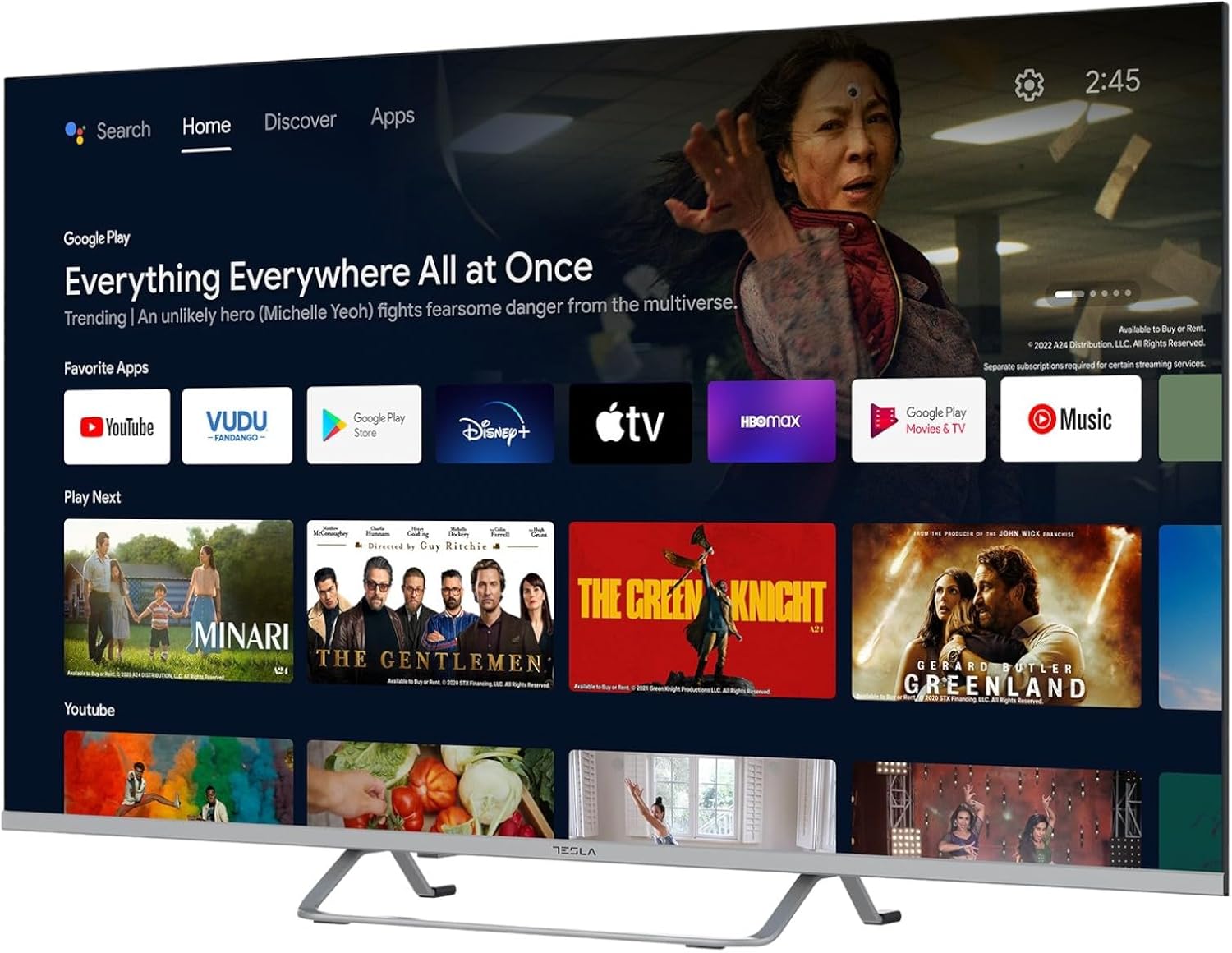
Image 2.2: The Android TV 11 home screen, displaying various applications and content suggestions.
- Iboju ile: Ṣe afihan akoonu ti a ṣeduro, awọn ohun elo ti a fi sori ẹrọ, ati awọn orisun titẹ sii.
- Apps Section: Wọle si gbogbo awọn ohun elo ti a fi sori ẹrọ.
- Eto: Configure TV settings, network, accounts, and device preferences.
2.3 Lilo Google Iranlọwọ
Press the Google Assistant button on your remote and speak into the microphone to control your TV, search for content, get information, and more.
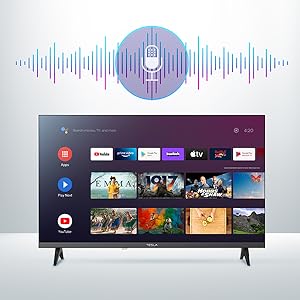
Image 2.3: Visual representation of Google Assistant activation on the TV screen.
Exampàwọn àṣẹ díẹ̀:
- "Ṣi Netflix"
- "Wa fun action movies"
- "Bawo ni oju ojo se ri?"
- "Mu iwọn didun soke"
2.4 Chromecast -Itumọ ti ni
Use Chromecast built-in to cast content from your compatible smartphone, tablet, or computer directly to your TV. Ensure your device is connected to the same Wi-Fi network as the TV.

Image 2.4: A smartphone casting content to the TV via Chromecast.
2.5 Nsopọ Awọn ẹrọ ita
TV rẹ n pese awọn aṣayan asopọpọ pupọ:
- Awọn ibudo HDMI (x4): Connect Blu-ray players, game consoles, set-top boxes, etc.
- Awọn ibudo USB (x2): Connect USB drives for media playback or external keyboards/mice.
- Àjọlò (LAN): Fun asopọ intanẹẹti ti a firanṣẹ.
- Wi-Fi: Fun asopọ intanẹẹti alailowaya.
- Bluetooth: Connect wireless headphones, speakers, or other Bluetooth devices.

Aworan 2.5: Ẹgbẹ profile of the TV, highlighting accessible ports.
2.6 Aworan ati Ohun Eto
Access the TV's settings menu to customize picture and sound options.
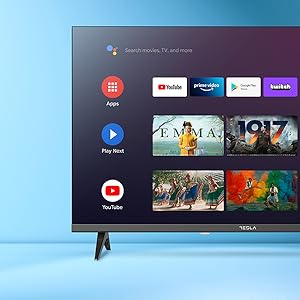
Aworan 2.6: Example of the TV's settings menu for customization.
- Awọn ọna aworan: Select from Standard, Vivid, Sport, Movie, Game, or User (custom) modes. Adjust brightness, contrast, color, and sharpness.
- HDR10: The TV supports HDR10 for enhanced contrast and color with compatible content.
- Awọn ọna ohun: Choose from Standard, Music, Movie, Sport, or User (custom) modes. Use the equalizer to fine-tune audio frequencies.
- Awọn agbọrọsọ: The TV features 2 x 12W speakers.
3. Itọju
3.1 Ninu TV
- Iboju: Rọra nu iboju naa pẹlu asọ ti ko ni lint. Fun awọn ami alagidi, fẹẹrẹ dampen awọn asọ pẹlu omi tabi a specialized iboju regede. Maṣe fun sokiri regede taara sori iboju.
- Ara: Fi aṣọ rírọrùn àti gbígbẹ nu ara TV náà. Yẹra fún lílo àwọn ohun ìfọṣọ tàbí àwọn ohun èlò ìfọṣọ.
- Yọọ TV kuro nigbagbogbo lati iṣan agbara ṣaaju ṣiṣe mimọ.
3.2 Software imudojuiwọn
Your Tesla Smart TV may receive software updates to improve performance and add new features. Ensure your TV is connected to the internet to receive these updates automatically or check for them manually in the settings menu.
4. Laasigbotitusita
Ṣaaju ki o to kan si atilẹyin, gbiyanju awọn ojutu wọnyi fun awọn ọran ti o wọpọ:
| Isoro | Owun to le Solusan |
|---|---|
| Ko si agbara | Check if the power cord is securely connected to the TV and the wall outlet. Ensure the outlet is working. |
| Ko si aworan, ṣugbọn ohun wa | Rí i dájú pé a yan orísun ìtẹ̀wọlé tó tọ́. Ṣàyẹ̀wò àwọn ìsopọ̀ okùn sí àwọn ẹ̀rọ ìta. Gbìyànjú láti tún TV náà bẹ̀rẹ̀. |
| Ko si ohun, ṣugbọn aworan wa | Ṣàyẹ̀wò ìpele ohùn kí o sì rí i dájú pé TV kò parọ́. Ṣàyẹ̀wò àwọn ètò ohùn àti àwọn ìsopọ̀ agbọrọsọ ìta tí ó bá yẹ. |
| Isakoṣo latọna jijin ko ṣiṣẹ | Replace the batteries. Ensure there are no obstructions between the remote and the TV. Re-pair the Bluetooth remote if necessary (refer to TV settings). |
| Awọn oran asopọ nẹtiwọki | Tun olulana ati modẹmu bẹrẹ. Ṣayẹwo Wi-Fi ọrọigbaniwọle. Gbiyanju asopọ Ethernet ti a firanṣẹ ti o ba ṣeeṣe. |
| Àwọn ohun èlò náà ń lọ́ra tàbí wọ́n ń já lulẹ̀ | Close unused apps. Clear app cache (Settings > Apps > [App Name] > Clear cache). Restart the TV. |
5. Awọn pato
| Ẹya ara ẹrọ | Ẹ̀kúnrẹ́rẹ́ |
|---|---|
| Brand | TESLA |
| Nọmba awoṣe | 65E635SUS |
| Iwon iboju | 65 inches (165 cm) |
| Ifihan ọna ẹrọ | LED |
| Ipinnu | 4K (3840 x 2160) |
| Oṣuwọn sọtun | 60 Hz |
| Eto isesise | Android TV 11 |
| Pataki Awọn ẹya ara ẹrọ | High Dynamic Range (HDR10), Google Play, Chromecast Built-in, Google Assistant, Personalized Surround Sound |
| Asopọmọra | Wi-Fi, Bluetooth, Ethernet (LAN) |
| Awọn ibudo HDMI | 4 |
| Awọn ibudo USB | 2 |
| Ijade ohun | 2 x 12W Agbọrọsọ |
| Awọn iwọn ọja (pẹlu iduro) | 25D x 25W x 144.5H cm (approximate) |
6. Atilẹyin ọja ati Support
For warranty information, please refer to the warranty card included with your product or visit the official Tesla webojula. Jeki ẹri rira rẹ fun awọn iṣeduro atilẹyin ọja.
For technical support or service inquiries, please contact Tesla customer service through their official channels. Contact details can typically be found on the manufacturer's webaaye tabi ni apoti ọja.


