1. Ifihan
This manual provides detailed instructions for the setup, operation, and maintenance of your KiiBoom Phantom 81 V2 Mechanical Gaming Keyboard. Please read this manual thoroughly before using the product to ensure optimal performance and longevity.

Image: The KiiBoom Phantom 81 V2 Mechanical Gaming Keyboard, showcasing its transparent design and RGB backlighting.
2. Package Awọn akoonu
Jẹrisi pe gbogbo awọn ohun kan wa ninu package:
- KiiBoom Phantom 81 V2 Mechanical Gaming Keyboard
- Okun USB
- Keycap Puller
- Switch Puller (often integrated with keycap puller)
- Extra Switches (typically 2)
3. Key Awọn ẹya ara ẹrọ
The KiiBoom Phantom 81 V2 keyboard incorporates several advanced features:
- Ilana 75%: Iwapọ oniru idaduro awọn bọtini pataki.
- Transparent Acrylic Frame: Durable and aesthetically unique.
- Apẹrẹ Gasket Mount: Ó mú kí ìrísí àti ohùn ìkọ̀wé pọ̀ sí i.
- PC Mounting Plate: Optimized for flexibility and sound profile.
- Full-key Hot-swappable PCB: Allows for easy switch replacement without soldering.
- South-facing RGB LEDs: Provides vibrant backlighting with reduced glare.
- Asopọmọra Ipo Mẹta: Supports Type-C Wired, Bluetooth 5.0, and 2.4GHz wireless connections.
- Batiri gbigba agbara: 4000mAh capacity for extended wireless use.
- Ibamu: Fully compatible with Mac and Windows operating systems.

Aworan: An loriview graphic highlighting the KiiBoom Phantom 81 V2's main features including 75% layout, tri-mode, hot-swappable, gasket-mounted, PC plate, plate-mounted stabilizers, south-facing RGB, and acrylic design.

Image: A detailed exploded diagram illustrating the internal gasket structure of the KiiBoom Phantom 81 V2 keyboard, showing components like the metal knob, acrylic top case, switches, PC plate, sandwich cotton, switch pad, PCB, acrylic bottom case, metal nameplate, and keyboard pads.

Image: A close-up of the KiiBoom Phantom 81 V2 keyboard highlighting its transparent acrylic case and PC keycaps with an ASA profile, ifihanasing the clear design.
4. Eto
4.1 Gbigba agbara akọkọ
Before first use, connect the keyboard to a USB power source using the provided USB-C cable. The keyboard will charge automatically. A full charge is recommended for optimal battery life.
4.2 Awọn ọna Asopọmọra
The Phantom 81 V2 supports three connection modes:
- Type-C Wired Mode: Connect the USB-C cable directly to your computer. Switch the mode selector on the back of the keyboard to "USB".
- Ipo Bluetooth 5.0:
- Switch the mode selector on the back of the keyboard to "BT".
- Tẹ fn+1, fn+2, tabi fn+3 to select a Bluetooth profile. The indicator light will flash, indicating pairing mode.
- On your device (computer, tablet, smartphone), search for Bluetooth devices and select "KiiBoom Phantom 81".
- Nígbà tí a bá ti so mọ́ ara wọn, ìmọ́lẹ̀ àmì náà yóò dáwọ́ dúró.
- Ipo Alailowaya 2.4GHz:
- Switch the mode selector on the back of the keyboard to "2.4G".
- Fi olugba USB 2.4GHz sinu ibudo USB ti o wa lori kọnputa rẹ.
- Tẹ fn+4. The keyboard will automatically connect to the receiver. The indicator light will stop flashing once connected.

Image: A close-up of the KiiBoom Phantom 81 V2's side, showing the USB-C port and the physical switches for selecting between USB, Win/Mac, Bluetooth, and 2.4G wireless modes.
4.3 Ibamu System ọna
The keyboard is compatible with both Windows and macOS. Use the dedicated switch on the back of the keyboard to select the appropriate operating system mode (WIN/MAC) for optimal key mapping.

Image: A visual representation of the KiiBoom Phantom 81 V2 keyboard being used with various operating systems, including macOS, Windows, and Android, indicating broad compatibility.
5. Awọn ilana Iṣiṣẹ
5.1 RGB Backlighting Iṣakoso
The Phantom 81 V2 features south-facing RGB LEDs for customizable backlighting. Use the following key combinations to adjust the lighting effects:
- Fn + \ |: Toggle Backlight Mode
- Fn + DEL: Toggle Backlight Direction
- Fn + ↑: Imọlẹ +
- Fn + ↓: Brightness -
- Fn + →: Speed +
- Fn + ←: Speed -

Image: A diagram illustrating the key combinations for controlling the south-facing RGB backlights on the KiiBoom Phantom 81 V2 keyboard, including mode, direction, brightness, and speed adjustments.
5.2 Surrounding Sidelights Control
The keyboard also features customizable sidelights. Use the following key combinations to adjust them:
- Fn + P: Toggle Sidelight Mode
- Fn+B: Toggle Sidelight Color
- Fn + X: Sidelight Brightness +
- Fn+Z: Sidelight Brightness -
- Fn + V: Sidelight Speed +
- Fn + C: Sidelight Speed -

Image: A diagram illustrating the key combinations for controlling the surrounding sidelights on the KiiBoom Phantom 81 V2 keyboard, including mode, color, brightness, and speed adjustments.
5.3 Multifunctional Knob
The knob located on the top right of the keyboard provides quick access to media controls and can be customized:
- Rotate clockwise: Volume +
- Rotate counter-clockwise: Volume -
- Tẹ: Mu dakẹ/Mutisilẹ
- Long Press: Customizable Functions (refer to software for configuration)

Image: A close-up of the KiiBoom Phantom 81 V2's multifunctional knob, detailing its functions for volume control, mute, and customizable options.
5.4 Checking Battery Power
Lati ṣayẹwo ipele batiri ti isiyi, tẹ Fn + Backspace. The indicator lights will display the approximate battery percentage.

Image: A diagram showing how to check the battery power of the KiiBoom Phantom 81 V2 keyboard by pressing Fn+Backspace, with visual indicators for 20%, 50%, and 100% charge levels.
5.5 Gbona-Swappable Yipada
The Phantom 81 V2 features a full-key hot-swappable PCB, allowing you to change mechanical switches without soldering. This keyboard is compatible with both 3-pin and 5-pin mechanical switches.
- Lo ohun tí a fi ń fa ìdènà bọtini tí a pèsè láti fi pẹ̀lẹ́pẹ̀lẹ́ yọ ìdènà bọtini tí a fẹ́ kúrò.
- Use the provided switch puller to gently grasp the switch from its top and bottom clips. Pull straight up to remove the switch from the PCB.
- Mö awọn pinni ti awọn titun yipada pẹlu awọn iho lori PCB. Rii daju pe awọn pinni wa ni taara lati yago fun atunse.
- Tẹ iyipada tuntun naa ṣinṣin sinu aaye titi ti o fi tẹ.
- Tun bọtini bọtini somọ.

Aworan: A sunmọ-soke view of the KiiBoom Phantom 81 V2 keyboard with a keycap and switch removed, demonstrating the hot-swappable PCB plate compatible with 3-pin or 5-pin mechanical switches.

Image: A hand using a switch puller tool to remove a switch from the KiiBoom Phantom 81 V2 keyboard, illustrating the hot-swappable feature.
Different switch types offer varying typing experiences:
- KiiBoom Pink Switch: Linear type, Actuation Force: 38±15gf, Bottom Force: 42±15gf, Total Travel: 3.80±0.2mm, Pre Travel: 1.6±0.4mm.
- KiiBoom Purple Switch: Linear type, Actuation Force: 45±15gf, Bottom Force: 55±15gf, Total Travel: 3.80±0.2mm, Pre Travel: 1.6±0.4mm.
- KiiBoom Crystal Switch: Linear type, Actuation Force: 55±15gf, Bottom Force: 60±15gf, Total Travel: 3.60±0.2mm, Pre Travel: 1.6±0.4mm.

Image: A close-up of KiiBoom Purple Switches, illustrating their transparent design.

Image: A close-up of KiiBoom Pink Switches, illustrating their transparent design.

Image: A close-up of KiiBoom Crystal Switches, illustrating their transparent design.
5.6 Software isọdi
Advanced customization for key remapping, macro creation, and lighting effects can be achieved through the dedicated KiiBoom software. Please visit the official KiiBoom website to download the latest software version for your keyboard model.
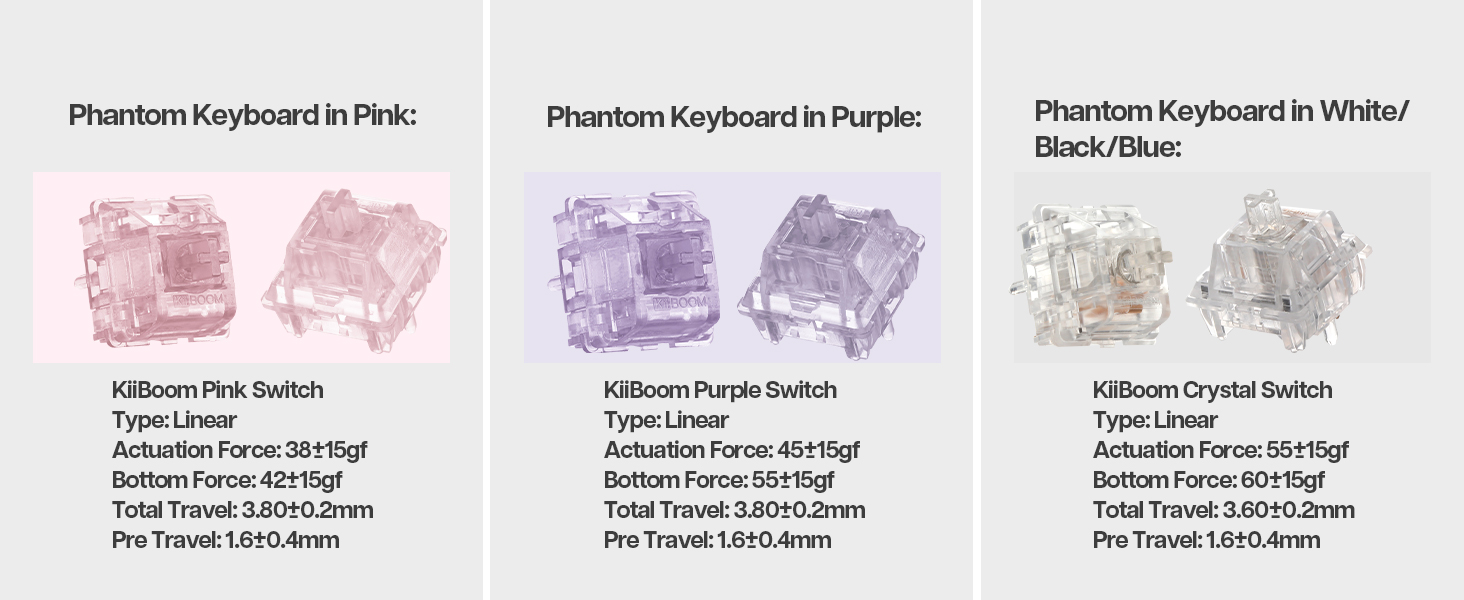
Image: A laptop screen displaying the KiiBoom software interface for customizing key settings, lighting, and other functions of the Phantom 81 V2 keyboard.
6. Itọju
6.1 Ninu
- Awọn bọtini bọtini: Use the keycap puller to remove keycaps. Clean them with a mild soap solution and a soft cloth. Ensure they are completely dry before reattaching.
- Ara Keyboard: Lo asọ rirọ, ti ko ni lint, die-die dampened with water or a mild cleaning solution, to wipe the acrylic body. Avoid abrasive materials or harsh chemicals.
- Laarin awọn bọtini: Lo afẹ́fẹ́ tí a fi ìfúnpọ̀ mú láti yọ eruku àti ìdọ̀tí kúrò láàárín àwọn ìyípadà náà.
6.2 Itọju Gbogbogbo
- Avoid exposing the keyboard to extreme temperatures, direct sunlight, or high humidity.
- Do not spill liquids on the keyboard. If a spill occurs, immediately disconnect power and allow it to dry completely before attempting to use it again.
- Handle with care to prevent drops or impacts that could damage the transparent acrylic.
7. Laasigbotitusita
| Oro | Owun to le Solusan |
|---|---|
| Keyboard ko dahun ni ipo alailowaya. |
|
| Ina RGB ko ṣiṣẹ tabi ti ko tọ. |
|
| Awọn bọtini kii ṣe iforukọsilẹ tabi titẹ-meji. |
|
| Batiri n ṣan ni kiakia. |
|
8. Awọn pato
| Ẹya ara ẹrọ | Ẹ̀kúnrẹ́rẹ́ |
|---|---|
| Awoṣe | Phantom 81 V2 |
| Ìfilélẹ | 75% |
| Asopọmọra | 2.4Ghz Wireless, Bluetooth 5.0, USB-C Wired |
| Agbara Batiri | 4000mAh (V2 version) |
| Imọlẹ afẹyinti | South-facing RGB |
| Gbona-swappable | Yes, compatible with 3-pin/5-pin mechanical switches |
| Ohun elo ọran | Akiriliki |
| Ohun elo Awo | Polycarbonate (PC) |
| Iwọn Nkan | 4.53 poun (isunmọ 2.05 kg) |
| Package Mefa | 16.61 x 10.91 x 2.91 inches |
| Awọn ẹrọ ibaramu | Console ere, Kọǹpútà alágbèéká, PC, Foonuiyara, Tabulẹti |
9. Atilẹyin ọja ati Support
For warranty information and technical support, please refer to the official KiiBoom webojula tabi kan si wọn onibara iṣẹ taara. Jeki ẹri rira rẹ fun eyikeyi awọn ibeere atilẹyin ọja.
Official KiiBoom Webojula: KiiBoom Store on Amazon (for general brand information and potential support links).


