1. Ọja Ipariview
The FX-Audio FX03 is a compact and portable USB C Digital to Analog Converter (DAC) designed to enhance audio quality from various digital sources. It accepts a digital audio signal via its USB-C input and converts it into an analog signal for output through RCA connectors, suitable for connection to amplifiers or active speakers. The device supports high-resolution audio formats including PCM up to 32-bit/384kHz and DSD256 DoP.

Aworan 1.1: Ẹyin view of the FX-Audio FX03 DAC, illustrating the USB IN (Type-C) port and the RCA LINE OUT (Red for Right, White for Left) ports for audio connection.

Image 1.2: The FX-Audio FX03 DAC shown held in a hand, highlighting its small and portable design.
2. Package Awọn akoonu
- FX-Audio FX03 USB C DAC Unit
- USB-C si okun USB-A
- Afowoyi Olumulo (iwe-ipamọ yii)
3. Awọn ilana iṣeto
Follow these steps to connect and begin using your FX-Audio FX03 DAC:
- So Orísun Oní-nọ́ńbà pọ̀: Use the provided USB-C cable to connect the FX03's USB IN port to your digital audio source (e.g., mobile phone, tablet, laptop, desktop computer, game machine).
Note: For Android and Windows 10 systems, the device is typically plug-and-play. Other Windows versions may require driver installation from the official FX-Audio website. For iOS devices, a Lightning to Type-C OTG data cable (not included) is required. - So Agbejade Analog: Connect the RCA LINE OUT ports (Red for Right channel, White for Left channel) on the FX03 to the corresponding analog input ports on your amplifier tabi ti nṣiṣe lọwọ agbohunsoke.
- Agbara Tan: The FX03 is powered via the USB-C connection. Ensure your digital source provides sufficient power. The power indicator light on the front panel will illuminate.
- Yan Ijade Olohun: On your digital source device, select the FX-Audio FX03 as the audio output device.
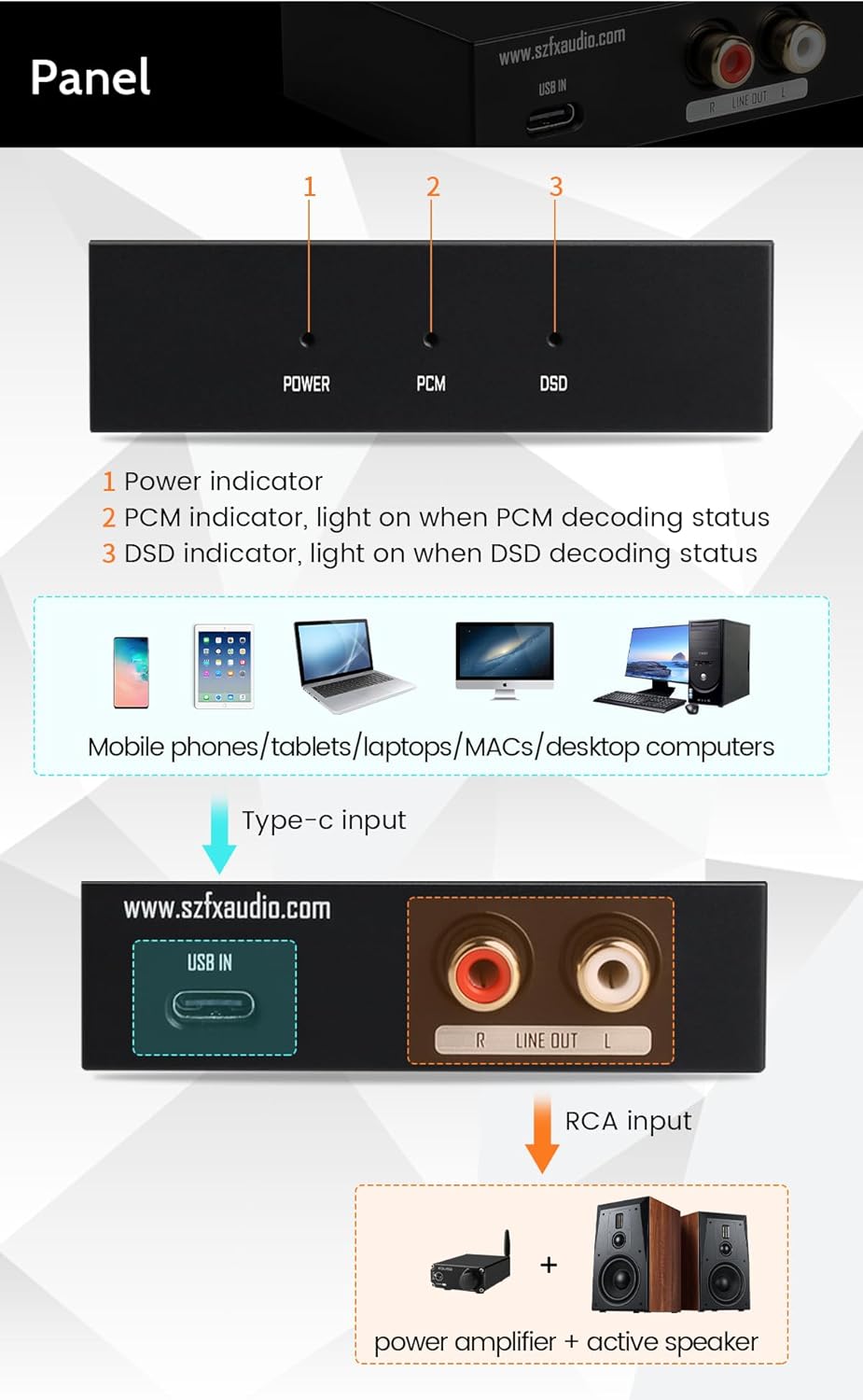
Image 3.1: Connection diagram for the FX-Audio FX03, showing Type-C input from various devices and RCA output to an amplifier and active speakers. The front panel indicators (Power, PCM, DSD) are also labeled.
4. Awọn ilana Iṣiṣẹ
The FX-Audio FX03 operates automatically once connected and powered. There are no manual controls on the device itself.
- Awọn imọlẹ Atọka: The front panel features RGB indicator lights to show the current status:
- AGBARA: Ṣe itanna nigbati ẹrọ ba wa ni titan.
- PCM: Illuminates when PCM audio is being decoded.
- DSD: Illuminates when DSD audio is being decoded.
- Sisisẹsẹhin ohun: Begin playing audio from your connected digital source. The FX03 will automatically detect the audio format and decode it.
5. Itọju
To ensure optimal performance and longevity of your FX-Audio FX03 DAC, observe the following maintenance guidelines:
- Ninu: Lo asọ ti o tutu, ti o gbẹ lati nu ita ti ẹrọ naa. Yago fun lilo awọn olutọpa omi tabi awọn ohun elo abrasive.
- Afẹfẹ: Although compact, the device can generate some heat during operation. Ensure it is placed in a location with adequate airflow to prevent overheating. Do not cover ventilation openings.
- Awọn isopọ: Periodically check all cable connections to ensure they are secure. The gold-plated interfaces are designed for reliable transmission, but loose connections can affect audio quality.
- Ibi ipamọ: Nigbati o ko ba wa ni lilo fun awọn akoko ti o gbooro sii, tọju ẹrọ naa ni itura, aye gbigbẹ kuro lati orun taara ati awọn iwọn otutu to gaju.
6. Laasigbotitusita
If you encounter issues with your FX-Audio FX03, refer to the following common problems and solutions:
- Ko si Ijade ohun:
- Ensure all cables (USB-C input, RCA output) are securely connected.
- Verify the FX03 is selected as the audio output device on your computer or mobile device.
- Check the volume levels on both your source device and your amplifier / ti nṣiṣe lọwọ agbohunsoke.
- Confirm the POWER indicator light on the FX03 is illuminated. If not, check the USB-C power source.
- Distorted or Poor Audio Quality:
- Ensure you are using a high-quality USB-C cable. Some cables may cause instability.
- Check for driver updates for your operating system, especially for Windows versions older than Windows 10.
- Reduce the volume on the source device if the input signal is too strong, causing clipping.
- Ẹrọ Ko ṣe idanimọ nipasẹ Kọmputa:
- Try connecting the FX03 to a different USB port on your computer.
- Tun kọmputa rẹ bẹrẹ ki o si so ẹrọ naa pọ mọ.
- Install necessary drivers if your operating system is not Windows 10 or Android.
- No DSD or High-Resolution PCM Playback:
- Ensure your audio playback software supports DSD or high-resolution PCM and is configured correctly.
- Verify the DSD or PCM indicator light on the FX03 illuminates when playing the respective format.
7. Awọn pato
Detailed technical specifications for the FX-Audio FX03 DAC:

Image 7.1: Parametric dimensions of the FX-Audio FX03 and a table detailing its product parameters.
| Paramita | Iye |
|---|---|
| Brand | FX-AUDIO- |
| Awoṣe | FX03 |
| Chipset | ESS9028Q2M/SA9137L |
| Ipese Agbara DC | DC5V (USB Powered) |
| Awọn igbewọle | Iru-C USB |
| Awọn abajade | RCA ila Jade |
| THD+N | 0.005% |
| SNR | 110dB@A-wt |
| Idahun Igbohunsafẹfẹ | 10Hz-30KHz |
| Ipele Ijade | 2.5Vrms |
| Awọn ọna kika atilẹyin | DSD 64, 128, 256; PCM 32Bit/44.1KHz-384KHz |
| Awọn iwọn (L x W x H) | 75mm x 60mm x 23mm (2.95 x 2.36 x 0.91 inches) |
| Iwọn | 132g (5.3 iwon) |
8. Atilẹyin ọja ati Support
The FX-Audio FX03 comes with a warranty period of more than one year, covering repair and shipping costs for quality-related issues. For any questions, technical assistance, or warranty claims, please contact the seller or manufacturer directly through the platform where the product was purchased. Support is available to assist with product inquiries and troubleshooting.


