1. Ọja Ipariview
The ATTACK SHARK X3 is an ultra-lightweight wireless gaming mouse designed for high performance and versatility. It features a PixArt PAW3395 sensor, multi-mode connectivity (wired, 2.4G wireless, Bluetooth), and a long-lasting battery, making it suitable for various computing environments and gaming needs.
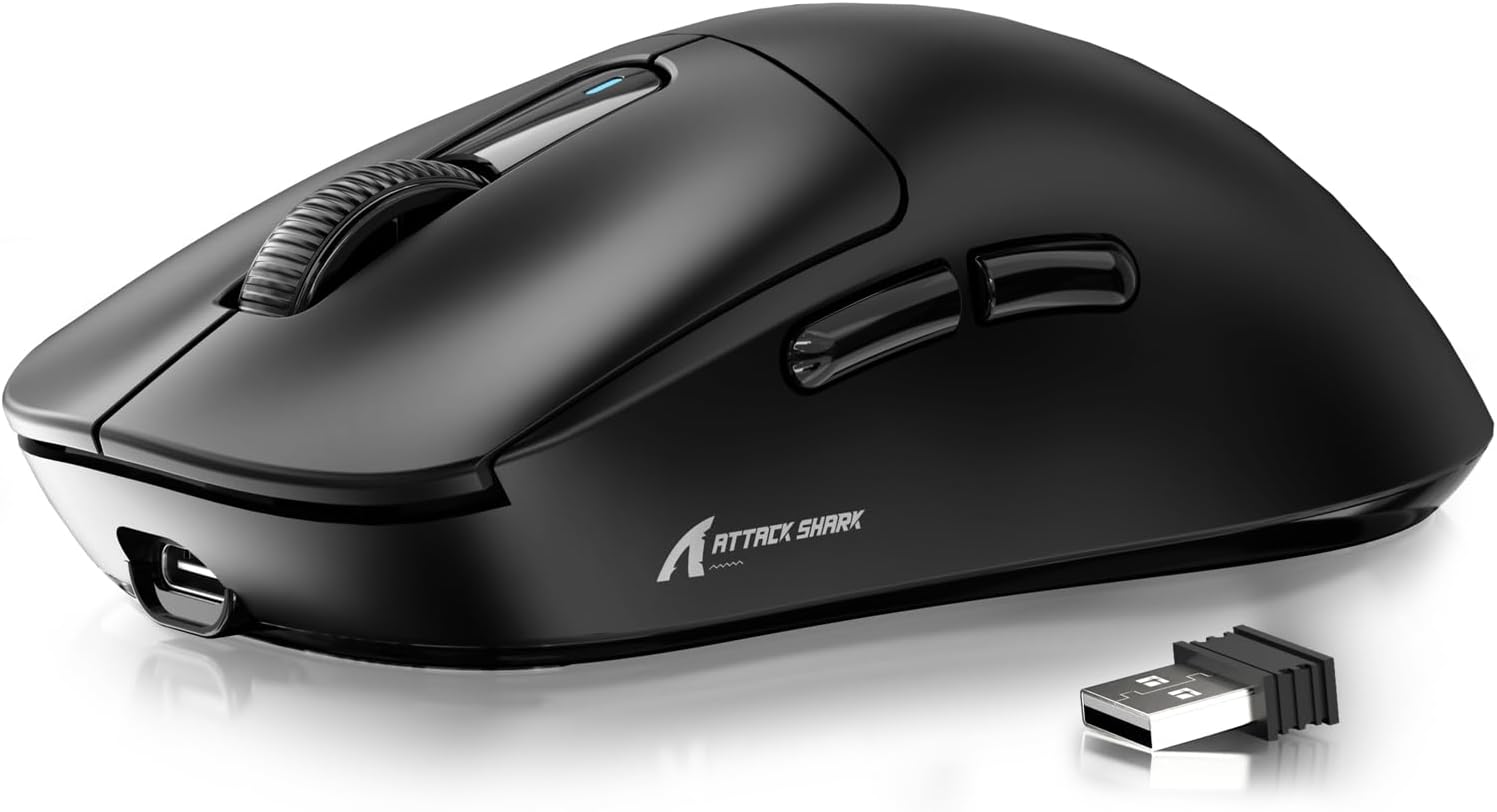
Figure 1: ATTACK SHARK X3 Wireless Gaming Mouse (Black)
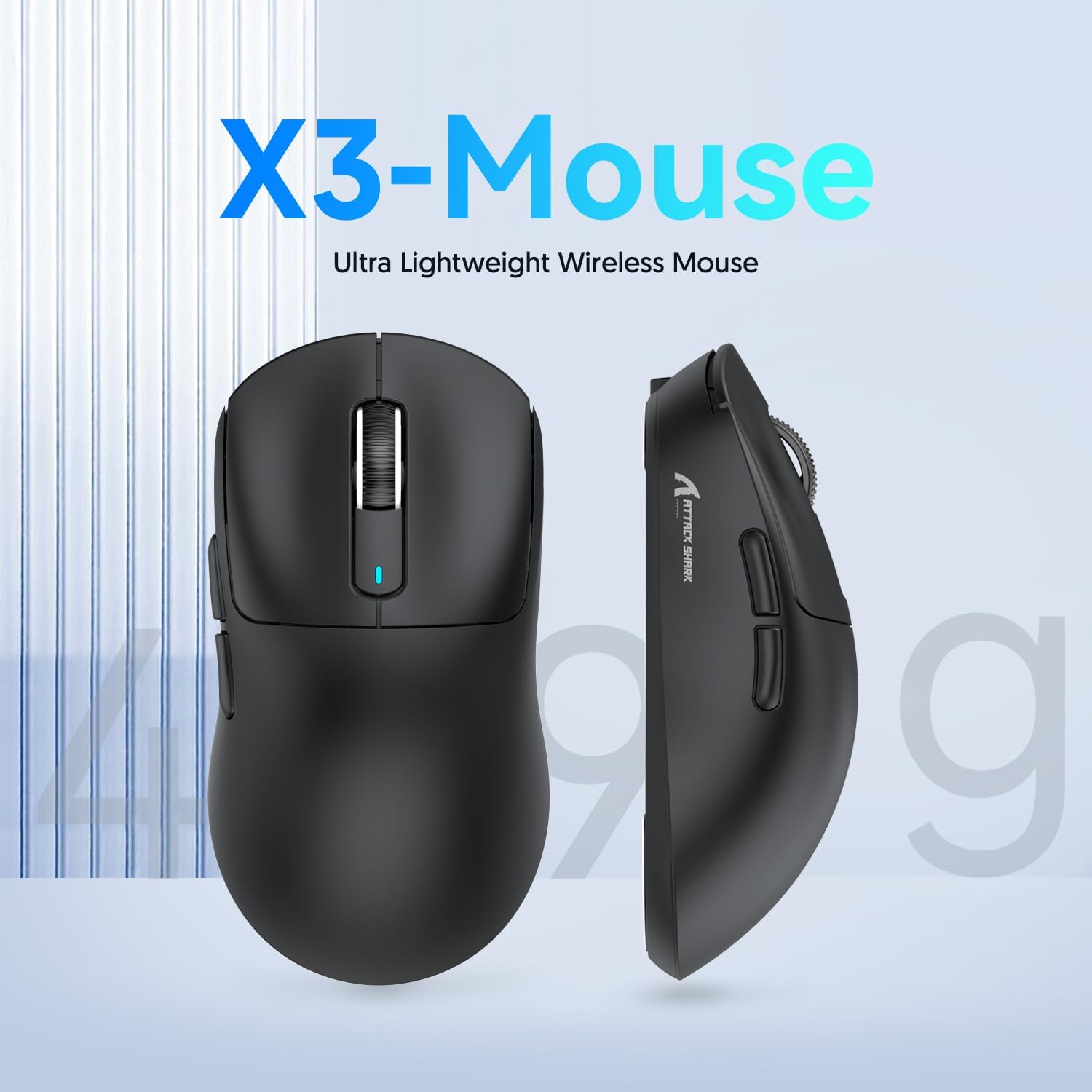
Figure 2: X3-Mouse Ultra Lightweight Design
2. Key Awọn ẹya ara ẹrọ
- Apẹrẹ-Funwọnwọn: Weighing approximately 49g, designed for comfortable and agile movement.
- Sensọ PixArt PAW3395: Flagship gaming sensor offering up to 26000 DPI for precise tracking.
- Asopọmọra-Ipo Mẹta: Supports wired (Type-C), 2.4G wireless, and Bluetooth (BT5.2) connections.
- Igbesi aye batiri gigun: Titi di awọn wakati 200 ti lilo lilọsiwaju lori idiyele ẹyọkan.
- Awọn Yipada ti o tọ: Equipped with Kailh GM8.0 switches, rated for 80 million clicks.
- DPI ti o le ṣatunṣe: 6 adjustable DPI levels.
- Macro Drivers: Software support for macro customization and button remapping.
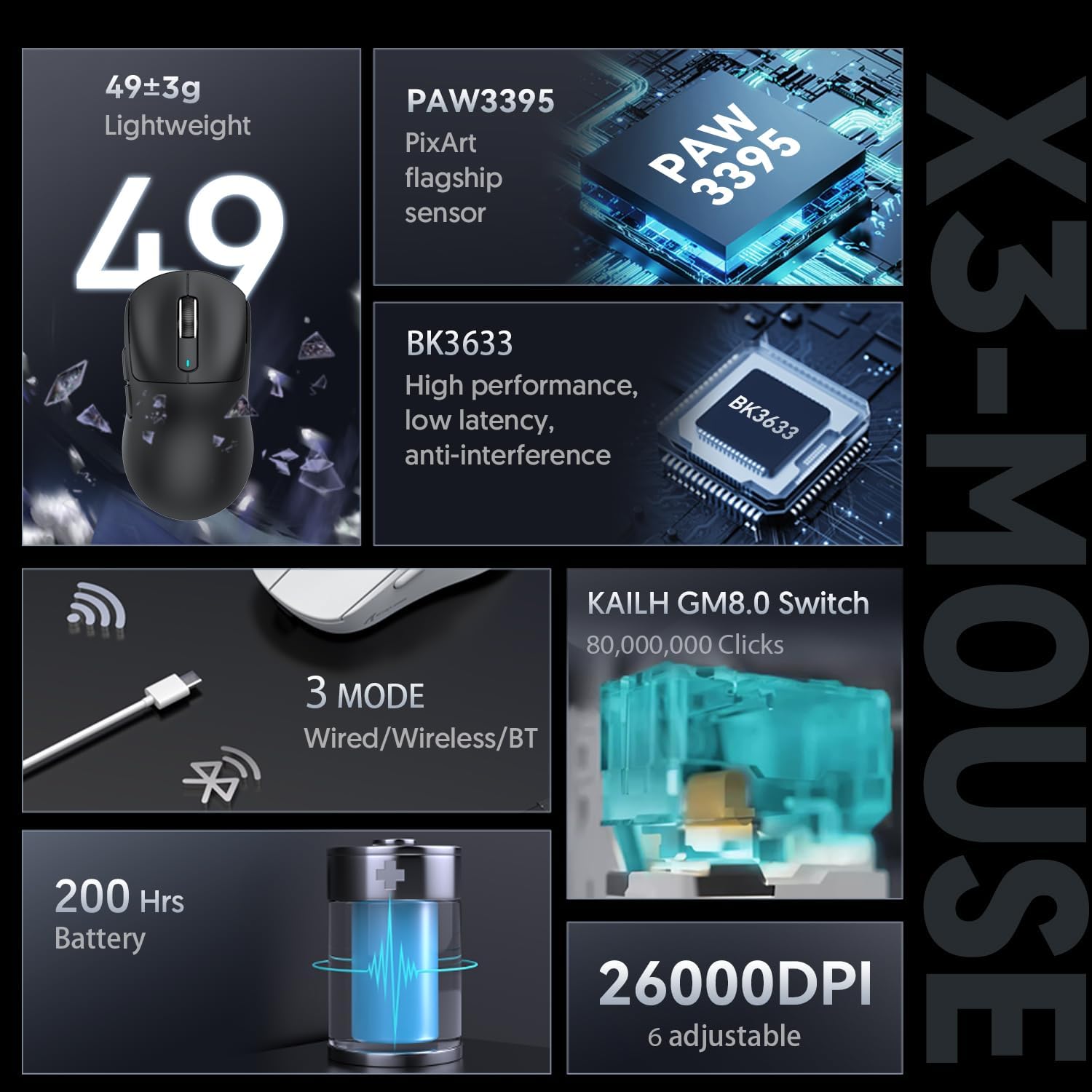
Figure 3: X3-Mouse Feature Overview

Figure 4: PixArt PAW3395 Flagship Sensor Details
3. Eto
3.1 Package Awọn akoonu
- Asin ere alailowaya Shark X3
- USB Iru-C USB
- 2.4G USB olugba
- Afowoyi Olumulo (iwe-ipamọ yii)
- Optional: Grip Tapes (may vary by package)
3.2 Gbigba agbara akọkọ
Before first use, it is recommended to fully charge the mouse. Connect the provided USB Type-C cable to the mouse's front port and the other end to a USB power source (e.g., computer USB port, USB wall adapter). The DPI indicator light will show charging status.
3.3 Nsopọ Asin
The X3 mouse supports three connection modes: Wired, 2.4G Wireless, and Bluetooth.
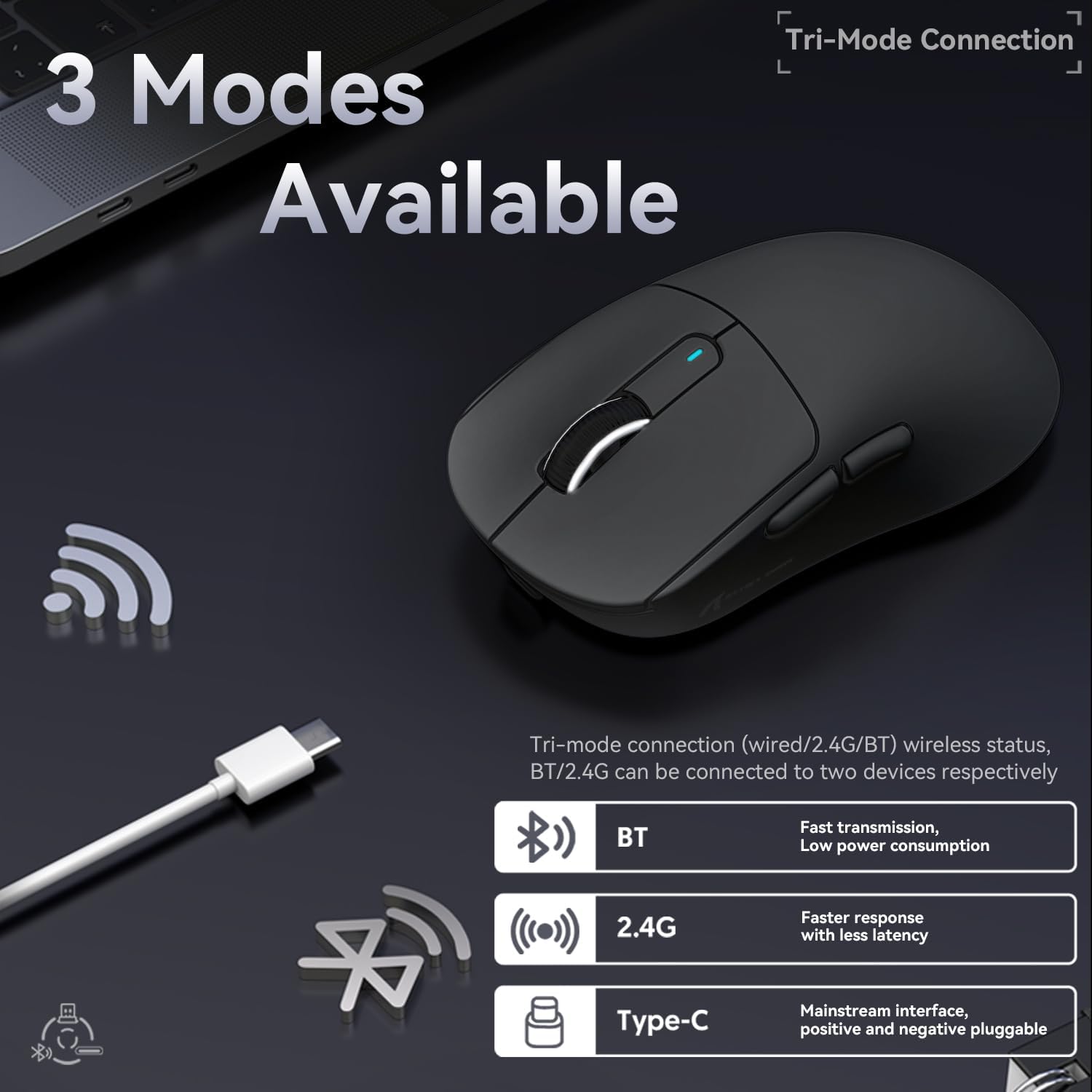
Àwòrán 5: Àwọn Àṣàyàn Ìsopọ̀ Mẹ́ta-Ipò
- Ipo Firanṣẹ:
Connect the USB Type-C cable directly from the mouse to your computer. The mouse will automatically switch to wired mode and begin charging.
- Ipo Alailowaya 2.4G:
Locate the 2.4G USB receiver stored in the magnetic compartment on the bottom of the mouse. Plug the receiver into an available USB port on your computer. Slide the switch on the bottom of the mouse to the "2.4G" position. The mouse should connect automatically. If not, press and hold the mode switching key on the bottom for 3 seconds to initiate pairing.

Figure 6: Mouse Bottom Layout with Switch and Receiver Slot
- Ipo Bluetooth:
Slide the switch on the bottom of the mouse to the "BT" position. On your computer or device, open Bluetooth settings and search for new devices. Select "ATTACK SHARK X3" from the list to pair. If pairing fails, press and hold the mode switching key on the bottom for 3 seconds to enter pairing mode.
4. Awọn ilana Iṣiṣẹ
4.1 DPI Atunṣe
The mouse features a dedicated DPI switch button on the bottom (or top, depending on model variant) to cycle through preset DPI levels. The DPI indicator light will change color to indicate the current DPI setting. You can customize these levels using the official software.
4.2 Makiro isọdibilẹ
For advanced customization, download the official ATTACK SHARK software from the manufacturer's webojula. Sọfitiwia yii gba ọ laaye lati:
- Remap mouse buttons.
- Create and assign macros for complex actions.
- Adjust DPI levels and polling rate.
- Bojuto ipo batiri.
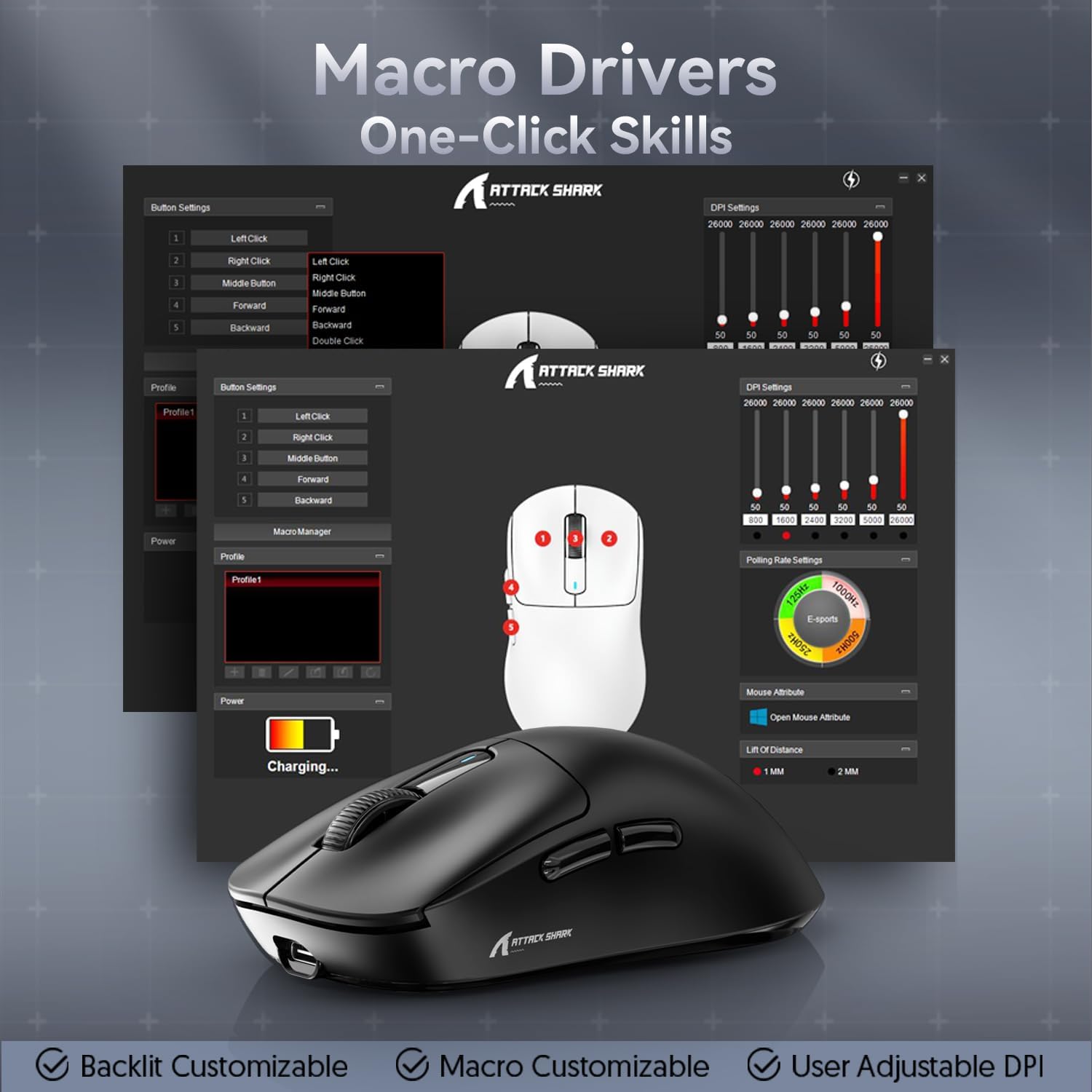
Figure 7: Macro Drivers and Software Interface
5. Iṣakoso batiri
The ATTACK SHARK X3 mouse is equipped with a high-capacity lithium battery providing up to 200 hours of usage. To preserve battery life:
- Turn off the mouse using the switch on the bottom when not in use for extended periods.
- Gba agbára sínú àsíìsì nígbà tí àmì bátìrì bá fi agbára kékeré hàn.
- Yago fun ṣiṣafihan asin si awọn iwọn otutu to gaju.
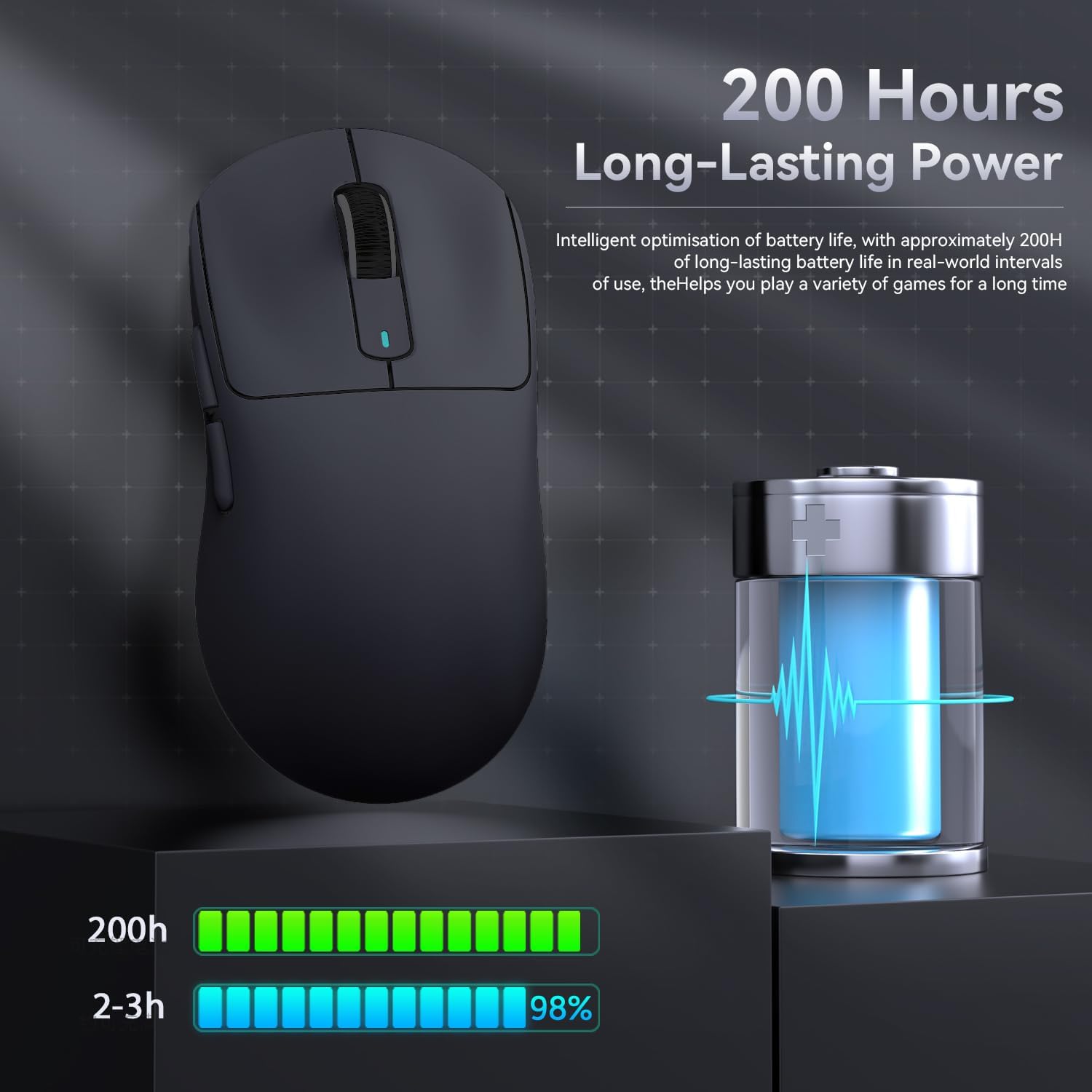
Àwòrán 8: Ìtọ́kasí Ìgbésí Ayé Bátírì
6. Itọju
- Ninu: Use a soft, dry cloth to clean the mouse. Do not use harsh chemicals or abrasive materials.
- Ibi ipamọ: Tọju Asin ni itura, aye gbigbẹ kuro lati orun taara ati awọn iwọn otutu to gaju.
- Itọju Sensọ: Jẹ́ kí sensọ̀ opitika tó wà ní ìsàlẹ̀ àwo náà mọ́ tónítóní kí ó má sì sí eruku tàbí ìdọ̀tí fún iṣẹ́ ìtọ́pinpin tó dára jùlọ.
7. Laasigbotitusita
| Isoro | Owun to le Fa | Ojutu |
|---|---|---|
| Asin ko dahun | Low battery; Incorrect connection mode; USB receiver not plugged in (2.4G); Bluetooth not paired. | Charge the mouse; Ensure the switch on the bottom is in the correct mode (2.4G/BT); Re-insert USB receiver; Re-pair Bluetooth. |
| Lag tabi lemọlemọ asopọ | Ìdènà; Ijinna lati olugba/ẹrọ; Batiri kekere. | Move closer to the receiver/device; Ensure no strong interference sources nearby; Charge the mouse. |
| DPI ko yipada | Àìṣiṣẹ́ bọ́tìnì DPI; Ìjàkadì sọ́fítíwètì. | Ensure the DPI button is pressed correctly; Restart the mouse and computer; Reinstall mouse software. |
| Software not detecting mouse | Driver issue; Connection problem. | Ensure mouse is connected via wired or 2.4G mode (Bluetooth might not be supported by all software features); Reinstall drivers/software. |
8. Awọn pato
| Ẹya ara ẹrọ | Ẹ̀kúnrẹ́rẹ́ |
|---|---|
| Awoṣe | X3 |
| Sensọ | PixArt PAW3395 |
| DPI | Up to 26000 (Adjustable) |
| Iyara Ipasẹ | Ọdun 650 IPS |
| Isare | 50G |
| Idibo Oṣuwọn | 1000Hz (Adjustable via software) |
| Asopọmọra | Wired (Type-C), 2.4G Wireless, Bluetooth 5.2 |
| Yipada | Kailh GM8.0 (80 Million Clicks) |
| Igbesi aye batiri | Isunmọ. wakati meji 200 |
| Iwọn | Isunmọ. 49g |
| Awọn iwọn | 118.5mm x 61mm x 39.7mm (isunmọ.) |
| OS ibaramu | Windows 11, Xbox, PS, Mac (functionality may vary) |

Figure 9: ATTACK SHARK X3 Super Light Mouse Overview

Figure 10: X3MAX Exploded Diagram (Illustrative of X3 series internal components)
9. Official ọja Video
Video 1: ATTACK SHARK X3 Mouse Product Overview. This video provides a visual demonstration of the mouse's features, unboxing, and usage scenarios.
10. Atilẹyin ọja ati Support
For warranty information, technical support, or to download the latest software and drivers, please visit the official ATTACK SHARK webojula tabi kan si wọn onibara iṣẹ. Tọju iwe-ẹri rira rẹ fun awọn ẹtọ atilẹyin ọja.
Ile-itaja Aami Alaṣẹ: Ile itaja Shark Kọlu


