Ọrọ Iṣaaju
This user manual provides comprehensive instructions for the setup, operation, maintenance, and troubleshooting of your Trust Lyra WL Keyboard and Mouse combo. Designed for seamless connectivity with laptops and personal computers, this wireless set offers a comfortable and efficient input solution. Please read this manual carefully before using the product to ensure optimal performance and longevity.
Package Awọn akoonu
- Trust Lyra WL Keyboard
- Trust Lyra WL Mouse
- USB Receiver (typically stored in the mouse or keyboard battery compartment)
- Afowoyi Olumulo (iwe-ipamọ yii)
- Batteries (may or may not be included, check packaging)
Ṣeto
Follow these steps to set up your Trust Lyra WL Keyboard and Mouse:
- Fi awọn batiri sii: Locate the battery compartments on the underside of both the keyboard and the mouse. Insert the required batteries (typically AA or AAA, not specified in product data, so keep it general) ensuring correct polarity.
- Wa olugba USB: The small USB receiver is usually stored inside the mouse's battery compartment or a dedicated slot on the keyboard for safe keeping during transport. Carefully remove it.
- So olugba USB pọ: Plug the USB receiver into an available USB port on your laptop or personal computer.
- Agbara Tan: Ensure both the keyboard and mouse have their power switches (if present) set to the "ON" position. The devices should automatically connect to the receiver.
- Fifi sori Awakọ: Eto iṣiṣẹ rẹ yẹ ki o ṣawari ati fi awọn awakọ ti o nilo sii laifọwọyi. A ko nilo fifi awakọ afọwọṣe sori ẹrọ nigbagbogbo.
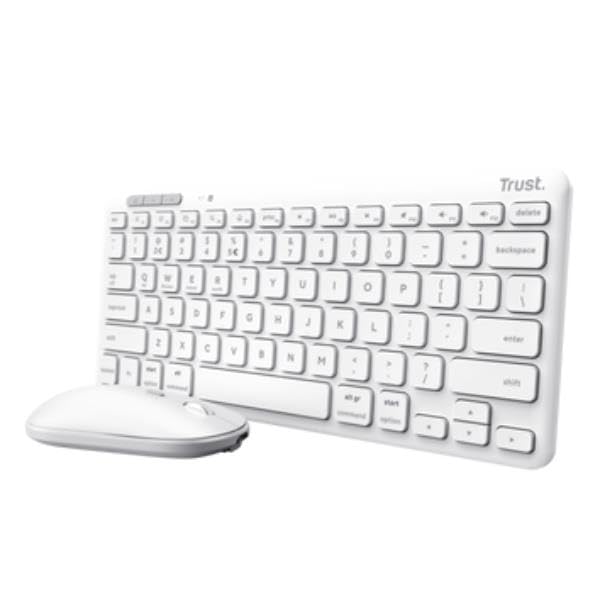
Image: The Trust Lyra WL Keyboard and Mouse combo in white, showing the compact keyboard and the sleek, low-profile eku.
Awọn ilana Iṣiṣẹ
Lilo Keyboard
- Titẹ: The keyboard features a standard QWERTY layout with membrane keys for comfortable typing.
- Awọn bọtini iṣẹ: Utilize the function keys (F1-F12) for various shortcuts. Some may require pressing the 'Fn' key simultaneously, depending on your system configuration.
- Awọn iṣakoso Multimedia: Look for dedicated multimedia keys or function key combinations for volume control, play/pause, etc.
Asin Lilo
- Lilọ kiri ipilẹ: Use the left and right click buttons for selection and context menus.
- Yi lọ: Yiyi kẹkẹ faye gba fun inaro yi lọ nipasẹ awọn iwe aṣẹ ati web awọn oju-iwe.
- Àtúnṣe DPI (tí ó bá wúlò): Some mice have a DPI button to adjust cursor sensitivity. Refer to the product's specific features if you notice such a button.
Itoju
Proper maintenance ensures the longevity and optimal performance of your keyboard and mouse.
- Ninu:
- Ge asopọ awọn ẹrọ lati kọmputa rẹ ṣaaju ki o to nu.
- Lo asọ asọ, ti ko ni lint die-die dampened pẹlu omi tabi kan ìwọnba ninu ojutu.
- Yẹra fún àwọn kẹ́míkà líle, àwọn ohun ìfọmọ́ tí ó máa ń pa ara, tàbí fífún omi ní omi taara sí orí àwọn ẹ̀rọ náà.
- Fún kọ̀ǹpútà, lo afẹ́fẹ́ tí a fi ìfúnpọ̀ mú láti mú eruku àti ìdọ̀tí kúrò láàárín àwọn kọ́kọ́rọ́ náà.
- Rirọpo Batiri: Replace batteries when performance degrades or the low battery indicator (if present) illuminates. Dispose of old batteries responsibly according to local regulations.
- Ibi ipamọ: When not in use for extended periods, store the keyboard and mouse in a cool, dry place away from direct sunlight and extreme temperatures.
Laasigbotitusita
If you encounter issues with your Trust Lyra WL Keyboard and Mouse, try the following solutions:
- Awọn ẹrọ Ko Dahun:
- Rii daju pe olugba USB ti wa ni edidi ni aabo sinu ibudo USB ti n ṣiṣẹ. Gbiyanju ibudo USB ti o yatọ.
- Ṣayẹwo boya a ti fi awọn batiri sii daradara ati pe wọn ni idiyele ti o to. Rọpo wọn ti o ba jẹ dandan.
- Ensure the power switches on both devices are in the "ON" position.
- Gbe keyboard ati Asin sunmọ olugba USB lati yọkuro awọn iṣoro agbegbe.
- Tun kọmputa rẹ bẹrẹ.
- Asopọ ti o n fa fifalẹ tabi ti o n da duro:
- Ìdènà láti ọ̀dọ̀ àwọn ẹ̀rọ aláilowaya mìíràn (fún àpẹẹrẹ, àwọn olùdarí Wi-Fi, àwọn fóònù aláìlókùn) lè ní ipa lórí iṣẹ́ wọn. Gbìyànjú láti dín irú ìdènà bẹ́ẹ̀ kù.
- Rii daju pe ko si awọn nkan irin nla laarin awọn ẹrọ ati olugba.
- Rọpo awọn batiri.
- Kọ́sọ̀ Asin Fò tàbí kò péye:
- Nu sensọ opitika ni isalẹ ti Asin naa.
- Lo awọn Asin lori mimọ kan, ti kii ṣe afihan. A ṣe iṣeduro paadi eku kan.
- Àwọn Kọ́kọ́rọ́ Pàtàkì Tí Kò Ṣiṣẹ́:
- Ensure no debris is lodged under the key.
- Test the keyboard on another computer to determine if the issue is with the keyboard or the computer's software/drivers.
Awọn pato
| Ẹya ara ẹrọ | Ẹ̀kúnrẹ́rẹ́ |
|---|---|
| Brand | Gbekele |
| Nọmba awoṣe | 25074 |
| Àwọ̀ | Funfun |
| Asopọmọra Technology | USB Wireless (via receiver) |
| Awọn ẹrọ ibaramu | Kọǹpútà alágbèéká, Kọmputa ti ara ẹni |
| Apejuwe Keyboard | Ẹ̀yà ara |
| Iwọn Nkan | 1.06 poun (isunmọ 480g) |
| Package Mefa | 14.41 x 5.24 x 1.18 inches (iwọn 36.6 x 13.3 x 3 cm) |
| Ọjọ Akọkọ Wa | Oṣu kejila ọjọ 31, ọdun 2024 |
Atilẹyin ọja ati Support
A ṣe àwọn ọjà ìgbẹ́kẹ̀lé ní ìbámu pẹ̀lú àwọn ìlànà tó ga jùlọ. Fún ìwífún nípa àwọn òfin àti ìlànà ìfọwọ́sowọ́pọ̀, jọ̀wọ́ wo káàdì ìfọwọ́sowọ́pọ̀ tó wà nínú ọjà rẹ tàbí kí o lọ sí Trust osise. website. For technical support, frequently asked questions, and driver downloads, please visit the Trust Support Page tabi kan si wọn onibara iṣẹ taara.


