Ọrọ Iṣaaju
The 8Bitdo Micro Bluetooth Gamepad is an ultra-portable, versatile mini controller designed for a seamless gaming experience across multiple platforms. Weighing only 24.8 grams and featuring 16 buttons, it offers broad compatibility and customizable controls.
This manual provides detailed instructions for setting up, operating, maintaining, and troubleshooting your 8Bitdo Micro Gamepad.
Ṣeto
Gbigba agbara Alakoso
Connect the 8Bitdo Micro Gamepad to a USB power source using the included USB-C cable. The LED indicator will show charging status and turn off when fully charged. A full charge typically takes 1-2 hours.
Ipo Yipada
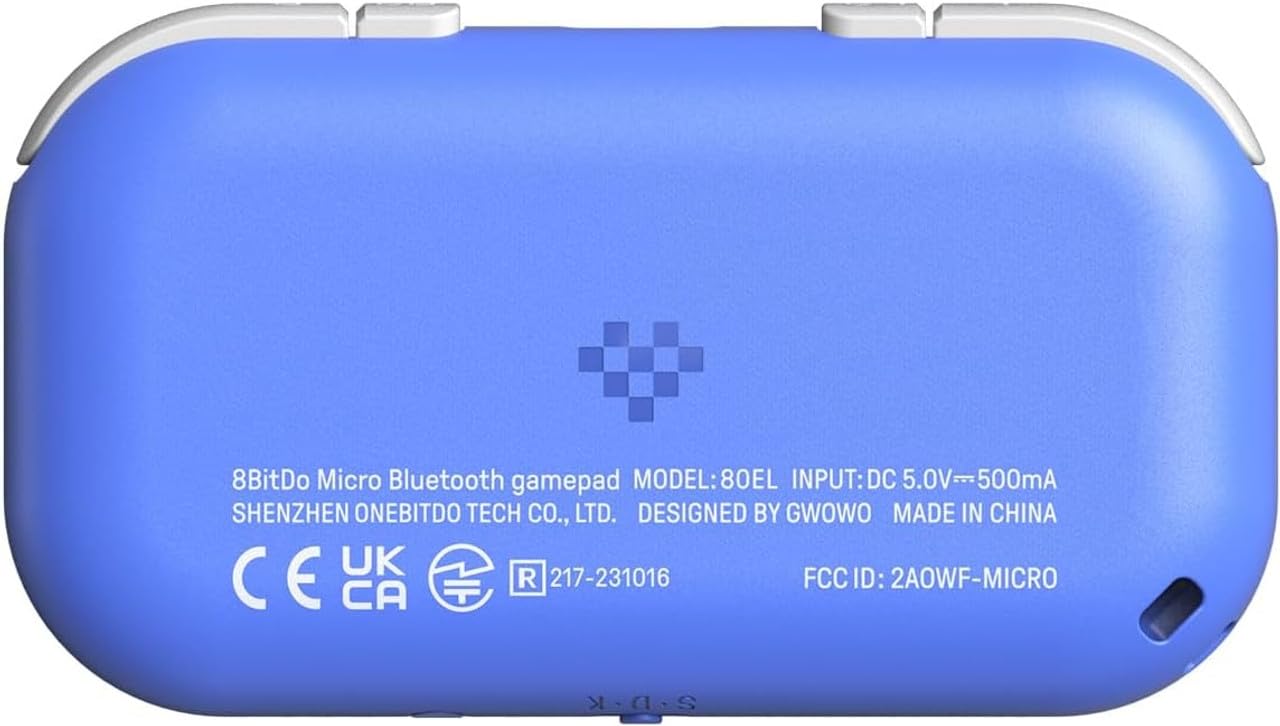
The 8Bitdo Micro features a mode switch located on the bottom of the controller. This switch allows you to select the appropriate mode for your device:
- S (Switch Mode): For Nintendo Switch (version 3.0.0 or above).
- D (Android Mode): For Android devices (version 9.0 and above).
- K (Keyboard Mode): For Raspberry Pi (Raspberry Pi OS, Lakka, RetroPie, Recalbox, Batocera), Android, iOS, iPadOS, and Windows. This mode supports button mapping via the 8BitDo Ultimate Software mobile version.
Awọn Ilana Sisopọ
After selecting the desired mode, follow these steps to pair your controller:
- Rii daju pe oludari wa ni pipa.
- Press and hold the pairing button (usually a small circular button on the side or bottom, refer to Figure 1 for location) for 3 seconds until the LED indicator starts blinking rapidly.
- On your device (Switch, Android, PC, etc.), navigate to the Bluetooth settings and search for new devices.
- Yan "8Bitdo Micro" lati inu akojọ awọn ẹrọ to wa.
- Once connected, the LED indicator on the controller will turn solid.

Video 1: Official product video demonstrating the 8Bitdo Micro Bluetooth Gamepad's features and compact size.
Ṣiṣẹ Alakoso
Ifilelẹ Bọtini ati Awọn iṣẹ
The 8Bitdo Micro features a standard button layout optimized for 2D games and various applications:
- D-Pad: Ìfilọ́lẹ̀ ìtọ́sọ́nà.
- Àwọn bọ́tìnì A, B, X, Y: Standard action buttons (Nintendo layout by default).
- Awọn bọtini L1, L2, R1, R2: Shoulder buttons located on the top edge.
- Select/Minus Button: Typically used for menu navigation or specific game functions.
- Start/Plus Button: A maa n lo fun idaduro tabi ibẹrẹ awọn ere.
- Bọtini Yiya: For taking screenshots on compatible platforms (e.g., Nintendo Switch).
- Bọtini Ile: Ó padà sí ojú ìbojú ilé ètò náà.


Advanced Usage (Keyboard Mode)
In Keyboard Mode, the 8Bitdo Micro can be used as a versatile remote for various applications beyond gaming. You can map any button to a specific key or combination of keys using the 8BitDo Ultimate Software (mobile version). This allows for control of teleprompters, cameras, smart home devices, and other applications that accept keyboard inputs.


Itoju
Ninu
To clean your 8Bitdo Micro Gamepad, use a soft, dry cloth. For stubborn dirt, a slightly damp cloth with mild soap can be used, ensuring no moisture enters the ports or button crevices. Do not use harsh chemicals or abrasive materials.
Famuwia Awọn imudojuiwọn
8Bitdo periodically releases firmware updates to improve performance, add features, or fix bugs. It is recommended to keep your controller's firmware updated for optimal performance. Visit the official 8Bitdo support webAaye fun famuwia tuntun ati awọn ilana imudojuiwọn.
Laasigbotitusita
- Olùdarí kò sopọ̀ mọ́ra: Ensure the mode switch is set correctly for your device. Make sure Bluetooth is enabled on your device and the controller is in pairing mode (rapidly blinking LED). Try restarting both the controller and your device.
- Input Lag/Latency: While Bluetooth connectivity is generally stable, some devices or applications may experience slight input lag. For critical gaming, consider using a wired connection if supported by your device. Ensure no other strong wireless signals are interfering.
- Buttons not responding/incorrectly mapped: Verify that the controller is in the correct mode. If using Keyboard Mode, check your button mappings in the 8BitDo Ultimate Software mobile app. Perform a firmware update if available.
- Batiri ko dani idiyele: Ensure you are using a functional USB-C cable and power source. If the issue persists, contact 8Bitdo customer support.
- Accidental activation in pocket: Due to its compact size, the power button may be inadvertently pressed. Be mindful of how the controller is stored to prevent accidental power-on.
Awọn pato
| Nọmba awoṣe | 6922621503576 |
| Awọn iwọn | 3.94 x 1.97 x 0.5 inches |
| Iwọn | 5.29 iwon (150 giramu) |
| Asopọmọra | Bluetooth, Wired (USB-C) |
| Batiri | 1 Batiri litiumu polima (pẹlu) |
| Ibamu | Nintendo Switch (3.0.0+), Android (9.0+), Raspberry Pi (various OS), iOS, iPadOS, macOS, Windows (Keyboard mode only) |
| Ojo ifisile | Oṣu Kẹjọ Ọjọ 15, Ọdun 2023 |
Atilẹyin ọja ati Support
The 8Bitdo Micro Bluetooth Gamepad is covered by a manufacturer's warranty. For detailed warranty information, product support, firmware updates, and frequently asked questions, please visit the official 8Bitdo support webojula:
For further assistance, you may also contact 8Bitdo customer service directly through their webojula.


