1. Ifihan
The OneKey Classic 1S is a hardware crypto wallet designed for secure cold storage of digital assets. It features EAL 6+ top security, Bluetooth connectivity, and NFT support. This device allows users to manage a wide range of cryptocurrencies, including Bitcoin, Ethereum, Solana, Dogecoin, BNB, TRON, Bitcoin Cash, and Kaspa, across over 100 chains and 30,000+ coins. It is built with an emphasis on ease of use, security, and broad compatibility across various operating systems and software wallets.

Image: The OneKey Classic 1S, highlighting its compact, card-like design.
2. Eto
2.1 Unboxing ati Ibẹrẹ ayewo
Upon receiving your OneKey Classic 1S, carefully inspect the packaging for any signs of tampering. The device comes with tamper-evident seals and self-destruct labels to ensure its integrity during transit. If any seals appear broken or compromised, do not proceed with setup and contact customer support immediately.

Image: Contents of the OneKey Classic 1S retail box.

Image: Tamper-evident packaging of the OneKey Classic 1S.
2.2 Package Awọn akoonu
Idiwọn boṣewa pẹlu:
- OneKey Classic 1S Hardware Wallet
- USB Iru-C USB
- Recovery Sheets (x3)
2.3 Initial Device Activation and Recovery Phrase Setup
Follow the on-screen instructions on the OneKey Classic 1S device for initial activation. This process typically involves:
- Powering on the device.
- Setting up a PIN for device access.
- Generating a new recovery phrase (seed phrase).
- Carefully writing down the recovery phrase on the provided recovery sheets. This phrase is crucial for recovering your assets if the device is lost or damaged. Store it in a secure, offline location.
- Verifying the recovery phrase as prompted by the device.

Image: The importance of securely recording your recovery phrase.
The device also features firmware attestation on first activation to ensure authenticity.
3. Operating the OneKey Classic 1S
3.1 Nsopọ Ẹrọ naa
The OneKey Classic 1S supports both wired (USB Type-C) and wireless (Bluetooth) connections. Connect the device to your computer or mobile device using the provided USB cable or pair it via Bluetooth.

Image: The OneKey Classic 1S demonstrating universal compatibility with various devices.
3.2 Olumulo Interface ati Lilọ kiri
The device features a simple interface with physical buttons for navigation. It supports fingerprint unlock and a 'swipe to sign' mechanism for transactions, designed for ease of use.

Image: Operating the OneKey Classic 1S with one hand to manage transactions.
3.3 Managing Cryptocurrencies and NFTs
The OneKey Classic 1S supports over 100 blockchain networks and 30,000+ cryptocurrencies, including major assets like BTC, ETH, SOL, USDT, DOGE, BNB, TRON, BCH, and KASPA. It also supports NFTs and DeFi applications.

Image: The OneKey Classic 1S supporting multiple blockchain networks.

Image: Extensive multi-chain support for various cryptocurrencies.
3.4 Ibamu
The device is compatible with a wide range of operating systems and software wallets:
- Awọn ọna ṣiṣe: Windows, MacOS, Lainos, Android, iOS
- Supported Wallets/Protocols: MetaMask, OKX, Rabby, WalletConnect v2, OneKey App, Trust Wallet, Rainbow, ImToken

Image: The OneKey platform interface across various devices and operating systems.
3.5 Awọn ẹya Aabo
The OneKey Classic 1S incorporates an EAL 6+ certified secure element chip to protect your private keys. It is fully open-source with reproducible builds and has undergone independent security audits.
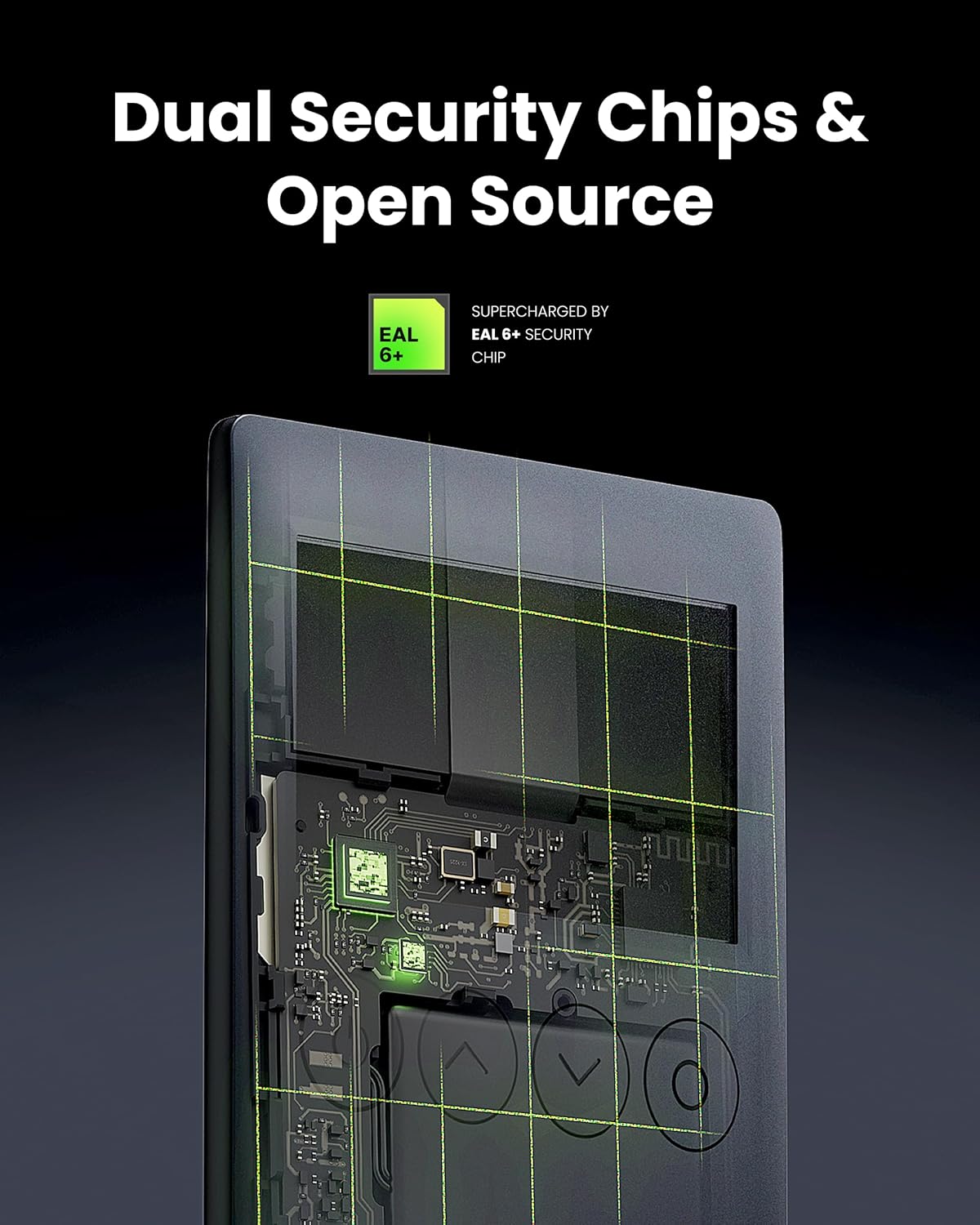
Aworan: Ti abẹnu view highlighting the dual security chips and EAL 6+ security.

Image: Illustration of the secure chip protecting against attacks.
4. Itọju
4.1 Ngba agbara si Ẹrọ
The OneKey Classic 1S has a built-in rechargeable battery. Connect it to a power source using the provided USB Type-C cable when the battery level is low. A full charge ensures continuous operation without external power.
4.2 Itọju Gbogbogbo
- Jeki ẹrọ naa di mimọ ati ofe kuro ninu eruku ati ọrinrin.
- Yago fun awọn iwọn otutu to gaju ati imọlẹ orun taara.
- Do not attempt to open or modify the device, as this will void the warranty and compromise its security.
4.3 famuwia imudojuiwọn
Regularly check for and install firmware updates through the official OneKey application. Firmware updates often include security enhancements and new features. Always ensure your device is sufficiently charged before initiating an update.
5. Laasigbotitusita
5.1 Ẹrọ Ko Nṣiṣẹ Tan-an
- Ensure the device is fully charged. Connect it to a power source using the USB Type-C cable and allow it to charge for at least 30 minutes.
- Gbiyanju okun USB ti o yatọ tabi ohun ti nmu badọgba agbara.
5.2 Connection Issues (USB/Bluetooth)
- USB: Ensure the USB cable is securely connected to both the device and your computer. Try a different USB port.
- Bluetooth: Ensure Bluetooth is enabled on both your OneKey Classic 1S and the host device (computer/smartphone). Try unpairing and re-pairing the device. Ensure no other devices are interfering with the Bluetooth signal.
- Verify that the OneKey application on your computer or mobile device is up to date.
5.3 Transaction Errors
- Ṣayẹwo asopọ intanẹẹti rẹ.
- Ensure you have sufficient funds for the transaction, including any network fees.
- Verify the recipient address carefully.
- Confirm the transaction details on the device screen before approving.
5.4 Forgotten PIN or Lost Recovery Phrase
- If you forget your PIN, you may need to reset the device. This will require your recovery phrase to restore your assets.
- IKILO: If you lose your recovery phrase and your device is inaccessible (e.g., forgotten PIN, damaged), your assets will be permanently lost. The recovery phrase is the sole backup for your digital assets.
6. Awọn pato
| Ẹya ara ẹrọ | Ẹ̀kúnrẹ́rẹ́ |
|---|---|
| Orukọ awoṣe | OneKey Classic 1S |
| Àwọ̀ | Black-Classic |
| Chip aabo | EAL 6+ Certified Secure Element |
| Asopọmọra | USB Type-C, Bluetooth |
| Supported Assets | 100+ Chains, 30,000+ Coins (BTC, ETH, SOL, DOGE, BNB, TRON, BCH, KASPA, NFTs, DeFi) |
| Ibamu | Windows, macOS, Linux, Android, iOS (via OneKey App, MetaMask, OKX, Rabby, WalletConnect v2) |
| Awọn iwọn | 7.24 x 3.35 x 1.61 inches (Apapọ) |
| Iwọn Nkan | 7 iwon |
| Batiri | 1 Batiri ti kii ṣe deede (ṣe gbigba agbara) |
| Flash Memory Iru | SD (Note: This refers to internal secure element storage, not user-accessible storage) |
| Agbara Ibi ipamọ Iranti | 1 MB (Internal secure element storage) |
| Ka / Kọ Iyara | 400 MB/s (Relevant for internal data transfer, not user-accessible storage) |
| Pataki Ẹya | Lightweight, Open Source |
7. Atilẹyin ọja ati Support
For detailed information regarding the product warranty, technical support, and customer service, please refer to the official OneKey website or contact OneKey customer support directly. Specific warranty terms and conditions may vary by region and purchase location.


