1. Ifihan
Thank you for choosing the Cherry KW 7100 Mini Multi-Device Compact Keyboard. This manual provides essential information for setting up, operating, and maintaining your new keyboard. Designed for versatility and portability, this keyboard offers seamless connectivity across multiple devices.
2. Ohun ti o wa ninu Apoti
- Cherry KW 7100 Mini Multi-Device Compact Keyboard
- USB-C to USB-A Charging/Connection Cable
- 2x AAA batiri
- 2.4 GHz Wireless Nano Receiver (stored magnetically in the keyboard)
- Ọran gbigbe
- Ilana itọnisọna

olusin 1: Top-isalẹ view of the Cherry KW 7100 Mini Keyboard.
3. Eto
3.1. Fifi sori batiri
- Wa yara batiri ni apa isalẹ ti keyboard.
- Ifaworanhan ṣii ideri kompaktimenti batiri.
- Fi awọn batiri AAA meji sii, ni idaniloju polarity ti o pe (+/-).
- Pa ideri batiri naa ni aabo.
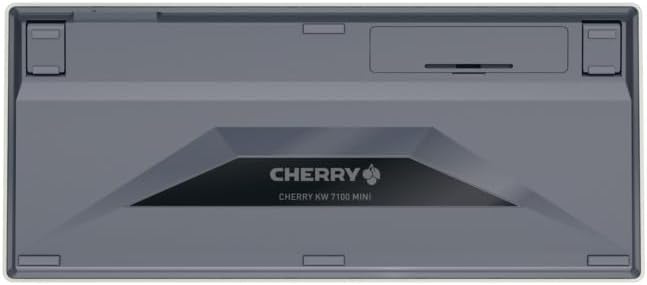
olusin 2: Underside ti awọn keyboard pẹlu batiri kompaktimenti.
3.2. Nsopọ Keyboard
The Cherry KW 7100 Mini supports three connection methods: Bluetooth, 2.4 GHz Wireless, and Wired USB-C.
3.2.1. Bluetooth Connection (Up to 3 Devices)
- Tan-an keyboard nipa lilo agbara yipada ti o wa ni ẹgbẹ.
- Press and hold one of the Bluetooth channel keys (F1, F2, or F3) for 3-5 seconds until the corresponding LED indicator blinks rapidly. This indicates pairing mode.
- On your device (laptop, smartphone, tablet), navigate to Bluetooth settings and search for available devices.
- Select "Cherry KW 7100" from the list to pair. The LED will stop blinking and remain solid for a few seconds upon successful connection.
- Repeat for up to two additional devices using the other Bluetooth channel keys (F1, F2, or F3).
3.2.2. Ìsopọ̀ Aláìlókùn 2.4 GHz
- Locate the 2.4 GHz wireless nano receiver, typically stored magnetically in a slot on the underside of the keyboard.
- Insert the nano receiver into an available USB-A port on your computer.
- Tan keyboard nipa lilo agbara switch. Kibọọdu yẹ ki o so mọ olugba naa laifọwọyi.
3.2.3. Ti firanṣẹ USB-C Asopọ
- Connect one end of the provided USB-C cable to the USB-C port on the keyboard.
- Connect the other end of the USB-C cable to an available USB-A port on your computer.
- The keyboard will function as a wired keyboard.
Video 1: Demonstrating the setup and typing experience of the Cherry KW 7100 Mini Keyboard.
4. Ṣiṣẹ Keyboard
4.1. Yipada Laarin awọn ẹrọ ti a ti sopọ
To switch between paired Bluetooth devices, simply press the corresponding Bluetooth channel key (F1, F2, or F3) that your device is paired to. The keyboard will automatically connect to the selected device.
4.2. Function Keys (FN)
The keyboard features a dedicated FN key, typically located near the right Shift key. This key, in combination with other keys, activates secondary functions such as media controls, screen brightness, and other system commands. Refer to the keycap legends for specific FN key combinations.
4.3. Awọn afihan LED
LED indicators on the keyboard provide information about its status:
- Bluetooth Channel LEDs (F1, F2, F3): Indicate the currently active Bluetooth connection or pairing mode.
- LED Titiipa Awọn bọtini: Ó máa ń tànmọ́lẹ̀ nígbà tí Caps Lock bá ń ṣiṣẹ́.
- Ipo LED: Tọkasi ipele batiri kekere.
4.4. Ẹsẹ ti o ṣatunṣe
The keyboard is equipped with stable, fold-out feet on the underside. These allow you to adjust the typing angle for improved ergonomics and comfort.
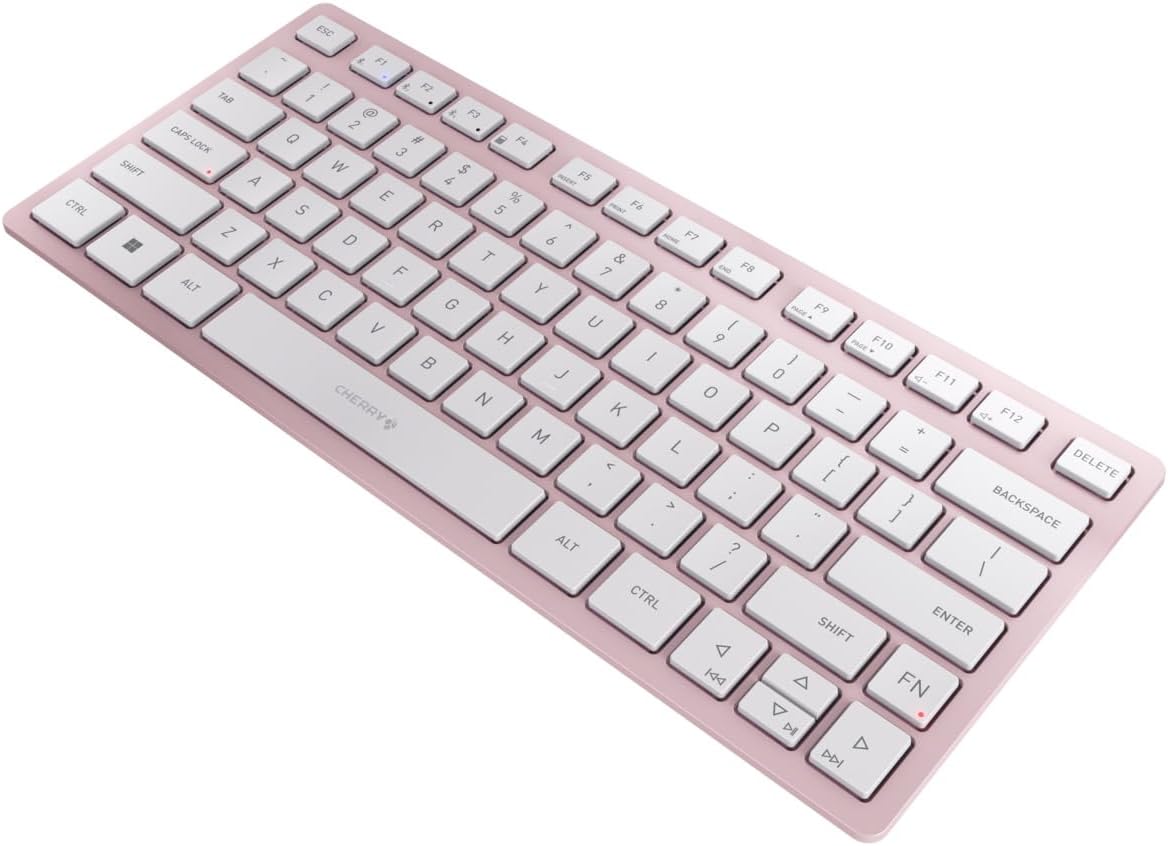
olusin 3: Angled view of the keyboard, highlighting its slim profile.

olusin 4: Apa view showing the adjustable feet extended for an ergonomic typing angle.
5. Itọju
5.1. Ninu
To clean your keyboard, gently wipe the keycaps and surface with a soft, lint-free cloth. For stubborn dirt, slightly dampen the cloth with water or a mild, non-abrasive cleaning solution. Avoid excessive moisture and do not spray cleaners directly onto the keyboard.
5.2. Ibi ipamọ
When not in use, especially during travel, store the keyboard in its included carrying case to protect it from dust, scratches, and minor impacts.

Figure 5: The keyboard stored in its protective carrying case.
6. Laasigbotitusita
6.1. Keyboard Ko Sopọ
- Rii daju pe keyboard ti wa ni titan.
- Ṣayẹwo awọn batiri ki o si ropo wọn ti o ba wulo.
- For Bluetooth, ensure the correct channel (F1, F2, or F3) is selected and the keyboard is in pairing mode (blinking LED).
- For 2.4 GHz wireless, ensure the nano receiver is securely plugged into a USB-A port.
- Gbìyànjú láti sopọ̀ mọ́ra nípasẹ̀ okùn USB-C láti yọ àwọn ìṣòro aláìlọ́wọ́ kúrò.
- Tun ẹrọ rẹ bẹrẹ ki o gbiyanju lati so pọ lẹẹkansi.
6.2. Àwọn kọ́kọ́rọ́ tí kò dáhùn
- Check the connection as described above.
- Rii daju pe ko si idoti ti o wa labẹ awọn bọtini.
- If using a wired connection, try a different USB port or cable.
6.3. Ìgbésí ayé Batiri Kúrú
- Ensure you are using fresh, high-quality AAA batteries.
- Turn off the keyboard when not in use to conserve battery power.
7. Awọn pato
| Ẹya ara ẹrọ | Sipesifikesonu |
|---|---|
| Orukọ awoṣe | KW 7100 |
| Nọmba Awoṣe Nkan | JK-7100US-19 |
| Brand | ṣẹẹri |
| Asopọmọra Technology | Bluetooth 5.1 (3 channels), 2.4 GHz Wireless, USB-C Wired |
| Awọn ẹrọ ibaramu | Kọǹpútà alágbèéká, Foonuiyara, Tabulẹti |
| Apejuwe Keyboard | Compact, Multi-Device |
| Key Mechanism | Ìlànà Scissor Cherry SX |
| Orisun agbara | 2x AAA batiri |
| ìsekóòdù | AES-128 |
| Ọja Mefa | 11.6 x 5.1 x 0.6 inches |
| Iwọn Nkan | 1.4 iwon |
| Ohun elo | Irin, Ṣiṣu |
| Àwọ̀ | Cherry Iruwe |
8. Atilẹyin ọja ati Support
This product is covered by Cherry's standard manufacturer warranty. For detailed warranty information, technical support, or service inquiries, please visit the official Cherry webaaye tabi kan si atilẹyin alabara wọn taara.
Olupese: ṣẹẹri
Webojula: www.cherry.de