1. Ifihan
The ANSTEN Optical Fiber Splitter 1 in 2 Out is designed to connect a single optical audio source to two separate optical audio receiving devices. This allows you to switch between two output devices without constantly plugging and unplugging cables, reducing wear and tear on your equipment's optical ports. It supports various digital audio formats, including uncompressed PCM audio and compressed 5.1 to 7.1 surround sound systems like Dolby Digital Plus, DTS-HD High Resolution, ADAT's, and LPCM.
Akiyesi pataki: This passive splitter allows connection to two devices, but the two female outputs cannot work simultaneously. Only one connected device will receive the audio signal at a time.
2. Package Awọn akoonu
- ANSTEN Optical Fiber Splitter (1 Male In to 2 Female Out) x 1
3. Awọn pato
| Ohun elo | ABS+PVC (Cable) |
| Asopọmọra Iwa | 1 Male-to-2 Female |
| Asopọmọra Iru | Ẹ̀rọ aláwòrán (Toslink/SPDIF) |
| Àwọ̀ | Dudu |
| Bandiwidi gbigbe | 250M die-die/s |
| Apẹrẹ | 1 Input - 2 Output |
| USB Ipari | O fẹrẹ to cm 20 |
| Awọn ẹrọ ti nwọle | TV, PS4, PS3, Xbox 360, Xbox One X/S, TV box, CD/DVD/Blu-Ray Player, Projector, DVD Player |
| Awọn Ẹrọ O wu | Pẹpẹ ohun, Amplifier, Speaker, Audio Processor, DAC, AS60, K1, K2, K2Pro TV Headphones |
4. Awọn ilana iṣeto
The ANSTEN Optical Fiber Splitter is designed for simple plug-and-play operation. Follow these steps to connect your devices:
- Ṣe idanimọ Awọn ibudo: Ensure your audio source device (e.g., TV, game console) has an optical audio output (Toslink/SPDIF) and your receiving devices (e.g., soundbar, amplifier) have optical audio inputs.
- So asopọ pọ: Connect the male optical connector of the ANSTEN splitter to the optical audio output port of your source device. Ensure the connection is secure.
- Àwọn ohun tí a so pọ̀: Connect standard optical audio cables (not included) from the two female optical output ports of the splitter to the optical audio input ports of your two receiving devices. Ensure these connections are also secure.
- Agbara Tan: Agbara lori gbogbo awọn ẹrọ ti a ti sopọ.
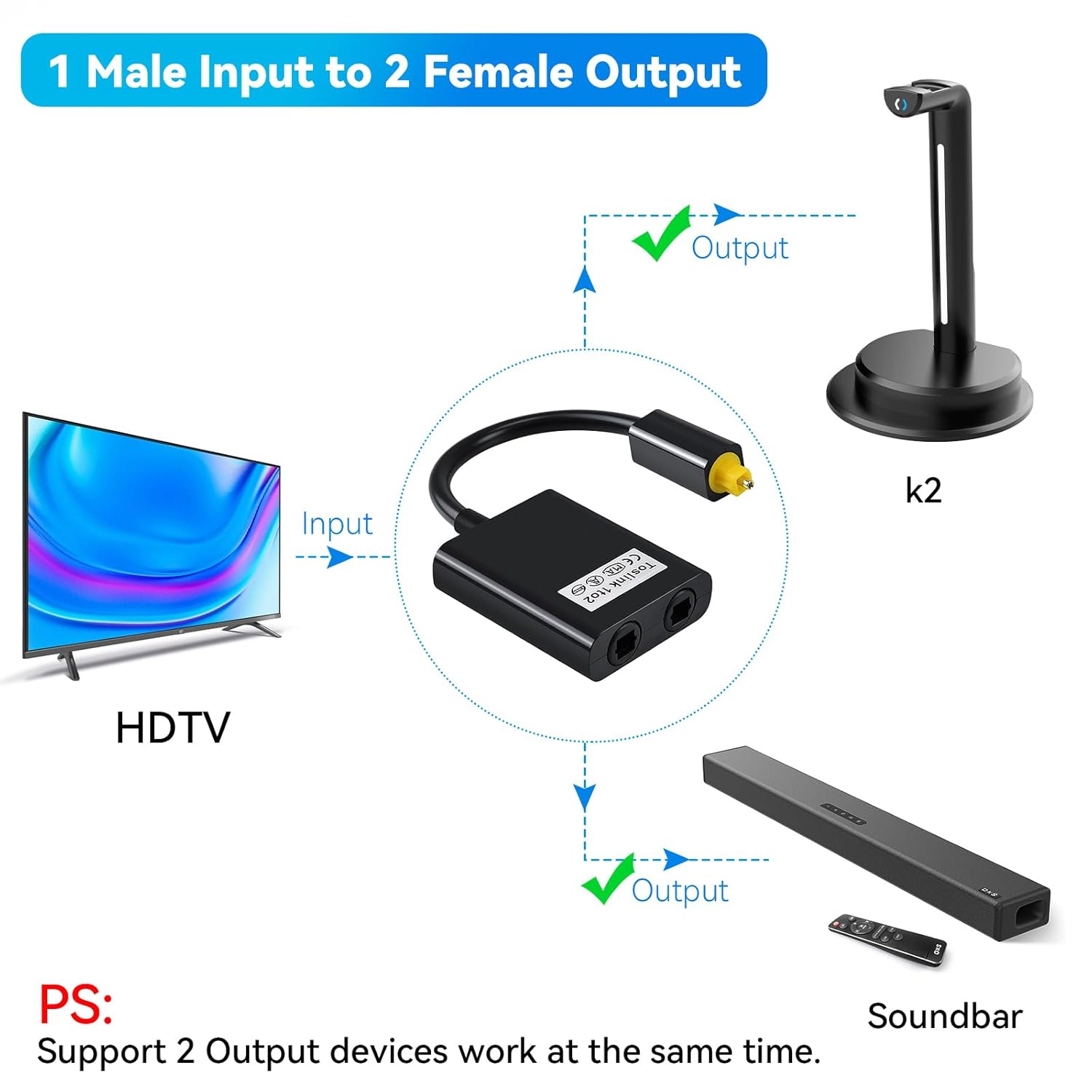
Nọmba 1: Connection diagram illustrating an HDTV as the input source, connected to the ANSTEN Optical Fiber Splitter. The splitter's two female outputs are then connected to a K2 headphone dock and a soundbar. This setup allows for switching between the two output devices.
5. Awọn ilana Iṣiṣẹ
Once connected, the splitter allows you to direct the audio signal from your single source to one of the two connected output devices. To switch between the output devices, you may need to:
- Manually select the active output device if your receiving devices have an auto-sensing feature that prioritizes the active signal.
- Physically disconnect the optical cable from the output device you do not wish to use, leaving only the desired output device connected.
Remember, this splitter does not allow for simultaneous audio output to both connected devices.
6. Laasigbotitusita
- Ko si Ijade Olohun:
- Ensure all optical cables are securely connected at both ends (source, splitter, and receiving device).
- Verify that the optical audio output on your source device is enabled and correctly configured in its settings.
- Confirm that the optical audio input on your receiving device is selected as the active input.
- Check if the optical cables themselves are damaged. Try swapping them with known working cables if available.
- Ensure only one output device is attempting to receive the signal at a time.
- Intermittent Audio or Signal Loss:
- Inspect all optical cable connections for looseness.
- Ensure the optical cable is not sharply bent or kinked, as this can damage the fiber.
- Clean the optical connectors and ports with a suitable optical cleaning tool or lint-free cloth if dust or debris is suspected.
7. Itọju
To ensure the longevity and optimal performance of your ANSTEN Optical Fiber Splitter:
- Keep the splitter and connected cables in a clean, dry environment.
- Yago fun ṣiṣafihan ẹrọ naa si awọn iwọn otutu to gaju tabi oorun taara.
- Do not bend optical cables sharply, as this can damage the internal fiber and impair signal transmission.
- When disconnecting, always grasp the connector housing, not the cable itself.
- Keep the protective caps on unused optical ports to prevent dust accumulation.

Nọmba 2: The ANSTEN Optical Fiber Splitter, showcasing apẹrẹ ati awọn asopọ rẹ.
8. Atilẹyin ọja ati Support
For warranty information or technical support regarding your ANSTEN Optical Fiber Splitter, please refer to the documentation provided with your purchase or contact ANSTEN customer service directly. Contact details can typically be found on the manufacturer's official webojula tabi nipasẹ rẹ alagbata.


