1. Ifihan
This manual provides detailed instructions for the Varmilo VA Series V2 Aurora Bluetooth White LED Mechanical Keyboard. It covers setup, operation, maintenance, and troubleshooting to ensure optimal performance and user experience. The VA Series V2 features an upgraded design with a standard USB-C cable, a double-section kickstand for enhanced adjustability, North-facing LEDs, and sound-proof silicone pads for a quieter typing experience. Indicator lights are positioned on the top right to minimize distractions.
2. Package Awọn akoonu
Jọwọ ṣayẹwo awọn akoonu package lori unboxing. Ti awọn ohun kan ba nsọnu tabi bajẹ, kan si atilẹyin alabara.
- Varmilo VA Series V2 Aurora Mechanical Keyboard
- Okun USB-C
- Afowoyi Olumulo (iwe-ipamọ yii)
3. Eto
3.1 Ti ara Oṣo
- Yọ Keyboard kuro: Fara yọọ bọtini itẹwe ati gbogbo awọn ẹya ẹrọ kuro ninu apoti.
- Ṣe àtúnṣe àwọn ibi ìdúró: Keyboard náà ní àwọn ọ̀nà méjìtage height adjustable feet. Flip out the desired kickstands on the underside of the keyboard to achieve your preferred typing angle.

Image: The underside of the keyboard, highlighting the two-stage adjustable kickstand for ergonomic positioning.
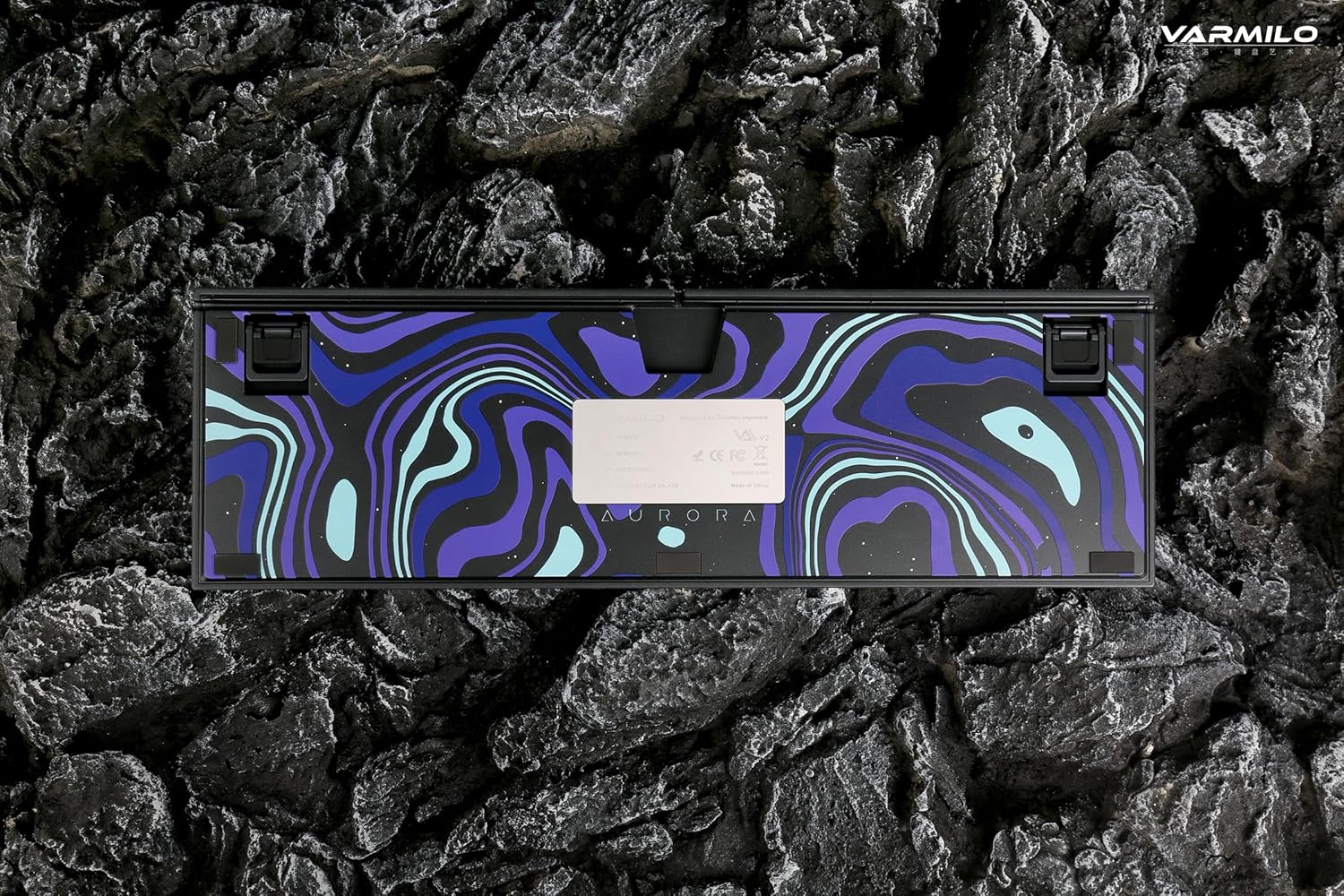
Image: The bottom of the keyboard, illustrating the cable grooves that allow the USB-C cable to exit from the left, right, or middle.
3.2 Awọn ọna asopọ
3.2.1 Asopọ onirin (USB-C)
- Wa ibudo USB-C ni ẹhin keyboard naa.
- Connect the provided USB-C cable to the keyboard and the other end to an available USB port on your computer or device.
- The keyboard will be automatically recognized by your operating system. The indicator light will show charging status if the battery is low.
3.2.2 Asopọ Alailowaya Bluetooth
The Varmilo VA Series V2 Aurora keyboard supports connecting up to 3 devices wirelessly via Bluetooth.
- Yípadà sí Ipò Bluetooth: Locate the mode switch on the keyboard (usually on the back or side) and set it to Bluetooth mode.
- Tẹ Ipo Sisopọ: Tẹ mọlẹ Fn + Fi sii (for Bluetooth device 1), Fn + Ile (for Bluetooth device 2), or Fn + Oju-iwe Soke (for Bluetooth device 3) for 3-5 seconds until the indicator light flashes rapidly, indicating pairing mode.
- Mu Bluetooth ṣiṣẹ lori Ẹrọ Rẹ: On your computer, smartphone, or tablet, go to Bluetooth settings and turn on Bluetooth.
- Yan Kííbọọ̀dù: Look for "Varmilo VA2" or a similar name in the list of available devices and select it to pair.
- Jẹrisi Isopọpọ: Once paired, the indicator light on the keyboard will stop flashing and remain solid for a few seconds, then turn off or show battery status.
- So Awọn Ẹrọ Afikun pọ: Repeat steps 2-5 using a different Fn key combination (Fn + Home or Fn + Page Up) to pair up to two more devices.
4. Awọn ilana Iṣiṣẹ
4.1 Yipada Laarin Awọn ẹrọ
- To switch to Bluetooth device 1: Press Fn + Fi sii.
- To switch to Bluetooth device 2: Press Fn + Ile.
- To switch to Bluetooth device 3: Press Fn + Oju-iwe Soke.
- To switch to Wired mode: Set the mode switch on the keyboard to Wired mode.
4.2 LED Backlight Control
The keyboard features a White LED backlight. Use the following key combinations to control the backlight:
- Fn + < (Left Arrow): Din ina backlight din.
- Fn + > (Right Arrow): Mu imọlẹ ina ẹhin pọ si.
- Fn + Ọfà oke: Change backlight mode/effect.
- Fn + Ọfà isalẹ: Change backlight mode/effect (reverse direction).
- Fn + Z: Tan/pa ina ẹhin.
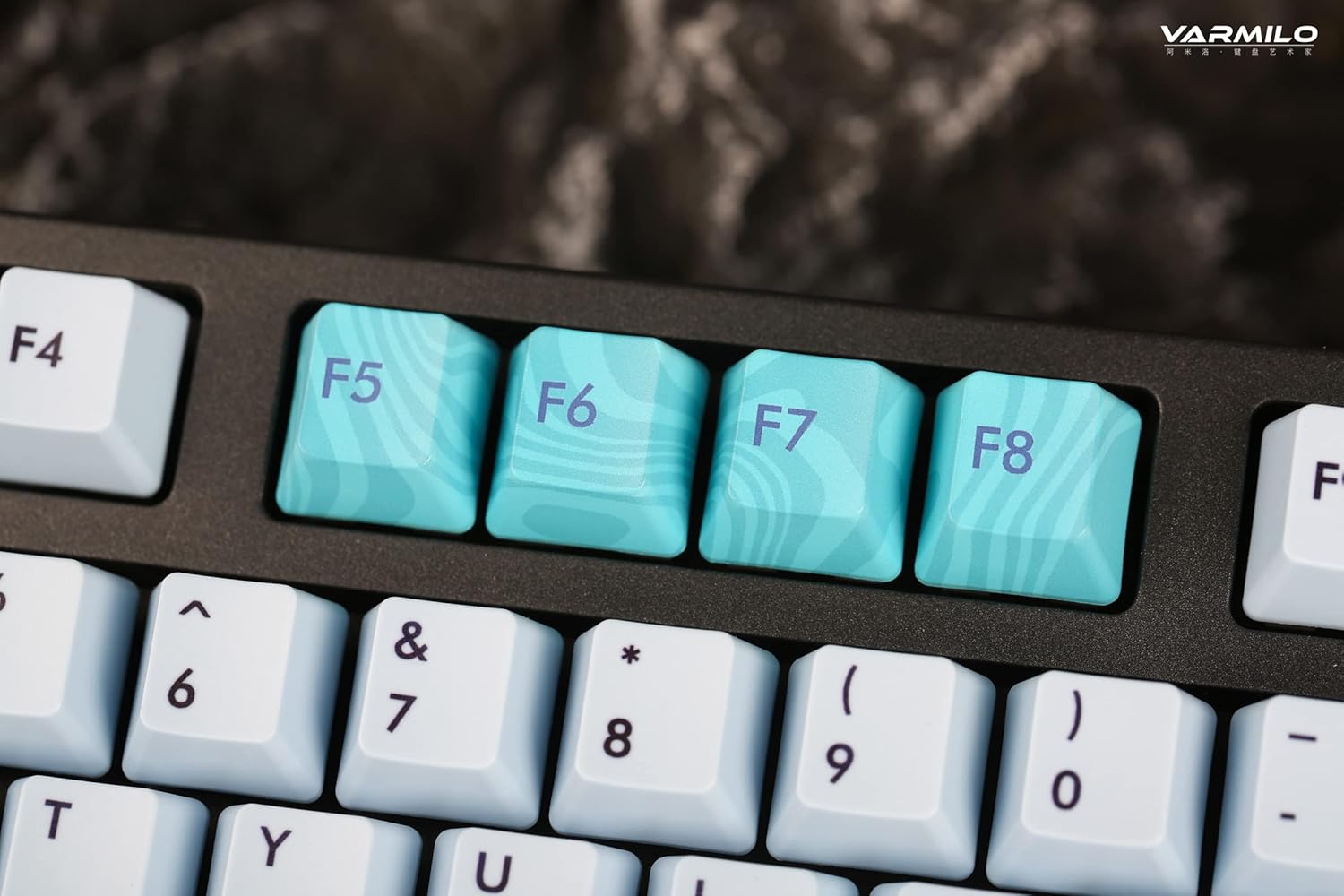
Image: Close-up of the arrow keys, which are used in combination with the Fn key to control backlight brightness and modes.
4.3 Function Keys and Multimedia Controls
The keyboard features a full-size (104 + 4) layout with dedicated function keys and multimedia controls accessible via the Fn bọtini.
- Fn + F1-F12: Access various system functions (e.g., media playback, volume control, screen brightness). Refer to your operating system's settings for specific mappings or common keyboard shortcuts.
- Fn + Windows Key: Titiipa/ṣii bọtini Windows lati ṣe idiwọ titẹ lairotẹlẹ lakoko ere.
- Fn + Right Ctrl: Switch between Mac/Windows layout (if applicable, check specific model features).

Aworan: A sunmọ-soke view of the F5-F8 keys, showcasing their unique design and potential secondary functions.
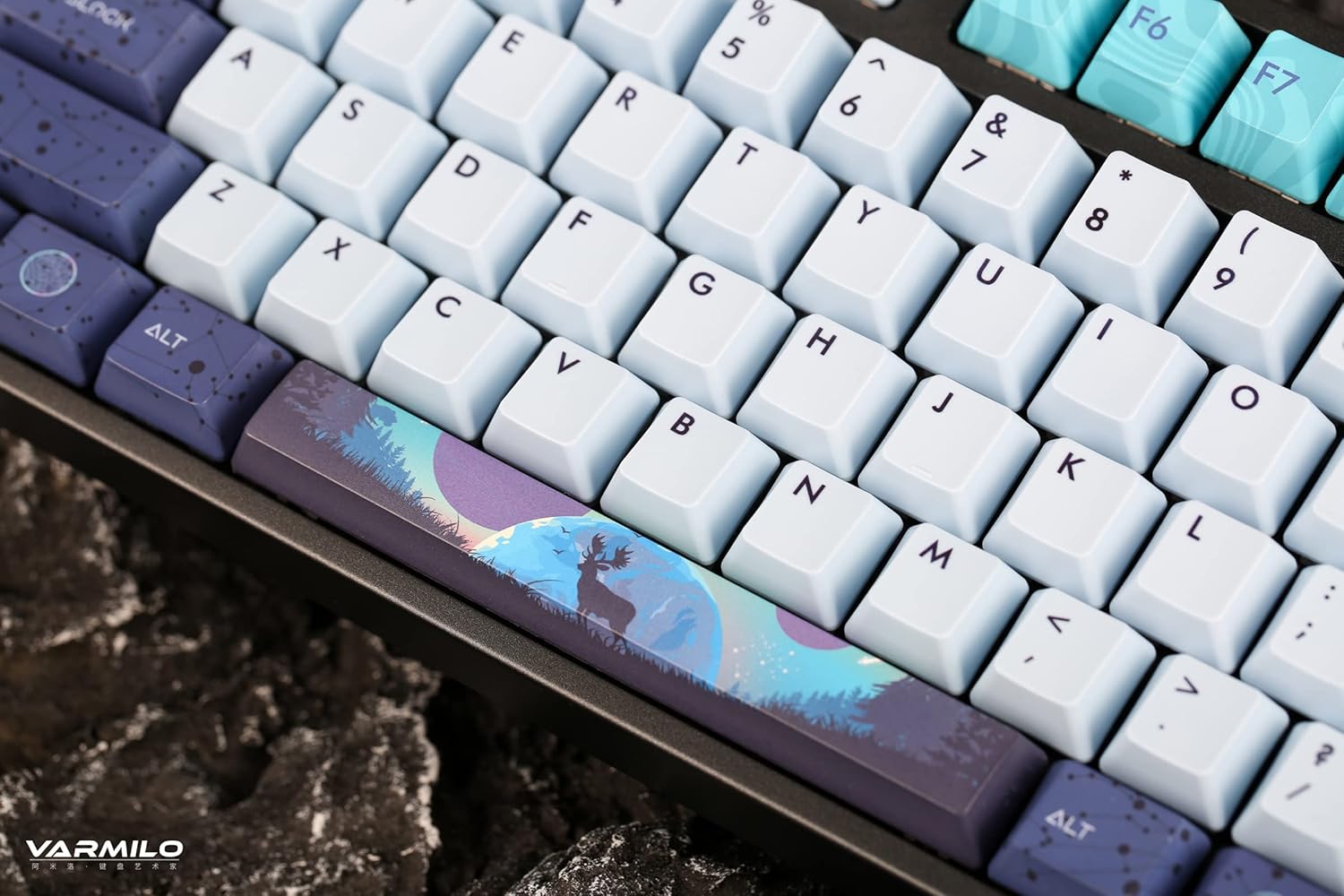
Aworan: A alaye view of the keyboard's keycaps, including a custom-designed spacebar, highlighting the thick Dye Sub PBT keycaps.
5. Itọju
Proper maintenance ensures the longevity and performance of your Varmilo keyboard.
- Ninu: Use a soft brush or compressed air to remove dust and debris from between the keycaps. For stubborn dirt, gently wipe the keycaps with a damp asọ ati ojutu ọṣẹ kekere, ni idaniloju pe ko si omi ti o wọ inu keyboard.
- Yiyọkuro bọtini bọtini: If you need to clean under the keycaps or replace them, use a keycap puller. Gently pull the keycap straight up to avoid damaging the switch. The keyboard features durable Dye Sub PBT keycaps.
- Ibi ipamọ: Tí o kò bá lò ó fún ìgbà pípẹ́, tọ́jú kíábọ́ọ̀dì náà sí ibi tí ó gbẹ tí kò sì ní eruku.
- Yago fun Olomi: Do not expose the keyboard to liquids. Spills can cause permanent damage.
6. Laasigbotitusita
| Isoro | Owun to le Fa | Ojutu |
|---|---|---|
| Keyboard ko dahun (Ti firanṣẹ) | Loose USB-C cable connection; faulty USB port; incorrect mode. |
|
| Kííbọọ̀dù kò dáhùn (Bluetooth) | Not paired; out of range; low battery; incorrect Bluetooth channel selected. |
|
| Imọlẹ afẹyinti ko ṣiṣẹ | Backlight turned off; brightness set to minimum; low battery. |
|
| Awọn bọtini kii ṣe iforukọsilẹ tabi titẹ-meji | Dust/debris under keycap; switch malfunction; software issue. |
|
7. Awọn pato
| Ẹya ara ẹrọ | Ẹ̀kúnrẹ́rẹ́ |
|---|---|
| Brand | Varmilo |
| Awoṣe | VA Series V2 Aurora |
| Keyboard Iru | Ẹ̀rọ |
| Yipada Iru | Kailh Prestige Red |
| Asopọmọra | USB-C (Wired), Bluetooth (Wireless) |
| Awọn ẹrọ Alailowaya | Connects up to 3 devices wirelessly |
| Awọn bọtini itẹwe | Thick Dye Sub PBT |
| Imọlẹ ẹhin | White LED, North-facing |
| Ìfilélẹ | Full-size (104 + 4 keys) |
| Awọn ẹrọ ibaramu | Kọǹpútà alágbèéká, PC, Foonuiyara, Tabulẹti |
| Pataki Awọn ẹya ara ẹrọ | Meji-stage height adjustable feet, Sound-proof silicone pads, Cable grooves |
| Ohun elo | Silicone (internal sound dampipari) |
8. Atilẹyin ọja ati Support
Varmilo products are designed for quality and durability. For warranty information, technical support, or service inquiries, please refer to the official Varmilo webojula tabi kan si alagbata rẹ.
You can visit the official Varmilo Store for more information: Varmilo Store on Amazon.


