Ọrọ Iṣaaju
This manual provides comprehensive instructions for the setup, operation, maintenance, and troubleshooting of your DÖRR SnapShot Cloud Pro 4G WA Game Camera. Please read this manual carefully before using the device to ensure optimal performance and longevity.
The DÖRR SnapShot Cloud Pro 4G WA is a high-performance game camera designed for wildlife observation and surveillance, featuring 24-megapixel image capture, 4G image transfer capabilities, black LEDs for discreet night vision, audio recording, and time-lapse video functions.
Package Awọn akoonu

The package typically includes the DÖRR SnapShot Cloud Pro 4G WA Game Camera unit, an antenna, a USB cable for data transfer, and a mounting strap. Please verify all components are present upon unboxing.
- DÖRR SnapShot Cloud Pro 4G WA Game Camera
- Eriali
- Okun USB
- Iṣagbesori Okun
- (Batteries and SD card are not included and must be purchased separately.)
Ṣeto
1. Fifi sori batiri

The camera requires 12 AA batteries for operation. Open the camera housing by unlatching the side clips. Insert the batteries into the designated slots, ensuring correct polarity (+/-). Close the housing securely to maintain weather resistance.
2. SD kaadi ifibọ
Locate the SD card slot inside the camera housing. Insert a compatible SD card (up to 32GB, Class 10 recommended) with the metal contacts facing down until it clicks into place. Ensure the SD card is formatted before first use (refer to the "Operating" section).
3. Asomọ Eriali
Screw the provided antenna onto the antenna port located on the top of the camera. Ensure it is tightened securely for optimal signal reception.
4. Agbara akọkọ Lori ati iṣeto ni
Switch the camera to the "ON" position. The camera will perform a self-check. For detailed configuration and app setup, scan the QR code inside the camera housing or visit the official DÖRR manual page: DÖRR SnapShot Cloud Pro 4G WA Manual (PDF). This manual provides comprehensive details on connecting the camera to the DÖRR Cloud app for remote management and image transfer.
Awọn ilana Iṣiṣẹ
1. Awọn ọna kamẹra
- Ipo Fọto: Ó máa ń ya àwọn àwòrán tí ó dúró nígbà tí ìṣípo bá mú un ṣiṣẹ́.
- Ipo Fidio: Ṣe igbasilẹ awọn agekuru fidio nigbati išipopada ba mu ṣiṣẹ.
- Ipo Fọto + Fidio: Ya aworan iduro ti o tẹle pẹlu agekuru fidio.
- Ipo ipari akoko: Captures images at set intervals regardless of motion.
2. Formatting the SD Card
It is recommended to format the SD card before first use and periodically thereafter to ensure optimal performance and prevent data corruption. This can typically be done through the camera's menu system via the DÖRR Cloud app or by pressing the "SD Format" button if available (refer to the internal camera view image in the Setup section).
3. Motion Detection and Sensitivity
The camera uses a Passive Infrared (PIR) sensor to detect motion. Sensitivity settings can be adjusted via the app to minimize false triggers from environmental factors like wind or small animals. Higher sensitivity detects smaller movements, while lower sensitivity focuses on larger subjects.
4. 4G Image Transfer

The camera supports 4G connectivity for remote image and video transfer to your smartphone via the DÖRR Cloud app. Ensure a compatible SIM card with an active data plan is inserted (not included). The app allows you to view captured media, change settings, and monitor camera status remotely.
5. Iṣagbesori Kamẹra
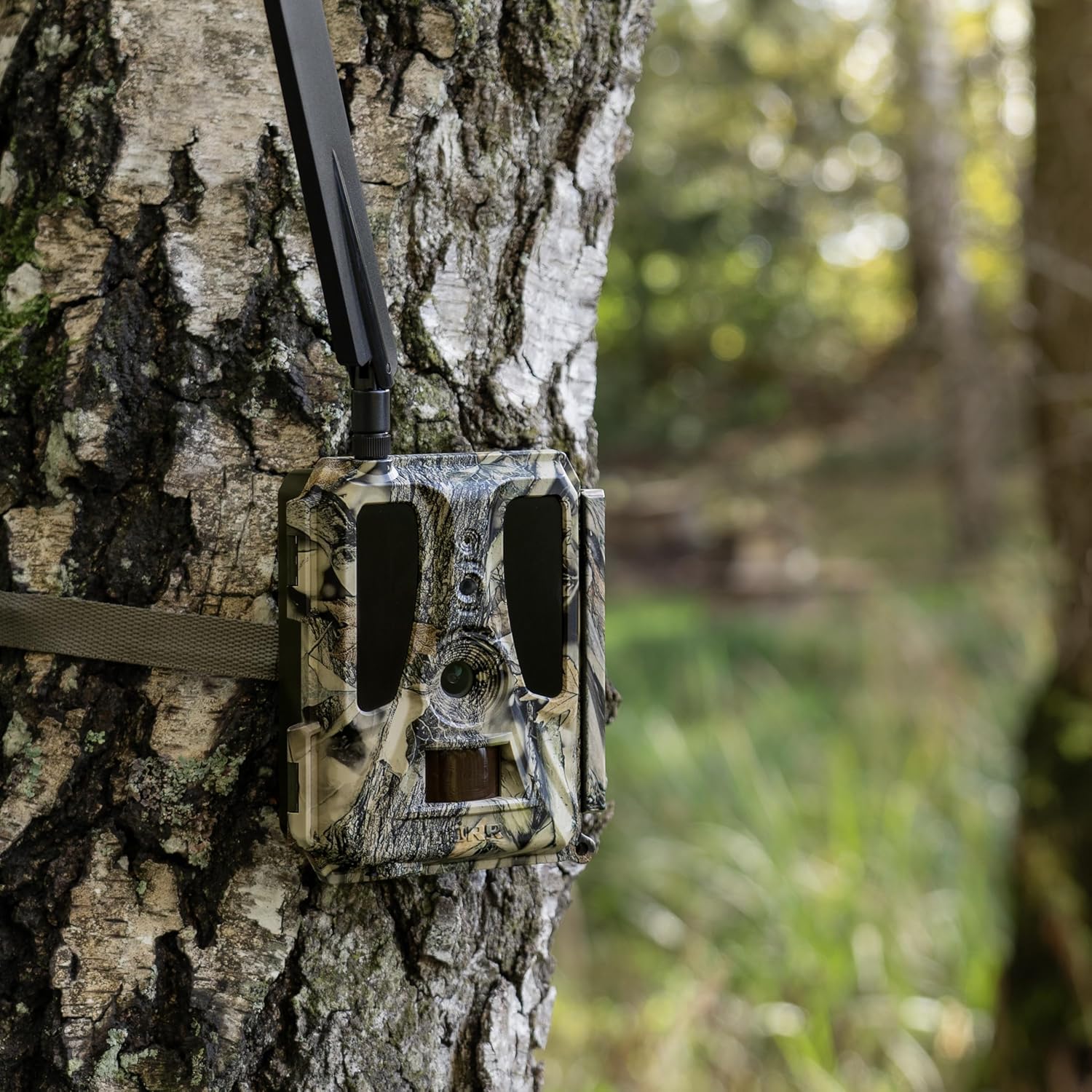
Use the provided mounting strap to secure the camera to a tree or pole. Position the camera at a height that provides a clear view of the desired area, typically 1-2 meters (3-6 feet) off the ground. Avoid pointing the camera directly at the sun or reflective surfaces to prevent overexposure or false triggers.
Itoju
- Ninu: Regularly clean the camera lens and PIR sensor window with a soft, dry cloth to ensure clear images and accurate motion detection. Do not use abrasive cleaners.
- Rirọpo Batiri: Replace batteries when the low battery indicator appears or when performance degrades. Always replace all batteries at once with new ones of the same type.
- Iṣakoso Kaadi SD: Lorekore tunview and delete unwanted files from the SD card to free up space. Consider backing up important media to another device.
- Awọn imudojuiwọn famuwia: Check the DÖRR website or app for any available firmware updates. Keeping the firmware updated ensures optimal performance and access to new features.
- Idaabobo oju ojo: While the camera is weather-resistant, avoid prolonged submersion in water. Ensure the housing is securely closed at all times to prevent moisture ingress.
Laasigbotitusita
| Isoro | Owun to le Fa / Solusan |
|---|---|
| Kamẹra ko ṣiṣẹ. | Check battery installation and ensure correct polarity. Replace with fresh batteries. Verify the ON/OFF switch is in the ON position. |
| Ko si awọn aworan/fidio sile. | Ensure SD card is inserted correctly and formatted. Check PIR sensor sensitivity settings. Verify camera is in an active mode (Photo, Video, Photo+Video). Ensure there is actual motion in the detection zone. |
| Aworan ti ko dara / didara fidio. | Clean the camera lens. Check for condensation inside the lens. Ensure sufficient lighting or proper night vision settings. Adjust camera placement to avoid direct sunlight or strong backlighting. |
| 4G transfer not working. | Verify SIM card is correctly inserted and has an active data plan. Check network signal strength. Ensure camera settings for 4G transfer are configured correctly via the app. Contact your mobile carrier if issues persist. |
| Excessive false triggers. | Reduce PIR sensor sensitivity. Reposition the camera to avoid moving branches, tall grass, or heat sources (e.g., direct sunlight on dark objects). |
Awọn pato
| Ẹya ara ẹrọ | Ẹ̀kúnrẹ́rẹ́ |
|---|---|
| Orukọ awoṣe | 204449 |
| Ipinnu Aworan | Titi di awọn megapixels 24 |
| Asopọmọra | 4G Wireless, Smartphone Compatible |
| Alẹ Iranran | Black LEDs (Invisible IR) |
| Gbigbasilẹ ohun | Bẹẹni |
| Video Awọn ẹya ara ẹrọ | Fidio Akoko-akoko |
| Orisun agbara | 12 x AA Batteries (not included), 12V DC input |
| Awọn iwọn (L x W x H) | 14.5 x 11.5 x 7.5 cm |
| Iwọn | 394 giramu |
| Ibi ipamọ | Kaadi SD (to 32GB) |
Atilẹyin ọja ati Support
For warranty information and technical support, please refer to the official DÖRR website or contact DÖRR customer service directly. Contact details are often provided within the camera's packaging or on the manufacturer's webojula.
As indicated on the internal label of the camera, you can contact DÖRR customer service at +49 731 970 37 69 tabi nipasẹ imeeli ni hello@doerr.gmbh. Please have your model number (204449) and purchase details ready when contacting support.


