1. Ifihan
Thank you for choosing the ZEBRONICS K4000MW Wireless Keyboard. This manual provides essential information for setting up, operating, maintaining, and troubleshooting your new keyboard. The K4000MW offers versatile connectivity options, including 2.4 GHz wireless and dual Bluetooth, making it compatible with a wide range of devices such as laptops, desktops, tablets, and smartphones. Its compact design and integrated multimedia keys enhance productivity and user convenience.

Aworan 1: Oke-isalẹ view of the ZEBRONICS K4000MW Wireless Keyboard, showcasing its compact layout and black finish.
2. Eto
2.1 Package Awọn akoonu
- ZEBRONICS K4000MW Wireless Keyboard
- USB Nano Receiver (for 2.4 GHz connection)
- Itọsọna olumulo
2.2 Fifi sori batiri
- Wa yara batiri ni apa isalẹ ti keyboard.
- Ṣii ideri iyẹwu batiri naa.
- Insert the required batteries (not specified in JSON, typically AA or AAA) according to the polarity markings.
- Pa ideri batiri naa ni aabo.
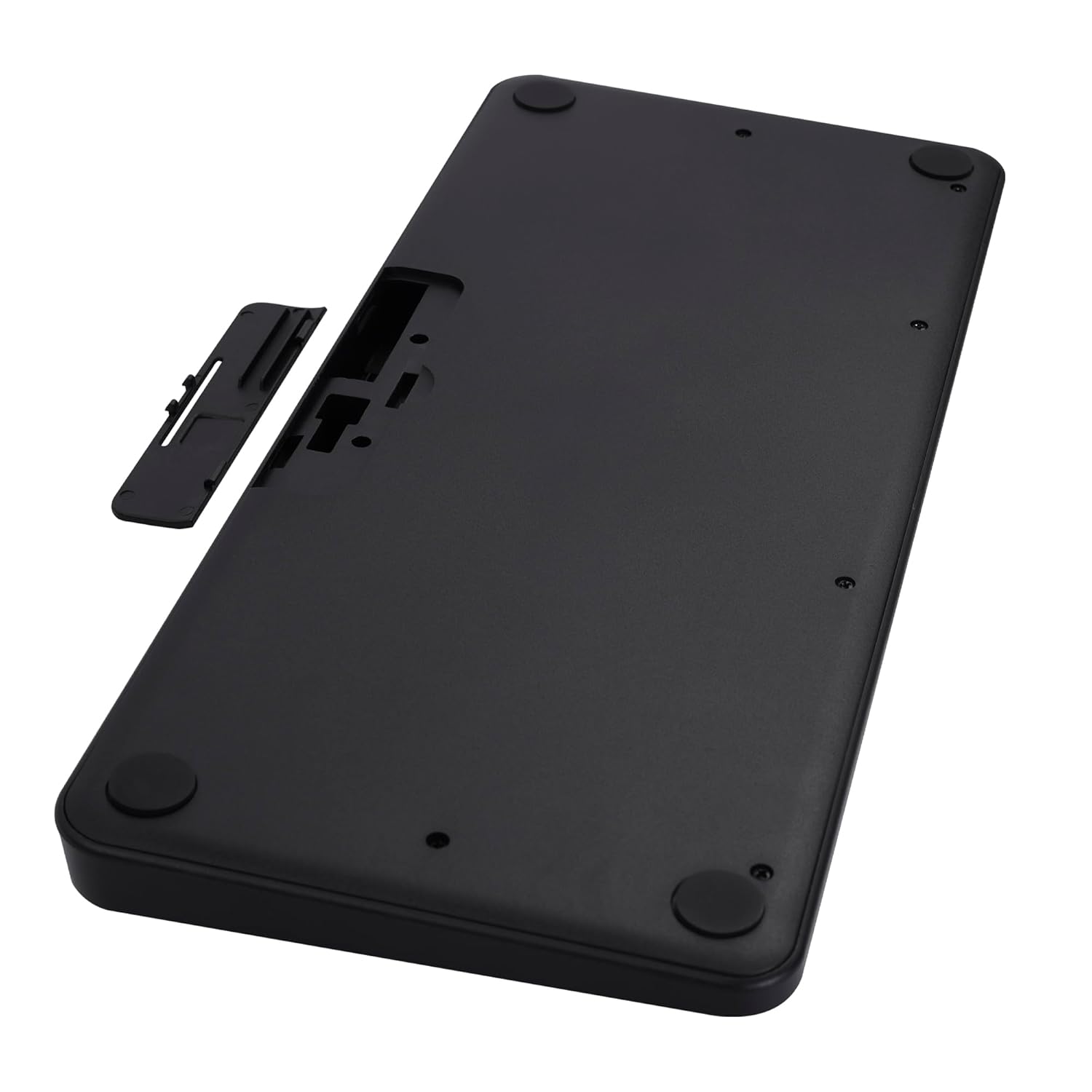
Image 2: The underside of the keyboard, showing the battery compartment and the slot for the USB nano receiver.
2.3 Nsopọ nipasẹ 2.4 GHz Alailowaya
- Remove the USB nano receiver from its storage slot in the battery compartment.
- Plug the nano receiver into an available USB port on your computer or compatible device.
- The keyboard should automatically connect. The 2.4G LED indicator on the keyboard will illuminate briefly to confirm connection.
2.4 Nsopọ nipasẹ Bluetooth
The keyboard supports up to two Bluetooth connections (BT1 and BT2).
- Pairing for BT1:
a. Tẹ mọlẹ Fn + BT1 keys simultaneously for 3-5 seconds until the BT1 LED indicator starts blinking rapidly.
b. On your device (laptop, tablet, smartphone), enable Bluetooth and search for available devices.
c. Select "ZEB-K4000MW" from the list of devices to pair.
d. Once paired, the BT1 LED indicator will stop blinking and remain solid for a few seconds. - Pairing for BT2:
a. Follow the same steps as for BT1, but press and hold Fn + BT2 awọn bọtini.
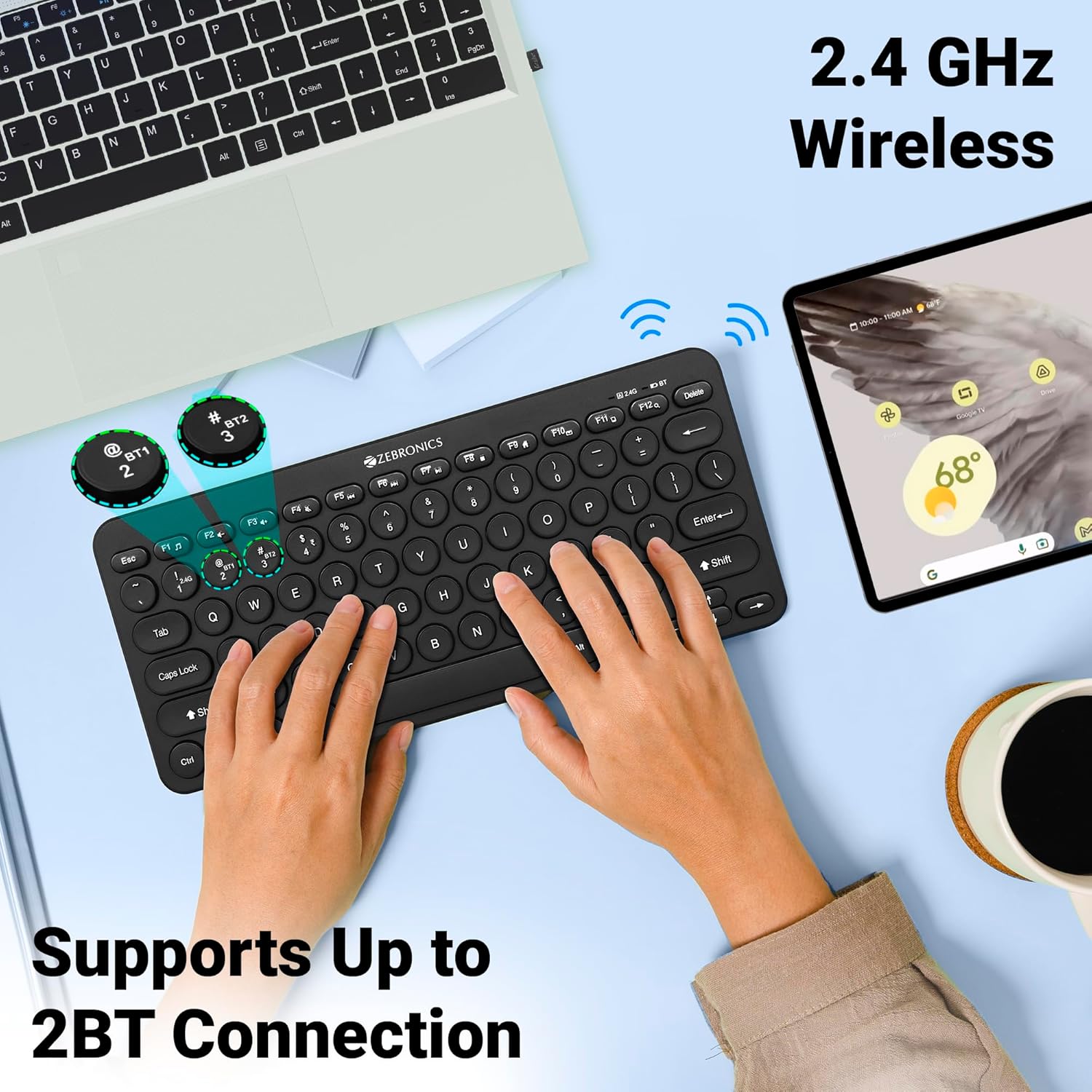
Image 3: The keyboard in use, highlighting the 2.4 GHz wireless and dual Bluetooth connection capabilities with LED indicators.
2.5 Yipada Laarin Awọn ẹrọ
Lati yipada laarin awọn ẹrọ ti a ti sopọ:
- Tẹ Fn + 2.4G to switch to the device connected via the 2.4 GHz nano receiver.
- Tẹ Fn + BT1 to switch to the device paired with Bluetooth 1.
- Tẹ Fn + BT2 to switch to the device paired with Bluetooth 2.
3. Ṣiṣẹ Keyboard
3.1 Ipilẹ Titẹ
The keyboard features 78 UV-coated keys designed for comfortable and efficient typing. The layout includes standard alphanumeric keys, function keys, and navigation keys.
3.2 Multimedia Awọn bọtini
The keyboard integrates 12 multimedia keys (F1-F12) for quick access to media controls and other functions. To use these functions, press the Fn bọtini ni nigbakannaa pẹlu bọtini iṣẹ ti o fẹ.
- Fn+F1: Media Player
- Fn+F2: Iwọn didun isalẹ
- Fn+F3: Iwọn didun soke
- Fn+F4: Pa ẹnu mọ́
- Fn+F5: Ti tẹlẹ Track
- Fn+F6: Ṣiṣẹ / Sinmi
- Fn+F7: Next Track
- Fn+F8: Duro
- Fn+F9: Web Aṣàwákiri
- Fn+F10: Imeeli
- Fn+F11: Kọmputa mi
- Fn+F12: Ẹrọ iṣiro
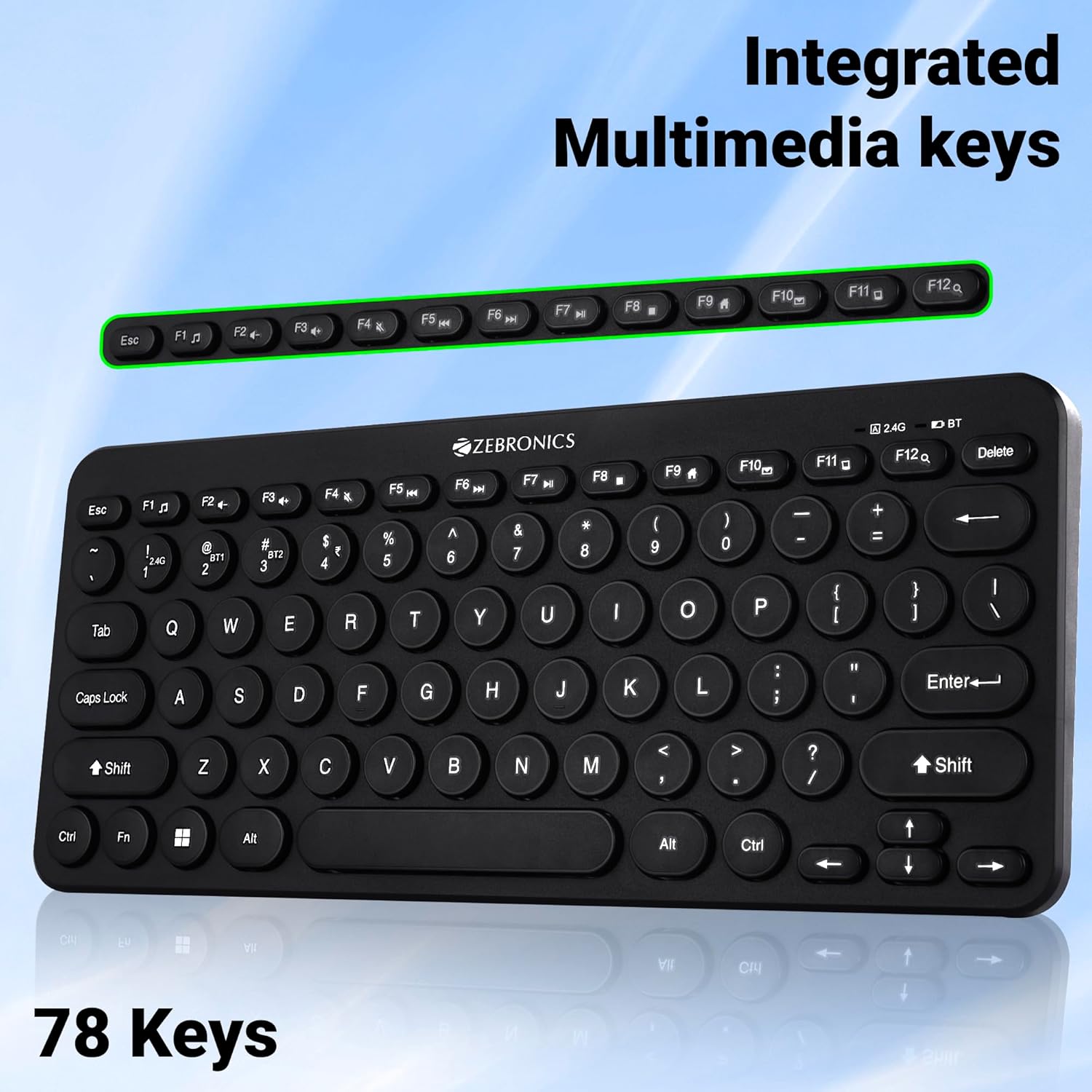
Image 4: The keyboard with the row of function keys (F1-F12) highlighted, indicating their integrated multimedia capabilities.
3.3 Rupee Key
The keyboard includes a dedicated Rupee key, indicating regional inclusivity for users.
3.4 LED Atọka
The keyboard features LED indicators to provide status information:
- 2.4G LED: Indicates 2.4 GHz wireless connection status.
- BT1/BT2 LED: Indicates Bluetooth connection status for BT1 or BT2.
- LED Titiipa Awọn bọtini: Ó máa ń tànmọ́lẹ̀ nígbà tí Caps Lock bá ń ṣiṣẹ́.
- Batiri Kekere: Flashes or changes color to indicate low battery power.
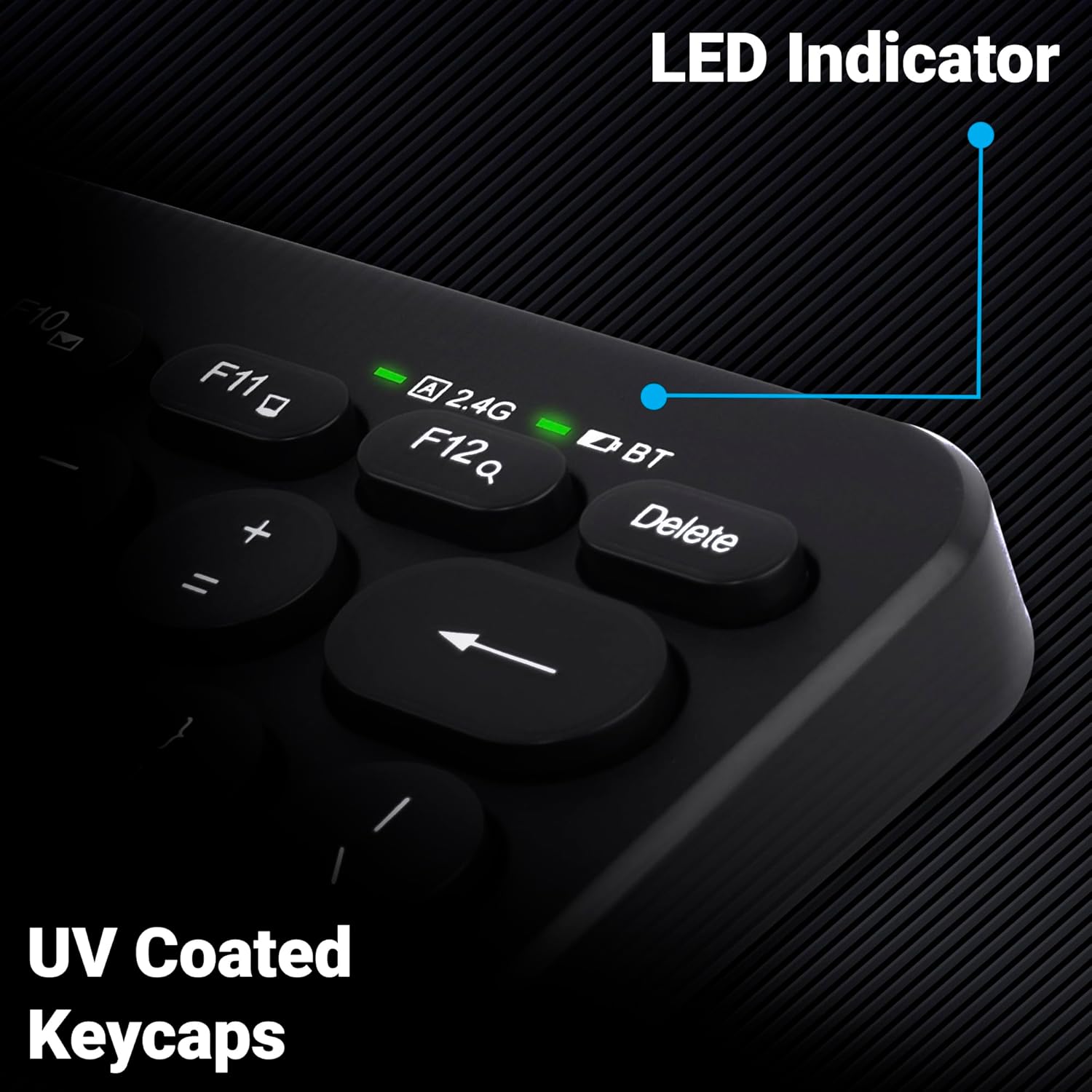
Aworan 5: A sunmọ-soke view of the keyboard's top right corner, showing the LED indicators for 2.4G, BT, and Caps Lock, along with the UV-coated keycaps.
3.5 Ibamu ẹrọ
The K4000MW keyboard is designed for broad compatibility, integrating seamlessly with:
- Kọǹpútà alágbèéká
- Awọn tabili itẹwe
- Awọn tabulẹti
- Awọn fonutologbolori
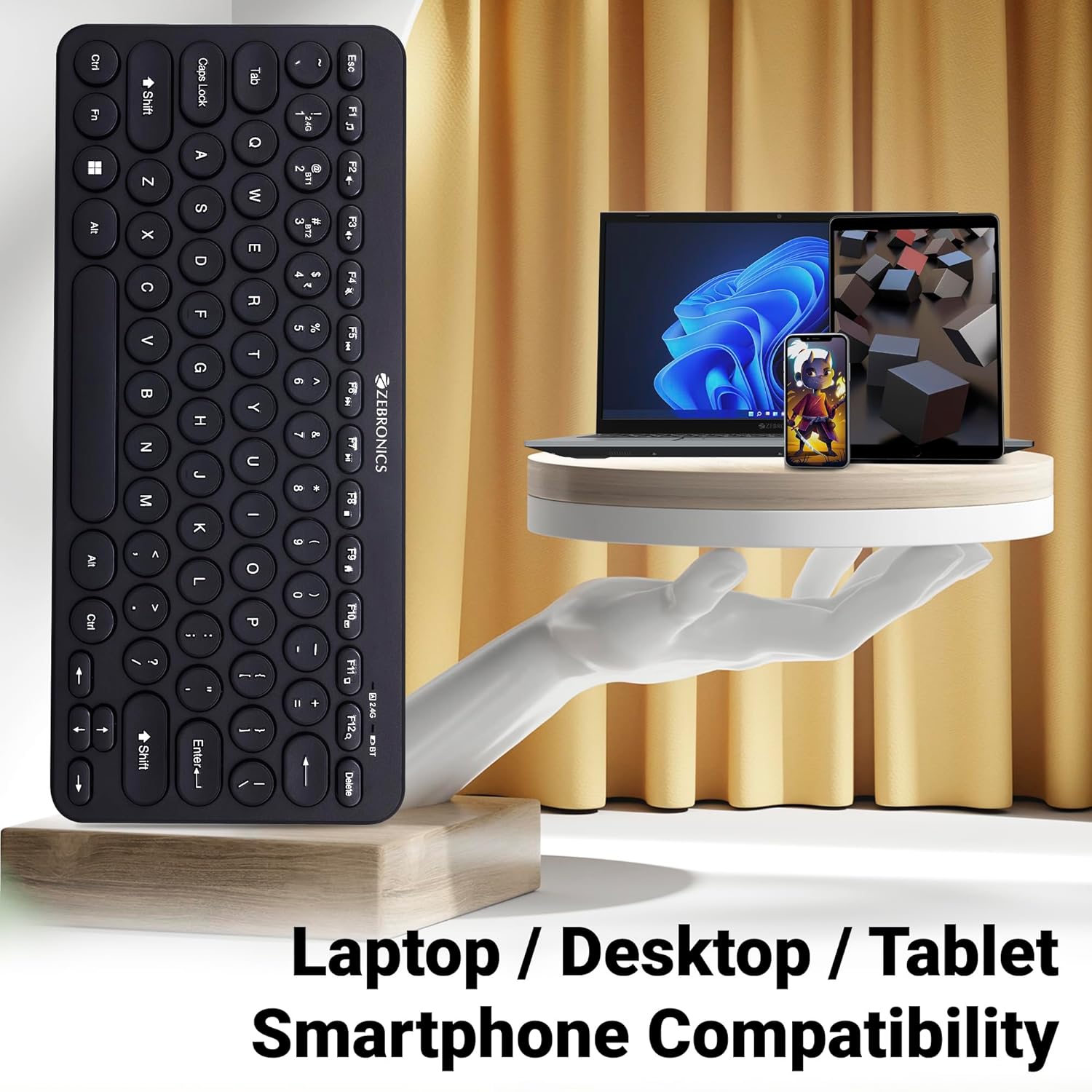
Image 6: The keyboard positioned next to a laptop, tablet, and smartphone, illustrating its multi-device compatibility.
4. Itọju
4.1 Ninu
- Lo aṣọ rírọrùn tí ó gbẹ láti nu ojú kọ̀ǹpútà náà.
- Fun idoti alagidi, die-die dampen awọn asọ pẹlu omi tabi kan ìwọnba ninu ojutu. Yago fun ọrinrin pupọ.
- Do not use harsh chemicals or abrasive cleaners, as these can damage the keycaps and finish.
- Lo afẹfẹ fisinuirindigbindigbin lati yọ eruku ati idoti kuro laarin awọn bọtini.
4.2 batiri Itọju
- Replace batteries when the low battery indicator illuminates to ensure uninterrupted operation.
- If the keyboard will not be used for an extended period, it is recommended to remove the batteries to prevent leakage.
- Store the keyboard in a cool, dry place.
5. Laasigbotitusita
5.1 Keyboard Ko fesi
- Ṣayẹwo awọn batiri: Rii daju pe awọn batiri ti fi sori ẹrọ daradara ati pe wọn ni idiyele ti o to. Rọpo ti o ba wulo.
- Ṣayẹwo Asopọmọra: Verify that the 2.4 GHz nano receiver is securely plugged into the USB port, or that the Bluetooth connection is active and paired.
- Yipada awọn ikanni: If using Bluetooth, ensure you are on the correct BT1 or BT2 channel.
- Tun Bluetooth so pọ: If connection issues persist, try unpairing and re-pairing the keyboard with your device.
- Ìjánu: Move the keyboard closer to the receiver/device and away from other wireless devices that might cause interference.
5.2 Keys Not Working or Lagging
- Awọn bọtini mimọ: Rii daju pe ko si idoti ti o wa labẹ awọn bọtini.
- Ipele Batiri: Low battery can sometimes affect key responsiveness. Replace batteries.
- Ìjánu: Wireless interference can cause lag. Try moving closer to the receiver/device.
- Ibamu Ẹrọ: Ensure your device's operating system is compatible with the keyboard.
5.3 Awọn iṣoro fun asopọ Bluetooth
- Ijinna: Rii daju pe bọtini itẹwe wa laarin iwọn to munadoko ti ẹrọ Bluetooth rẹ.
- Ìjánu: Other Bluetooth or wireless devices nearby can cause disconnections.
- Device Bluetooth Driver: Update your device's Bluetooth drivers to the latest version.
- Tun-meji: Yọ keyboard kuro ninu akojọ Bluetooth ti ẹrọ rẹ ki o si tun so o pọ mọ.
6. Awọn pato
| Ẹya ara ẹrọ | Ẹ̀kúnrẹ́rẹ́ |
|---|---|
| Brand | SEBRRONNÌSÌ |
| Orukọ awoṣe | K4000MW |
| Asopọmọra Technology | 2.4 GHz Wireless, Bluetooth (Dual BT) |
| Nọmba ti Awọn bọtini | 78 |
| Awọn bọtini Multimedia | 12 Integrated Multimedia Keys |
| Keycap Iru | UV-Coated |
| Pataki Awọn ẹya ara ẹrọ | Rupee Key, LED Indicator (Battery, Connectivity, Caps Lock) |
| Apẹrẹ | Slim & Minimalist |
| Awọn ẹrọ ibaramu | Tabili Kọmputa, Kọǹpútà alágbèéká, Tabulẹti, Foonuiyara |
| Eto isesise | Windows 10 (ati OS ibaramu miiran) |
| Orisun agbara | Agbara Batiri |
| Awọn iwọn Ọja (LxWxH) | 29.4 x 13.4 x 3 cm |
| Iwọn Nkan | 320 g |
7. Atilẹyin ọja ati Support
7.1 atilẹyin ọja Alaye
For specific warranty terms and conditions, please refer to the warranty card included with your product or visit the official ZEBRONICS webojula. Tọju iwe-ẹri rira rẹ bi ẹri rira fun awọn iṣeduro atilẹyin ọja.
7.2 Onibara Support
If you encounter any issues or have questions regarding your ZEBRONICS K4000MW Wireless Keyboard, please contact ZEBRONICS customer support through their official webaaye tabi alaye olubasọrọ ti a pese ninu apoti ọja rẹ.


