Ọrọ Iṣaaju
The Alienware AW920K Tri-Mode Wireless Gaming Keyboard is designed to elevate your gaming and productivity performance with versatile connectivity options, customizable controls, and vibrant AlienFX per-key RGB lighting. This manual provides essential information for setting up, operating, and maintaining your keyboard.

Figure 1: Alienware AW920K Tri-Mode Wireless Gaming Keyboard with USB dongle and cable.
Ohun ti o wa ninu Apoti
- Alienware AW920K Tri-Mode Wireless Gaming Keyboard
- USB Cable (detachable paracord)
- Iwe-ipamọ (afọwọṣe olumulo yii)
Ṣeto
Awọn aṣayan Asopọmọra
The Alienware AW920K keyboard offers three modes of connectivity:
Asopọ Alailowaya 2.4GHz
For responsive wireless gaming performance on your PC, use the included 2.4GHz wireless USB-C dongle. For optimal reception, deploy the convenient dongle extender to position the receiver closer to the keyboard.
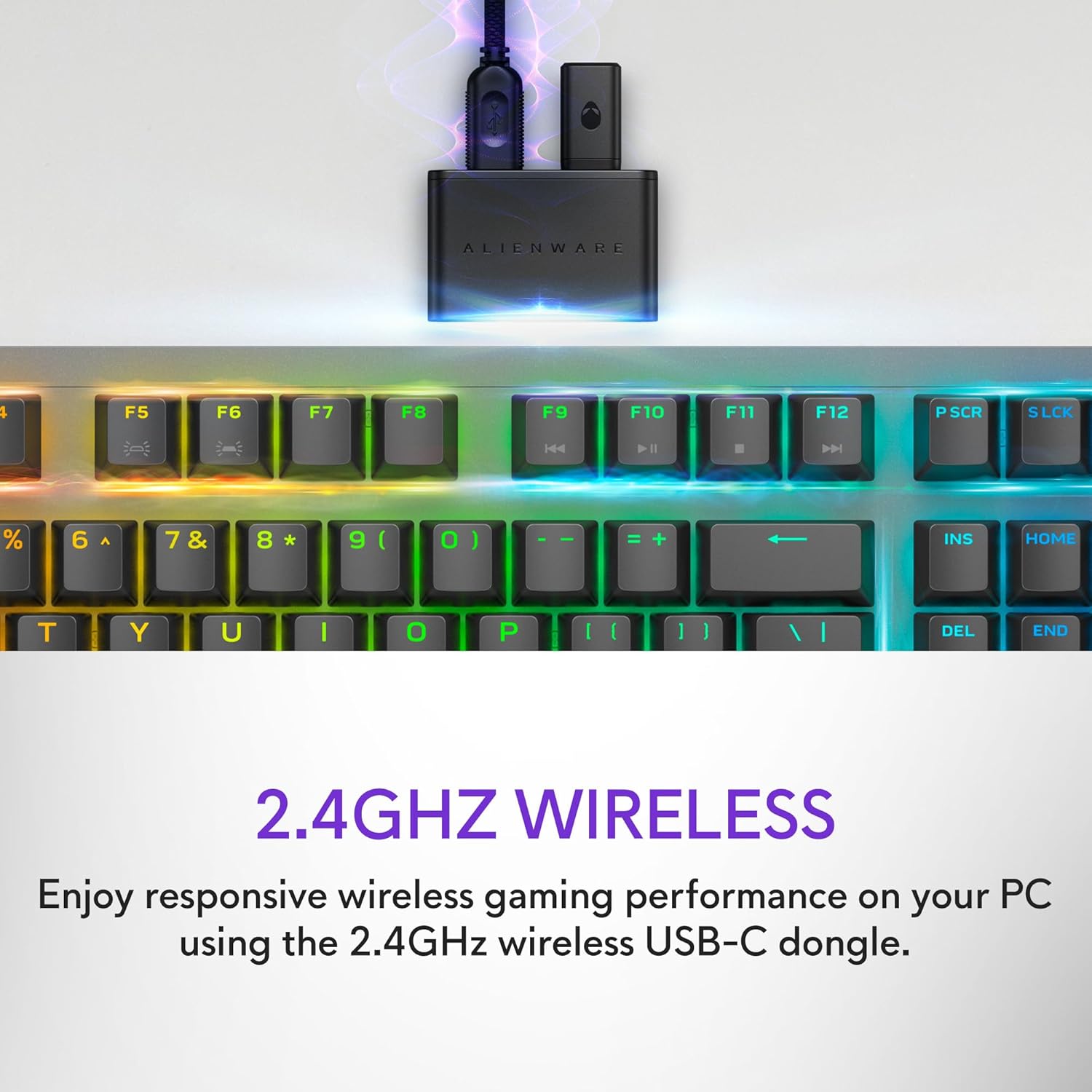
Figure 2: The 2.4GHz wireless USB-C dongle for PC connection.
Bluetooth 5.1 Asopọ
Connect up to three different compatible devices via Bluetooth 5.1. Use the selection button located on the back of the keyboard to choose the active paired device or switch to the 2.4GHz connection.

Figure 3: Connectivity toggle switch on the back of the keyboard.
Asopọ USB ti a firanṣẹ
For a direct and reliable connection, plug in and play on your PC using the detachable USB paracord cable.

Figure 4: Connecting the keyboard via the detachable USB cable.
Gbigba agbara
The keyboard features magnetic snap-on charging for convenience. Easily connect and disconnect the charging cable to keep your keyboard powered without interrupting your game or compromising performance.

Figure 5: Magnetic snap-on charging port.
The keyboard offers robust battery life: up to 42 hours with 50% RGB lighting brightness on 2.4GHz dongle connection, or up to 46 hours on Bluetooth connection with 50% RGB lighting brightness.
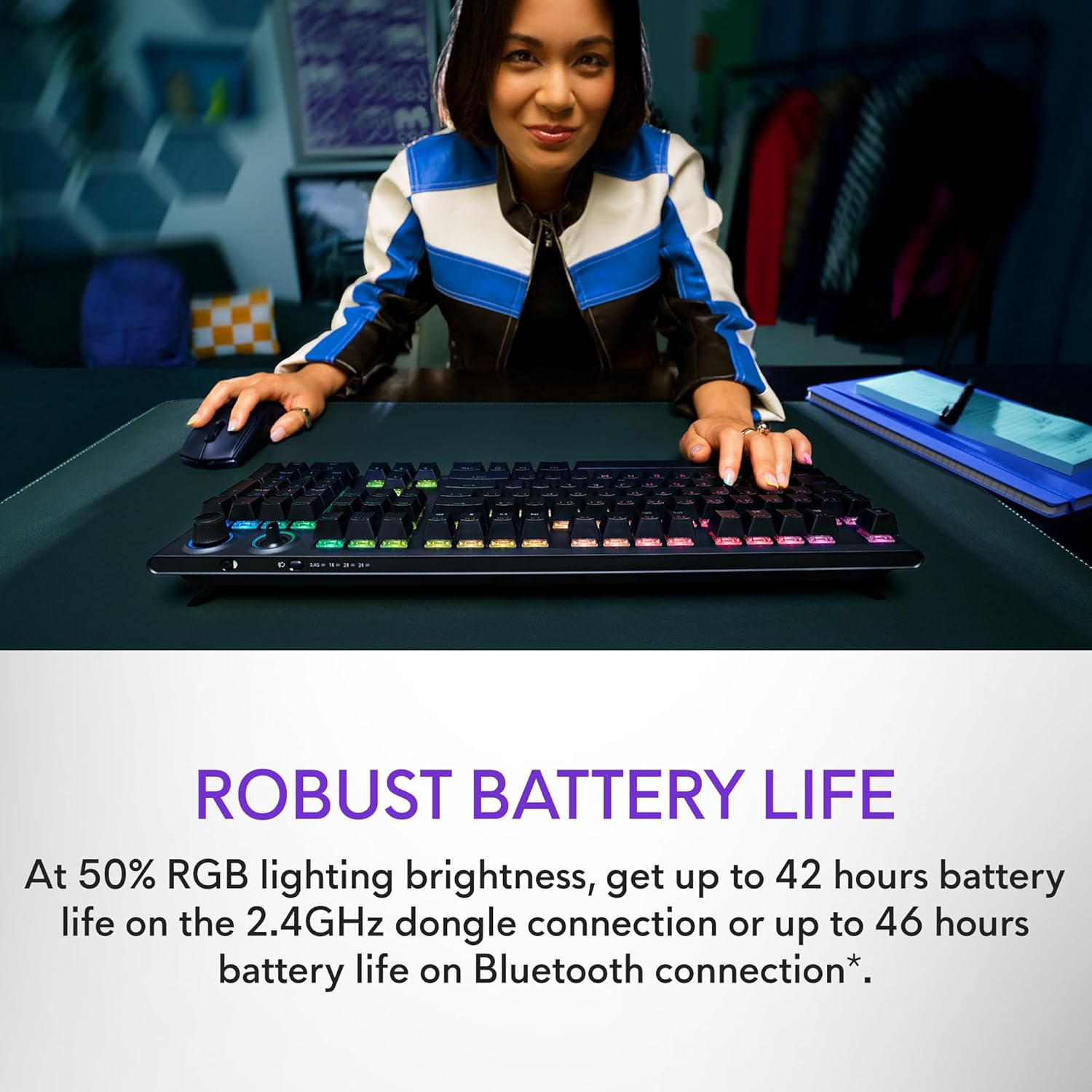
Figure 6: Illustration of the keyboard's extended battery life.
Awọn ilana Iṣiṣẹ
Key Switches and Performance
The AW920K features CHERRY MX Red switches, known for their consistent high performance, 100 million actuation lifecycle, responsive feel, and smooth linear operation, making them ideal for gaming.

olusin 7: Isunmọ view of the CHERRY MX Red switches.
Double-shot PBT keycaps provide reliable durability and exceptional wear resistance. The key legends are molded into the cap, not painted, ensuring dependable fade resistance.
Awọn iṣakoso isọdi
The programmable rocker switch and dial allow you to customize your experience. Map compatible Windows productivity controls via Alienware Command Center on your PC. This includes media controls and system volume, accessible directly from your fingertips.

Figure 8: The programmable rocker switch and dial for custom functions.
AlienFX RGB Imọlẹ
AlienFX per-key RGB lighting is configurable with Alienware Command Center, delivering an immersive gaming experience with up to 16.8 million colors. Utilize the Alienware Command Center on PC to create themes and customize the keyboard for a more personal gaming experience.

Figure 9: Keyboard displaying AlienFX RGB lighting effects.
ere Awọn ẹya ara ẹrọ
The keyboard supports full anti-ghosting and N-key rollover, ensuring that all keystrokes register correctly and the keyboard remains responsive during intense gaming sessions and rapid typing.
Itoju
To ensure the longevity and optimal performance of your Alienware AW920K keyboard, follow these maintenance guidelines:
- Ninu: Lo asọ asọ, ti ko ni lint die-die dampened with water or a mild cleaning solution to wipe down the keycaps and chassis. Avoid harsh chemicals or abrasive materials.
- Yiyọ eruku kuro: Lo afẹfẹ fisinuirindigbindigbin lati yọ eruku ati idoti kuro laarin awọn bọtini bọtini.
- Ibi ipamọ: Nigbati o ko ba wa ni lilo fun awọn akoko ti o gbooro sii, fi bọtini itẹwe pamọ si ibi gbigbẹ, ibi tutu kuro lati orun taara ati awọn iwọn otutu to gaju.
- Itọju USB: Handle the detachable USB cable with care. Avoid sharp bends or excessive pulling to prevent damage.
Laasigbotitusita
Tí o bá ní ìṣòro pẹ̀lú keyboard Alienware AW920K rẹ, wo àwọn ìgbésẹ̀ tí ó wọ́pọ̀ láti yanjú ìṣòro wọ̀nyí:
| Isoro | Owun to le Fa / Solusan |
|---|---|
| Keyboard not responding (wireless) |
|
| Imọlẹ RGB ko ṣiṣẹ |
|
| Awọn bọtini ko forukọsilẹ tabi ghosting |
|
| Awọn ẹya eto ko ṣiṣẹ |
|
Awọn pato
| Ẹya ara ẹrọ | Ẹ̀kúnrẹ́rẹ́ |
|---|---|
| Nọmba awoṣe | AW920K |
| Asopọmọra | Alailowaya 2.4GHz, Bluetooth 5.1, USB-C onirin |
| Awọn iyipada bọtini | CHERRY MX Red |
| Awọn bọtini itẹwe | Double-shot PBT |
| Itanna | AlienFX per-key RGB |
| Battery Life (2.4GHz, 50% RGB) | Titi di wakati 42 |
| Battery Life (Bluetooth, 50% RGB) | Titi di wakati 46 |
| Anti-Ghosting | Full Anti-Ghosting |
| N-Kọtini Rollover | Atilẹyin |
| Awọn iwọn (LxWxH) | 17.76 x 5.82 x 2.28 inches (45.1 x 14.8 x 5.8 cm) |
| Iwọn | 2.35 poun (1.06 kg) |
| Awọn ẹrọ ibaramu | Kọǹpútà alágbèéká, PC, Foonuiyara, Tabulẹti |

Figure 10: Keyboard dimensions (Length, Width, Height).
Atilẹyin ọja ati Support
Alienware products are backed by a manufacturer's warranty. For detailed warranty information, technical support, or service inquiries, please visit the official Alienware support webojula tabi kan si wọn onibara iṣẹ. Tọju iwe-ẹri rira rẹ fun awọn ẹtọ atilẹyin ọja.
For software updates and advanced customization, download the Alienware Command Center from the official Alienware support page.
You can visit the official Alienware store for more products and support: Alienware Store


