1. Ifihan
The Zebra DS8108-SR is a high-performance handheld corded barcode scanner designed for efficient and accurate data capture in various work environments. It is capable of scanning both 1D and 2D barcodes, including those that are dense, poorly printed, crinkled, faded, distorted, dirty, damaged, or displayed on dimly lit electronic screens.
This manual provides essential information for setting up, operating, maintaining, and troubleshooting your DS8108-SR scanner to ensure optimal performance and longevity.
2. Key Awọn ẹya ara ẹrọ
- Superior Scan Range: Offers a scanning range of up to 24 inches (61 cm), enhancing checkout speed and allowing for easy scanning of items in shopping carts without leaving the cash-wrap.
- Iṣe Ailẹgbẹ: Equipped with an 800 MHz microprocessor, a high-resolution megapixel sensor, and Zebra's exclusive PRZM Intelligent Imaging technology, it instantly captures even the most problematic barcodes.
- Multi-Code Data Formatting (MDF): Capable of capturing multiple barcodes with a single scan and transmitting only the required barcodes in the application's expected order, improving efficiency.
- Direct Decode Indicator: The illumination on the barcode flashes upon a successful decode, providing immediate visual confirmation and improving user productivity.
- Apẹrẹ ti o tọ: Withstands multiple 6 ft./1.8m drops to concrete and is designed to endure 2,000 tumbles in a 1.5 ft./0.5 m tumbler, ensuring reliability in demanding environments.
3. Package Awọn akoonu
Upon unpacking your Zebra DS8108-SR scanner, please verify that all the following items are included:
- One (1) Zebra DS8108-SR Barcode Scanner
- Okun USB kan (1).
- Ọkan (1) Ilana itọnisọna

Figure 1: The Zebra DS8108-SR scanner shown with its included USB cable.

olusin 2: A sunmọ-soke view of the USB cable, featuring a standard USB-A connector on one end and an RJ45-style connector for the scanner on the other.
4. Eto
Follow these steps to set up your Zebra DS8108-SR barcode scanner:
- So okun USB pọ: Insert the RJ45-style connector of the USB cable into the port at the base of the scanner handle.
- Sopọ si Ẹrọ Gbalejo: Plug the USB-A connector of the cable into an available USB port on your computer or Point-of-Sale (POS) system.
- Fifi sori ẹrọ Awakọ (ti o ba jẹ dandan): Your operating system should automatically detect and install the necessary drivers. If not, please refer to the Zebra support webojula fun awakọ gbigba lati ayelujara.
- Ṣe idanwo Scanner: Open a text editor or a compatible application and scan a test barcode. The scanned data should appear in the application.

Figure 3: Interface diagram illustrating how to connect the scanner via USB to a computer or RS-232 to a power source and host.
5. Awọn ilana Iṣiṣẹ
The Zebra DS8108-SR is designed for intuitive operation:
- Ṣiṣayẹwo Ọwọ: Hold the scanner comfortably in your hand. Aim the scanning window at the barcode you wish to read.
- Trigger Scan: Press the trigger button located on the handle. A red aiming pattern will project from the scanning window.
- Successful Scan: Upon a successful scan, the scanner will emit an audible beep and the illumination on the barcode will flash, indicating that the data has been captured.
- Ijinna Ṣiṣayẹwo: For optimal performance, hold the scanner at an appropriate distance from the barcode, typically within its 24-inch (61 cm) range.

Figure 4: The Zebra DS8108-SR handheld scanner, ready for use.
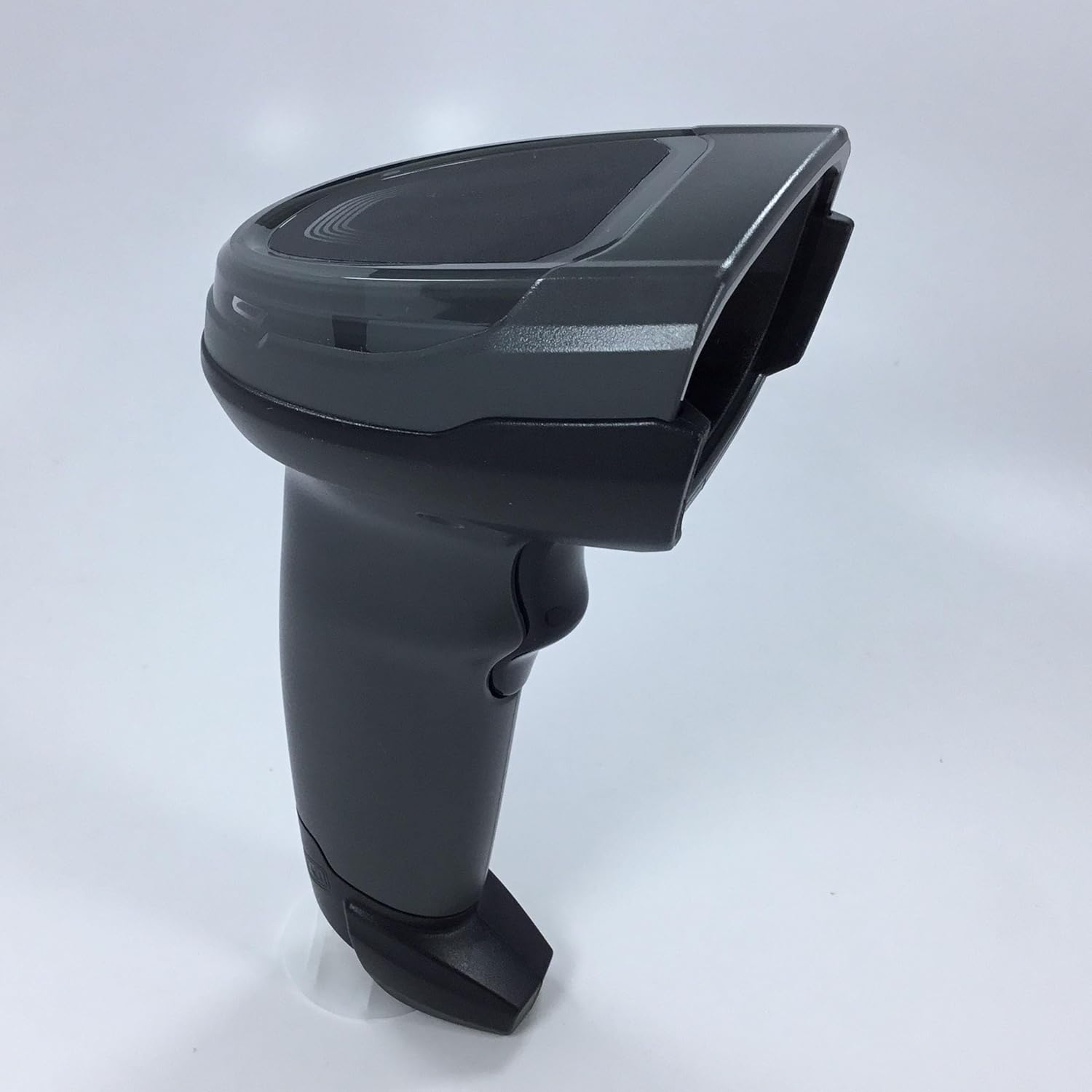
olusin 5: Apa view of the scanner, highlighting its ergonomic design for comfortable handling.
Atilẹyin Barcode Orisi
The DS8108-SR supports a wide array of 1D and 2D barcode symbologies, including but not limited to:
- 1D Barcodes: UPC/EAN, Code 39, Code 128, etc.
- 2D Barcodes: QR Code, Data Matrix, PDF417, MaxiCode, Aztec Code, etc.
- Specialized Barcodes: Damaged codes, poorly printed codes, crinkled codes, faded codes, distorted codes, dirty codes, reflective codes, and film-covered codes.

Figure 6: Visual representation of various barcode types supported by the DS8108-SR, including Maxi Code, Folding Code, Damage Code, PDF 417, Data Matrix, Film Covered Code, and Reflective Code.
Ọja Pariview Fidio
Fídíò 1: Fídíò yìí fi àlàyé díẹ̀ hànview of the Zebra DS8108 Series Corded Handheld Standard Range Scanner Kit, demonstrating its components and basic functionality.
6. Itọju
Itọju to peye ṣe idaniloju igbesi aye gigun ati iṣẹ to dara julọ ti ọlọjẹ rẹ:
- Ninu: Regularly clean the scanning window with a soft, lint-free cloth dampened with a mild, non-abrasive cleaner. Avoid harsh chemicals.
- Itọju USB: Inspect the USB cable periodically for any signs of wear or damage. Replace if necessary to prevent connectivity issues.
- Ibi ipamọ: Store the scanner in a clean, dry environment when not in use. Avoid extreme temperatures and direct sunlight.
7. Laasigbotitusita
If you encounter issues with your DS8108-SR scanner, refer to the following common problems and solutions:
| Isoro | Owun to le Fa | Ojutu |
|---|---|---|
| Scanner not reading barcodes | Incorrect aiming, dirty scanning window, damaged barcode, incompatible barcode type. | Ensure proper aiming. Clean the scanning window. Try scanning a different barcode. Verify the barcode type is supported. |
| No data transmitted to host | Loose cable connection, incorrect host configuration, driver issue. | Check USB cable connection. Ensure the scanner is properly configured for your host system. Reinstall drivers if necessary. |
| Scanner ko ni agbara lori | Cable not connected, power issue from host. | Verify the USB cable is securely connected to both the scanner and the host. Try a different USB port or host device. |
8. Awọn pato
- Awoṣe: DS8108-SR
- Awọn iwọn: 6.6 in. H x 2.6 in. W x 4.2 in. D (16.8 cm H x 6.6 cm W x 10.7 cm D)
- Ìwúwo: 5.4 iwon. / 154 g
- Asopọmọra: Corded (USB Cable)
- Supported Host Interfaces: USB, RS232, Keyboard Wedge, TGCS (IBM) 46XX over RS485
- Agbara Yiyipada: 2-D & 1-D Barcodes
- Ju Awọn pato: Withstands multiple 6 ft. / 1.8m drops to concrete
- Apejuwe Tumble: Designed to withstand 2,000 tumbles in 1.5 ft. / 0.5 m tumbler
- Graphics Format Support: Images can be exported as Bitmap, JPEG or TIFF
- Olupese: Aami
9. Atilẹyin ọja ati Support
For warranty information and technical support, please refer to the documentation provided with your product at the time of purchase or visit the official Zebra support webojula. Awọn ofin atilẹyin ọja le yatọ nipasẹ agbegbe ati alagbata.


