Ọrọ Iṣaaju
The PETLIBRO PLAF203 Smart Pet Feeder is designed to provide convenient and reliable feeding for your pets. Equipped with a 1080P HD camera, two-way audio, and smart app control, this feeder allows you to monitor and manage your pet's meals remotely. It supports both 2.4GHz and 5GHz WiFi networks for flexible connectivity.
Awọn ẹya pataki pẹlu:
- Iṣakoso latọna jijin nipasẹ App: Manage feeding schedules and dispense food from anywhere using the dedicated PETLIBRO app.
- 1080P HD Camera with Night Vision: Monitor your pet with clear video, even in low light conditions, thanks to infrared night vision.
- Audio Ọna Meji: Communicate with your pet in real-time.
- Ṣíṣàwárí Ìṣípo àti Ìró: Receive alerts and record videos when your pet is active (TF card required).
- Anti-Jamming Sensor: Prevents food blockages for consistent feeding.
- Low Food Sensor: Notifies you when the food level is low.
- Rọrun lati nu: Removable and washable components for hygiene.
Package Awọn akoonu
- PETLIBRO PLAF203 Smart Pet Feeder
- Irin alagbara, irin Food ekan
- Adapter agbara
- Desiccant Bag
- Itọsọna olumulo
Ṣeto
1. Unpacking ati Apejọ
- Yọ gbogbo awọn eroja kuro ninu apoti.
- Place the stainless steel food bowl into the designated slot at the base of the feeder.
- Ensure the food tank and lid are securely attached.
2. Powering the Feeder
- So ohun ti nmu badọgba agbara pọ mọ ifunni naa ki o si so o pọ mọ ibudo ogiri kan.
- Fun agbara afẹyinti nigba rẹtages, insert 3 D-cell batteries (not included) into the battery compartment at the bottom of the feeder.
3. App Download ati fifi sori
- Gba awọn 'PETLIBRO' app lati App Store (iOS) tabi Google Play itaja (Android). Note: Do not download the 'PETLIBRO LITE' app.
- Register for an account or log in if you already have one.
4. Nsopọ si Wi-Fi
- Open the PETLIBRO app and follow the on-screen instructions to add your device.
- The feeder supports both 2.4GHz and 5GHz Wi-Fi networks. Ensure your smartphone is connected to the same network during setup.
- The app will guide you through the pairing process, which typically involves scanning a QR code on the feeder or entering Wi-Fi credentials.
5. Kíkún Àpótí Oúnjẹ
- Ṣii ideri atokan.
- Fill the food tank with dry pet kibble. The feeder has a 5-liter capacity.
- Place the desiccant bag in its designated holder under the lid to maintain food freshness.
- Close the lid securely using the twist-lock mechanism to prevent pets from accessing food.
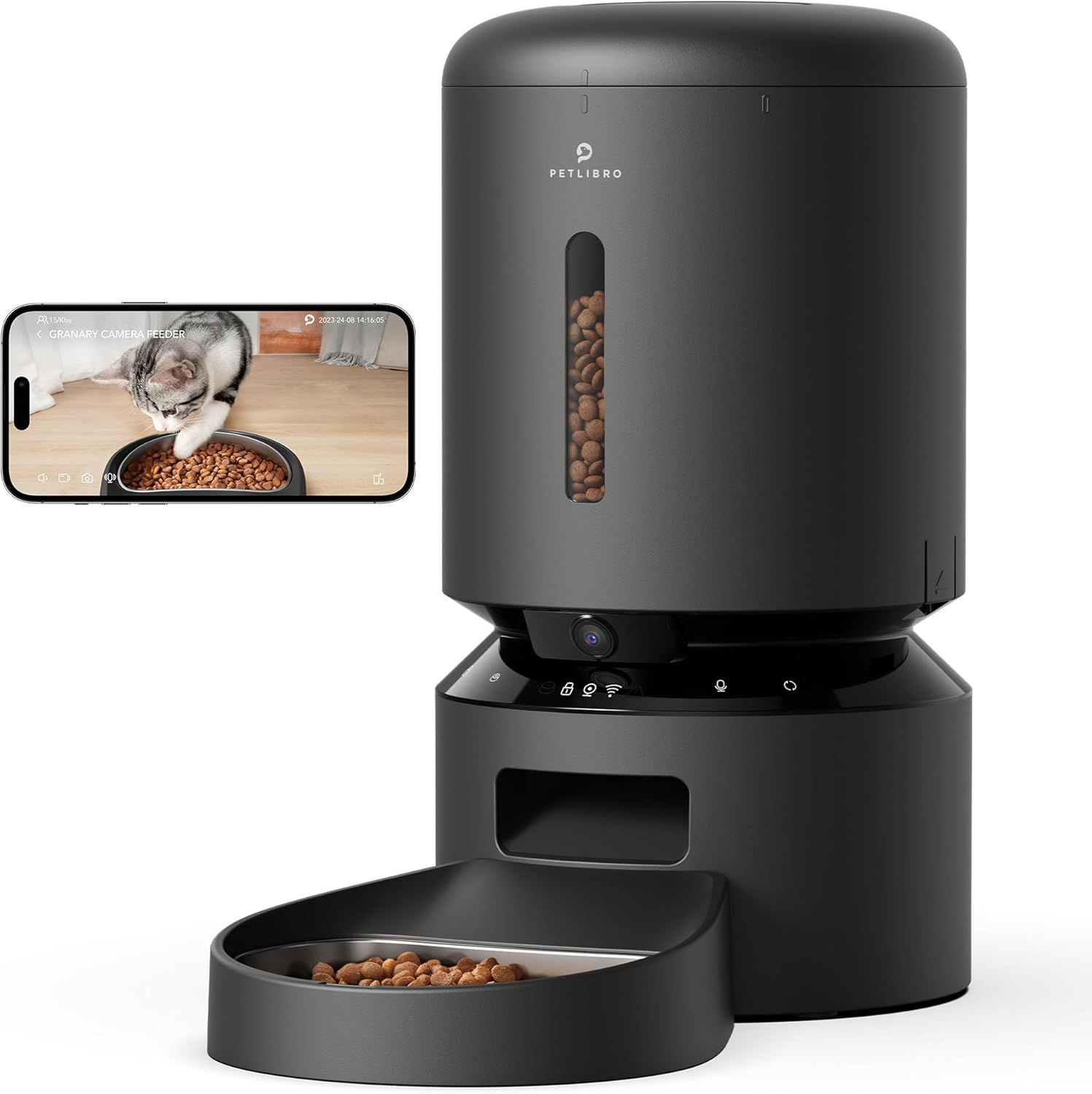
Image: PETLIBRO PLAF203 Smart Pet Feeder with Camera, showing the main unit and food bowl.
Awọn ilana Iṣiṣẹ
1. Setting Feeding Schedules
Use the PETLIBRO app to customize your pet's feeding schedule:
- Open the app and select your feeder.
- Navigate to the 'Schedule' section.
- Ṣeto awọn akoko ifunni ti o fẹ ati nọmba awọn ipin fun ounjẹ kọọkan.
- Save your settings. The feeder will automatically dispense food at the programmed times.

Image: Smartphone screen displaying the PETLIBRO app interface for setting feeding schedules and portion sizes.
2. Afowoyi ono
You can dispense food instantly:
- Nipasẹ App: On the app's main screen, select the 'Feed Now' option to dispense a single portion.
- Nipasẹ Ẹrọ: Press and hold the manual feed button on the feeder (refer to device diagram for location) to dispense food.
3. Live Monitoring and Recording
The built-in 1080P HD camera allows you to watch your pet:
- Gbe View: Access the live video stream through the PETLIBRO app to see your pet in real-time. The 145° wide-angle lens provides a broad view.
- Iran Alẹ: The camera automatically switches to infrared night vision in low light, ensuring clear visibility of your pet's activities 24/7.
- Ibi ipamọ fidio: Insert a TF card (up to 256GB, sold separately) into the feeder to record and store videos. You can review playback within the app.

Image: A cat eating from the feeder, with an overlay showing the 1080P camera view from a smartphone, highlighting motion detection.
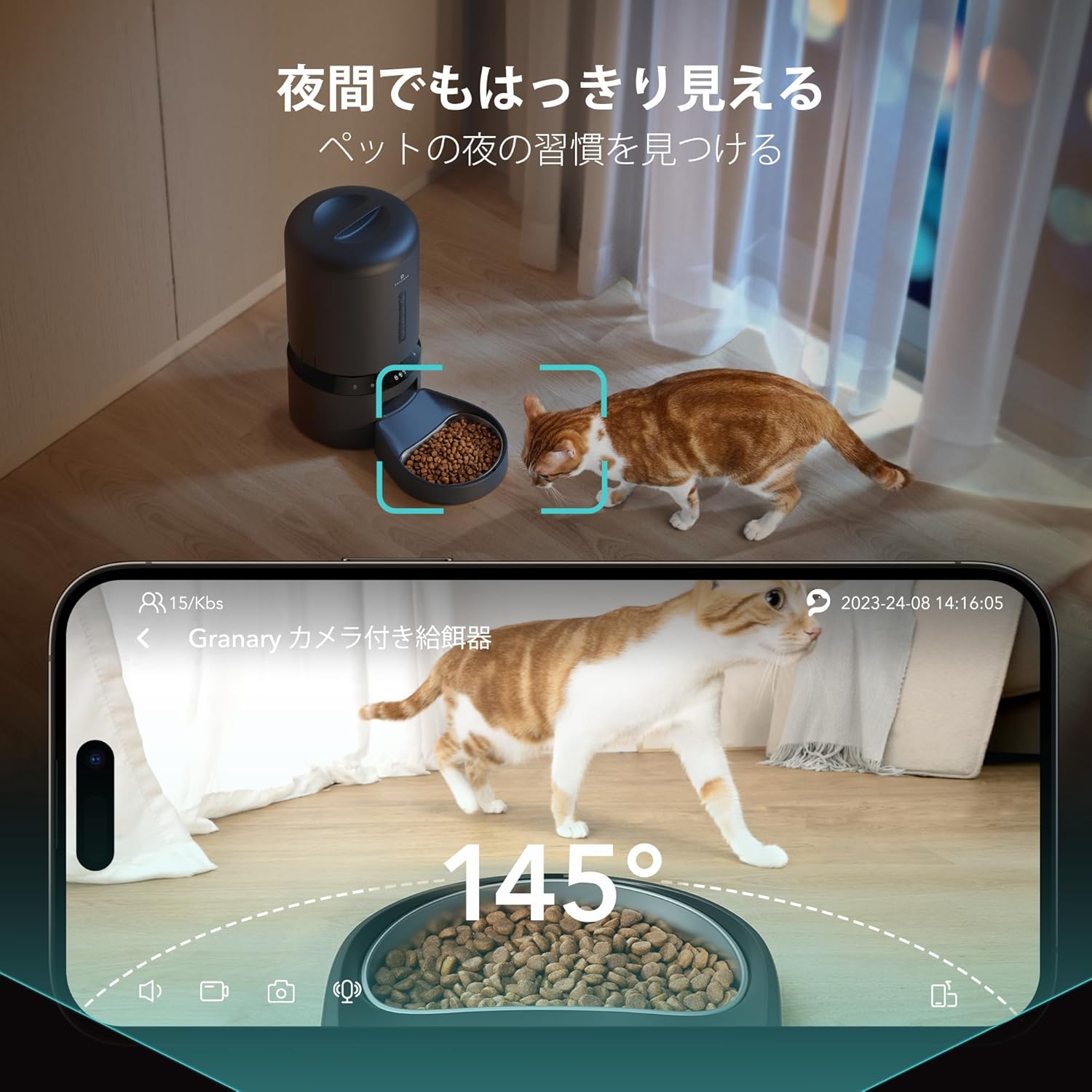
Image: A cat near the feeder at night, demonstrating the clear visibility provided by the 145-degree wide-angle camera with night vision.
4. Two-Way Audio and Voice Recording
- Ọrọ Ọrọ Meji: Use the microphone and speaker in the app to speak to your pet and hear their responses in real-time.
- Gbigbasilẹ ohun: Record a 10-second personalized message that will play automatically at each scheduled feeding time, providing comfort to your pet when you're away.

Image: A person interacting with their pet via the feeder's two-way audio feature, showing a smartphone with a live pet view and speech bubbles.
5. Àwọn Ìkìlọ̀ Ọlọ́gbọ́n
- Ṣíṣàwárí Ìṣípo àti Ìró: The feeder detects your pet's movements and sounds, automatically saving video clips (with TF card) and sending notifications to your smartphone.
- Low Food Alert: Receive notifications on your smartphone when the food level in the tank is running low, prompting you to refill.
- Anti-Jamming: An infrared sensor monitors the food dispenser. If a jam is detected, feeding will automatically pause to prevent issues.
Itoju
Regular cleaning ensures hygiene and optimal performance of your feeder.
1. Cleaning the Feeder
- Awọn ohun elo yiyọ kuro: The feeder lid, food tank, and stainless steel food bowl are designed to be easily removed for cleaning.
- Fifọ: Wash these components with mild soap and water. Rinse thoroughly and ensure they are completely dry before reassembling.
- Ẹka akọkọ: Mu ese akọkọ nu pẹlu ipolowoamp asọ. Ma ṣe tẹ ẹyọ akọkọ sinu omi.
2. Rírọ́pò Àpò Ohun Èlò
The desiccant bag helps keep the food fresh. Replace it periodically (e.g., monthly) for best results.
Laasigbotitusita
| Isoro | Owun to le Fa | Ojutu |
|---|---|---|
| Feeder not connecting to Wi-Fi | Incorrect app used; incorrect Wi-Fi band; weak signal. | Ensure you are using the 'PETLIBRO' app (not 'PETLIBRO LITE'). Verify your router supports 2.4GHz or 5GHz and your phone is connected to the correct band during setup. Move the feeder closer to your router. |
| Oúnjẹ tí a kò fi ránṣẹ́ | Food jam; empty food tank; power issue. | Check for food blockages in the dispenser. Refill the food tank if empty. Ensure the feeder is powered on and connected to a power source. The anti-jamming sensor should prevent continuous issues. |
| Camera not showing clear image/night vision not working | Low light conditions; camera lens obstructed. | Night vision is infrared and activates automatically in low light. Ensure the camera lens is clean and unobstructed. |
| Ko si awọn iwifunni ti o gba | App notification settings disabled; feeder not connected to Wi-Fi. | Check your smartphone's notification settings for the PETLIBRO app. Ensure the feeder has a stable Wi-Fi connection. |
| Gbigbasilẹ fidio ko ṣiṣẹ | No TF card inserted; TF card full or faulty. | Insert a compatible TF card (up to 256GB). Check if the TF card is full and delete old recordings or replace the card. |
Awọn pato
| Ẹya ara ẹrọ | Ẹ̀kúnrẹ́rẹ́ |
|---|---|
| Nọmba awoṣe | PAF203 |
| Brand | PETlibRO |
| Agbara | 5 liters |
| Àwọ̀ | Dudu |
| Ọsin Iru | Medium/Small Dogs, Cats |
| Igbesi aye Stage | Gbogbo igbesi aye Stages |
| Ipinnu kamẹra | 1080P HD |
| Igun kamẹra | 145 ° Wide-Igun |
| Alẹ Iranran | Infurarẹẹdi |
| Wi-Fi Asopọmọra | 2.4GHz & 5GHz |
| Ibamu App | iOS, Android (PETLIBRO App) |
| Ibi ipamọ fidio | TF Card (up to 256GB, sold separately) |
| Pataki Awọn ẹya ara ẹrọ | Motion Detection, Voice Detection, Two-Way Audio, Voice Recording, Feeding Schedule, Anti-Jamming Sensor, Low Food Sensor, BPA-Free |
| Orisun agbara | AC Adapter, 3x D-cell Batteries (backup, not included) |
| Lilo ti a pinnu | Ninu ile |
Atilẹyin ọja ati Support
For warranty information, please refer to the product packaging or contact PETLIBRO customer support directly. Keep your purchase receipt for warranty claims.
If you encounter any issues or have questions regarding your PETLIBRO PLAF203 Smart Pet Feeder, please contact PETLIBRO customer support through their official website or the PETLIBRO app. Provide your model number (PLAF203) and a detailed description of the issue for efficient assistance.


