1. Ọja Ipariview
The MokerLink 16-Port Gigabit Ethernet Switch is an unmanaged network switch designed for expanding network connectivity in home or small office environments. It features 16 Gigabit Ethernet ports, offering high-speed data transfer with plug-and-play simplicity. The fanless metal design ensures quiet and stable operation.

Olusin 1: Pariview of the MokerLink 16-Port Gigabit Ethernet Switch, highlighting its full Gigabit ports, plug and play functionality, power-saving features, wall-mountable design, LED indicators, and fanless operation.
Awọn ẹya pataki:
- 16 Awọn ibudo Ethernet Gigabit: Provides 16 10/100/1000Mbps RJ45 ports for high-speed network connections.
- Pulọọgi ati Ṣiṣẹ: Requires no configuration, making setup quick and easy.
- Apẹrẹ Alaifẹ: Ensures silent operation, suitable for various environments.
- Irin ti o tọ Casing: Offers robust protection and efficient heat dissipation.
- Agbara Lilo: Features power-saving functionality (IEEE 802.3az EEE support) to reduce energy consumption.
- Gbigbe Rọ: Supports desktop or wall-mount installation.
2. Package Awọn akoonu
Jẹrisi pe gbogbo awọn ohun kan wa ninu package:
- 1 x MokerLink 16-Port Gigabit Ethernet Switch
- 1 x Power Adapter (DC 12V / 1.0A)
- 1 x Itọsọna olumulo (iwe yii)
3. Eto ati fifi sori
Follow these steps to set up your MokerLink Gigabit Ethernet Switch:
- Yan Ibi kan: Place the switch on a stable desktop or mount it on a wall. Ensure adequate ventilation around the device.
- So agbara: Insert the DC plug of the power adapter into the switch's DC input port. Plug the other end of the power adapter into a standard electrical outlet. The power LED indicator will illuminate.
- So awọn ẹrọ Nẹtiwọọki pọ: Connect your network devices (e.g., computers, printers, network-attached storage, routers, IP cameras, wireless access points) to any of the 16 RJ45 ports using standard Ethernet cables. The switch supports auto MDI/MDIX, so crossover cables are not required.
- Jẹrisi Asopọmọra: Once a device is connected, the corresponding port's LED indicator will light up (green for link, flashing for data transmission).
- Iṣagbesori Odi (Aṣayan): If wall mounting, use appropriate screws and anchors (not included) with the mounting holes on the switch.
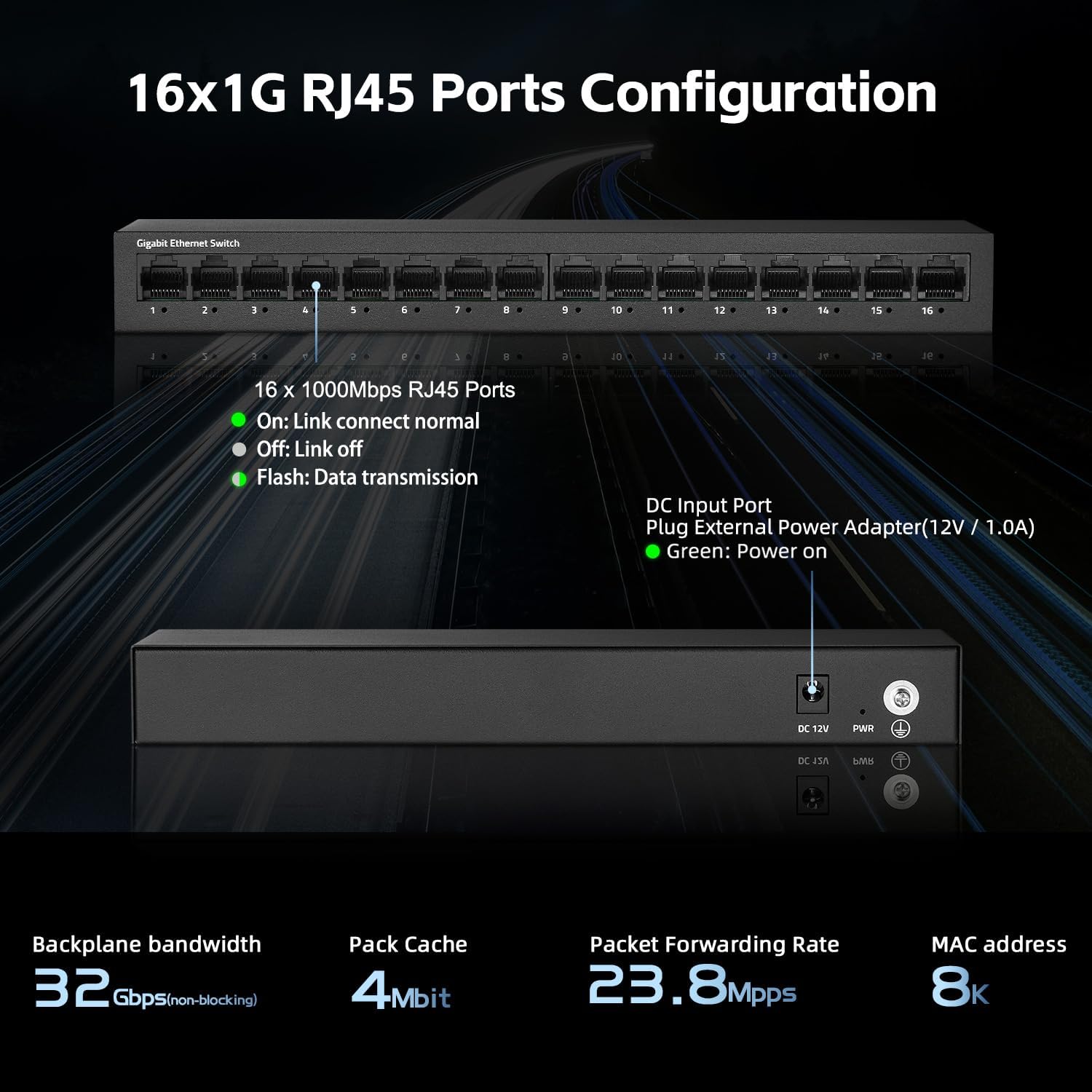
olusin 2: Ẹyìn view of the switch showing the DC input port and power LED indicator.

Figure 3: Ethernet cables connected to the switch ports.

Olusin 4: Example of the switch mounted on a wall, demonstrating its flexible placement options.
4. Awọn ilana Iṣiṣẹ
The MokerLink 16-Port Gigabit Ethernet Switch is an unmanaged device, meaning it operates automatically without requiring user configuration. Simply connect your devices, and the switch will handle network traffic efficiently.
Awọn itọkasi LED:
| Atọka | Ipo | Apejuwe |
|---|---|---|
| LED Agbara | Alawọ ewe | Yipada ti wa ni agbara. |
| Port Link/Act LEDs (1-16) | Alawọ ewe (ri to) | A device is connected to the port, and the link is active. |
| Alawọ ewe (Itanna) | Data ti wa ni gbigbe tabi gba nipasẹ ibudo. | |
| Paa | No device is connected, or the connected device is powered off/inactive. |

olusin 5: Isunmọ view of the port LED indicators, showing a green light for an active link.
Awọn iṣẹ Aifọwọyi:
- Idunadura-laifọwọyi: Each port automatically detects the link speed of the connected network device (10/100/1000Mbps) and adjusts for compatibility and optimal performance.
- MDI/MDIX Aifọwọyi: Automatically detects the type of Ethernet cable (straight-through or crossover) and adjusts accordingly, eliminating the need for specific cable types.
- Non-Blocking Wire Speed: All ports can simultaneously transmit and receive data at their full wire speed without congestion.
5. Itọju ati Itọju
To ensure the longevity and optimal performance of your MokerLink switch, follow these maintenance guidelines:
- Ayika: Operate the switch within its specified temperature range (0°C to 45°C). Avoid placing it in direct sunlight, near heat sources, or in areas with high humidity.
- Ninu: Lo asọ ti o tutu, ti o gbẹ lati nu ode ti yipada. Ma ṣe lo olomi tabi awọn olutọpa aerosol.
- Afẹfẹ: Ensure that the ventilation holes on the sides of the switch are not blocked to allow for proper heat dissipation. The fanless design relies on natural convection.
- Ibi ti ina elekitiriki ti nwa: Use only the provided power adapter. If the adapter is damaged, replace it with an equivalent approved adapter.
- Iṣakoso USB: Organize network cables neatly to prevent strain on the ports and accidental disconnections.

Figure 6: The switch features a fanless metal design for efficient heat dissipation and energy saving.
6. Laasigbotitusita
If you encounter issues with your MokerLink switch, refer to the following common troubleshooting steps:
- Ko si Agbara:
- Rii daju pe ohun ti nmu badọgba agbara ti sopọ ni aabo si iyipada mejeeji ati iṣan itanna ti n ṣiṣẹ.
- Ṣayẹwo boya iṣan agbara n ṣiṣẹ nipa sisọ sinu ẹrọ miiran.
- Verify the power LED on the switch is illuminated.
- Ko si Ọna asopọ/Iṣẹ lori Ibudo kan:
- Ensure the Ethernet cable is securely connected to both the switch port and the network device.
- Check the status of the connected network device (e.g., computer is powered on, network adapter is enabled).
- Gbiyanju okun Ethernet ti o yatọ.
- Gbiyanju lati so ẹrọ pọ si ibudo ti o yatọ lori iyipada.
- Verify the link/activity LED for the port is illuminated (solid green for link, flashing for activity).
- Iyara Nẹtiwọọki o lọra:
- Ensure all connected devices and cables support Gigabit Ethernet (1000Mbps). The switch will operate at the lowest common speed.
- Ṣayẹwo fun ijabọ nẹtiwọọki ti o pọ ju tabi awọn ohun elo aladanla bandiwidi nṣiṣẹ lori awọn ẹrọ ti a ti sopọ.
- Restart the switch by unplugging and replugging the power adapter.
- Asopọmọra Laarin:
- Ṣayẹwo awọn kebulu Ethernet fun ibajẹ.
- Ensure the switch is placed in a stable environment, free from excessive heat or electromagnetic interference.
- Check for loose power or Ethernet cable connections.
7. Awọn pato
| Ẹya ara ẹrọ | Apejuwe |
|---|---|
| Awoṣe | 16*1G Unmanaged |
| Awọn ibudo | 16 x 10/100/1000Mbps RJ45 Awọn ibudo |
| Yipada Agbara | 32 Gbps |
| Packet Ndari Oṣuwọn | 23.8 Mpps |
| Mac adirẹsi Table | 8K |
| Fireemu Jumbo | 9K (Standard for Gigabit Ethernet) |
| Awọn ajohunše | IEEE 802.3, IEEE 802.3u, IEEE 802.3ab, IEEE 802.3x, IEEE 802.3az |
| Ni wiwo Iru | RJ45 |
| Ọna gbigbe | Itaja-ati-Siwaju |
| Ibi ti ina elekitiriki ti nwa | External Power Adapter (DC 12V / 1.0A) |
| Agbara agbara | Low power consumption (Energy Efficient Ethernet support) |
| LED Ifi | Power, Link/Act (per port) |
| Awọn iwọn (L x W x H) | Isunmọ 10.16 x 5.04 x 3.23 inches (25.8 x 12.8 x 8.2 cm) |
| Iwọn Nkan | Isunmọ 1.65 poun (0.75 kg) |
| Ohun elo ọran | Irin |
| Awọn iwọn otutu ti nṣiṣẹ | 0°C si 45°C (32°F si 113°F) |
| Ọriniinitutu ti nṣiṣẹ | 10% to 90% ti kii-condensing |
| Fifi sori ẹrọ | Desktop or Wall-Mount |

Figure 7: Visual representation of the switch's high port speed and switching capacity.
8. Awọn fidio ọja osise
The following videos provide additional information and visual guidance for the MokerLink 16-Port Gigabit Ethernet Switch:
Fidio 1: Ọja Pariview (0:38)
This short video provides a quick overview of the MokerLink 16-Port Gigabit Ethernet Switch, highlighting its main features and design.
Video 2: Detailed Features and Usage (2:11)
A more in-depth video demonstrating the features and typical usage scenarios of the Gigabit Ethernet Switch.
Video 3: Installation and Connectivity (1:38)
This video guides you through the physical installation and connection process for the switch.
Video 4: Key Highlights (0:36)
A concise video highlighting important aspects and benefits of the MokerLink switch.
Video 5: Advanced Overview (1:25)
This video offers a more advanced look at the switch's capabilities and performance.
Video 6: Quick Feature Spotlight (0:20)
A very brief video focusing on a specific feature or benefit of the switch.
Video 7: Comprehensive Demonstration (2:59)
This comprehensive video provides a full demonstration of the MokerLink 16-Port Gigabit Ethernet Switch, from unboxing to operation.
9. Atilẹyin ọja ati Support
Alaye Atilẹyin ọja: For details regarding the product warranty, please refer to the warranty card included with your purchase or contact the seller/manufacturer directly. Warranty terms may vary by region and retailer.
Oluranlowo lati tun nkan se: If you require technical assistance or have questions not covered in this manual, please contact MokerLink customer support through their official webaaye tabi alagbata lati ọdọ ẹniti o ti ra ọja naa.
Fun alaye diẹ sii, ṣabẹwo si MokerLink Store on Amazon.


