1. Ifihan
This manual provides essential information for the safe and efficient operation of your TELLUR Obia PRO 60W Bluetooth Speaker. Please read this manual thoroughly before using the product and retain it for future reference.
2. Alaye Aabo
- Ma ṣe fi agbọrọsọ si awọn iwọn otutu to gaju tabi imọlẹ orun taara fun awọn akoko ti o gbooro sii.
- Yago fun sisọ tabi tẹriba agbọrọsọ si awọn ipa to lagbara.
- Má ṣe gbìyànjú láti tú tàbí yí agbọ́hùnsọ náà padà. Èyí yóò sọ àtìlẹ́yìn náà di òfo.
- Jeki agbohunsoke kuro lati awọn ẹrọ iwosan.
- Ensure the charging port cover is securely closed when near water to maintain IPX6 water resistance.
- Lo okun gbigba agbara pato nikan ati oluyipada agbara.
3. Package Awọn akoonu
Jẹrisi pe gbogbo awọn ohun kan wa ninu package:
- TELLUR Obia PRO 60W Bluetooth Speaker
- Okun Ngba agbara USB
- 3.5mm AUX Audio Cable
- Afowoyi Olumulo (iwe-ipamọ yii)
4. Ọja Ipariview ati Awọn iṣakoso
Familiarize yourself with the speaker's components and control buttons.

Nọmba 4.1: Iwaju view of the TELLUR Obia PRO speaker, showcasing the main grille, control panel, and integrated LED lights on the handle and side woofers.
4.1 Iṣakoso igbimo

Nọmba 4.2: Alaye view of the control buttons located on the top panel of the speaker.
- Iwọn didun isalẹ (-) / Orin ti tẹlẹ: Press briefly to decrease volume. Press and hold to go to the previous track.
- Iwọn didun soke (+) / Orin to tẹle: Press briefly to increase volume. Press and hold to go to the next track.
- LED Light Mode Button: Tẹ lati yipo nipasẹ awọn ipo ina LED oriṣiriṣi.
- Bọtini agbara: Press and hold to power on/off. Briefly press to play/pause music.
- TWS (True Wireless Stereo) Button: Press to activate TWS pairing mode.
- Bọtini Ipo (M): Press to switch between Bluetooth, USB, and AUX input modes.
4.2 Input / o wu Ports
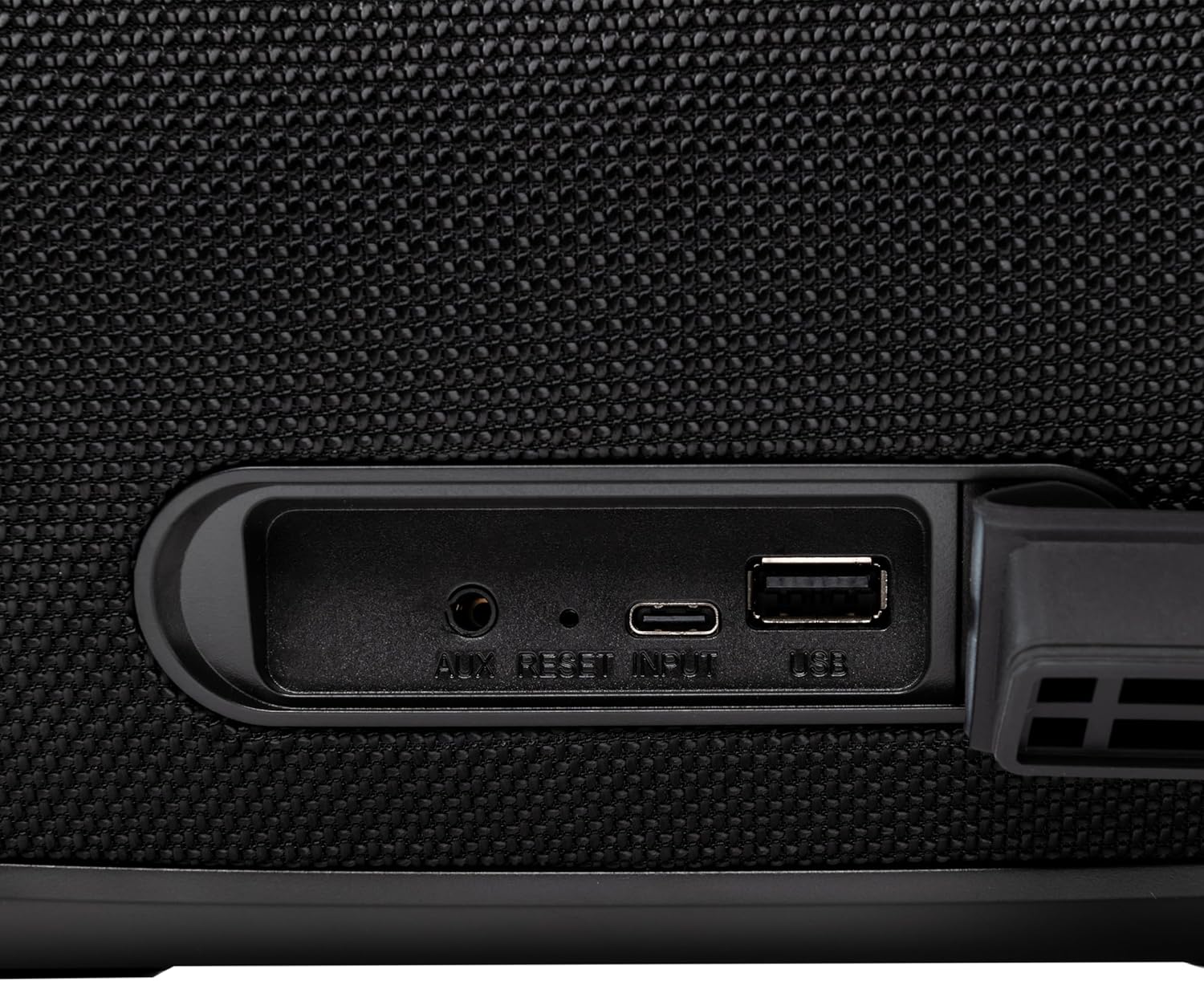
Nọmba 4.3: Close-up of the protected input/output ports on the rear of the speaker.
- Ibudo AUX-IN: Fun sisopọ awọn ẹrọ ohun afetigbọ ita nipasẹ okun ohun afetigbọ 3.5mm kan.
- Bọtini atunto: Use a thin object to press and reset the speaker if necessary.
- Input USB-C: Fun gbigba agbara si agbọrọsọ.
- Ibudo USB-A: Láti gbọ́ ohùn MP3 files from a USB drive or for power bank functionality.
5. Eto
5.1 Gbigba agbara si Agbọrọsọ
Before initial use, fully charge the speaker. The speaker also functions as a power bank to charge other devices via its USB-A port.
- Connect the USB charging cable to the USB-C input port on the speaker.
- So opin okun USB pọ si ohun ti nmu badọgba agbara USB ibaramu (kii ṣe pẹlu).
- The charging indicator light will illuminate. It will turn off once charging is complete.
- The battery level can be displayed on your connected phone when paired via Bluetooth.
5.2 Titan / Pa a
- Lati Fi agbara: Tẹ mọlẹ Bọtini agbara for approximately 3 seconds until you hear an audible prompt and the LED lights activate.
- Lati Paarẹ: Tẹ mọlẹ Bọtini agbara for approximately 3 seconds until you hear an audible prompt and the LED lights turn off.
6. Awọn ilana Iṣiṣẹ
6.1 Sisopọ Bluetooth
The speaker uses Bluetooth v5.3 for stable wireless connection up to 10 meters.
- Ensure the speaker is powered on and in Bluetooth mode (indicated by a flashing blue LED). If not, press the Bọtini Ipo (M) lati yipada si ipo Bluetooth.
- Mu Bluetooth ṣiṣẹ lori ẹrọ alagbeka rẹ (foonuiyara, tabulẹti, ati bẹbẹ lọ).
- Wa fun Awọn ẹrọ Bluetooth ti o wa ki o yan"TELLUR Obia PRO"lati akojọ.
- Once paired, the speaker will emit an audible confirmation, and the blue LED will stop flashing.
- Agbọrọsọ yoo tun sopọ laifọwọyi si ẹrọ ti o so pọ to kẹhin nigbati o ba wa ni tan, ti o ba wa.

Nọmba 6.1: The TELLUR Obia PRO speaker wirelessly connected to a smartphone, ready for audio playback.
6.2 Otitọ Alailowaya Sitẹrio (TWS) iṣẹ
TWS allows you to pair two Obia PRO speakers for a stereo sound experience.
- Ensure both Obia PRO speakers are powered on and in Bluetooth mode, but not yet paired with any device.
- Lórí agbọ́hùnsọ̀kan (èyí ni yóò jẹ́ agbọ́hùnsọ̀kan àkọ́kọ́), tẹ Bọtini TWS. The speaker will enter TWS pairing mode, indicated by a flashing light.
- The two speakers will automatically connect to each other. Once connected, you will hear an audible confirmation, and the TWS indicator light on both speakers will become solid.
- Now, connect your mobile device to the primary speaker via Bluetooth as described in Section 6.1. The audio will play in stereo across both speakers.
6.3 Multiple Link Technology
This technology allows connecting an unlimited number of Obia PRO speakers wirelessly for a synchronized audio experience. Refer to the manufacturer's website or specific instructions for detailed setup of Multiple Link.
6.4 USB Playback (MP3)
Mu ohun MP3 ṣiṣẹ files directly from a USB flash drive (up to 128GB).
- Fi kọnputa filasi USB ti o ni MP3 sii filesinu ibudo USB-A.
- Tẹ awọn Bọtini Ipo (M) to switch to USB mode. The speaker will automatically begin playing music from the USB drive.
- Lo awọn Iwọn didun Up / Isalẹ ati Bọtini agbara (for play/pause) to control playback.
6.5 Ìsopọ̀ AUX-IN
Connect non-Bluetooth devices using the 3.5mm AUX audio cable.
- Connect one end of the 3.5mm AUX audio cable to the AUX-IN port on the speaker.
- So ìpẹ̀kun kejì mọ́ ibi tí ohùn ti ń jáde láti inú ẹ̀rọ ìta rẹ (fún àpẹẹrẹ, ẹ̀rọ orin MP3, kọ̀ǹpútà alágbèéká).
- Tẹ awọn Bọtini Ipo (M) lati yipada si AUX mode.
- Ṣakoso ṣiṣiṣẹsẹhin ati iwọn didun lati ẹrọ ita rẹ.
6.6 Ipe laisi ọwọ
When connected to a smartphone via Bluetooth, the speaker's built-in microphone allows for hands-free calls.
- Idahun/Ipe Ipari: Ni soki tẹ awọn Bọtini agbara.
- Kọ Ipe: Tẹ mọlẹ Bọtini agbara fun 2 aaya.
6.7 LED Light igbe
The speaker features integrated LED lights with multiple display modes.
- Tẹ awọn Bọtini Ipo Imọlẹ LED to cycle through available light patterns and colors.
- Tẹ mọlẹ Bọtini Ipo Imọlẹ LED to turn the lights off or on.

Nọmba 6.2: A user interacting with the LED light mode button to change the speaker's lighting effects.
6.8 Equalizer Settings (Indoor/Outdoor)
The speaker allows for equalizer customization for different environments. Specific controls for this are not detailed in the provided data, but typically involve a dedicated button or a combination of existing buttons. Refer to the product's quick start guide or manufacturer's website for precise instructions on adjusting the equalizer.
7. Itọju
7.1 Ninu
- Mu agbohunsoke nu pẹlu asọ ti o gbẹ.
- Maṣe lo awọn afọmọ abrasive, ọti-lile, tabi awọn nkan ti kemikali.
7.2 Omi Resistance (IPX6)
The Obia PRO speaker is rated IPX6, meaning it is protected against high-pressure water jets from any direction. This makes it suitable for outdoor use and environments where it might be exposed to splashes or rain.
- Ensure the rubber cover for the charging and AUX ports is securely closed before exposing the speaker to water.
- Ma ṣe tẹ agbọrọsọ sinu omi.
- Lẹ́yìn tí o bá ti fi omi sí i, nu agbọ́rọ̀sọ náà gbẹ kí o tó fi agbára gba agbára.
7.3 batiri Itọju
- Lati pẹ aye batiri, yago fun gbigba agbara si batiri ni kikun nigbagbogbo.
- Gba agbara si agbọrọsọ nigbagbogbo, paapaa ti ko ba si ni lilo, lati ṣetọju ilera batiri.
- Tọju agbohunsoke ni itura, ibi gbigbẹ nigbati o ko ba lo fun awọn akoko gigun.
8. Laasigbotitusita
| Isoro | Owun to le Fa | Ojutu |
|---|---|---|
| Agbọrọsọ ko ni agbara lori. | Batiri kekere. | Gba agbara si agbọrọsọ ni kikun. |
| Ko le so pọ nipasẹ Bluetooth. | Agbọrọsọ kii ṣe ni ipo sisopọ; Bluetooth ẹrọ pa; ju jina lati agbọrọsọ. | Ensure speaker is in Bluetooth mode (flashing LED). Turn on Bluetooth on your device. Move device closer to speaker (within 10m). |
| Ko si ohun. | Iwọn ti o kere ju; ti yan ipo ti ko tọ; ẹrọ ko dun. | Increase speaker and device volume. Press Bọtini Ipo (M) to select correct input. Ensure audio is playing on the connected device. |
| TWS sisopọ kuna. | Speakers already paired to a device; not both Obia PRO models. | Disconnect both speakers from any Bluetooth devices. Ensure both speakers are Obia PRO models. Try TWS pairing again. |
| Sisisẹsẹhin USB ko ṣiṣẹ. | A kò ṣe àtúnṣe ìwakọ̀ USB dáadáa; a kò ṣe àtìlẹ́yìn rẹ̀ file type; drive capacity too large. | Rí i dájú pé a ṣe àkójọpọ̀ awakọ USB sí FAT32. MP3 nìkan files are supported. Max capacity 128GB. |
9. Awọn pato
| Orukọ awoṣe | Obia PRO |
| Brand | TELLUR |
| Agbara Ijade | 60W (2x 20W RMS subwoofers, 2x 10W RMS tweeters) |
| Ẹya Bluetooth | v5.3 |
| Alailowaya Ibiti | Ti o to awọn mita 10 |
| Idahun Igbohunsafẹfẹ | 80 MHz (Note: This value is unusual for speaker frequency response and may be a typo in source data. Typically measured in Hz-kHz.) |
| Ipalara | 4 ohms |
| Awọn ọna ohun | Bluetooth, USB (MP3), AUX-IN |
| USB Support | USB 2.0/3.0, up to 128GB (MP3 format) |
| Omi Resistance | IPX6 |
| Agbara Batiri | 5400 mAh |
| Akoko Sisisẹsẹhin | Up to 12 hours (at moderate volume) |
| Power Bank Išė | Yes, via USB-A port |
| Awọn iwọn (L x W x H) | 37.7 x 17 x 18 cm |
| Iwọn | 3.48 kg |
| Ohun elo | Ṣiṣu |
| Àwọ̀ | Dudu |
Akiyesi: Awọn pato jẹ koko ọrọ si iyipada laisi akiyesi iṣaaju.
10. Atilẹyin ọja ati Support
TELLUR products are manufactured to the highest quality standards. For information regarding warranty terms, technical support, or service, please refer to the warranty card included with your product or visit the official TELLUR webojula.
Ibi iwifunni: Jọwọ ṣabẹwo www.tellur.com fun awọn titun support alaye.


