1. Ifihan
The ZEBRONICS Pulse Wireless Mouse is designed for versatile and comfortable use across various devices. Featuring multi-connectivity options including dual Bluetooth and a 2.4GHz USB nano receiver, it offers seamless switching between systems. Its ergonomic design and 1200 DPI optical sensor ensure precise and smooth cursor control for enhanced productivity.

Aworan 1.1: Oke view of the ZEBRONICS Pulse Wireless Mouse, showcasing its sleek black design and scroll wheel.
2. Package Awọn akoonu
Jọwọ rii daju pe gbogbo awọn ohun kan wa ninu apo rẹ:
- ZEBRONICS Pulse Wireless Mouse
- Olugba Nano USB
- Itọsọna olumulo
3. Key Awọn ẹya ara ẹrọ
- Multi-Connectivity: Supports dual Bluetooth and 2.4GHz wireless connections.
- Itọkasi giga: 1200 DPI optical sensor for accurate tracking.
- Apẹrẹ Ergonomic: Comfortable and lightweight for extended use.
- 3 Awọn bọtini: Standard left, right, and scroll wheel buttons.
- Removable USB Nano Receiver: Conveniently stored in the mouse's bottom panel.
- Ibamu gbooro: Works with desktop PCs, laptops, Mac OS, tablets, and more.
- Nfi agbara pamọ: Features an auto-shutoff function to conserve battery life.

Image 3.1: A visual summary of the mouse's key features, including its comfortable design, power switch, plug-and-play functionality, and high precision.
4. Eto Itọsọna
4.1. Fifi sori batiri
- Flip the mouse over to access the bottom panel.
- Wa ideri apo batiri naa ki o si ṣii i.
- Fi batiri AA kan sii, ni idaniloju polarity ti o pe (+/-).
- Pa ideri batiri naa ni aabo.
4.2. Connecting via 2.4GHz USB Nano Receiver
- Locate the USB nano receiver stored in the slot on the bottom of the mouse.
- Remove the receiver from its storage slot.
- Plug the USB nano receiver into an available USB port on your computer or laptop.
- Slide the power switch on the bottom of the mouse to the 'ON' position.
- The mouse should automatically connect. If not, press the connection toggle button on the bottom of the mouse to select the 2.4GHz mode (indicated by '2.4G').

Image 4.1: The underside of the mouse, highlighting the battery slot, nano receiver storage, power switch, and connection toggle button.

Image 4.2: The USB nano receiver plugged into a laptop, demonstrating the 2.4GHz wireless connection.
4.3. Connecting via Bluetooth (BT1 / BT2)
- Ensure the mouse has a fresh battery and the power switch is in the 'ON' position.
- Press the connection toggle button on the bottom of the mouse to select either 'BT1' or 'BT2' mode. The corresponding LED indicator will blink.
- On your device (laptop, tablet, etc.), go to Bluetooth settings.
- Wa fun new devices. The mouse should appear as 'ZEB-PULSE' or similar.
- Select the mouse to pair. Once paired, the LED indicator will stop blinking and remain solid for a few seconds before turning off.
- You can pair a second device using the other Bluetooth channel (BT2) by repeating steps 2-5.
5. Awọn ilana Iṣiṣẹ
5.1. Awọn iṣẹ ipilẹ
- Bọtini osi: Iṣẹ titẹ akọkọ.
- Bọtini Ọtun: Iṣẹ́ tẹlé kejì (àkójọ àṣàyàn).
- Yi lọ Kẹkẹ: Yi lọ soke/isalẹ, ati iṣẹ-titẹ aarin.

Image 5.1: Illustration of the mouse's three buttons: left, right, and the scroll wheel/middle button.
5.2. Yíyípadà Àwọn Ìpò Ìsopọ̀
To switch between the 2.4GHz wireless mode and Bluetooth modes (BT1, BT2), press the connection toggle button located on the bottom of the mouse. The mouse will cycle through the available modes, indicated by the corresponding LED.
5.3. Eto DPI
The ZEBRONICS Pulse mouse operates at a fixed 1200 DPI (Dots Per Inch), providing a balance of speed and precision suitable for general use. This setting ensures smooth and responsive cursor movement.

Image 5.2: Visual representation of the mouse's 1200 DPI precision for accurate tracking.
6. Itọju
- Ninu: Lo asọ asọ ti o gbẹ lati nu asin naa. Yago fun lilo awọn kẹmika lile tabi awọn ohun elo abrasive.
- Rirọpo Batiri: Rọpo batiri AA nigbati iṣẹ eku ba bajẹ tabi ti o ba dawọ duro.
- Ibi ipamọ: When not in use for extended periods, turn off the mouse to conserve battery life. Store the USB nano receiver in its dedicated slot on the mouse's bottom.
- Ayika: Yago fun ṣiṣafihan asin si awọn iwọn otutu to gaju, oorun taara, tabi ọrinrin pupọ.
7. Laasigbotitusita
7.1. Asin Ko fesi
- Ensure the mouse is turned 'ON'.
- Ṣayẹwo batiri naa. Rọpo rẹ ti o ba jẹ dandan.
- For 2.4GHz connection: Ensure the USB nano receiver is securely plugged into a working USB port and the mouse is in 2.4GHz mode.
- For Bluetooth connection: Ensure Bluetooth is enabled on your device and the mouse is in the correct BT1/BT2 mode. Try re-pairing the mouse.
- Try connecting the mouse to a different USB port or a different device to rule out port or device issues.
7.2. Aiṣedeede Kọsọ Movement
- Nu sensọ opitika ni isalẹ ti Asin pẹlu asọ ti o gbẹ.
- Rí i dájú pé o ń lo àsín náà lórí ojú tí ó mọ́, tí kò ní àwọ̀.
- Ṣayẹwo fun kikọlu lati awọn ẹrọ alailowaya miiran.
7.3. Difficulty Switching Modes
- Rii daju pe batiri naa ni agbara to.
- Press the connection toggle button firmly and observe the LED indicators to confirm mode changes.
8. Awọn pato
| Ẹya ara ẹrọ | Ẹ̀kúnrẹ́rẹ́ |
|---|---|
| Brand | SEBRRONNÌSÌ |
| Awoṣe | Zeb-Pulse |
| Asopọmọra Technology | Wireless (2.4GHz, Dual Bluetooth) |
| Imọ-ẹrọ Iwari išipopada | Opitika |
| DPI | 1200 |
| Nọmba ti Awọn bọtini | 3 |
| Orisun agbara | Agbara Batiri (1x AA) |
| Iwọn Nkan | 160 g |
| Ọja Mefa | 16.6 x 9.5 x 0.1 cm |
| Ibamu System isẹ | Windows, Mac OS, etc. |
| Ilu isenbale | China |
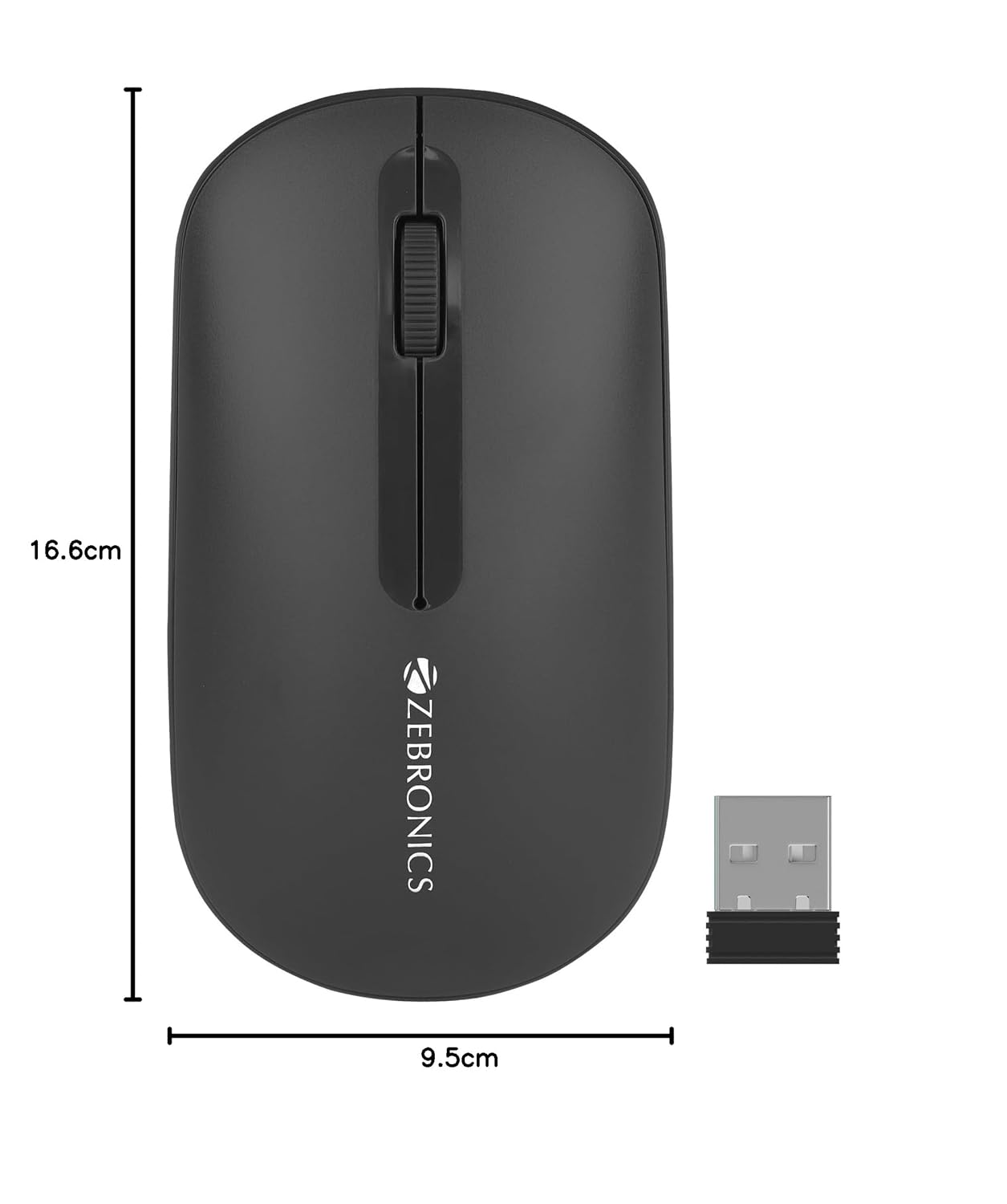
Image 8.1: Diagram showing the physical dimensions of the ZEBRONICS Pulse Wireless Mouse.
9. Atilẹyin ọja & Atilẹyin
For warranty information, technical support, or service inquiries, please refer to the warranty card included with your product or visit the official ZEBRONICS webojula. Tọju iwe-ẹri rira rẹ bi ẹri rira fun awọn iṣeduro atilẹyin ọja.
Official ZEBRONICS Webojula: www.zebronics.com


