1. Ifihan
O ṣeun fun riraasing the Kaiser Professional 15-inch Speaker System, Model GEM-9520. This manual provides essential information for the safe and efficient operation of your new speaker system. Please read it thoroughly before use and retain it for future reference.
2. Alaye Aabo
- Orisun Agbara: Lo oluyipada agbara pàtó kan. Rii daju pe voltage ibaamu ti agbegbe rẹ ipese agbara.
- Omi ati Ọrinrin: Do not expose the speaker to water, rain, or high humidity. Avoid placing liquid-filled objects on the speaker.
- Afẹfẹ: Rii daju pe fentilesonu to ni ayika agbọrọsọ. Ma ṣe dina eyikeyi awọn ṣiṣi atẹgun.
- Ooru: Jẹ́ kí agbọ́hùnsọ̀ náà jìnnà sí àwọn orísun ooru bíi radiators, àwọn ìwé ìforúkọsílẹ̀ ooru, sítóòfù, tàbí àwọn ẹ̀rọ mìíràn tí ó ń mú ooru jáde.
- Ninu: Yọ agbara kuro ki o to nu. Lo aṣọ gbigbẹ ti o rọ. Maṣe lo awọn afọmọ omi tabi awọn afọmọ aerosol.
- Ṣiṣẹ: Maṣe gbiyanju lati ṣiṣẹ ọja yi funrararẹ. Tọkasi gbogbo iṣẹ si oṣiṣẹ oṣiṣẹ ti o peye.
- Ibi: Place the speaker on a stable, flat surface or securely mount it on the provided tripod. Avoid placing it in direct sunlight or near strong magnetic fields.
3. Package Awọn akoonu
Jẹrisi pe gbogbo awọn ohun kan wa ninu package:
- Kaiser GEM-9520 Professional 15-inch Speaker System
- Gbohungbo onina
- Agbọrọsọ Tripod imurasilẹ
- Okun agbara
- Afowoyi Olumulo (iwe-ipamọ yii)

Image: Kaiser GEM-9520 speaker system with included microphone and tripod stand.
4. Ọja Ipariview
The Kaiser GEM-9520 is a versatile 15-inch professional speaker system designed for various audio applications. It features multiple input options, LED lighting, and a robust design.
Iwaju Panel
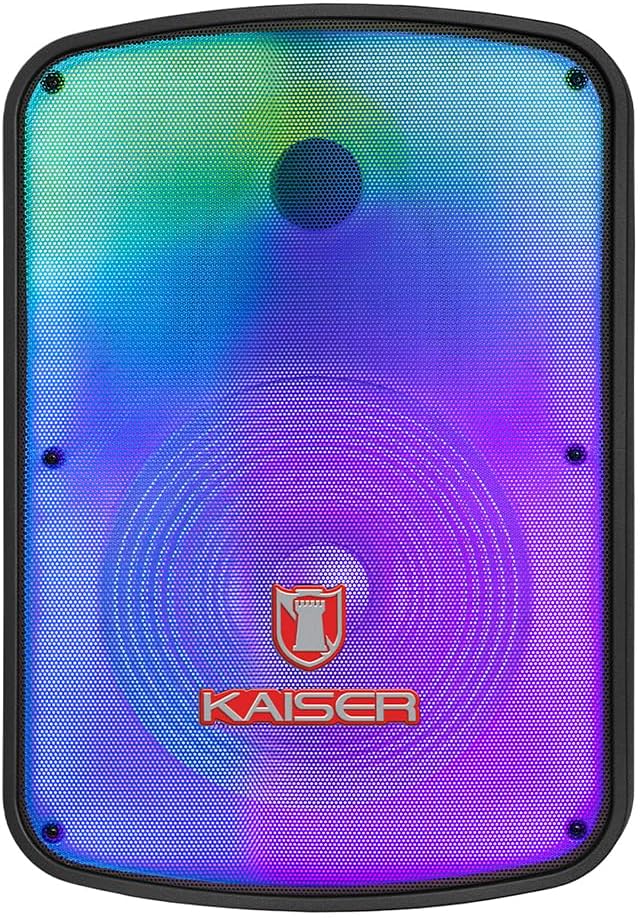
Aworan: Iwaju view of the Kaiser GEM-9520 speaker, showcasing the 15-inch driver and integrated LED lighting.
Ru Iṣakoso igbimo
The rear panel houses all input/output connections and control knobs.

Aworan: Ẹyin view of the Kaiser GEM-9520 speaker, displaying the control panel with various inputs and adjustments.

Aworan: Alaye view of the control panel, showing the display, volume, equalizer, and input ports.
Included Microphone and Tripod

Image: The wired microphone included with the Kaiser GEM-9520 speaker system.
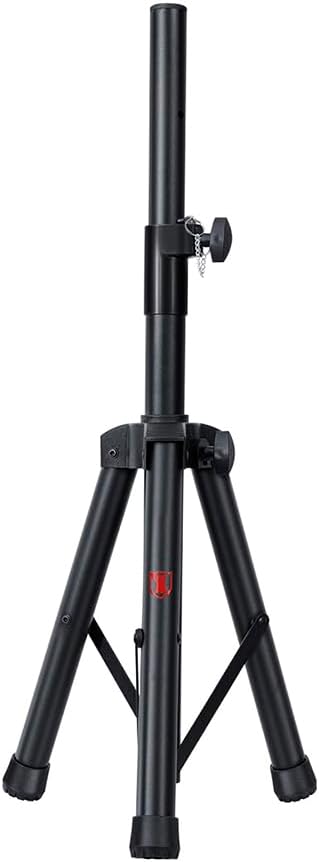
Image: The adjustable tripod stand for mounting the speaker.
5. Eto
5.1 Unpacking ati Ibi Ibẹrẹ
- Ni ifarabalẹ yọ gbogbo awọn paati kuro ninu apoti.
- Place the speaker on a flat, stable surface or prepare for tripod mounting.
5.2 Tripod Assembly and Speaker Mounting
- Unfold the tripod legs and extend them to a stable position. Ensure all locking mechanisms are secure.
- Adjust the height of the tripod to your desired level and secure the locking pin and knob.
- Carefully lift the speaker and place its bottom mounting hole onto the tripod pole. Ensure it is seated firmly.

Image: Close-up of the tripod stand, showing its adjustable components.
5.3 Power Connection and Initial Charge
- Connect the provided power cable to the speaker's power input port on the rear panel.
- Pulọọgi opin miiran ti okun agbara sinu iṣan itanna to dara.
- For optimal battery life, fully charge the speaker before its first use. The charging time is approximately 3 hours.
6. Awọn ilana Iṣiṣẹ
6.1 Agbara Tan / Pa
Locate the power switch on the rear control panel. Flip it to the 'ON' position to power on the speaker. Flip it to 'OFF' to power off.
6.2 Aṣayan ipo
Press the 'MODE' button on the control panel to cycle through available input modes: Bluetooth, USB, Micro SD, AUX, and FM Radio.
6.3 Volume and Equalizer Controls
- Iwọn didun: Rotate the 'VOLUME' knob to adjust the overall output volume.
- Treble (Agudos): Use the 'AGUDOS' knob to adjust the high-frequency response.
- Bass (Bajos): Use the 'BAJOS' knob to adjust the low-frequency response.
6.4 Bluetooth Asopọ
- Switch the speaker to Bluetooth mode. The display will show 'BLUE' and a pairing indicator will flash.
- Lori ẹrọ alagbeka rẹ (foonuiyara, tabulẹti, kọǹpútà alágbèéká), mu Bluetooth ṣiṣẹ ki o wa awọn ẹrọ to wa.
- Select 'Kaiser GEM-9520' (or similar name) from the list.
- Once paired, the speaker will emit a confirmation sound, and the Bluetooth indicator will stop flashing.
6.5 USB / Micro SD Sisisẹsẹhin
- Insert a USB flash drive or Micro SD card (pre-loaded with MP3 audio files) sinu ibudo oniwun.
- The speaker will automatically switch to USB/Micro SD mode and begin playback. If not, press the 'MODE' button.
- Use the playback controls (Play/Pause, Next/Previous Track) on the control panel to manage your music.
6.6 Iṣawọle AUX
- Connect an external audio device (e.g., MP3 player, computer) to the 'AUX' input port on the speaker using a 3.5mm audio cable.
- Switch the speaker to AUX mode using the 'MODE' button.
- Ṣakoso ṣiṣiṣẹsẹhin ati iwọn didun lati ẹrọ ti a ti sopọ.
6.7 Gbohungbohun Lilo
- Connect the wired microphone to the 'MIC' input port on the rear panel.
- Adjust the microphone volume using the 'VOL MIC' knob.
- Adjust the echo effect using the 'ECO' knob.

Image: Close-up of the wired microphone, showing its ON/OFF switch.
6.8 Microphone Audio Priority Function
This function automatically lowers the background music volume when the microphone is in use, making the voice clearer and more prominent. To activate/deactivate this function, refer to the specific button or switch on the control panel labeled for 'Mic Priority' or similar.

Image: Diagram illustrating the microphone audio priority function, which lowers music volume when the microphone is active.
6.9 KSR-LINK Function
The KSR-LINK function allows you to wirelessly connect two compatible Kaiser speakers for a stereo sound experience. Refer to the specific instructions for KSR-LINK pairing, usually involving pressing a dedicated button on both speakers simultaneously.
7. Itọju
- Ninu: Wipe the speaker's exterior with a soft, dry cloth. Do not use abrasive cleaners, waxes, or solvents.
- Ibi ipamọ: Nigbati o ko ba wa ni lilo fun awọn akoko ti o gbooro sii, tọju agbohunsoke si tutu, ibi gbigbẹ, kuro lati orun taara ati awọn iwọn otutu to gaju.
- Itọju Batiri: Lati pẹ aye batiri, yago fun gbigba agbara si batiri ni kikun nigbagbogbo. Gba agbara si agbọrọsọ nigbagbogbo, paapaa ti kii ṣe ni lilo.
8. Laasigbotitusita
| Isoro | Owun to le Fa | Ojutu |
|---|---|---|
| Ko si agbara | Power cable not connected; Battery discharged; Power switch off. | Ensure power cable is securely connected and plugged in. Charge the battery. Turn the power switch to 'ON'. |
| Ko si ohun | Volume too low; Incorrect input mode; External device not playing. | Increase the master volume. Select the correct input mode. Ensure the connected device is playing and its volume is up. |
| Bluetooth ko sopọ | Speaker not in pairing mode; Device too far; Previously paired device connected. | Ensure speaker is in Bluetooth pairing mode. Move device closer to speaker. Disconnect from other Bluetooth devices. |
| Gbohungbohun ko ṣiṣẹ | Microphone not connected; Microphone volume too low; Microphone switch off. | Ensure microphone is securely plugged in. Increase 'VOL MIC' knob. Turn the microphone's ON/OFF switch to 'ON'. |
| Gbigba redio FM ti ko dara | Weak signal; No external antenna. | Reposition the speaker. Extend any built-in antenna or connect an external one if available. |
9. Awọn pato
| Ẹya ara ẹrọ | Sipesifikesonu |
|---|---|
| Awoṣe | GEM-9520 |
| Ijade Wattage | 25000 Watts (PMPO) |
| Iwọn Agbọrọsọ | 15 inches |
| Orisun agbara | Batiri |
| Igbesi aye Batiri (Apapọ) | Awọn wakati 6 |
| Akoko gbigba agbara | Awọn wakati 3 |
| Asopọmọra Technology | AUX, Bluetooth, USB |
| Awọn igbewọle Audio | Microphone, USB, Micro SD, 3.5 mm, 6.3 mm |
| Pataki Awọn ẹya ara ẹrọ | High-resolution audio, LED light, USB port, Microphone Audio Priority, KSR-LINK |
| Iṣagbesori Iru | Floor Mount (Tripod included) |
| Ohun elo | Ṣiṣu |
| Awọn iwọn Ọja (L x W x H) | 45 x 35 x 64 cm |
| Iwọn Ọja | 10.85 kg |
10. Atilẹyin ọja ati Support
This Kaiser product is covered by a manufacturer's warranty. For specific warranty terms and conditions, please refer to the warranty card included in your product packaging or contact Kaiser customer support. For technical assistance or service inquiries, please visit the official Kaiser webojula tabi kan si wọn onibara iṣẹ Eka.


