1. Ọja Ipariview
The Yealink UVC34 is an all-in-one 4K webcam designed for conference rooms, integrating a high-resolution camera, microphones, and speakers into a single compact device. It features advanced AI functionalities to enhance meeting experiences and simplify setup.
This device is certified by Microsoft Teams and Zoom, ensuring seamless integration and optimal performance with leading unified communication platforms.
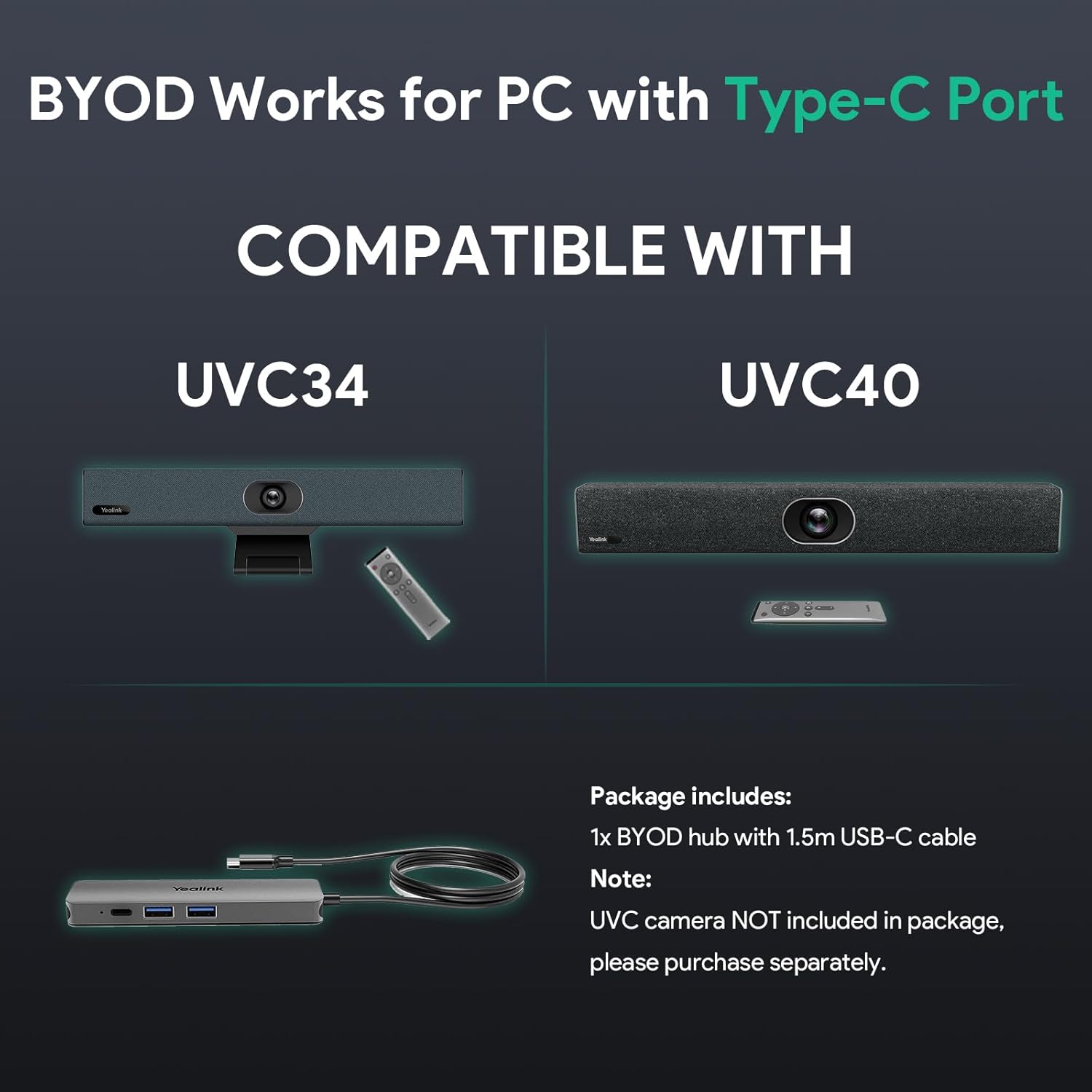
Figure 1: Yealink UVC34 4K Webcam Unit
2. Package Awọn akoonu
Daju pe gbogbo awọn nkan wa ninu apo rẹ:
- Yealink UVC34 4K Webcam Unit
- BYOD Cable Hub with 1.5m USB-C Cable
- VCR20 Iṣakoso latọna jijin
- Adapter Agbara (48V/0.7A)
- Okun USB (7m)

Figure 2: Connections and Package Contents
3. Eto Itọsọna
3.1 ti ara Asopọ
- So agbara: Plug the power adapter into the UVC34 unit and then into a power outlet.
- Sopọ si PC:
- For PCs with a USB-A port, connect the provided USB-A cable from the UVC34 to your PC.
- For laptops with a Type-C port, use the BYOD Cable Hub. Connect the USB-B port of the UVC34 to the BYOD-BOX Hub, then connect the 1.5m USB-C cable from the BYOD-BOX Hub to your laptop.
- Ipo: Place the UVC34 unit on top of your display or on a flat surface in your conference room.

Figure 3: BYOD Plug-and-Play Setup
3.2 Iṣeto ni Sọfitiwia
The UVC34 is a plug-and-play device. No additional drivers are typically required for basic functionality.
- Yan gẹgẹbi Ẹrọ Aiyipada: Open your preferred video conferencing software (e.g., Microsoft Teams, Zoom). Navigate to the audio and video settings. Select the Yealink UVC34 as your default camera, microphone, and speaker.
- Start Meeting: You are now ready to start your meeting with enhanced audio and video.
4. Awọn ilana Iṣiṣẹ
4.1 AI Awọn ẹya ara ẹrọ
The UVC34 incorporates several AI-powered features to optimize your meeting experience:
- Ṣiṣeto adaṣe: Automatically adjusts the camera to frame all participants in the room, ensuring everyone is visible without manual intervention.
- AI Face Enhancement: Optimizes image brightness and clarity, making participants' faces clearly visible even in challenging lighting conditions (dim or backlit environments).
- Low-Light Optimization: Enhances video quality in poorly lit rooms.

Figure 4: Smart Video Conferencing with AI Technology
4.2 Audio Awọn ẹya ara ẹrọ
Experience clear audio with the UVC34's advanced sound processing:
- 8-Microphone Array: Provides accurate sound pickup.
- High-Fidelity 5W Speakers: Delivers clear audio output.
- Beamforming Algorithm: Focuses on active speakers and reduces background noise.
- Ifagile Echo Acoustic: Eliminates echo for natural conversations.
- De-reverberation Technology: Reduces room reverberation for clearer sound.

Figure 5: Intelligent Vocal Enhancement
4.3 Àwọn Ẹ̀yà Fídíò
The UVC34 delivers high-quality video for professional meetings:
- 4K 30FPS Webkamẹra: Captures crisp, detailed video.
- 120° Diagonal Field of View (DFoV): Wide-angle lens to capture the entire room.
- 105° Horizontal Field of View (HFoV): Ensures broad coverage.
- 5x e-PTZ Camera: Electronic Pan-Tilt-Zoom for flexible framing.
- Electric Privacy Shutter: Ensures privacy when the camera is not in use.

Figure 6: High-Quality Video Camera Features
4.4 Awọn iru ẹrọ atilẹyin
The Yealink UVC34 is compatible with a wide range of Unified Communications (UC) platforms, including:
- Awọn ẹgbẹ Microsoft
- Sun-un
- Sisiko Webex
- Skype
- Ipade Google
- BlueJeans
- GoToMeeting
- DingTalk
- WeLink

Figure 7: UC Platforms Compatibility
5. Itọju
To ensure the longevity and optimal performance of your Yealink UVC34, follow these maintenance guidelines:
- Ninu: Use a soft, dry cloth to clean the camera lens and the unit's exterior. Avoid abrasive cleaners or solvents.
- Ibi ipamọ: Nigbati o ko ba wa ni lilo fun awọn akoko ti o gbooro sii, fi ẹrọ naa pamọ si ibi ti o tutu, ti o gbẹ.
- Iṣakoso USB: Ensure all cables are neatly arranged and not under tension to prevent damage.
- Awọn imudojuiwọn famuwia: Regularly check the Yealink official website for firmware updates to benefit from improved features and stability.
6. Laasigbotitusita
If you encounter issues with your UVC34, refer to the following common troubleshooting steps:
- Ko si Fidio/Ohùn:
- Ensure all cables (USB, power) are securely connected.
- Verify that the UVC34 is selected as the default camera, microphone, and speaker in your conferencing software settings.
- Restart your computer and the UVC34 unit.
- Didara fidio ti ko dara:
- Check your internet connection speed. A stable, high-bandwidth connection is crucial for 4K video.
- Rii daju pe lẹnsi kamẹra jẹ mimọ ati ofe lọwọ awọn idiwọ.
- Adjust lighting conditions in the room. The UVC34 has low-light optimization, but adequate lighting is always best.
- Poor Audio Quality (Echo/Noise):
- Ensure the microphone is not muted on the device or in the software.
- Reduce background noise in the room.
- Adjust speaker volume to avoid feedback.
- Awọn ẹya AI Ko Ṣiṣẹ:
- Ensure the room is adequately lit and participants are clearly visible to the camera.
- Check for any obstructions blocking the camera's view.
- Verify that your conferencing software supports and is configured to use the camera's AI features.
7. Awọn pato
| Ẹya ara ẹrọ | Sipesifikesonu |
|---|---|
| Brand | Yealink |
| Orukọ awoṣe | Yealink UVC34 |
| Ipinnu Iboju ti o pọju | 3840x2160 (4K UHD) |
| Ipinnu Yaworan fidio | 4K |
| Fidio Yaworan kika | MP4 |
| Fọto sensọ Technology | CMOS |
| Asopọmọra Technology | USB |
| Atilẹyin Audio kika | AAC, MP3 |
| Pataki Awọn ẹya ara ẹrọ | AI Features, Microphone Input, Speakers |
| Kamẹra Iru | Webkamẹra |
8. Awọn fidio ọja osise
Yealink UVC34 All-in-One USB Video Bar
Yi fidio pese ohun loriview of the Yealink UVC34 All-in-One USB Video Bar, highlighting its key features and design for modern meeting spaces.
Yealink A10-010 AI-POWERED VIEW, Nigbagbogbo lori orin
This video demonstrates the AI-powered view and speaker tracking capabilities, showcasing how the camera intelligently frames participants and focuses on the active speaker.
9. Atilẹyin ọja ati Support
Fun alaye atilẹyin ọja ati atilẹyin imọ-ẹrọ, jọwọ tọka si Yealink osise webaaye tabi kan si olupin agbegbe rẹ. Tọju iwe-ẹri rira rẹ fun awọn ẹtọ atilẹyin ọja.


