Ọrọ Iṣaaju
This manual provides essential information for the safe and efficient operation of your OKP Life Robot Vacuum and Mop K5P Pro. Please read it thoroughly before first use and retain it for future reference.
The OKP Life K5P Pro is a 2-in-1 robot vacuum and mop designed for effective cleaning of hard floors and pet hair. It features 5000Pa suction, extended battery life, advanced navigation, versatile cleaning modes, and smart home compatibility.
Ọja Pariview & Awọn ohun elo
Familiarize yourself with the main components of your K5P Pro robot vacuum.
- Robot Vacuum Unit
- Gbigba agbara Mimọ
- Adapter agbara
- Mop Pad Holder (with attached mop pad)
- Awọn gbọnnu ẹgbẹ
- HEPA Filter (pre-installed in dustbin)
- Ọpa mimọ
- Iṣakoso latọna jijin (nilo awọn batiri AAA 2, pẹlu)

Figure 1: OKP Life K5P Pro Robot Vacuum and Mop. This image displays the main robot unit, a mop pad holder, and a smartphone showing the control app interface.
Ṣeto
1. Gbigba agbara Mimọ Placement
Place the charging base against a wall in an open area, ensuring there are no obstacles within 1 meter (3 feet) to either side and 2 meters (6 feet) in front. Plug the power adapter into the charging base and then into a wall outlet.
2. Gbigba agbara akọkọ
Place the robot vacuum onto the charging base. Ensure the charging contacts on the robot align with those on the base. The indicator lights on the robot will illuminate to show charging status. Fully charge the robot before first use (approximately 3 hours).

Figure 2: The robot vacuum automatically returns to its charging base when its battery is low or a cleaning cycle is complete. The charging base should be placed in an accessible area.
3. Attaching Side Brushes
Snap the side brushes onto the posts on the bottom of the robot until they click into place.
4. Mop Pad Holder Attachment
Attach the mop pad to the mop pad holder. The K5P Pro features an innovative mop holder design that allows for the use of disposable face towels as mop pads. Secure the chosen mop material to the holder. Slide the mop pad holder into the slot at the rear of the robot until it clicks.

Figure 3: This image illustrates the process of attaching a mop pad to the robot vacuum. The mop pad is secured to the holder, which then slides into the back of the robot.
5. App sori & Asopọmọra
Download the OKP Life app from your smartphone's app store. Follow the in-app instructions to connect your robot vacuum to your home Wi-Fi network. The app allows for remote control, scheduling, and customization of cleaning modes and suction levels.
Awọn ilana Iṣiṣẹ
1. Bibẹrẹ a Cleaning ọmọ
- Nipasẹ App: Open the OKP Life app, select your device, and choose a cleaning mode (Auto, Spot, Edge, Smart).
- Nipasẹ Iṣakoso Latọna jijin: Use the provided remote control to select a cleaning mode or start/pause cleaning.
- Nipasẹ Iṣakoso ohun: The K5P Pro is compatible with Alexa and Google Assistant. Use simple voice commands like "Alexa, ask K5P Robot to clean."
- Ibẹrẹ Afowoyi: Press the "Clean" button on the top of the robot to start an automatic cleaning cycle.
Video 1: This video demonstrates how to start the robot vacuum cleaner using various methods, including the remote control, the mobile app, and direct button press on the unit.
2. Ninu awọn ipo
- Ipo Aifọwọyi: The robot intelligently navigates and cleans your entire home.
- Ibi Mọ: Fojusi lori agbegbe idọti kan pato, mimọ ni apẹrẹ ajija.
- Imo eti: Fọ pẹlú Odi ati aga egbegbe.
- Ipo Smart: Utilizes advanced navigation to precisely plan cleaning routes and avoid obstacles.

Figure 4: The smartphone app interface showing various cleaning modes: Auto Mode, Spot Clean, Edge Clean, and Quick Clean. The robot is visible on a wooden floor in the background.
3. Obstacle Avoidance & Anti-Fall
The K5P Pro is equipped with advanced sensors to detect and avoid obstacles, preventing collisions with furniture. Anti-fall sensors prevent the robot from falling down stairs or off elevated surfaces.
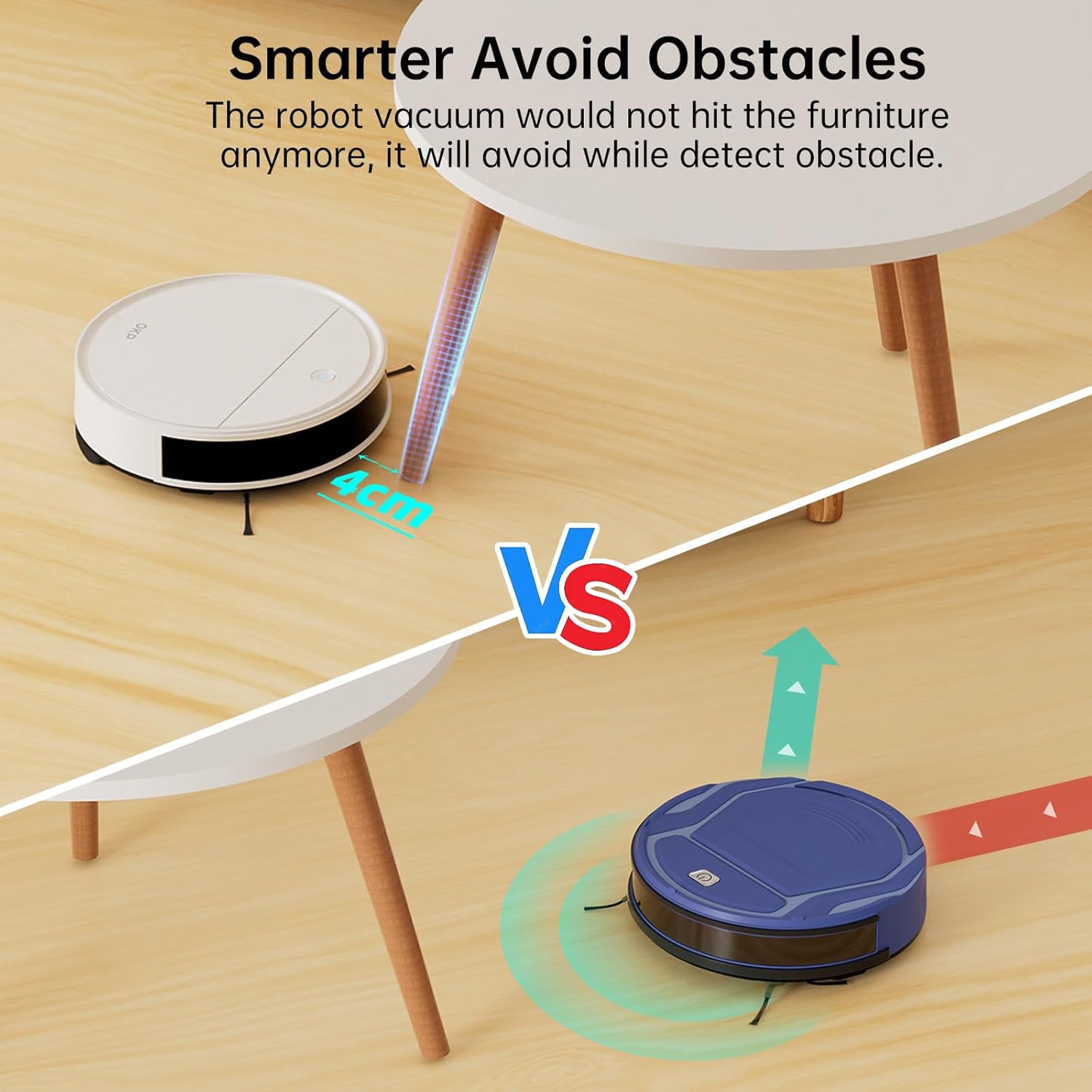
Figure 5: The robot vacuum demonstrates its ability to intelligently avoid obstacles, such as table legs, by detecting them and altering its path. This prevents collisions and ensures smooth operation.
4. Suction Power & Quiet Operation
The robot features 5000Pa suction power for effective cleaning. Its quiet operation (as low as 55dB) allows for cleaning without significant disturbance, even at night.

Figure 6: The robot vacuum operates quietly in a living room setting, indicated by a 55dB noise level, allowing for undisturbed activities like sleeping or working.
Itoju
1. Ofo Eruku Bin
Regularly empty the dust bin after each cleaning cycle. Press the release button on the robot to remove the dust bin, open its lid, and discard collected debris. Clean the HEPA filter as needed.

Figure 7: A hand demonstrates how to remove the dustbin from the robot vacuum and open it to dispose of collected debris. The HEPA filter is visible inside the dustbin.
2. Cleaning the Mop Pad Holder
After mopping, remove the mop pad holder. Dispose of the used disposable face towel or clean the reusable mop pad. Ensure the water tank is emptied and dried to prevent mildew.
3. Cleaning Side Brushes and Sensors
Periodically check and clean the side brushes for tangled hair or debris. Wipe the charging contacts and all sensors with a dry cloth to maintain optimal performance.
Laasigbotitusita
- Robot ko gba agbara: Rí i dájú pé ìpìlẹ̀ gbigba agbára náà wà ní ìsopọ̀mọ́ra àti pé àwọn ìsopọ̀ gbigba agbára robot náà mọ́ tónítóní àti pé wọ́n bá ìpìlẹ̀ náà mu dáadáa.
- Robot di nigbagbogbo: Clear obstacles like loose cables, rugs with long fringes, or small objects from the cleaning path.
- Agbara mimu ti o dinku: Empty the dust bin, clean or replace the HEPA filter, and check the main brush for obstructions.
- Awọn oran Asopọmọra App: Ensure your Wi-Fi network is 2.4GHz, the robot is within Wi-Fi range, and the app is updated to the latest version.
Awọn pato
| Ẹya ara ẹrọ | Ẹ̀kúnrẹ́rẹ́ |
|---|---|
| Brand | Igbesi aye OKP |
| Orukọ awoṣe | K5P Pro |
| Pataki Awọn ẹya ara ẹrọ | Anti-Fall, Edge Cleaning, Low Noise, Pet Hair Pick Up, Scheduling |
| Ọja Mefa | 11"L x 11"W x 3"H |
| Àlẹmọ Iru | Àlẹmọ HEPA |
| Igbesi aye batiri | 3 Hours (150 minutes continuous cleaning) |
| Orisun agbara | Agbara Batiri |
| Awọn ẹrọ ibaramu | Amazon iwoyi, Google Home |
| Iwọn Nkan | 7.39 iwon |
| UPC | 780627998392 |
Atilẹyin ọja & Atilẹyin
For warranty information, technical support, or customer service inquiries, please refer to the contact details provided in the product packaging or visit the official OKP Life webojula. Tọju iwe-ẹri rira rẹ bi ẹri rira.


