1. Ifihan
This manual provides essential information for the safe and efficient operation of your SYLVOX 15.6" Under Cabinet Smart TV. Please read these instructions thoroughly before installation and use, and retain them for future reference. This television is designed for space-saving installation under cabinets, offering smart TV functionalities with Google TV.
2. Alaye Aabo
- Aabo Itanna: Ensure the power supply matches the TV's requirements (AC 100-240V, DC12V, 9-32V). Do not expose the TV to rain or moisture. Disconnect power during lightning storms or when unused for long periods.
- Iṣagbesori: The TV must be securely mounted to a sturdy surface capable of supporting its weight. Follow all installation instructions carefully to prevent injury or damage.
- Afẹfẹ: Ensure adequate ventilation around the TV. Do not block ventilation openings. Overheating can lead to malfunction.
- Ninu: Always unplug the TV before cleaning. Use a soft, dry cloth. Avoid liquid cleaners or aerosols.
- Awọn ọmọde: Jeki awọn ẹya kekere ati awọn ohun elo iṣakojọpọ kuro lọdọ awọn ọmọde lati ṣe idiwọ awọn eewu gige.
3. Package Awọn akoonu
Daju pe gbogbo awọn nkan ti a ṣe akojọ rẹ si isalẹ wa ninu package rẹ:
- SYLVOX 15.6" Under Cabinet Smart TV
- Isakoṣo latọna jijin
- Ilana Afowoyi (iwe yii)
- Power Adapter (AC 100-240V to DC12V)
- Isakoṣo Iṣakoso mimọ
- Oke Atẹgun
- Screws (KA4.0x8MM)
- Awọn batiri AAA (2, fun isakoṣo latọna jijin)
- Kaadi atilẹyin ọja

Image 3.1: Included accessories and components.
4. Ọja Ipariview
The SYLVOX 15.6" Under Cabinet Smart TV is designed for versatile viewing and space efficiency. It features a 15.6-inch Full HD (1080p) LED display with a 16:9 aspect ratio and a 60Hz refresh rate, offering a 178° horizontal and 178° vertical ultra-wide viewigun igun.
4.1 Key Awọn ẹya ara ẹrọ
- Flip-Down Screen: The screen can be vertically flipped down 0-90 degrees for optimal viewing and folded up for storage.
- 360° Yiyi: The entire unit can rotate 360 degrees horizontally for flexible positioning.
- Smart Google TV: Integrated Google TV system with 1.5G RAM and 8G storage, supporting various streaming applications.
- Asopọmọra: Built-in Wi-Fi (5G support) and Wireless Connection (Bluetooth 5.0).
- Atẹlu olumulo: Touch buttons on the unit and a full-function remote control.
- Awọn iṣẹ afikun: LED clock display and timer alarm clock functionality.

Aworan 4.1: Iwaju view of the SYLVOX Under Cabinet Smart TV.
4.2 Àwọn Ibudo àti Àwọn Ìsopọ̀
The TV includes the following ports for various connections:
- DC 12V Power Input
- RJ45 (ayelujara)
- SPDIF jade
- Line (L/R) Out
- HDMI (2 ports, with CEC & ARC support)
- RF (Antenna Input)
- USB (awọn ibudo 2)
- Mini AV In
- Agbekọri Jade

Image 4.2: Rear panel with connection ports.
4.3 Screen Movement
The TV offers flexible screen positioning:
- Flip-Down: The screen can be pulled down up to 90 degrees from its stored position.
- Yiyi: The entire TV unit can rotate 360 degrees horizontally when extended.

Image 4.3: Screen rotation and flip-down capabilities.
5. Eto ati fifi sori
Careful installation is crucial for the stability and functionality of your TV.
5.1 Mounting Location Considerations
- Choose a sturdy under-cabinet location that can safely support the TV's weight (approximately 7.7 lbs).
- Ensure there is sufficient clearance for the TV to rotate and flip down. The center point of the TV bracket should be at least 10.4 inches from any wall or obstruction to allow full rotation.
- Avoid locations near heat sources or direct sunlight.

Image 5.1: Mounting clearance and VESA dimensions.
5.2 iṣagbesori Igbesẹ
- Ṣetan Ilẹ: If your cabinet has a recessed bottom, you may need to add a piece of wood (e.g., MDF) to create a flush mounting surface. Ensure this piece is securely attached to the cabinet.
- So akọmọ iṣagbesori: Position the mounting bracket (VESA 40x40mm) on the chosen under-cabinet location. Mark the screw holes.
- Awọn Iho Pilot Lilu: Drill pilot holes into the cabinet surface at the marked locations.
- Biraketi to ni aabo: Use the provided screws (KA4.0x8MM) to firmly attach the mounting bracket to the cabinet.
- So TV pọ mọ Bracket: Carefully align the TV with the mounted bracket and secure it according to the instructions provided with the bracket. Ensure the single screw for rotation is properly engaged but allows movement.
5.3 Asopọ agbara
Connect the power adapter to the DC 12V input port on the TV, then plug the adapter into a standard electrical outlet. The TV supports 9-32V wide voltage protection, making it suitable for various power sources, including RVs (12V car power cable not included).
5.4 Ni ibẹrẹ Oṣo
- Agbara Tan: Tẹ bọtini agbara lori TV tabi isakoṣo latọna jijin.
- Aṣayan ede: Tẹle awọn itọsọna loju iboju lati yan ede ti o fẹ.
- Isopọ nẹtiwọki: Connect the TV to your Wi-Fi network or via an Ethernet cable (RJ45). Enter your Wi-Fi password if prompted.
- Akọọlẹ Google: Wọlé pẹlu akọọlẹ Google rẹ lati wọle si awọn ẹya Google TV, ṣe igbasilẹ awọn ohun elo, ati ṣe akanṣe iriri rẹ.
- Channel Scan (Optional): If connecting an antenna, follow the on-screen instructions to scan for available channels.
6. Awọn ilana Iṣiṣẹ
This section details how to use your SYLVOX Smart TV.
6.1 Remote Control and Touch Buttons
The TV can be operated using the included remote control or the touch-sensitive buttons located on the front panel of the unit.
- Agbara: Tan TV si tan tabi paa.
- Orisun: Selects input sources (HDMI, AV, ATV/DTV).
- Akojọ: Accesses TV settings and options.
- CH+/CH-: Yí àwọn ikanni padà tàbí kí ó máa lọ kiri lórí àwọn àkójọ oúnjẹ.
- VOL+/VOL-: Ṣatunṣe iwọn didun.
- SET/ENTER: Jẹrisi awọn aṣayan.
- TIME MINUS/TIME PLUS: Adjusts timer settings.
6.2 Google TV Interface
After initial setup, the Google TV home screen will display. This interface provides access to streaming apps, live TV, and personalized recommendations.

Image 6.1: Google TV home screen.
6.3 App Lilo
You can download and use various applications from the Google Play Store. Pre-certified apps include Netflix, YouTube, Twitter, Facebook, AccuWeather, Mirracast, Vudu, Pandora, and HTML5.
- Navigate to the 'Apps' section on the home screen.
- Select the Google Play Store icon to browse and download new applications.
- Select an installed app to launch it.
Image 6.2: Accessing the Google Play Store.
6.4 Wireless Connectivity and Screen Casting
- Wi-Fi: Connect to your home Wi-Fi network via the settings menu for internet access.
- Asopọ Alailowaya (Bluetooth 5.0): Pair Bluetooth devices like headphones or speakers through the TV's settings.
- Simẹnti iboju: The TV supports screencasting from compatible phones and devices, allowing you to display content from your mobile device directly on the TV screen.
6.5 Aago Išė
The TV includes a timing function (15-60 minutes optional) which can be used as a cooking timer or for other purposes. Use the 'TIME MINUS' and 'TIME PLUS' buttons on the control panel or remote to set the desired duration.
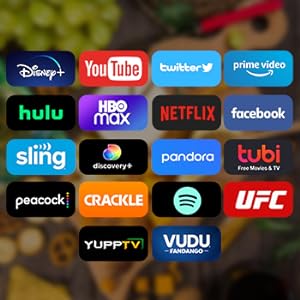
Image 6.3: Using the timing function.
7. Itọju
Itọju to dara ṣe idaniloju gigun ati iṣẹ ti TV rẹ.
- Ninu iboju: Rọra nu iboju naa pẹlu asọ ti ko ni lint. Fun awọn ami alagidi, die-die dampen the cloth with water or a screen-specific cleaning solution (do not spray directly onto the screen).
- Ninu Ode: Lo aṣọ rirọ ati gbigbẹ lati nu iboju tẹlifíṣọ̀n naaasing. Yago fun abrasive ose tabi epo.
- Afẹfẹ: Lokọọkan ṣayẹwo pe awọn šiši fentilesonu ko ni eruku ati idoti.
- Ibi ipamọ: When not in use, fold the TV screen up into its storage position to protect it from dust and potential damage.

Image 7.1: TV folded for storage, freeing up space.
8. Laasigbotitusita
Ti o ba pade awọn ọran pẹlu TV rẹ, tọka si awọn iṣoro ti o wọpọ ati awọn ojutu wọnyi:
| Isoro | Owun to le Fa | Ojutu |
|---|---|---|
| Ko si Agbara | Power cable disconnected; outlet malfunction; remote batteries dead. | Check power cable connection; test outlet with another device; replace remote batteries. |
| Ko si Aworan, ṣugbọn Ohun ti wa ni Lọwọlọwọ | Ti yan orisun titẹ sii ti ko tọ; ita ẹrọ oro. | Press 'Source' button to cycle through inputs; check external device connections. |
| Ko si Ohun, ṣugbọn Aworan wa Bayi | Iwọn didun ti dakẹ tabi kere ju; ita iwe eto oro. | Yọ ohùn kúrò tàbí mú kí ohùn pọ̀ sí i; ṣàyẹ̀wò àwọn ìsopọ̀ ohùn pẹ̀lú àwọn ẹ̀rọ ìta. |
| Awọn oran Asopọ Wi-Fi | Ọrọigbaniwọle ti ko tọ; oran olulana; TV ju jina lati olulana. | Tún tẹ ọ̀rọ̀ìpamọ́ Wi-Fi sii; tún bẹ̀rẹ̀ ráútà; gbé TV sún mọ́ ráútà tàbí lo ráútà Ethernet. |
| Isakoṣo latọna jijin Ko Ṣiṣẹ | Awọn batiri ti o ku; idilọwọ laarin latọna jijin ati TV. | Replace batteries; remove obstructions; ensure remote is pointed at the TV's sensor. |
| O lọra Performance / App ipadanu | Ju ọpọlọpọ awọn apps nṣiṣẹ; kekere iranti. | Close unused apps; restart the TV; clear cache for problematic apps in settings. |
If the problem persists after trying these solutions, please contact SYLVOX customer support.
9. Awọn pato
| Ẹya ara ẹrọ | Ẹ̀kúnrẹ́rẹ́ |
|---|---|
| Nọmba awoṣe | KT16A0KHGA |
| Iwon iboju | 15.6 inches |
| Ifihan ọna ẹrọ | LED |
| Ipinnu | 1080p (HD ni kikun) |
| Oṣuwọn sọtun | 60Hz |
| Apakan Ipin | 16:9 |
| ViewIgun Igun (H/V) | 178° / 178° |
| Eto isesise | Google TV |
| Ìrántí (RAM + Ìpamọ́) | 1.5G + 8G |
| Alailowaya Asopọmọra | Wi-Fi (5G Support), Bluetooth 5.0 |
| Awọn igbewọle fidio | ATV/DTV, Mini AV, HDMI (x2) |
| Nẹtiwọọki Input | RJ45 |
| Awọn ibudo miiran | SPDIF OUT, Line (L/R) Out, RF, Earphone, USB (x2) |
| Agbara Input | AC 100-240V, DC12V, 9-32V |
| Awọn iwọn ọja (laisi iduro) | 373.35 x 226.85 x 9.5 mm (0.4"D x 14.7"W x 8.9"H) |
| Iwọn Nkan | 7.7 iwon (3.5 kg) |
| Awọn iwọn otutu ti nṣiṣẹ | -20°C si 45°C (-4°F si 113°F) |
10. Atilẹyin ọja ati Support
SYLVOX is committed to providing quality products and customer satisfaction.
- Atilẹyin ọja: Your SYLVOX TV comes with a 12-month free defect protection.
- Pada: Free returns are offered for quality issues. A 30-day hassle-free return policy is available, requiring original packaging.
- Atilẹyin Onibara: For technical assistance, warranty claims, or any other inquiries, please refer to the contact information provided on your warranty card or visit the official SYLVOX webojula.


