1. Ifihan
The ZEBRONICS Riser Party DJ Speaker is designed to deliver a powerful audio experience with versatile connectivity and entertainment features. This manual provides detailed instructions for setting up, operating, and maintaining your speaker to ensure optimal performance.
2. Package Awọn akoonu
Jọwọ ṣayẹwo apoti fun awọn nkan wọnyi:
- 1 x ZEBRONICS Riser Party DJ Speaker
- 1 x Isakoṣo latọna jijin
- 2 x Awọn gbohungbohun UHF Alailowaya
- 1 x Okun Agbara

Image: ZEBRONICS Riser Party DJ Speaker with included accessories.
3. Ọja Ipariview
3.1 Top Panel idari
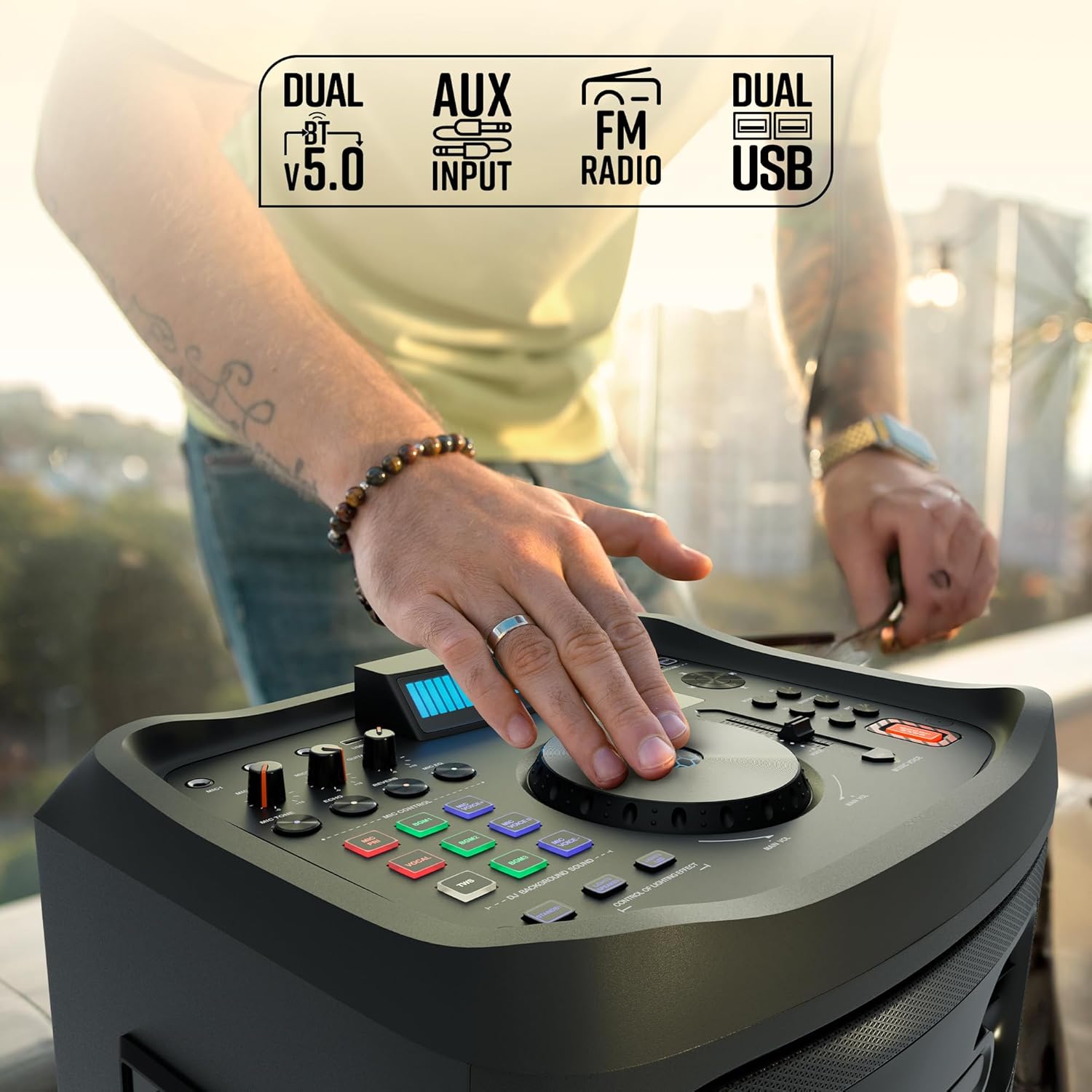
Aworan: Alaye view of the speaker's top control panel.
The top panel features various controls for audio adjustment, input selection, and special functions:
- Main Volume Knob: Ó ń ṣe àtúnṣe ìwọ̀n ohùn agbohùnsọ̀kan gbogbogbòò.
- Microphone Volume Knobs (MIC1, MIC2): Controls the volume for each connected microphone.
- Guitar Volume Knob: Adjusts the volume for the connected guitar.
- Echo/Reverb/Mic Tone Knobs: Fine-tune microphone effects.
- Bọtini Ipo: Cycles through input sources (Bluetooth, USB, AUX, FM, HDMI ARC).
- Awọn idari Bass/Table: Adjusts low and high frequencies.
- Bọtini EQ: Selects preset equalizer modes.
- Awọn bọtini Iṣakoso Media: Play/Pause, Skip Track, Repeat.
- DJ BGM Effects: Buttons for activating various DJ background sound effects.
- Ifihan LED: Shows current mode, track information, and other settings.
- Awọn iṣakoso ina: Buttons to manage the speaker's LED lighting effects.
- Bọtini Igbega Bass: Enhances low-frequency output.
- Music Pitch Control: Adjusts the pitch of the music playback.
- Mic Pitch Control: Adjusts the pitch of the microphone input.
3.2 Ru Panel Awọn isopọ

Image: Rear panel connections of the speaker.
The rear panel provides essential connection ports:
- Iṣagbewọle agbara: Ó so okùn agbára pọ̀ mọ́ ihò iná mànàmáná.
- Awọn ibudo USB (x2): For USB drive playback and charging.
- Iṣawọle AUX: Jack 3.5mm fun sisopọ awọn ẹrọ ohun afetigbọ ita.
- HDMI (ARC) Ibudo: For connecting to compatible TVs or audio systems.
- Iṣawọle Gita: Jack 6.3mm fun sisopọ gita kan.
- MIC Inputs (x2): 6.3mm jacks for wired microphones (in addition to wireless mics).
4. Eto
4.1 Asopọ agbara
- Connect the provided power cable to the Power Input port on the rear of the speaker.
- So opin keji okun ina sinu ibudo ina deede.
- Ensure the power switch on the speaker is in the 'OFF' position before connecting to power.
4.2 Ibẹrẹ Ibẹrẹ
Place the speaker on a stable, flat surface. For optimal sound dispersion, position it in an open area, away from walls or corners that might obstruct audio. The speaker is designed for floor standing use.
5. Awọn ilana Iṣiṣẹ
5.1 Agbara Tan / Pa
To power on the speaker, flip the power switch located on the rear panel to the 'ON' position. The LED display will illuminate. To power off, flip the switch back to 'OFF'.
5.2 Bluetooth Asopọmọra
- Turn on the speaker. The default mode is usually Bluetooth. If not, press the 'Mode' button until 'BT' appears on the LED display.
- Lori ẹrọ alagbeka rẹ, mu Bluetooth ṣiṣẹ ki o wa awọn ẹrọ to wa.
- Select 'ZEBRONICS Riser' from the list of devices.
- Once paired, the speaker will indicate a successful connection, and you can play audio from your device.
5.3 USB Sisisẹsẹhin
- Fi kọnputa USB ti o ni ohun MP3 sii files into one of the USB ports.
- Press the 'Mode' button until 'USB' appears on the LED display.
- Agbọrọsọ yoo bẹrẹ sisẹ ohun laifọwọyi files from the USB drive. Use the media control buttons to navigate tracks.
5.4 Iṣawọle AUX
- Connect an external audio device (e.g., smartphone, MP3 player) to the AUX input port using a 3.5mm audio cable.
- Press the 'Mode' button until 'AUX' appears on the LED display.
- Mu ohun ṣiṣẹ lati ẹrọ ti o sopọ.
5.5 Redio FM
- Press the 'Mode' button until 'FM' appears on the LED display.
- Use the media control buttons to scan for and select FM radio stations.
5.6 Asopọ HDMI ARC
- Connect an HDMI cable from the HDMI ARC port on the speaker to the HDMI ARC port on your television.
- Press the 'Mode' button until 'HDMI ARC' appears on the LED display.
- Ensure your TV's audio output settings are configured for HDMI ARC.
5.7 Gita Input
- Connect your guitar to the 'Guitar Input' 6.3mm jack on the rear panel.
- Adjust the 'Guitar Vol' knob on the top panel to control the guitar's volume.
5.8 Microphone Input and Karaoke

Aworan: Pariview of microphone and karaoke features.
- Awọn gbohungbohun Alailowaya: Insert batteries into the provided UHF wireless microphones. Turn them on. They will automatically connect to the speaker.
- Wired Microphones: Connect wired microphones to the 'MIC1' or 'MIC2' 6.3mm jacks.
- Adjust the 'MIC1 Vol' and 'MIC2 Vol' knobs to control microphone volume.
- Use the 'Echo', 'Reverb', and 'Mic Tone' knobs to add effects to your vocals.
- The 'Instant Karaoke Maker' function allows you to sing along to music.
- Utilize the 'Mic Pitch Control' for vocal adjustments.
5.9 TWS (Otitọ Alailowaya Sitẹrio) iṣẹ

Image: Two speakers demonstrating the TWS function for stereo sound.
To connect two Zeb-Riser speakers for a true wireless stereo experience:
- Rí i dájú pé àwọn agbohunsoke méjèèjì ti ń ṣiṣẹ́ àti pé wọ́n wà ní ipò Bluetooth, ṣùgbọ́n wọn kò tíì so wọ́n pọ̀ mọ́ ẹ̀rọ kankan.
- On one of the speakers (this will be the primary speaker), press and hold the 'TWS' button.
- The primary speaker will search for the secondary speaker and connect automatically.
- Once connected, the LED display will indicate TWS mode. You can now pair your mobile device to the primary speaker via Bluetooth, and audio will play in stereo through both units.
5.10 DJ ti yóogba
The speaker includes 3 DJ BGM (Background Music) Effects. Press the corresponding buttons on the top panel to activate these effects during playback.
5.11 LED Light Controls

Image: LED display and light control section.
The speaker features dynamic LED lights. Use the 'Lights Speaker' and 'Lights LED' controls on the top panel to customize or turn off the lighting effects.
5.12 Audio Adjustments
Use the 'Bass/Treble' knobs to adjust the low and high frequencies of the audio output. The 'EQ' button allows you to cycle through various preset equalizer modes to suit different music genres.
6. Itọju
Lati rii daju igbesi aye gigun ati iṣẹ to dara julọ ti agbọrọsọ rẹ:
- Clean the speaker's exterior with a soft, dry cloth. Avoid using abrasive cleaners or solvents.
- Keep the speaker away from direct sunlight, excessive heat, dust, and moisture.
- Do not block the ventilation openings on the speaker.
- Tọju agbohunsoke ni itura, ibi gbigbẹ nigbati o ko ba lo fun awọn akoko gigun.
7. Laasigbotitusita
| Isoro | Owun to le Fa | Ojutu |
|---|---|---|
| Ko si agbara | Kò sí okùn agbára tí a so pọ̀; A ti pa iná; ibi tí a ti ń ta iná mànàmáná kò ní àbùkù. | Ensure power cable is securely connected; Turn power switch ON; Test power outlet with another device. |
| Ko si ohun | Volume too low; Incorrect input mode; Device not playing audio; Cables loose. | Increase volume; Select correct input mode; Check audio playback on source device; Secure all audio cables. |
| Bluetooth ko sopọ | Agbọrọsọ kò sí ní ipò ìsopọ̀; Bluetooth ẹ̀rọ ti pa; Agbọrọsọ ti sopọ̀ mọ́ ẹ̀rọ mìíràn tẹ́lẹ̀. | Ensure speaker is in BT mode; Turn device Bluetooth on/off; Disconnect from other devices and try again. |
| Gbohungbohun ko ṣiṣẹ | Mic volume low; Batteries dead (wireless mic); Mic not connected (wired mic); Faulty mic. | Increase mic volume; Replace batteries; Ensure wired mic is fully inserted; Test with another mic if possible. |
| Iparun ohun | Volume too high; Source audio quality poor; Speaker placed too close to interference. | Reduce volume; Use high-quality audio source; Relocate speaker away from electronic devices. |
8. Awọn pato
| Ẹya ara ẹrọ | Ẹ̀kúnrẹ́rẹ́ |
|---|---|
| Orukọ awoṣe | Zeb-Riser |
| Agbara Ijade (RMS) | 210W |
| Awakọ Iwon | 25.4cm (Full-range), 7.62cm (Tweeter) |
| Asopọmọra | Dual BT v5.0, USB x 2, FM, AUX, HDMI (ARC) |
| Awọn igbewọle | Guitar Input, Dual 6.3mm MIC Input |
| Awọn gbohungbohun | Dual Wireless UHF Mic |
| Pataki Awọn ẹya ara ẹrọ | Instant Karaoke Maker, TWS Function, 3x DJ BGM Effects, Colorful LED lights, Dynamic Visualizer, 3D EQ, 12x Music Pitch Control, 24x Mic Pitch Control, Bass Boost |
| Iṣagbesori Iru | Iduro Floor |
| Orisun agbara | Okun Itanna |
| Iwọn Nkan | 12.5 kg |
| Awọn iwọn Ọja (LxWxH) | 38.3 x 46 x 73 cm |
9. Atilẹyin ọja ati Support
This product comes with a standard manufacturer's warranty. For detailed warranty information, service, or technical support, please refer to the warranty card included in your package or visit the official ZEBRONICS webojula. Tọju iwe-ẹri rira rẹ fun awọn ẹtọ atilẹyin ọja.


