1. Ifihan
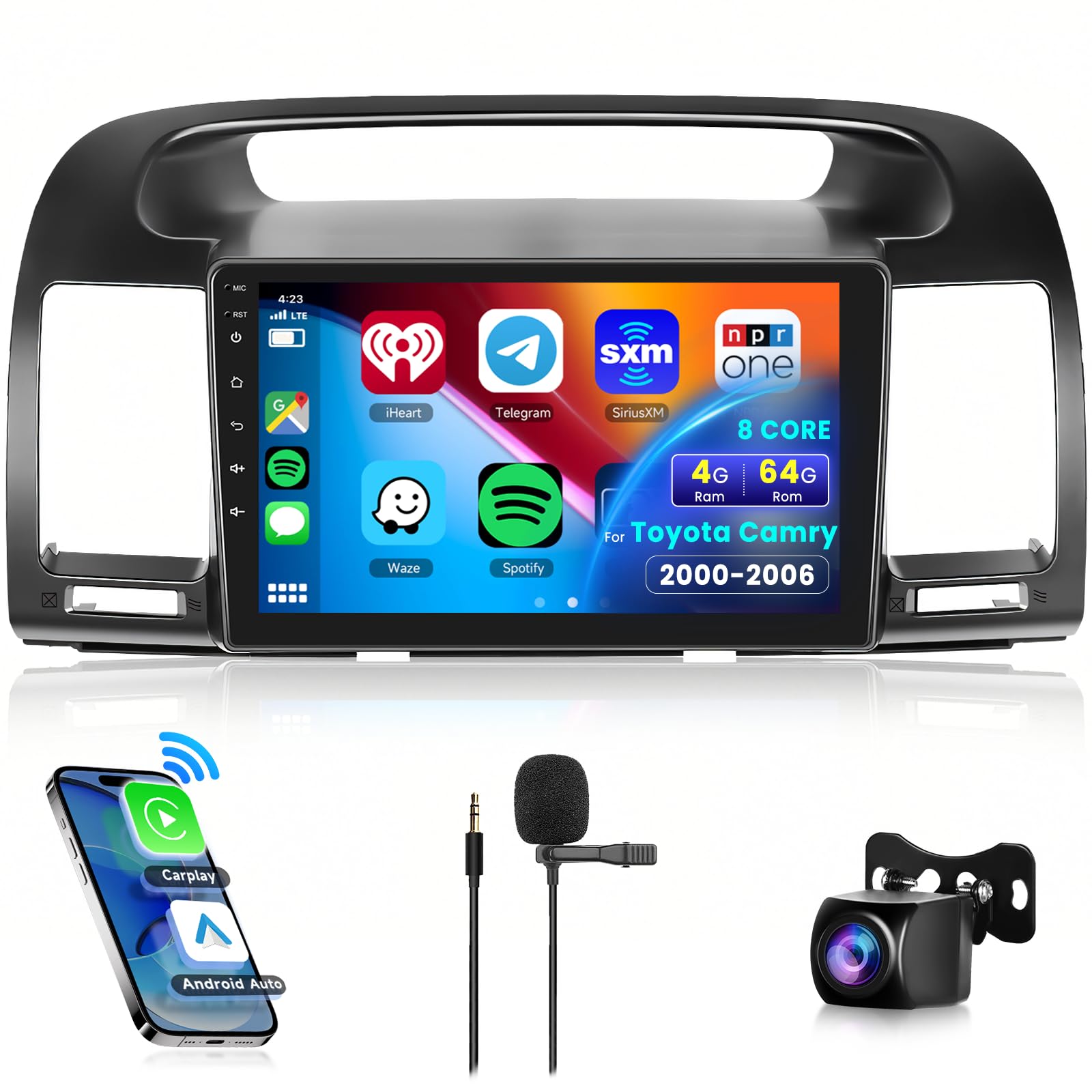
This manual provides comprehensive instructions for the installation, operation, and maintenance of your new podofo 8 Core 4G+64G Car Radio. Please read this manual thoroughly before installation and use to ensure proper function and to maximize your experience.
2. Ibamu ọja
This car stereo head unit is designed to fit Toyota Camry models manufactured between 2000 and 2006. Before purchasing and installation, carefully check the shape of your car's center console to ensure compatibility. Some models may have different console configurations.

If your vehicle's central control panel matches Option B, please contact customer support for suitable recommendations.
3. Package Awọn akoonu
Daju pe gbogbo awọn nkan ti a ṣe akojọ rẹ si isalẹ wa ninu package rẹ:
- podofo 8 Core 4G+64G Car Radio Unit
- Okun agbara
- Àwọn okùn ìṣíwọlé/ìjáde RCA
- Okun Kamẹra Ru
- USB Cables (2)
- Eriali GPS
- Gbohungbohun ita
- Kamẹra afẹyinti
- Ọpa fifi sori ẹrọ
- Eriali Redio
- Afowoyi Olumulo (iwe-ipamọ yii)

4. Key Awọn ẹya ara ẹrọ
- Eto Android to ti ni ilọsiwaju: Equipped with the latest Android 13.0, an 8-Core CPU, 4GB RAM, and 64GB ROM for fast and smooth operation.
- 9-inch IPS Touchscreen: Features a 1280*720 ultra-high resolution display with a 178° viewing angle, supporting split-screen functionality and customizable UI themes.
- Wireless Apple CarPlay & Android Auto: Seamlessly integrates with your smartphone for navigation, music, calls, and voice control, supporting both wired and wireless connections.
- Bluetooth 5.0 & DSP Audio: Provides stable and fast Bluetooth connectivity for hands-free calling and wireless audio streaming. The built-in 32-band DSP (Digital Sound Processor) offers precise sound adjustments, noise suppression, and enhanced audio clarity for an immersive music experience.
- Wi-Fi & Lilọ kiri GPS: Integrated GPS supports offline navigation. Connect to WiFi to access online maps, download apps, and browse the internet directly on the touchscreen.
- Iṣakoso kẹkẹ idari (SWC): Compatible with your vehicle's steering wheel buttons for safe control of calls, music playback, and mode switching.
- HD Rear Camera: Includes an HD night vision rearview camera with a 170-degree ultra-wide viewing angle and waterproof design for safer and easier parking.
5. Itọsọna fifi sori ẹrọ
The podofo car radio comes with a plug-and-play wiring harness for simplified installation. However, professional installation is recommended.
5.1 Pre-Fifi sori Ṣayẹwo
- Ensure the vehicle's ignition is off and the battery is disconnected before starting.
- Confirm the car radio unit and all accessories are present as per the package contents.
- Verify the shape of your car's central console matches the compatible design (Option A) shown in Section 2.
5.2 Gbogbogbo fifi sori Igbesẹ
- Carefully remove the original car radio unit and trim panels from your Toyota Camry. Refer to your vehicle's service manual for specific instructions on panel removal.
- Connect the provided wiring harness to the car radio unit and then to your vehicle's existing wiring. Ensure all connections are secure.
- Connect the GPS antenna, external microphone, and radio antenna to their respective ports on the car radio unit. Position the GPS antenna in a location with a clear view ti oju ọrun (fun apẹẹrẹ, lori dasibodu).
- If installing the backup camera, route the camera cable from the rear of the vehicle to the car radio unit. Refer to Section 6 for detailed reverse camera wiring.
- Carefully slide the new podofo car radio unit into the dashboard opening. Secure it using the appropriate mounting brackets and screws.
- Reinstall all trim panels and reconnect the vehicle's battery.
- Turn on the ignition and test all functions of the car radio.
6. Reverse Camera Wiring
Proper connection of the backup camera is essential for its functionality. Follow these steps for wiring:
- Connect the backup camera's video output cable (1) to the car radio's reversing camera input (2).
- Connect the trigger wire on the video cable (3) to the car's reversing light positive wire (4).
- Connect the camera's power cable positive (+) to the car's reversing light positive wire (4).
- Connect the camera's power cable negative (-) to the car's reversing light negative wire (5).

Ensure all connections are insulated and secure to prevent short circuits or signal loss.
7. Awọn ilana Iṣiṣẹ
7.1 Alailowaya Apple CarPlay & Android Auto
To use Wireless Apple CarPlay or Android Auto:
- Rii daju pe Bluetooth ati Wi-Fi foonuiyara rẹ ti ṣiṣẹ.
- On the car radio, navigate to the CarPlay/Android Auto application.
- Pair your phone with the car radio via Bluetooth. Once paired, the system will automatically establish a Wi-Fi connection for CarPlay/Android Auto.
- Follow any on-screen prompts on both your phone and the car radio to complete the setup.

7.2 GPS Lilọ kiri
The unit supports both offline and online navigation.
- Awọn maapu aisinipo: Pre-installed maps allow navigation without an internet connection. Ensure the GPS antenna is properly connected and positioned.
- Àwọn Máàpù Ayélujára: Connect the unit to a Wi-Fi network (e.g., your phone's hotspot) to use online navigation apps like Google Maps, Waze, etc. You can download additional navigation apps from the app store.

7.3 Bluetooth Iṣẹ
To pair your phone via Bluetooth:
- Lọ sí ètò Bluetooth lórí rédíò ọkọ̀ ayọ́kẹ́lẹ́.
- Mu Bluetooth ṣiṣẹ lori foonuiyara rẹ ki o wa awọn ẹrọ to wa.
- Select the car radio's Bluetooth name (e.g., "podofo CarBT") from your phone's list and confirm pairing.
- Once connected, you can make/receive hands-free calls and stream audio.

7.4 FM / RDS Redio
Access the FM/RDS Radio application from the main menu. You can manually tune frequencies or use the auto-scan function to find and save stations. RDS (Radio Data System) displays station information where available.
7.5 DSP (Digital Sound Processor) Settings
The 32-band DSP allows for detailed audio customization. Navigate to the 'Sound Settings' or 'DSP' menu. Here you can adjust:
- Equalizer (EQ) presets or custom settings.
- Balance and Fader.
- Subwoofer output.
- Time alignment for optimal sound staging.

7.6 Iṣakoso kẹkẹ idari (SWC)
Lati tunto awọn idari kẹkẹ idari:
- Go to 'Settings' and find the 'Steering Wheel Control' or 'SWC Learning' option.
- Follow the on-screen instructions to map your vehicle's steering wheel buttons to specific functions on the car radio (e.g., volume up/down, track skip, answer call).

7.7 Iṣakoso ohun
The unit supports voice commands for various functions. Activate voice control by saying "Hey Podofo" or by tapping the voice assistant icon on the screen. You can then issue commands such as:
- "Play [song name]"
- "Call [contact name]"
- "Navigate to [destination]"
- "Open [app name]"

7.8 Pipin iboju
Iboju pipin-sikirini naa fun ọ laaye lati ṣiṣẹ awọn ohun elo meji ni akoko kanna.ample, you can have navigation on one side and music playback on the other. To activate:
- Ṣii ohun elo akọkọ.
- Long-press the recent apps button or follow the specific gesture for split-screen mode (may vary slightly by UI theme).
- Select the second application to display on the other half of the screen.

7.9 Mirror Link
Mirror Link allows you to display your smartphone's screen directly onto the car radio's display. This feature supports both Android and iOS systems via Bluetooth or USB cable.

8. Awọn pato
| Ẹya ara ẹrọ | Sipesifikesonu |
|---|---|
| Eto isesise | Android 13.0 |
| Sipiyu | 8-mojuto |
| Àgbo | 4GB |
| ROM | 64GB |
| Iwọn Ifihan | 9 inches |
| Ipinnu | 1280 x 720 IPS HD |
| Asopọmọra Technology | Bluetooth 5.0, WiFi, USB, CarPlay, Android Auto |
| Pataki Awọn ẹya ara ẹrọ | 8-Core, GPS, Wireless Android Auto, Wireless CarPlay, DSP, Split Screen, Mirror Link, Steering Wheel Control |
| Oriṣi maapu | Road, Satellite (Offline/Online) |
| Ipo Ijade Ohun | APE/FLAC/WAV/MP3/WMA, àti bẹ́ẹ̀ bẹ́ẹ̀ lọ. |
| Iṣagbesori Iru | Dasibodu Oke |
| Iwọn Nkan | 6.6 iwon |
| Ọja Mefa | 9 x 9 x 9 inches |
9. Laasigbotitusita
If you encounter issues with your podofo car radio, refer to the following common problems and solutions:
- Ko si Agbara:
- Check all power connections and fuses. Ensure the wiring harness is correctly connected.
- Verify the vehicle's battery is charged and properly connected.
- Ko si Ohun:
- Ṣayẹwo awọn asopọ okun waya agbọrọsọ.
- Rii daju pe iwọn didun ko dakẹ tabi ṣeto si o kere julọ.
- Ṣe ìdánilójú pé àwọn ètò DSP kò ṣe àtúnṣe láti mú kí ohùn má jáde.
- Awọn oran Asopọmọra Bluetooth:
- Ensure Bluetooth is enabled on both the car radio and your smartphone.
- Pa àwọn ìsopọ̀ ìṣáájú rẹ́ lórí àwọn ẹ̀rọ méjèèjì kí o sì gbìyànjú láti tún so wọ́n pọ̀.
- Move your phone closer to the car radio.
- Ipadanu ifihan agbara GPS:
- Ensure the GPS antenna is securely connected and placed in an open area with a clear view ti ọrun.
- Check for any obstructions that might block the signal.
- Kámẹ́rà Àtìlẹ́yìn Kò Hàn:
- Verify all camera wiring, especially the trigger wire, is correctly connected as per Section 6.
- Ensure the camera itself is receiving power.
- Check camera settings in the car radio menu.
- Awọn idari Kẹkẹ idari Ko Ṣiṣẹ:
- Ensure the SWC wires are correctly connected to the vehicle's wiring harness.
- Perform the SWC learning process again as described in Section 7.6.
For persistent issues or problems not listed here, please contact podofo professional technical support.
10. Itọju
To ensure the longevity and optimal performance of your podofo car radio, follow these maintenance guidelines:
- Ninu: Lo asọ ti o gbẹ lati nu iboju ati awọn ita ita. Fun agidi smudges, die-die dampen awọn asọ pẹlu omi tabi a iboju-ailewu regede. Yago fun awọn ohun elo abrasive tabi awọn kemikali lile.
- Awọn imudojuiwọn sọfitiwia: Periodically check for available software updates through the unit's settings menu or the official podofo webAaye ayelujara. Mimu software naa wa ni imudojuiwọn le mu iṣẹ ṣiṣe dara si ati ṣafikun awọn ẹya tuntun.
- Awọn ipo Ayika: Yago fun ṣiṣafihan ẹyọkan si awọn iwọn otutu to gaju, imọlẹ orun taara fun awọn akoko gigun, tabi ọrinrin pupọ.
- Wiring Checks: Occasionally inspect visible wiring for any signs of wear, damage, or loose connections.
11. Atilẹyin ọja ati Support
Your podofo 8 Core 4G+64G Car Radio is covered by a 2-odun atilẹyin ọja lati ọjọ ti o ra. Atilẹyin ọja yi ni wiwa awọn abawọn iṣelọpọ ati ailagbara labẹ lilo deede.

For any concerns, including installation assistance, operational questions, or warranty claims, please reach out to podofo's professional technical support team directly via Amazon or through the contact information provided on the official podofo webojula.

When contacting support, please provide your product model number (B0CTY69BF5), purchase date, and a detailed description of the issue.


