1. Ifihan
Thank you for choosing the Satechi 8-in-1 USB-C Multiport Adapter V3. This device is designed to expand the connectivity of your USB-C enabled laptop, tablet, or smartphone, providing a versatile solution for various peripheral needs. This manual provides detailed instructions for setup, operation, and maintenance to ensure optimal performance.

Image 1: Satechi 8-in-1 USB-C Multiport Adapter V3
2. Ọja Ipariview
The Satechi 8-in-1 USB-C Multiport Adapter V3 offers a comprehensive range of ports to enhance your device's capabilities. Its compact and durable design makes it suitable for both desktop and mobile use.
Awọn ẹya pataki:
- Imudara Ifihan: Supports resolutions up to 8K @ 30Hz, 4K @ 120Hz, 2K @ 144Hz, and 1080p @ 240Hz via HDMI.
- Gbigbe Data Iyara Giga: Features three USB 3.2 Type-C data ports (10Gbps) and one USB 3.2 Type-A data port (5Gbps).
- Ifijiṣẹ Agbara: USB-C Power Delivery (PD) port capable of delivering up to 100W for charging your host device.
- Asopọmọra nẹtiwọki: Integrated Gigabit Ethernet port for stable wired internet access.
- Media Access: Built-in Micro/SD Card Readers (UHS-I) for quick data transfers from memory cards.
- Ibamu gbooro: Compatible with a wide range of USB-C devices, including MacBook Air/Pro M5/M4, Windows laptops, iPads, and Samsung Galaxy Dex-Mode.
Fidio 1: Pariview of the Satechi USB-C Hub Multiport Adapter V3 features.
3. Eto
Setting up your Satechi 8-in-1 USB-C Multiport Adapter V3 is straightforward. It is a plug-and-play device, requiring no additional drivers for most operating systems.
- Connect the integrated USB-C cable from the adapter to a compatible USB-C port on your host device (laptop, tablet, etc.).
- The adapter will be automatically recognized by your operating system.
- You can now connect your peripherals to the available ports on the adapter.
Video 2: Demonstration of connecting the Satechi USB-C Hub Multiport Adapter V3.
4. Awọn ilana Iṣiṣẹ
4.1. Awọn ibudo ati awọn isopọ
The adapter features a variety of ports to connect your essential devices:

Aworan 2: alaye view of the adapter's ports.
- USB-C Data Ports (x3): Connect USB-C peripherals for data transfer speeds up to 10Gbps.
- USB 3.2 Type-A Data Ports (x1): Connect USB-A peripherals for data transfer speeds up to 5Gbps.
- Ibudo HDMI (x1): Connect an external monitor or display.
- USB-C Power Delivery (PD) Port (x1): Connect your device's power adapter to charge your host device through the hub. Supports up to 100W input (85W pass-through).
- Ibudo Ethernet Gigabit (x1): Connect an Ethernet cable for a stable and fast wired network connection.
- SD Card Reader (x1): Insert standard SD cards for data transfer (UHS-I speeds).
- MicroSD Card Reader (x1): Insert MicroSD cards for data transfer (UHS-I speeds).
4.2. Ṣíṣeto Àfihàn
Connect your external display to the HDMI port on the adapter. The adapter supports various resolutions and refresh rates:
- Up to 8K @ 30Hz (Windows only)
- Titi di 4K @ 120Hz
- Titi di 2K @ 144Hz
- Titi di 1080p @ 240Hz
Ensure your host device and external display support the desired resolution and refresh rate for optimal performance. For higher resolutions, devices must support DP Alt mode.

Image 3: High-resolution display setup with the adapter.

Image 4: Seamless gaming experience with high refresh rates.
4.3. Data Gbigbe
Utilize the USB data ports and card readers for efficient file awọn gbigbe:
- Awọn ibudo USB 3.2: Offer speeds up to 10Gbps (Type-C) and 5Gbps (Type-A), allowing for rapid transfer of large files.
- SD/MicroSD Card Readers: Support UHS-I speeds for quick access to photos and videos from your memory cards.

Image 5: USB 3.2 offers twice the speed of USB 3.0.

Image 6: Faster file transfers from SD cards.
4.4. Ifijiṣẹ Agbara
The USB-C PD port allows you to charge your host device while using the adapter. Connect your original USB-C power adapter to the PD port on the hub. The hub supports up to 100W power input, with approximately 85W pass-through charging to your host device, depending on the power consumption of connected peripherals.

Image 7: Powering devices with up to 85W pass-through charging.
5. Ibamu
The Satechi 8-in-1 USB-C Multiport Adapter V3 is designed for broad compatibility with modern USB-C devices. Supported devices include:
- MacBook Pro 14/16-inch (2025 M5/M4/M3/M2/M1)
- MacBook Air 13/15-inch (2025 M4/M3/M2/M1)
- iPad Pro 11/13-inch (2025 M5/M4/M2/M1)
- iPad Air 11/13-inch (2025 M3/M2/M1)
- iPad Mini (2024 A17/6th Gen)
- Mac Mini (2024 M4/M2/M1)
- iMac (2024 M4/M3/M1)
- Mac Studio (2025 M4/M3/M2/M1)
- Lenovo ThinkPad
- Microsoft dada
- Google Pixelbook
- Google Pixel Pro 8/9 (Note: Google Pixel Pro 8/9 do not support display output, but support USB and USB PD)
- Samsung Galaxy Dex-Mode compatible devices
6. Itọju
To ensure the longevity and optimal performance of your Satechi Multiport Adapter, follow these maintenance guidelines:
- Jeki ohun ti nmu badọgba di mimọ ati ofe kuro ninu eruku. Lo asọ asọ ti o gbẹ fun mimọ.
- Yago fun ṣiṣafihan ohun ti nmu badọgba si awọn iwọn otutu to gaju, ọriniinitutu, tabi oorun taara.
- Má ṣe gbìyànjú láti tú tàbí tún ẹ̀rọ náà ṣe fúnra rẹ. Èyí lè sọ àtìlẹ́yìn náà di òfo.
- Handle the adapter and its cables with care to prevent damage to ports or connectors.
- It is normal for the adapter to become warm during extended use, especially when multiple peripherals are connected or when charging. The aluminum casing is designed to dissipate heat efficiently.
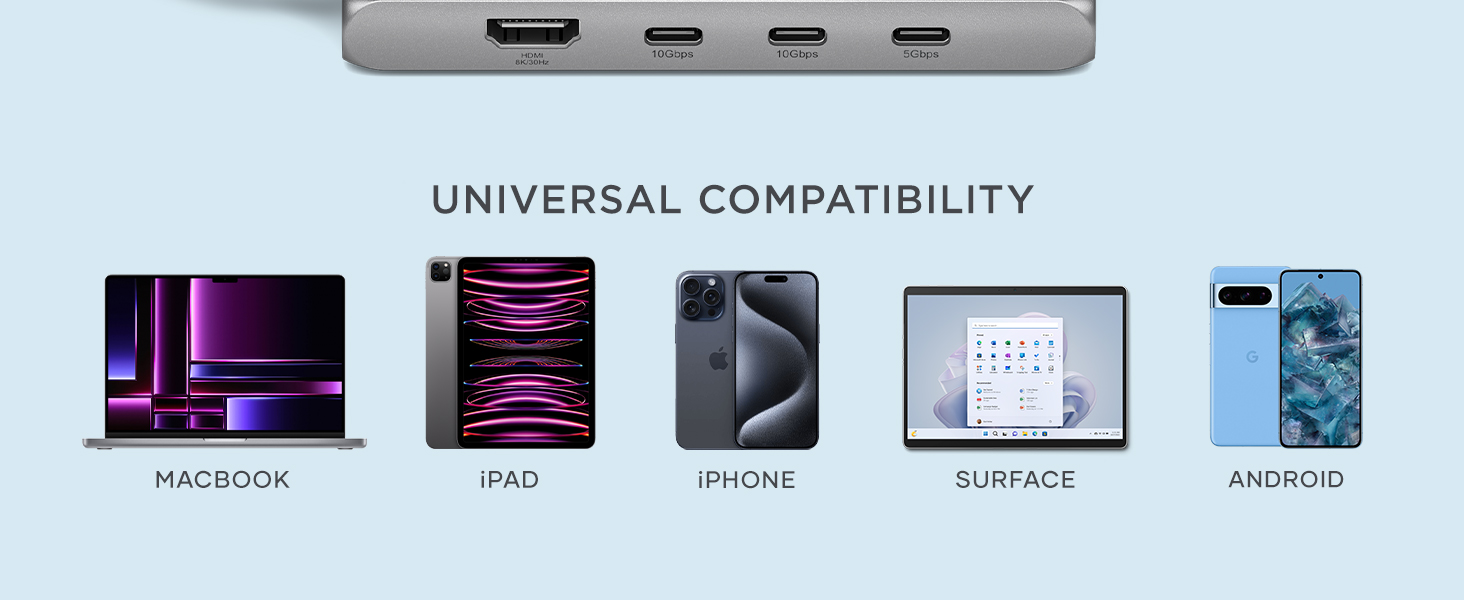
Image 8: Designed for durability with heat protection and robust construction.
7. Laasigbotitusita
If you encounter issues with your Satechi Multiport Adapter, try the following steps:
- Ko si Abajade Ifihan: Ensure the HDMI cable is securely connected to both the adapter and the monitor. Verify that your host device's display settings are configured to extend or duplicate the display. Check if your device supports DP Alt mode for external display output.
- Àwọn Ẹ̀rọ Aláìmọ̀: Disconnect and reconnect the peripheral. Try connecting the peripheral directly to your host device to confirm it is functioning correctly. Ensure the adapter is securely connected to your host device.
- Gbigbe Data lọra: Ensure you are using the correct USB 3.2 ports for high-speed devices. Some older USB devices may operate at slower speeds.
- Awọn ọran gbigba agbara: Confirm your power adapter is connected to the USB-C PD port on the hub. Ensure your power adapter provides sufficient wattage for your host device and all connected peripherals.
- Asopọmọra Laarin: Ensure all cables are securely connected. Try restarting your host device.
If problems persist after attempting these troubleshooting steps, please contact Satechi customer support for further assistance.
8. Awọn pato
| Nọmba awoṣe | ST-P8KEM |
| Awọn iwọn (LxWxH) | 4.49 x 2.13 x 0.63 inches |
| Iwọn | 4.3 iwon |
| Àwọ̀ | Aaye Grey |
| Ni wiwo Hardware | USB 3.0 Iru C |
| HDMI Ijade | Up to 8K@30Hz, 4K@120Hz, 2K@144Hz, 1080p@240Hz |
| Awọn ibudo data USB-C | 3 x USB 3.2 (10Gbps) |
| Awọn ibudo data USB-A | 1 x USB 3.2 (5Gbps) |
| USB-C PD Port | Up to 100W input (85W pass-through) |
| Àjọlò Port | Gigabit àjọlò |
| Awọn oluka kaadi | SD & MicroSD (UHS-I) |
9. Atilẹyin ọja ati Support
Àwọn ọjà Satechi ní ààbò nípasẹ̀ 2-odun lopin atilẹyin ọja against defects in materials and workmanship under normal use. This warranty ensures a hassle-free and satisfying experience with your purchase.
For warranty claims, technical support, or any inquiries, please visit the official Satechi website or contact their customer service directly. Please have your product model number (ST-P8KEM) and proof of purchase available when seeking support.