1. Ifihan
This manual provides essential information for setting up, operating, maintaining, and troubleshooting your Azeyou 15.6" Laptop X52. Please read this guide thoroughly to ensure optimal performance and longevity of your device. Keep this manual for future reference.
2. Package Awọn akoonu
Daju pe gbogbo awọn ohun kan wa ninu apoti ọja rẹ:
- Azeyou 15.6" Laptop X52
- Adapter agbara
- Afowoyi Olumulo (iwe-ipamọ yii)
3. Ọja Ipariview
The Azeyou 15.6" Laptop X52 is designed for efficient computing, featuring an Alder Lake-N95 Quad-Core CPU, 12GB RAM, and a 256GB SSD for responsive performance. It comes pre-installed with Windows 11 Pro and offers a Full HD display for clear visuals.
3.1 Key Awọn ẹya ara ẹrọ
- Olupilẹṣẹ: Alder Lake-N95 Quad-Core CPU (up to 3.4GHz)
- Iranti: 12GB DDR4 Ramu
- Ibi ipamọ: 256GB Solid State Drive (SSD)
- Ifihan: 15.6-inch Full HD (1920 x 1080) IPS àpapọ
- Eto isesise: Windows 11 Pro
- Asopọmọra: Full Function Type-C, USB 3.0, HDMI, 2.4G/5G WiFi, Bluetooth 5.0
- Batiri: 5000 mAh Lithium-ion battery for extended use
- Apẹrẹ: Lightweight (3.59 lbs) and ultra-thin (0.6 inches)
- Iṣawọle: Full-size keyboard and large touchpad
- Webkamẹra: Integrated 2MP front webkamẹra
3.2 Awọn ohun elo ita


3.3 Isise ati Performance
The laptop is powered by the Alder Lake-N95 processor, designed for efficient multitasking and responsive computing. This CPU offers a balance of performance and power efficiency for daily tasks.

3.4 Iranti ati Ibi ipamọ
With 12GB of DDR4 RAM and a 256GB SSD, the laptop provides ample memory for running multiple applications simultaneously and fast storage access for your fileàwọn ètò àti àwọn ètò.

3.5 Ifihan
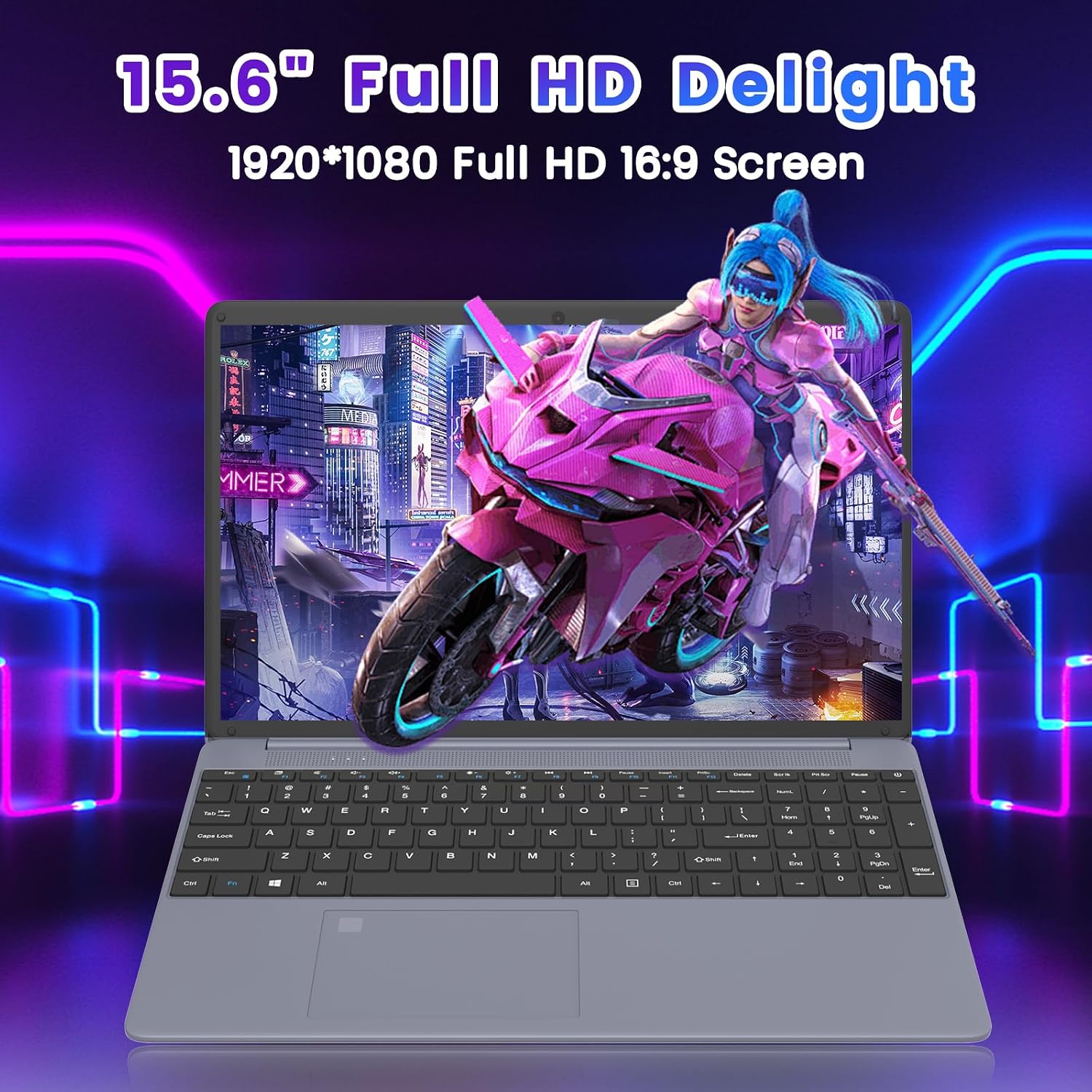
Experience clear and vibrant visuals on the 15.6-inch Full HD (1920x1080) IPS display. The 16:9 aspect ratio is suitable for both productivity and entertainment.
3.6 batiri Life
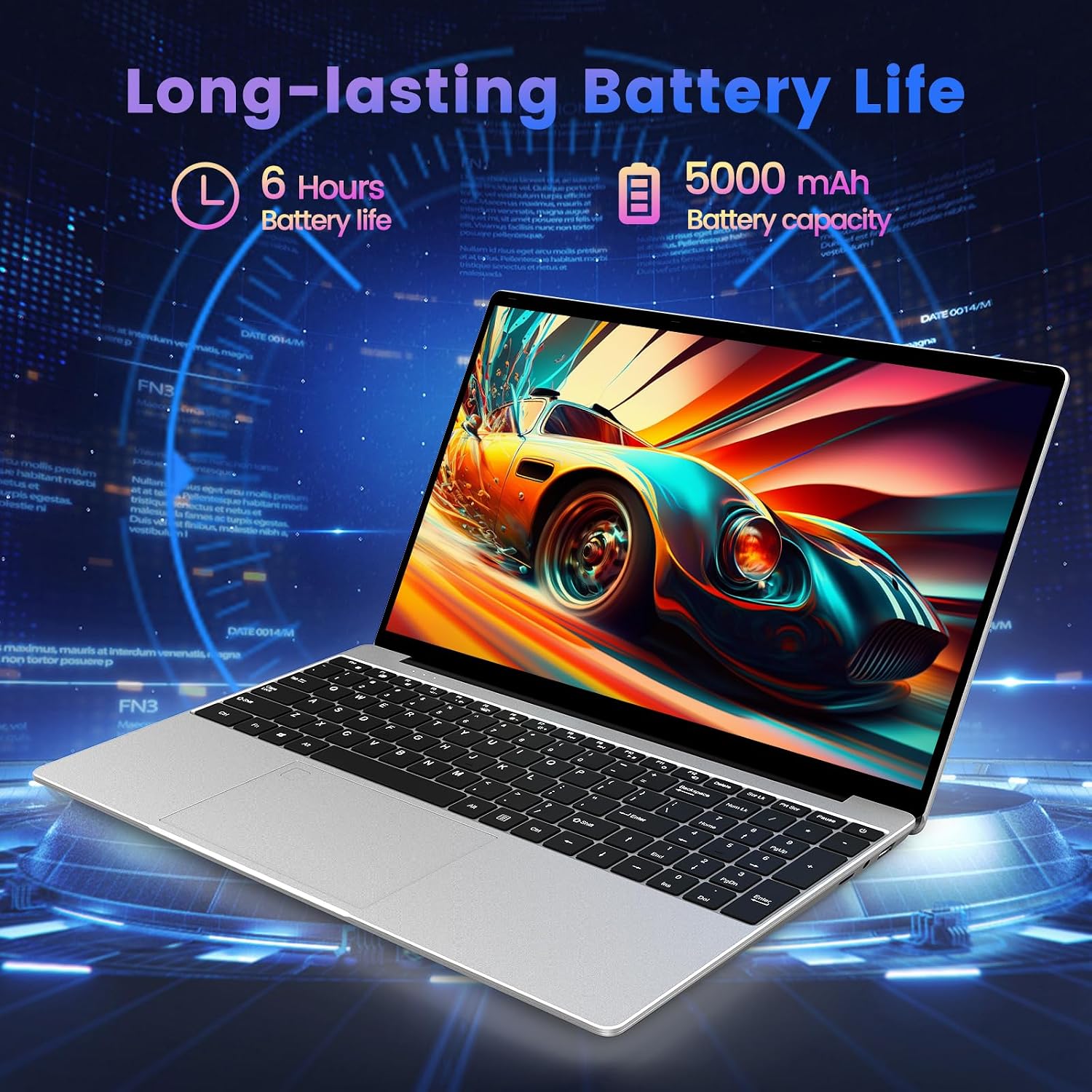
The integrated 5000 mAh lithium-ion battery provides up to 5-6 hours of usage, allowing for portability and use without constant access to a power outlet.
3.7 Input Devices
The laptop features a full-size keyboard and a large touchpad for comfortable and efficient input.

3.8 Ọja Video Loriview
Fidio 3.1: Oṣiṣẹ kan ti pariview of the Azeyou 15.6'' Laptop, showcasing its design, features, and key specifications like the Intel N95 processor, full-function Type-C port, full-size keyboard, and ultra-thin design.
4. Eto
4.1 Gbigba agbara akọkọ
- Connect the power adapter to the DC IN port on the laptop.
- Pulọọgi ohun ti nmu badọgba agbara sinu iṣan ogiri kan.
- Gba kọǹpútà alágbèéká laaye lati gba agbara fun o kere ju iṣẹju 30 ṣaaju lilo akọkọ, tabi titi ti atọka batiri yoo fi han idiyele ti o to.
4.2 Agbara Lori
- Ṣii ideri kọǹpútà alágbèéká.
- Press and hold the power button (usually located on the top right of the keyboard or side) until the screen illuminates.
4.3 Windows 11 Pro Initial Setup
Follow the on-screen prompts to complete the Windows 11 Pro setup process. This typically includes:
- Yiyan agbegbe rẹ ati ifilelẹ keyboard.
- Nsopọ si Wi-Fi nẹtiwọki.
- Wiwọle pẹlu akọọlẹ Microsoft kan tabi ṣiṣẹda akọọlẹ agbegbe kan.
- Ṣíṣeto àwọn ètò ìpamọ́.
4.4 Nsopọ si Wi-Fi
- During Windows setup, select your desired Wi-Fi network from the list.
- Tẹ ọrọigbaniwọle nẹtiwọki sii ti o ba ṣetan.
- If already set up, click the Wi-Fi icon in the taskbar, select your network, and connect.
5. Ṣiṣẹ Kọǹpútà alágbèéká Rẹ
5.1 Iṣakoso agbara
- Paade: Tẹ bọtini Bẹrẹ, lẹhinna Agbara> Pa.
- Tun bẹrẹ: Tẹ bọtini Bẹrẹ, lẹhinna Agbara> Tun bẹrẹ.
- Orun: Tẹ bọtini Bẹrẹ, lẹhinna Agbara> Orun, tabi pa ideri kọǹpútà alágbèéká naa.
5.2 Lilo Keyboard ati Touchpad
- The full-size keyboard allows for comfortable typing.
- The large touchpad supports multi-touch gestures for navigation (e.g., two-finger scroll, pinch-to-zoom).
5.3 Nsopọ Peripherals
- Awọn ẹrọ USB: Insert USB drives, mice, or other peripherals into the available USB 3.0 ports.
- HDMI Ifihan: Connect an external monitor or TV using an HDMI cable to the HDMI port.
- Type-C Devices: Use the Full Function Type-C port for data transfer, video output, or charging compatible devices.
- Agbekọri/Agbọrọsọ: Plug 3.5mm audio devices into the headphone jack.
- Kaadi TF: Insert a TF (microSD) card into the dedicated slot for expanded storage or data transfer.
5.4 Asopọmọra Alailowaya
- Wi-Fi: The laptop supports 2.4G and 5G Wi-Fi for high-speed internet access. Manage connections via the network icon in the taskbar.
- Bluetooth: Bluetooth 5.0 allows connection to wireless headphones, speakers, and other Bluetooth-enabled devices. Access Bluetooth settings via Windows Settings > Bluetooth & devices.
6. Itọju
6.1 Ninu Kọǹpútà alágbèéká
- Lo asọ asọ, ti ko ni lint die-die dampti a fi omi ṣan tabi olutọpa iboju lati nu ifihan naa.
- Fun keyboard ati ẹnjini, lo asọ ti o gbẹ. Yago fun awọn kẹmika lile tabi awọn ohun elo abrasive.
- Use compressed air to clear dust from keyboard keys and ventilation openings.
6.2 batiri Itọju
- Yago fun gbigba agbara si batiri ni kikun nigbagbogbo.
- Tọju kọǹpútà alágbèéká ni ibi ti o tutu, ti o gbẹ ti ko ba lo fun awọn akoko ti o gbooro sii, pẹlu agbara batiri si iwọn 50%.
- Lo adapter agbara atilẹba ti a pese pẹlu kọǹpútà alágbèéká nikan.
6.3 Software imudojuiwọn
- Regularly check for and install Windows updates to ensure system stability and security. Go to Settings > Windows Update.
- Keep your device drivers updated. Windows Update often handles this, but you may occasionally need to check the Azeyou support website for specific driver updates.
6.4 Ibi Management
- Lorekore paarẹ ti ko wulo files and uninstall unused programs to free up storage space.
- Lo ohun elo Windows ti a ṣe sinu Disk Cleanup lati yọ igba diẹ kuro files.
7. Laasigbotitusita
This section addresses common issues you might encounter with your Azeyou Laptop X52.
| Isoro | Owun to le Fa | Ojutu |
|---|---|---|
| Kọǹpútà alágbèéká ko ṣiṣẹ. | Low battery, faulty power adapter, hardware issue. | Ensure the power adapter is securely connected and plugged into a working outlet. Allow the laptop to charge for a while. Try a different outlet. If the issue persists, contact support. |
| Ko le sopọ si Wi-Fi. | Wi-Fi adapter disabled, incorrect password, router issue, driver problem. | Check if Wi-Fi is enabled in Windows settings. Verify the Wi-Fi password. Restart your router and the laptop. Update Wi-Fi drivers via Device Manager or Azeyou support webojula. |
| Laptop reboots unexpectedly or shows 'Aptio Setup Utility' error. | System instability, corrupted OS files, BIOS settings, hardware fault. | Ensure Windows is fully updated. Run a system file check (sfc /scannow in Command Prompt). If 'Aptio Setup Utility' appears, exit without saving changes unless instructed by support. If frequent, consider reinstalling Windows or contacting support for hardware diagnosis. |
| O lọra išẹ. | Too many applications open, low storage space, outdated drivers, malware. | Close unnecessary programs. Free up disk space. Update drivers. Run a full system scan for viruses/malware. |
| External display not working. | Incorrect display settings, faulty cable, driver issue. | Ensure the HDMI cable is securely connected. Press Windows key + P to cycle through display modes. Update graphics drivers. |
8. Awọn pato
Detailed technical specifications for the Azeyou 15.6" Laptop X52:
| Ẹya ara ẹrọ | Sipesifikesonu |
|---|---|
| Brand | Azeyou |
| Orukọ awoṣe | X52 |
| Iwon iboju | 15.6 inches |
| Ipinnu iboju | Awọn piksẹli 1920 x 1080 (HD ni kikun) |
| isise | Intel Alder Lake-N95 Quad Core (up to 3.4 GHz) |
| Àgbo | 12 GB DDR4 |
| Dirafu lile | 256 GB SSD (eSATA Interface) |
| Olupilẹṣẹ Graphics | Awọn aworan Intel UHD (Idapọ) |
| Eto isesise | Windows 11 Pro |
| Alailowaya Iru | 802.11a/b/g/n/ac (WiFi 2.4G/5G) |
| Bluetooth | Bluetooth 5.0 |
| Apapọ batiri Life | 5-6 Hours (5000 mAh Lithium Polymer) |
| Iwọn Nkan | 2.64 iwon |
| Ọja Mefa | 14.13 x 0.78 x 9.45 inches |
| Àwọ̀ | Grẹy |
| Hardware Platform | PC |
9. Atilẹyin ọja ati Support
9.1 Atilẹyin ọja
Azeyou products typically come with a limited manufacturer's warranty. Please refer to the warranty card included in your product packaging or visit the official Azeyou webaaye fun awọn ofin ati ipo atilẹyin ọja kan pato ti o kan agbegbe ati awoṣe rẹ.
9.2 Onibara Support
For technical assistance, troubleshooting not covered in this manual, or warranty claims, please contact Azeyou customer support through their official website. You may need your product model number (X52) and purchase information when contacting support.
Official Azeyou Store: Visit Azeyou Store on Amazon


