1. Ifihan
This manual provides comprehensive instructions for the setup, operation, and maintenance of your AUSDOM 98Pro Silent Mechanical Keyboard. Designed for versatility and quiet performance, this keyboard features tri-mode connectivity, pre-lubed silent tactile switches, and a gasket structure for an enhanced typing experience. Please read this manual thoroughly before using the product to ensure optimal performance and longevity.

The AUSDOM 98Pro Silent Mechanical Keyboard, featuring a green and white color scheme.
2. Package Awọn akoonu
Jọwọ rii daju pe gbogbo awọn nkan ti a ṣe akojọ rẹ si isalẹ wa ninu package rẹ:
- Keyboard Mechanical Alailowaya x 1
- Olugba USB x 1
- Okun gbigba agbara Iru-C x 1
- Ilana itọnisọna x 1
- Mechanical Switch x 3
- Yipada Puller x 1
3. Awọn ẹya Ọja
The AUSDOM 98Pro keyboard is equipped with advanced features to enhance your productivity and gaming experience:
- Asopọmọra ipo-mẹta: Supports Bluetooth 5.0, 2.4GHz wireless, and wired USB-C connections. Connect up to five devices simultaneously and switch easily.
- Pre-lubed Silent Tactile Switches: AUSDOM's self-developed switches provide a clear press feeling with a quiet typing environment, ideal for office use.
- Gasket Structure Design: Features a precision locking cover with gaskets and internal sound-absorbing/shock-absorbing layers to reduce typing noise and resonance.
- 95% Compact Layout (97 Keys): Saves desk space while retaining essential number and arrow keys.
- Gbona-Swappable: Allows for easy replacement of 3-pin/5-pin switches and keycaps without soldering.
- Ergonomic & PBT Keycaps: Two-color PBT keycaps are sweat-proof, non-slippery, and colorfast. Two-stage feet allow for adjustable typing height.
- Single White Backlight: Offers 4 levels of brightness and 16 lighting effects.
- Software asefara: Supports customizable gaming shortcuts and lighting effects (Windows system only, wired and 2.4G modes).
- Anti-Ghosting Key: Ensures no key conflicts with any key combination.
- Mac and Win Dual Layout: Easily switch layouts with FN+ key combination.

Pariview of the AUSDOM 98Pro Mechanical Keyboard's key features, including connectivity, gasket structure, white backlight, battery, PBT keycaps, hot-swappable design, mute keyboard function, and Mac/Win layout switch.
4. Eto
4.1 Ngba agbara si Keyboard
Before first use, fully charge the keyboard using the provided Type-C charging cable. Connect one end to the keyboard's USB-C port and the other to a compatible USB power source (e.g., computer USB port, wall adapter).

The independent USB-C port for charging and wired connection.
4.2 Nsopọ Keyboard
The AUSDOM 98Pro supports three connection modes: Bluetooth, 2.4GHz Wireless, and Wired USB-C.
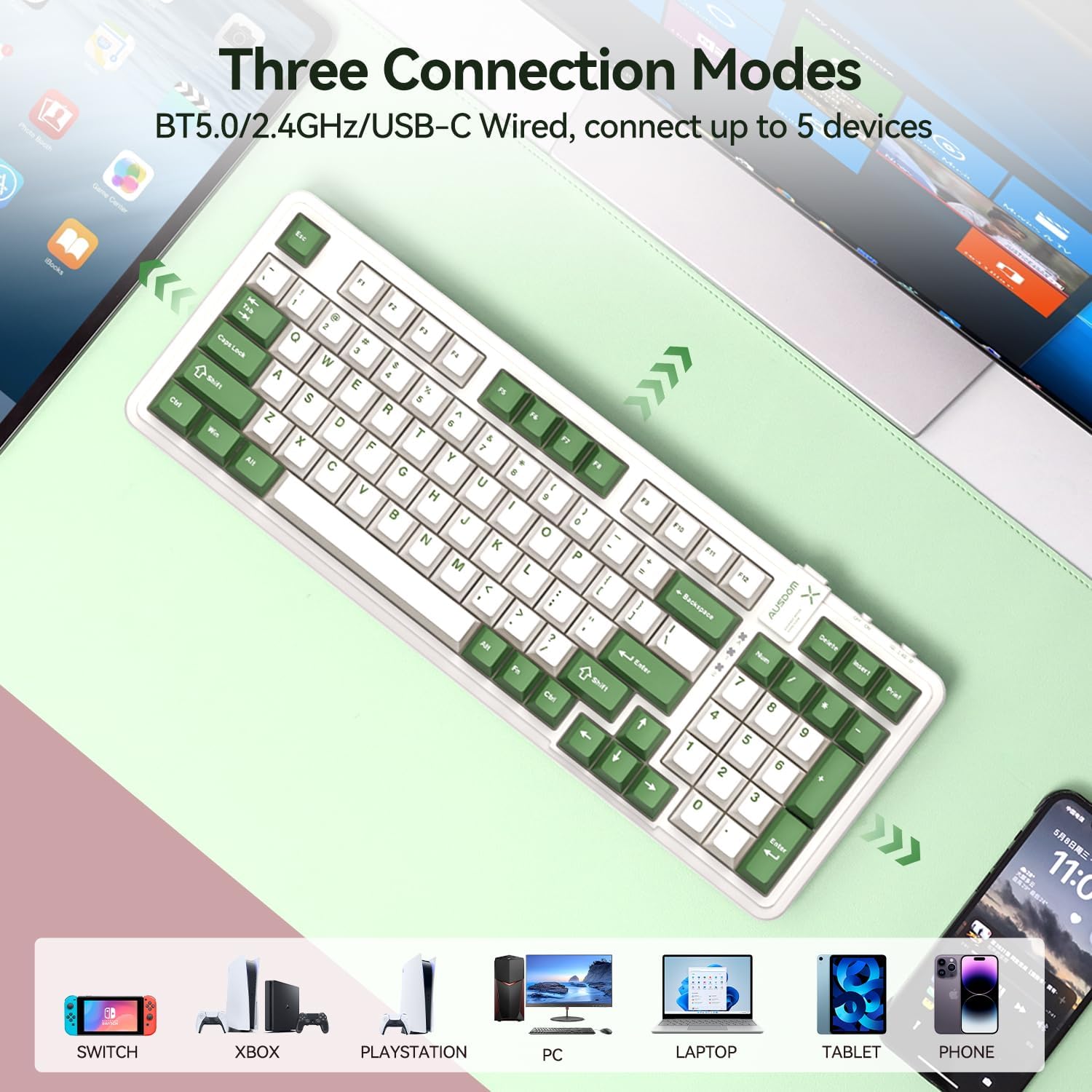
Visual representation of the three connection modes: Bluetooth 5.0, 2.4G wireless, and USB-C wired, showing compatibility with various devices like Switch, Xbox, PlayStation, PC, Laptop, Tablet, and Phone.
4.2.1 2.4GHz Asopọ Alailowaya
- Locate the USB receiver in the keyboard's storage slot.
- Pulọọgi olugba USB sinu ibudo USB ti o wa lori kọnputa tabi ẹrọ rẹ.
- Switch the keyboard's mode selector to "2.4G" (usually located on the top edge of the keyboard).
- Awọn keyboard yẹ ki o sopọ laifọwọyi. Ti kii ba ṣe bẹ, tẹ FN + 4 lati pilẹṣẹ sisopọ.
4.2.2 Bluetooth Asopọ
Káàbọ́ọ̀dù náà ń gba àwọn ẹ̀rọ Bluetooth mẹ́ta (BT1, BT2, BT3) láàyè.
- Switch the keyboard's mode selector to "BT".
- Tẹ mọlẹ FN + 1 (fun BT1), FN + 2 (fun BT2), tabi FN + 3 (fún BT3) fún ìṣẹ́jú-àáyá 3-5 títí tí ìmọ́lẹ̀ àmì náà yóò fi tàn kánkán, èyí tí yóò fi hàn pé a ti so pọ̀.
- On your device (computer, tablet, phone), enable Bluetooth and search for "AUSDOM 98Pro".
- Select the keyboard to pair. The indicator light will stop flashing once connected.
- Lati yipada laarin awọn ẹrọ Bluetooth ti a so pọ, tẹ nirọrun FN + 1, FN + 2, tabi FN + 3.
4.2.3 Asopọ USB-C onirin
- So okùn Iru-C tí a pèsè pọ̀ mọ́ ibudo USB-C ti keyboard.
- So opin okun miiran pọ si ibudo USB kan lori kọnputa rẹ.
- Switch the keyboard's mode selector to "Wired" or ensure it's in a wired mode if no specific switch is present (often automatically detected when cable is plugged in).
5. Awọn ilana Iṣiṣẹ
5.1 Backlight Iṣakoso
The keyboard features a single white backlight with multiple effects.
- Change Backlight Levels: Tẹ FN + ← or FN + → to adjust backlight brightness (4 levels).
- Change Backlight Effects: Tẹ FN + ↑ or FN + ↓ láti yípo nípasẹ̀ àwọn ipa ìmọ́lẹ̀ mẹ́rìndínlógún tó yàtọ̀ síra.

Illustrates how to change backlight levels using FN + left/right arrow keys and backlight effects using FN + up/down arrow keys.
5.2 Gbona-Swappable Yipada
The AUSDOM 98Pro allows you to easily change mechanical switches without soldering.
- Use the provided switch puller to gently remove the desired keycap.
- Lo oluyipada yipada lati dimu ni pẹkipẹki ki o fa jade kuro ni iho rẹ.
- Align the pins of the new 3-pin or 5-pin switch with the holes in the PCB socket.
- Rọra tẹ iyipada tuntun si aaye titi ti o fi tẹ ni aabo.
- Rọpo bọtini bọtini.
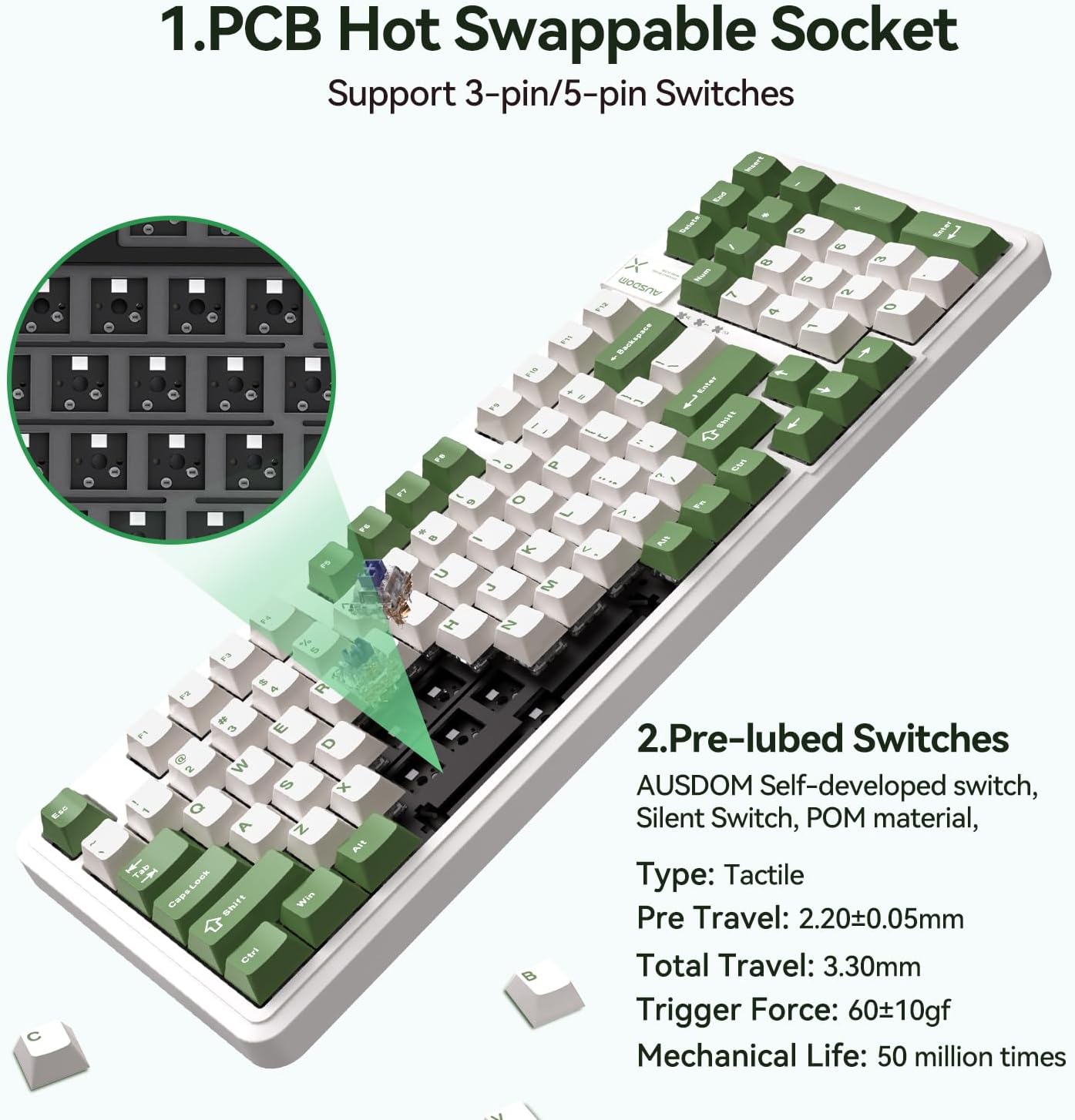
Alaye view of the PCB hot-swappable socket supporting 3-pin/5-pin switches and the pre-lubed tactile switches with their specifications.
5.3 Mac/Windows Layout Switching
To switch between Mac and Windows keyboard layouts, press FN + A for Windows layout or FN + S for Mac layout.
5.4 Custom Software (Windows Only)
For advanced customization of lighting effects and macro programming, download the official AUSDOM software. This software is compatible only with Windows operating systems and functions in wired and 2.4G modes.
- Customized light effects.
- All key support macro programmable.
- Customize the shortcut keys.
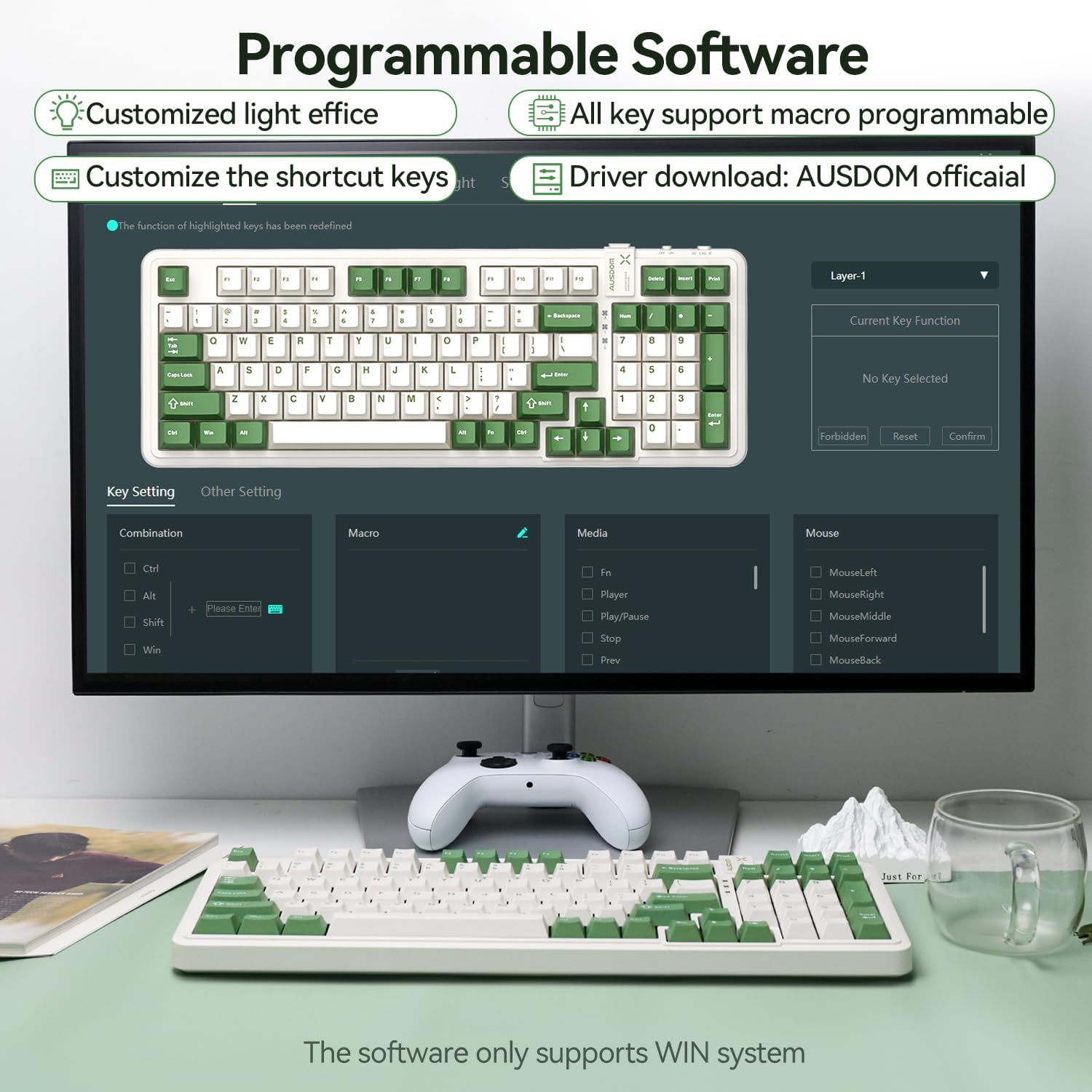
Screenshot of the programmable software interface, showing options for customized light effects, macro programming, and shortcut key customization. Note: Software supports Windows only.
6. Itọju
- Ninu: Use a soft, dry cloth to wipe the keyboard surface. For deeper cleaning, use a can of compressed air to remove dust and debris from between the keys. Avoid using harsh chemicals or abrasive materials.
- Ibi ipamọ: Tọju keyboard ni itura, aye gbigbẹ kuro lati orun taara ati awọn iwọn otutu to gaju.
- Itọju Batiri: Lati pẹ igbesi aye batiri, yago fun gbigba agbara ni kikun ti keyboard nigbagbogbo. Gba agbara rẹ nigbagbogbo, paapaa ti ko ba lo fun awọn akoko gigun.
- Yíyọ bọtini àti yíyọ yípadà: Nígbà tí o bá ń yọ àwọn keycaps tàbí switch kúrò, ṣe é pẹ̀lú pẹ̀lẹ́pẹ̀lẹ́ kí o má ba àwọn èròjà jẹ́.
7. Laasigbotitusita
| Isoro | Owun to le Fa | Ojutu |
|---|---|---|
| Keyboard ko dahun (Ailowaya) | Low battery; Incorrect connection mode; USB receiver not properly connected; Bluetooth not paired. | Charge the keyboard; Ensure the mode switch is set to 2.4G or BT; Re-insert the USB receiver; Re-pair Bluetooth (FN+1/2/3). |
| Awọn bọtini kii ṣe iforukọsilẹ tabi titẹ-meji | Dust/debris under keycap/switch; Faulty switch. | Remove keycap and clean with compressed air; Replace the switch using the hot-swappable feature. |
| Imọlẹ ẹhin ko ṣiṣẹ tabi baibai | A ti pa ìmọ́lẹ̀ ẹ̀yìn; Ìmọ́lẹ̀ náà ti lọ sílẹ̀ jù; Bátìrì kékeré. | Press FN + ←/→ to adjust brightness; Charge the keyboard. |
| Software ko ṣe awari keyboard | Keyboard not in wired or 2.4G mode; Software compatibility issue. | Ensure keyboard is connected via wired USB-C or 2.4G wireless; Confirm your operating system is Windows. |
| Difficulty switching Mac/Win layout | Incorrect key combination. | Tẹ FN + A for Windows layout or FN + S for Mac layout. |
8. Awọn pato
| Ẹya ara ẹrọ | Ẹ̀kúnrẹ́rẹ́ |
|---|---|
| Ọja Mefa | 15.51 x 5.59 x 1.46 inches |
| Iwọn Nkan | 2.9 iwon |
| Olupese | AUSDOM |
| Nọmba Awoṣe Nkan | AUSDOM 98Pro-Green&White-Silent |
| Awọn batiri | Batiri litiumu polima 1 nilo (pẹlu) |
| Asopọmọra Technology | 2.4G, Bluetooth, USB-C |
| Apejuwe Keyboard | Ẹ̀rọ |
| Niyanju Lilo | Business, Gaming, Office Everyday Use, Personal, Student |
| Pataki Awọn ẹya ara ẹrọ | Backlit, Ergonomic, Hot-Swappable, Silent, Tri-mode Connect |
| Àwọ̀ | Green & White-Silent |
| Nọmba ti Awọn bọtini | 97 |
| Keyboard Backlighting | Àwọ̀ Kanṣoṣo (Funfun) |
| Ara | Igbalode |
9. Atilẹyin ọja ati Support
For warranty information and technical support, please refer to the official AUSDOM webojula tabi kan si wọn onibara iṣẹ taara. Tọju iwe-ẹri rira rẹ bi ẹri rira fun eyikeyi awọn ibeere atilẹyin ọja.
Fun iranlọwọ siwaju sii, jọwọ ṣabẹwo: AUSDOM Official Store on Amazon


