Ọrọ Iṣaaju
The Baseus AeQur GH02 RGB Gaming Headset is designed to provide an immersive audio experience for gaming and multimedia. Featuring high-quality sound drivers, customizable RGB lighting, and versatile connectivity options, this headset offers comfort and performance for extended use. This manual provides detailed instructions on setting up, operating, maintaining, and troubleshooting your headset.

Image: The Baseus AeQur GH02 RGB Gaming Headset, showcasinG apẹrẹ dudu didan rẹ ati gbohungbohun ti a ṣe sinu rẹ.
Ọja Pariview ati Awọn ẹya ara ẹrọ
The AeQur GH02 headset combines advanced audio technology with user-friendly features:
- Awọn awakọ 40mm: Delivers powerful and clear sound with a frequency range of 20-40,000Hz for an immersive audio experience.
- Imọlẹ RGB: Customizable RGB illumination to enhance your gaming setup.
- Asopọmọra Wapọ: Supports Bluetooth, 3.5mm wired connection, and 2.4GHz wireless via a USB dongle for broad compatibility.
- Gbohungbohun ti a le yọ kuro: High-sensitivity microphone (-45dB) ensures clear communication and can be detached when not needed.
- Apẹrẹ Etí Lori: Provides acoustic isolation and prolonged comfort during long gaming sessions.
- Igbesi aye batiri gigun: Titi di wakati 40 ti ṣiṣiṣẹsẹhin lori idiyele ẹyọkan.
- Ifagile Ariwo Nṣiṣẹ: Dinku ariwo ibaramu fun iriri igbọran idojukọ diẹ sii.

Image: Close-up of the headset's ear cup, highlighting the vibrant RGB lighting around the edge, which can be customized for different visual effects.
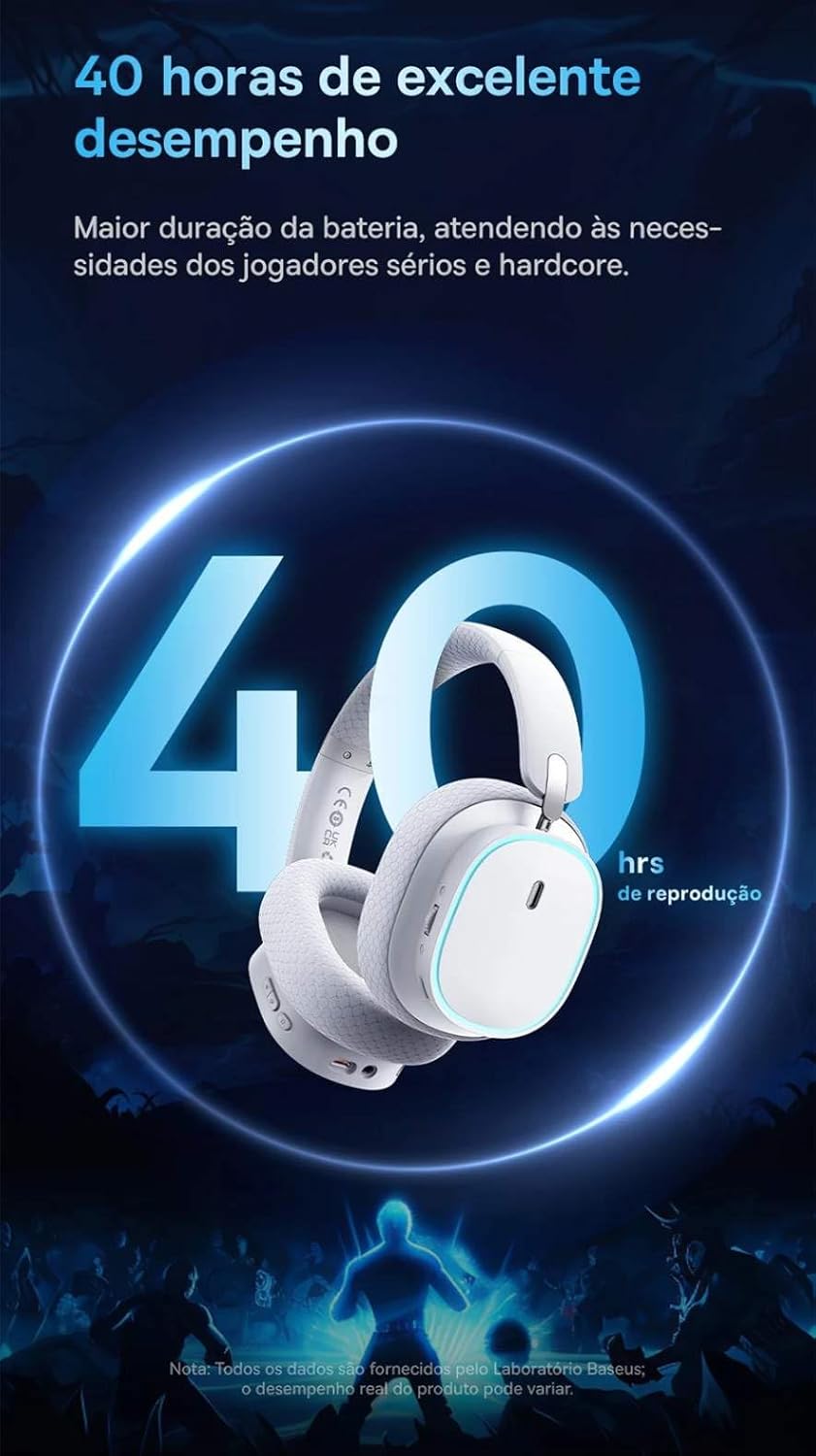
Image: A visual representation of the headset emphasizing its 40-hour battery life, indicating extended usage without frequent recharging.
Ṣeto
1. Ngba agbara si Agbekọri
Before first use, fully charge the headset. Connect the provided USB-C charging cable to the headset's charging port and the other end to a USB power source (e.g., computer USB port, wall adapter). The LED indicator will show charging status and turn off or change color when fully charged.
2. Connecting via 2.4GHz Wireless (Recommended for Gaming)
- Locate the 2.4GHz USB wireless dongle included with your headset.
- Plug the USB dongle into an available USB port on your PC, PlayStation (PS4/PS5), or other compatible gaming device.
- Power on the headset. It should automatically connect to the dongle. The LED indicator will confirm a successful connection.
- Ensure the headset is selected as the audio output and input device in your device's sound settings.
3. Nsopọ nipasẹ Bluetooth
- With the headset powered on, activate Bluetooth pairing mode (refer to the operating section for specific button presses). The LED indicator will typically flash to indicate pairing mode.
- On your smartphone, tablet, or PC, go to Bluetooth settings and search for available devices.
- Select "Baseus AeQur GH02" from the list of found devices to pair.
- Nígbà tí a bá so wọ́n pọ̀, àmì LED náà yóò fi ìmọ́lẹ̀ tí ó dúró ṣinṣin hàn.
4. Connecting via 3.5mm Audio Cable
- So opin kan ti okun ohun afetigbọ 3.5mm pọ si jaketi ohun afetigbọ 3.5mm agbekari.
- Connect the other end to the 3.5mm audio output port on your device (e.g., PC, console controller, phone).
- When connected via 3.5mm cable, the headset operates in passive mode, and battery power is not required for audio, though some features like RGB lighting may be disabled.

Image: The Baseus AeQur GH02 headset displayed alongside various compatible gaming and mobile devices, including a PC, PlayStation console, Nintendo Switch, and smartphone, illustrating its broad connectivity.

Image: Icons representing compatibility with Android smartphones/tablets, PCs/notebooks, and gaming consoles like PS5/PS4/Switch/Steam Deck/VR, highlighting the headset's versatile use cases.
Ṣiṣẹ Agbekari
Awọn iṣakoso
- Bọtini agbara: Press and hold to power on/off. Short press for play/pause (in Bluetooth mode).
- Kẹkẹ Iwọn didun: Yi soke lati mu iwọn didun pọ si, yi lọ si isalẹ lati dinku iwọn didun.
- Bọ́tìnì dídákẹ́kọ̀ọ́ gbohungbohun: Tẹ lati dakẹ/mu gbohungbohun kuro.
- Bọtini Imọlẹ RGB: Short press to cycle through RGB lighting modes or turn off.
Gbohungbohun Lilo
The microphone is removable. To attach, align the microphone jack with the port on the left ear cup and insert firmly. To remove, gently pull it out. Ensure the microphone is properly inserted for clear voice pickup.
Ìṣọ̀kan Ohun èlò Baseus
For advanced customization, download the official Baseus app on your smartphone. The app allows you to:
- Adjust EQ settings (Equalizer).
- Ṣe akanṣe awọn ipa ina RGB ati awọn awọ.
- Switch between audio modes (e.g., Normal Mode, Music Mode, Game Mode for spatial acoustics).
- View batiri ipo.

Image: Screenshots of the Baseus mobile application interface, demonstrating options for spatial acoustics, EQ mode, and lamp effects, allowing users to customize their headset's performance and lighting.
Itoju
- Ninu: Lo asọ ti o rọ, ti o gbẹ lati nu agbekari naa. Fun awọn irọmu eti, die-die damp cloth can be used, but ensure they are completely dry before use. Do not use harsh chemicals or abrasive materials.
- Ibi ipamọ: Store the headset in a cool, dry place away from direct sunlight and extreme temperatures. If storing for extended periods, ensure it is partially charged (around 50%) to preserve battery health.
- Mimu: Yẹra fún fífi agbekọri sílẹ̀ tàbí kí o fi agbára gbá a. Má ṣe yí tàbí tẹ aṣọ ìbòrí náà jù.
Laasigbotitusita
| Isoro | Owun to le Fa | Ojutu |
|---|---|---|
| Ko si ohun lati agbekari | Headset not powered on; Low battery; Not properly connected (Bluetooth/2.4GHz/3.5mm); Incorrect audio output selected on device. | Ensure headset is powered on and charged. Re-pair Bluetooth or re-plug 2.4GHz dongle/3.5mm cable. Check device's sound settings to ensure "Baseus AeQur GH02" is selected as output. |
| Gbohungbohun ko ṣiṣẹ | Microphone muted; Not properly inserted; Incorrect input device selected; Software issues. | Ensure microphone is not muted (check mute button). Re-insert the removable microphone firmly. Check device's sound settings to ensure "Baseus AeQur GH02" is selected as input. Restart application/game. |
| Headset not pairing/connecting | Out of range; Interference; Headset not in pairing mode; Device's Bluetooth/USB port issue. | Ensure headset is in pairing mode and within range. Turn off other Bluetooth devices. Try connecting to a different USB port or device. Restart headset and device. |
| Aye batiri kukuru | Not fully charged; High volume usage; RGB lighting always on. | Ensure headset is fully charged. Reduce volume. Turn off RGB lighting when not needed. |
| Cannot use while charging | Ọja oniru aropin. | The Baseus AeQur GH02 headset is designed not to be used while charging. Please allow the headset to fully charge before resuming use. |
Awọn pato
| Ẹya ara ẹrọ | Ẹ̀kúnrẹ́rẹ́ |
|---|---|
| Orukọ awoṣe | AeQur GH02 |
| Asopọmọra Technology | Wireless (Bluetooth, Wi-Fi 2.4GHz), Wired (3.5mm) |
| Diamita Awakọ | 40mm |
| Headphone Frequency | 20 - 40000Hz |
| Ifamọ Gbohungbohun | -45dB |
| Ariwo Iṣakoso | Ti nṣiṣe lọwọ Noise Ifagile |
| Igbesi aye Batiri (Apapọ) | Awọn wakati 40 |
| Awọn ẹrọ ibaramu | Mobile Phones, Gaming Consoles (PC, PS5, PS4), Desktops, Laptops |
| Ohun elo | Irin, Ṣiṣu |
| Pataki Awọn ẹya ara ẹrọ | Fast charging, Volume control, Noise isolation, Lightweight, Built-in microphone |
| Àwọ̀ | Dudu |
| Ipalara | 35 ohm |
| Ijẹrisi | Anatel: 004842514894 |
Atilẹyin ọja ati Support
The Baseus AeQur GH02 RGB Gaming Headset comes with a Atilẹyin ọja olupilẹṣẹ oṣu mejila Láti ọjọ́ tí o ti rà á, kí o bo àbùkù nínú àwọn ohun èlò àti iṣẹ́ ọwọ́ lábẹ́ lílo déédéé. Jọ̀wọ́ pa ẹ̀rí ríra rẹ mọ́ fún àwọn ẹ̀tọ́ àtìlẹ́yìn.
For further support, technical assistance, or warranty inquiries, please visit the official Baseus store or contact their customer service through the details provided on their official webaaye tabi apoti ọja.
O tun le ṣàbẹwò awọn Baseus Official Store on Amazon fun alaye siwaju sii ati support oro.


