1. Ifihan
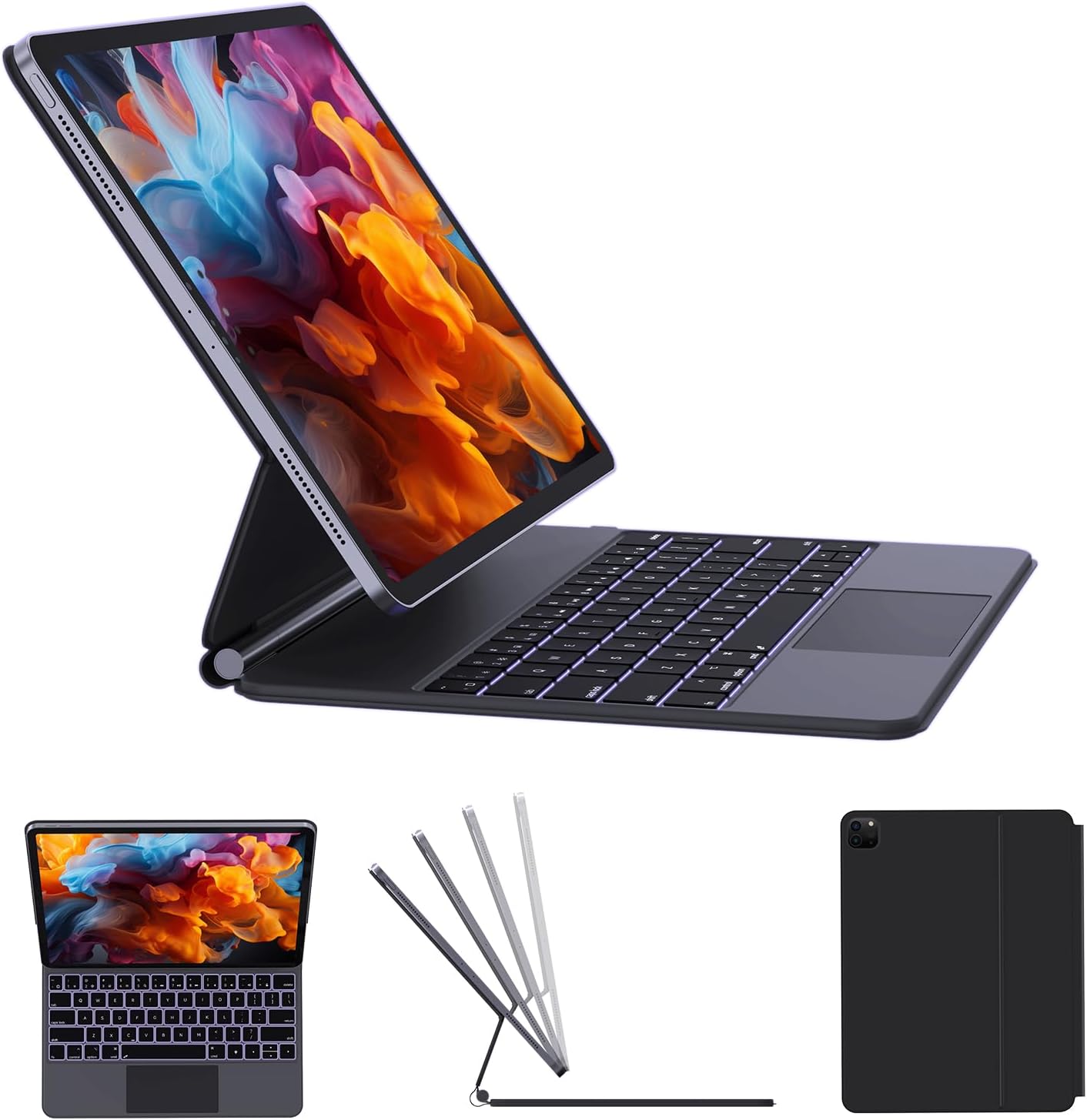
Thank you for choosing the AUSDOM Wireless Magnetic Floating Bluetooth Rechargeable Keyboard Case. This manual provides detailed instructions on how to set up, operate, and maintain your new keyboard case, ensuring you get the most out of its features. This keyboard case is designed to enhance your iPad experience, transforming it into a versatile laptop-like device with a multi-touch trackpad and backlit keys.
2. Awọn awoṣe ibaramu
A ṣe apẹrẹ apoti keyboard yii ni pataki fun awọn awoṣe iPad wọnyi:
- iPad Pro 12.9-inch (6th Gen): A2436, A2437, A2764, A2766
- iPad Pro 12.9-inch (5th Gen): A2378, A2379, A2461, A2462
- iPad Pro 12.9-inch (4th Gen): A2229, A2069, A2232, A2233
- iPad Pro 12.9-inch (3rd Gen): A1876, A1895, A1983, A2014
- iPad Air 13-inch (M2): A2898, A2899, A2900
Please verify your iPad's model number on the back of the device to ensure compatibility.

3. Ohun ti o wa ninu Apoti
Lẹhin ṣiṣi silẹ, jọwọ rii daju pe gbogbo awọn nkan wọnyi wa:
- 1 x AUSDOM Maykey12.9 Wireless Keyboard Case
- 1 x Okun Ngba agbara USB-C
- 1 x Itọsọna olumulo
4. Eto Itọsọna
4.1 So rẹ iPad
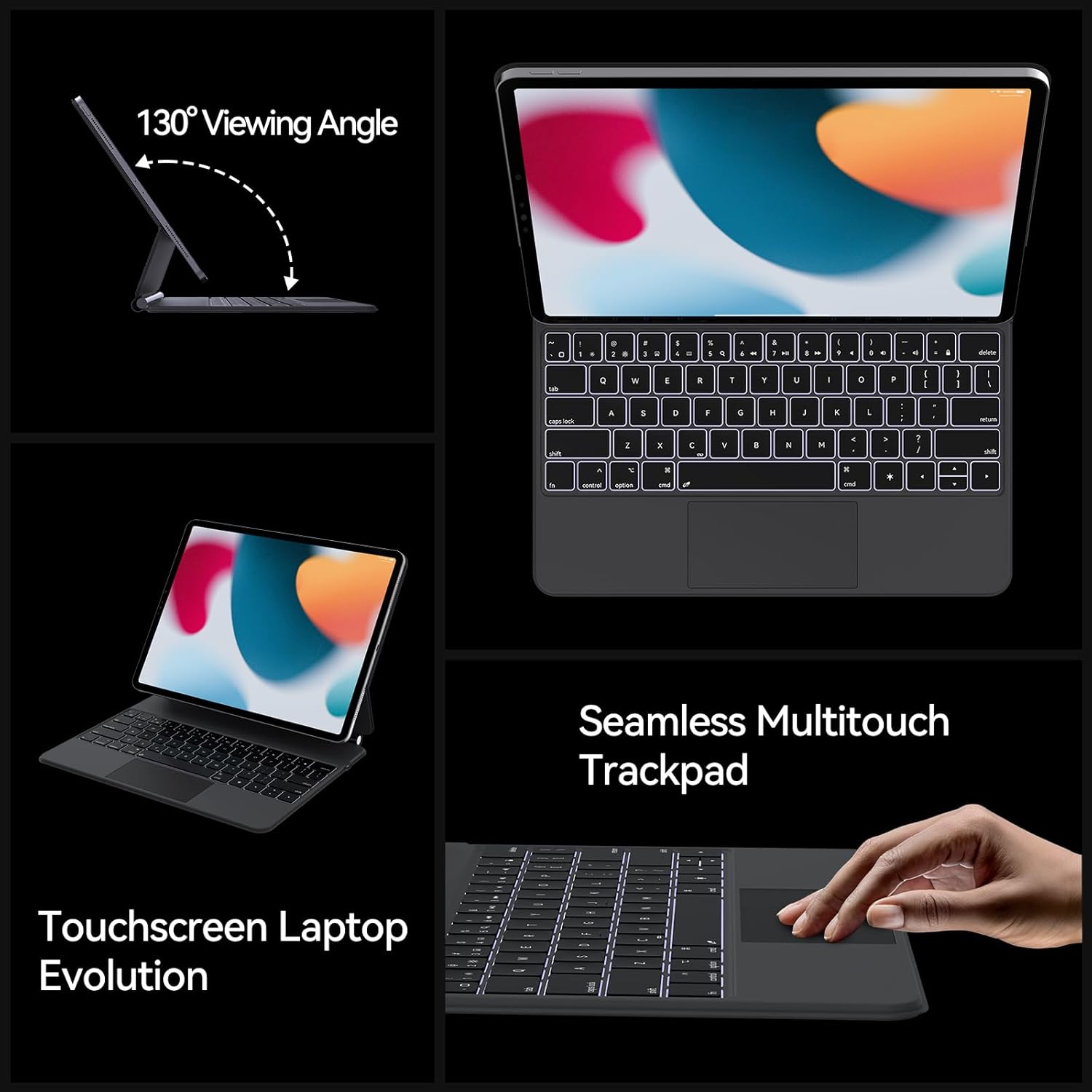
The keyboard case features an easy-set magnetic floating stand for secure and stable attachment of your iPad. Simply align your iPad with the magnetic back panel of the case. The strong magnets will automatically snap your iPad into place, transforming it into a laptop-like setup. The stand allows for a 130° viewing angle, ideal for various tasks.

4.2 Bluetooth Asopọ
Follow these steps to connect your keyboard case to your iPad via Bluetooth:
- Ensure your keyboard case is charged (refer to Section 6 for charging instructions).
- Open the keyboard case. The keyboard will automatically power on and enter pairing mode.
- Lori iPad rẹ, lọ si Eto > Bluetooth.
- Tan Bluetooth.
- Look for "AUSDOM Keyboard" or a similar name in the "Other Devices" list and tap on it to connect.
- Once connected, the Bluetooth indicator light on the keyboard will turn off, and your iPad will show the keyboard as "Connected."
5. Awọn ilana Iṣiṣẹ
5.1 Multi-Touch Trackpad
The integrated multi-touch trackpad allows for precise navigation and gesture control, similar to a laptop. You can perform various actions:
- Ra: Navigate through content.
- Fọwọ ba: Select items or activate functions.
- Fun pọ: Zoom in/out on photos or web awọn oju-iwe.
- Yi lọ: Move through documents or web awọn oju-iwe.
- Yípadà Àwọn Ohun Èlò: Use multi-finger gestures to switch between open applications.
Note: To turn on/off the trackpad function, press the "fn" + "Space" keys simultaneously.
5.2 Awọn bọtini ọna abuja
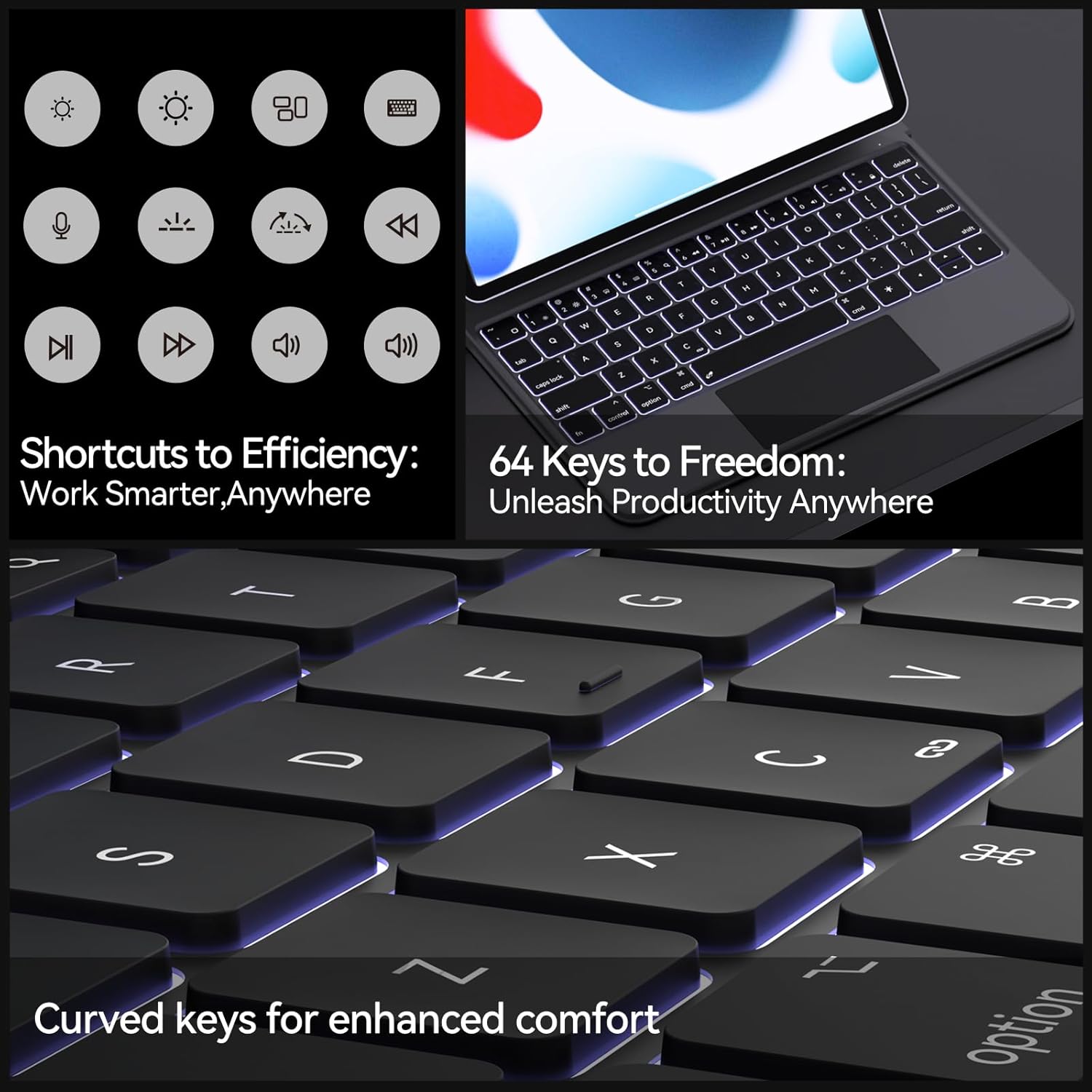
The keyboard features a full set of multifunctional shortcut keys that can be used in combination with the "fn" key to quickly access common iPad functions, such as media control, volume adjustment, and screen brightness.

5.3 Backlight Atunṣe
The keyboard features an adjustable 3-level backlight. Use the dedicated backlight key (often represented by a light bulb icon) or a function key combination to cycle through the brightness levels or turn the backlight off.
6. Gbigba agbara ati batiri Life
The keyboard case is equipped with a built-in rechargeable battery. Use the provided USB-C charging cable to charge the device.
- Gbigba agbara: Connect the USB-C cable to the keyboard's charging port and a power source (e.g., computer USB port, wall adapter). The charging indicator light will illuminate.
- Igbesi aye batiri: A full charge provides approximately 3 months of working time with the backlight off, and up to 12 months of standby time.

7. Itọju ati Itọju
To ensure the longevity and optimal performance of your keyboard case, follow these care instructions:
- Keep the keyboard case away from liquids and extreme temperatures.
- Nu dada mọ pẹlu asọ, damp asọ. Yago fun lilo awọn kẹmika lile tabi awọn ohun elo abrasive.
- When not in use, close the case to protect both the keyboard and your iPad.
- Tọju ni itura kan, ibi gbigbẹ.
8. Laasigbotitusita
- Keyboard ko sopọ nipasẹ Bluetooth:
- Rii daju pe o ti gba agbara fun keyboard.
- Rí i dájú pé Bluetooth ti ṣiṣẹ́ lórí iPad rẹ.
- Gbagbe ẹrọ naa ninu eto Bluetooth ti iPad rẹ ki o gbiyanju lati so pọ mọ lẹẹkansi.
- Restart both your iPad and the keyboard case.
- Trackpad ko dahun:
- Ensure the trackpad is enabled by pressing "fn" + "Space".
- Ṣàyẹ̀wò bóyá keyboard náà so pọ̀ dáadáa nípasẹ̀ Bluetooth.
- Tun keyboard ati iPad bẹrẹ.
- Awọn bọtini ko dahun:
- Ṣayẹwo ipele batiri ati gba agbara ti o ba jẹ dandan.
- Ensure the keyboard is securely connected to the iPad.
- Nu eyikeyi idoti kuro ni ayika awọn bọtini.
9. Awọn alaye ọja
| Ẹya ara ẹrọ | Sipesifikesonu |
|---|---|
| Ọja Mefa | 11.2 x 9 x 0.69 inches |
| Iwọn Nkan | 1.76 iwon |
| Asopọmọra Technology | Bluetooth |
| Apejuwe Keyboard | Iṣẹ-ṣiṣe Pupọ |
| Pataki Awọn ẹya ara ẹrọ | Backlit, Low-Profile Key, Portable, Rechargeable, Trackpad |
| Batiri Iru | 1 Batiri litiumu polima (pẹlu) |
| Nọmba ti Awọn bọtini | 64 |
| Keyboard Backlighting | Single Color, 3-level adjustable |
10. Atilẹyin ọja ati Onibara Support
AUSDOM products come with a standard manufacturer's warranty. For specific warranty details, claims, or technical support, please refer to the warranty card included with your product or visit the official AUSDOM website. You can also contact our customer support team through the contact information provided on our webojula tabi rẹ ra Syeed.


