1. Ifihan
This manual provides instructions for the installation, operation, and maintenance of your MokerLink 4-Port 2.5G Ethernet Switch with 2x10G SFP+ Slot. This unmanaged network switch is designed to expand your network capacity with high-speed 2.5 Gigabit Ethernet and 10 Gigabit SFP+ connectivity, suitable for home and office environments.
2. Ọja Ipariview
The MokerLink 4-Port 2.5G Ethernet Switch is a compact, fanless device featuring four 2.5 Gigabit Ethernet ports and two 10 Gigabit SFP+ uplink slots. It supports adaptive speeds of 10/100/1000Mbps and 2.5Gbps on its RJ45 ports, and 1G/2.5G/10G modules on its SFP+ ports (modules not included). With a 60Gbps backplane bandwidth, it ensures efficient data forwarding. Its metal casing provides durability and aids in heat dissipation, allowing for quiet operation.
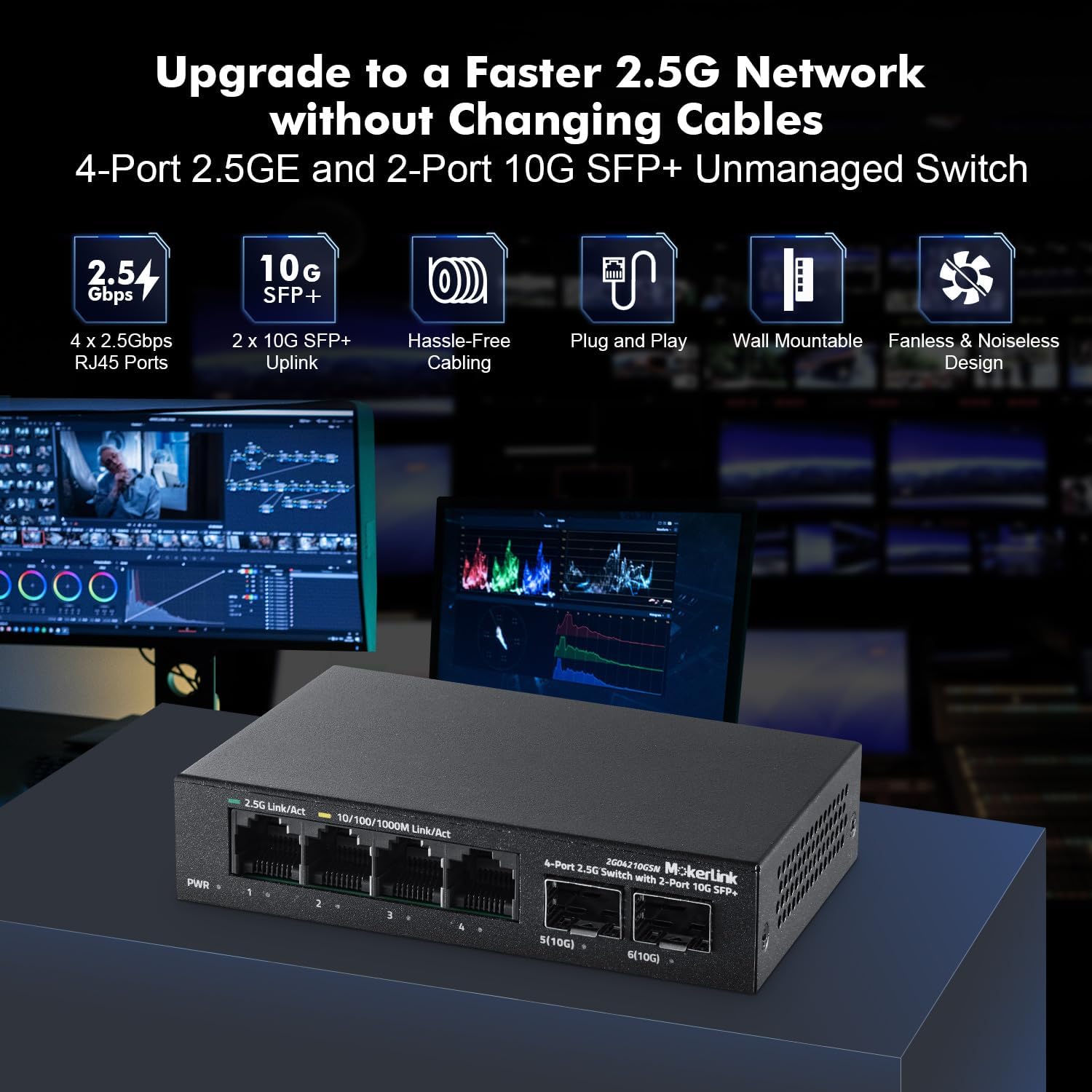
Figure 2.1: MokerLink 4-Port 2.5G Ethernet Switch with key features highlighted.

Figure 2.2: Illustration of 2.5G downlink and 10G uplink capabilities, showing speed improvements over 1Gbps.
3. Package Awọn akoonu
Verify the following items are included in your package:
- MokerLink 4-Port 2.5G Ethernet Switch (Model: Mini 4*2.5G,2*10G SFP)
- Adapter Agbara (12V/1A)
Note: SFP modules are not included and must be purchased separately if 10G SFP+ connectivity is desired.
4. Eto
The MokerLink switch is an unmanaged, plug-and-play device, requiring no complex configuration. Follow these steps for basic setup:
- Asopọ agbara: Connect the provided 12V/1A power adapter to the DC input port on the switch and then plug it into a standard electrical outlet. The PWR LED indicator will illuminate when power is supplied.
- Ethernet Device Connection: Connect your network devices (e.g., computers, NAS, WiFi 6 APs) to the 2.5 Gigabit RJ45 ports (ports 1-4) using standard Ethernet cables (CAT5e, CAT6, or CAT6a recommended for optimal performance). The Link/Act LEDs for each port will indicate connection status and activity.
- SFP+ Module Installation (Optional): If using 10 Gigabit SFP+ connectivity, insert compatible SFP+ modules (1G/2.5G/10G) into the SFP+ slots (ports 5-6). Then, connect appropriate fiber optic cables or DAC cables to the SFP+ modules. The SFP indicator LEDs will show the link status.
- Ibi: The switch can be placed on a desktop or mounted on a wall. For wall mounting, use appropriate screws (not included) with the keyhole slots on the bottom of the device. Ensure adequate ventilation around the switch.

Nọmba 4.1: Alaye view of the switch's ports, power input, and LED indicators.

Olusin 4.2: Example setup showing connections to 2.5G devices and SFP+ modules, with recommended cable types.

Figure 4.3: The switch's compact design and options for desktop or wall-mounted installation.
5. Ṣiṣẹ
Once connected, the MokerLink switch operates automatically. It is an unmanaged device, meaning it requires no software configuration. Data packets are forwarded between connected devices at the highest possible speed supported by both the device and the switch port.
Awọn itọkasi LED:
- PWR (Agbara):
- On: Device is powered on.
- Pipa: Ohun elo ti wa ni pipa.
- 2.5G Link/Act (Ports 1-4):
- Orange: 10/100/1000Mbps link.
- Green: 2.5Gbps link.
- Flashing: Data transmitting.
- SFP Indicator (Ports 5-6):
- Blue Light On: 10G Link normal.
- Green Light On: 2.5G Link normal.
- Off: Link blocked.
- Flashing: Data transmitting.
6. Itọju
The MokerLink switch is designed for reliable, fanless operation, minimizing maintenance requirements.
- Ninu: Lo asọ ti o tutu, ti o gbẹ lati nu ode ti yipada. Ma ṣe lo olomi tabi awọn olutọpa aerosol.
- Afẹfẹ: Ensure the switch is placed in a location with adequate airflow to prevent overheating, especially given its fanless design. Avoid blocking the ventilation holes on the sides.
- Awọn ipo Ayika: Operate the switch within recommended temperature and humidity ranges (refer to specifications).
- Iṣakoso USB: Organize network cables to prevent strain on ports and maintain a tidy setup.
7. Laasigbotitusita
If you encounter issues with your MokerLink switch, refer to the following common troubleshooting steps:
- Ko si Agbara:
- Check if the power adapter is securely connected to both the switch and a working electrical outlet.
- Rii daju pe iṣan agbara n ṣiṣẹ nipa pilogi sinu ẹrọ miiran.
- Ensure the PWR LED is illuminated.
- Ko si Ọna asopọ/Iṣẹ lori Ibudo kan:
- Rí i dájú pé okùn Ethernet so mọ́ ibudo iyipada ati ẹrọ ti a so mọra daradara.
- Gbiyanju okun Ethernet ti o yatọ lati ṣe akoso okun USB ti ko tọ.
- Verify the connected device is powered on and its network adapter is functioning correctly.
- Check the Link/Act LED for the specific port. If it's off, there's no link.
- For SFP+ ports, ensure the SFP+ module is correctly inserted and compatible, and the fiber/DAC cable is properly connected.
- Awọn iyara Nẹtiwọọki o lọra:
- Ensure your connected devices support 2.5Gbps or 10Gbps speeds.
- Use high-quality Ethernet cables (CAT5e, CAT6, or CAT6a) for 2.5G connections and appropriate fiber/DAC cables for 10G SFP+ connections.
- Check the color of the Link/Act LED for RJ45 ports: Green indicates 2.5Gbps, Orange indicates 10/100/1000Mbps.
- Confirm that your SFP+ modules are rated for the desired speed (1G, 2.5G, or 10G).
- Consider the overall network topology and other devices that might be causing bottlenecks.
8. Awọn pato
| Ẹya ara ẹrọ | Apejuwe |
|---|---|
| Awoṣe | Mini 4*2.5G,2*10G SFP |
| Awọn ibudo | 4x 2.5G Base-T RJ45, 2x 10G SFP+ |
| RJ45 Port Speed | 10/100/1000Mbps/2.5Gbps Adaptive |
| SFP+ Port Speed | 1G/2.5G/10G Compatible (SFP modules not included) |
| Bandiwidi Backplane | 60Gbps |
| Packet saarin | 8Mbit |
| Packet Ndari Oṣuwọn | 44.64Mpps |
| Mac adirẹsi Table | 4K |
| Ni wiwo Iru | SFP, RJ45 |
| Data Gbigbe Oṣuwọn | 2500 Megabits Per Second (per 2.5G port) |
| Ohun elo ọran | Irin |
| Apẹrẹ | Fanless, Unmanaged, Plug and Play |
| Iwọn Nkan | 13.7 iwon (0.39 kilo) |
| Package Mefa | 6.97 x 4.84 x 2.52 inches |
9. Atilẹyin ọja ati Support
For warranty information and technical support, please refer to the documentation provided with your purchase or contact MokerLink customer service directly. Details regarding product registration, warranty claims, and support resources can typically be found on the manufacturer's official webojula.
Optional protection plans may be available for purchase from your retailer to extend coverage beyond the standard manufacturer's warranty.


