1. Ifihan
This manual provides detailed instructions for the installation, operation, and maintenance of the Intellinet 48-Port L3 Managed Gigabit PoE+ Switch, Model 562041. This device is designed for enterprise networks requiring efficient and scalable routing solutions with high-powered Power over Ethernet (PoE) capabilities.
2. Alaye Aabo
Observe the following safety precautions to prevent damage to the device and injury to personnel:
- Rii daju didasilẹ ẹrọ to dara.
- Do not expose the switch to water or excessive humidity.
- Ṣiṣẹ ẹrọ naa laarin iwọn otutu ti a sọ ati awọn sakani ọriniinitutu.
- Use only the power cable provided or a compatible replacement.
- Do not open the switch casing; tọ́ka sí iṣẹ́ ìtọ́jú fún àwọn òṣìṣẹ́ tó péye.
- Ensure adequate ventilation around the switch to prevent overheating.
3. Package Awọn akoonu
Jẹrisi pe gbogbo awọn ohun kan wa ninu package:
- Intellinet 48-Port L3 Managed Gigabit PoE+ Switch (Model 562041)
- Okun agbara
- 19" rackmount brackets
- Awọn ẹsẹ roba
- Àwọn ìlànà (ìtọ́sọ́nà yìí)
4. Ọja Ipariview
The Intellinet 562041 is a robust Layer 3 managed switch featuring 48 Gigabit PoE+ ports and six 10G SFP+ uplink slots. It supports a total power budget of 850 watts for PoE devices.
4.1 Igbimọ iwaju
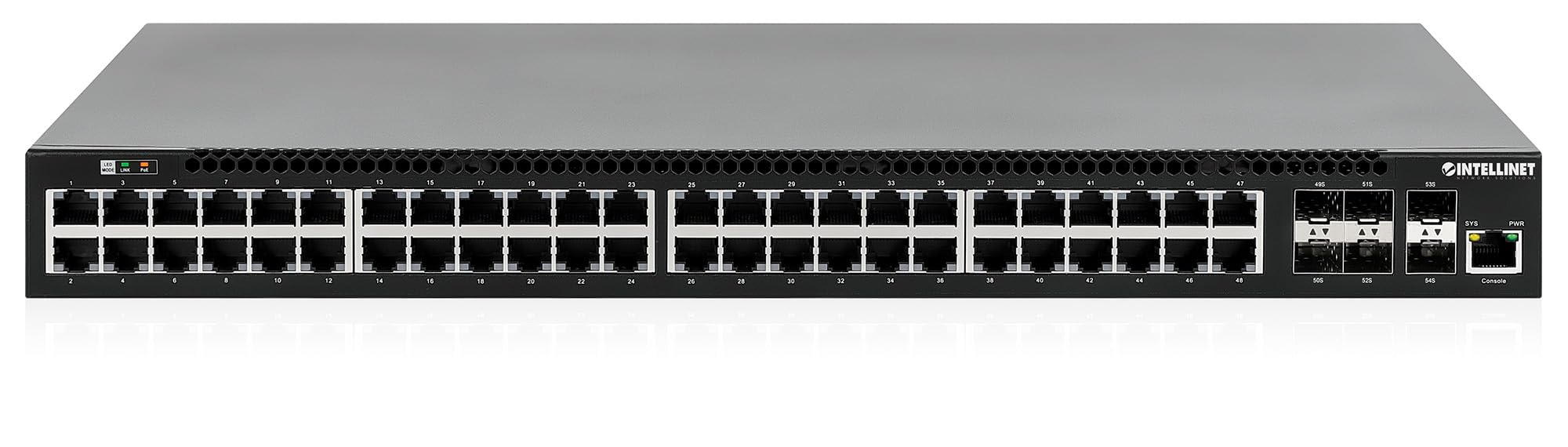
Panel iwaju pẹlu:
- 48 x 10/100/1000 Mbps RJ45 Ports: These ports support Power over Ethernet Plus (PoE+) for connecting compatible devices.
- 6 x 10 Gigabit SFP+ Slots: For high-speed uplink connections to other network devices.
- Awọn itọkasi LED: Provide status information for power, system, link activity, and PoE status.
- Ibudo Kọnsole: For local management and configuration.


4.2 ru Panel

The rear panel typically includes the AC power input and cooling fans for heat dissipation.

5. Eto
5.1 Fifi sori ti ara
Yipada naa le fi sori ẹrọ ni agbeko ohun elo 19-inch boṣewa tabi gbe sori tabili tabili kan.
- Fifi sori Rackmount: Attach the provided rackmount brackets to the sides of the switch using the included screws. Secure the switch into a standard 19-inch rack.
- Fifi sori ẹrọ tabili: Attach the provided rubber feet to the bottom of the switch to prevent scratching and ensure stability. Place the switch on a flat, stable surface.
5.2 Asopọ agbara
Connect the provided power cable to the AC power input on the rear panel of the switch and then to a grounded electrical outlet. Ensure the power switch is in the OFF position before connecting the power cable.
5.3 Awọn isopọ nẹtiwọki
- Awọn Ẹrọ PoE: Connect PoE-compatible devices (e.g., IP cameras, VoIP phones, wireless access points) to any of the 48 Gigabit RJ45 ports. The switch will automatically detect and provide power to these devices.
- Awọn isopọ Igbesoke: Insert compatible SFP+ transceivers into the 10 Gigabit SFP+ slots and connect them to your core network or other high-speed devices using appropriate fiber optic cables.
- Asopọmọra console: For initial configuration or direct management, connect a console cable from your computer to the console port on the switch.
5.4 Iṣeto ni ibẹrẹ
Refer to the separate software configuration guide for detailed instructions on accessing the switch's management interface (web-based GUI or command-line interface via console port) and performing initial setup, including IP address assignment, user accounts, and basic network settings.
6. Awọn ilana Iṣiṣẹ
6.1 Layer 3 Routing
This switch offers dynamic Layer 3 IP routing capabilities, including OSPF (Open Shortest Path First), RIP (Routing Information Protocol), and VRRP (Virtual Router Redundancy Protocol). These protocols enable efficient and scalable routing within complex network environments.

6.2 Agbara lori Ethernet (PoE+)
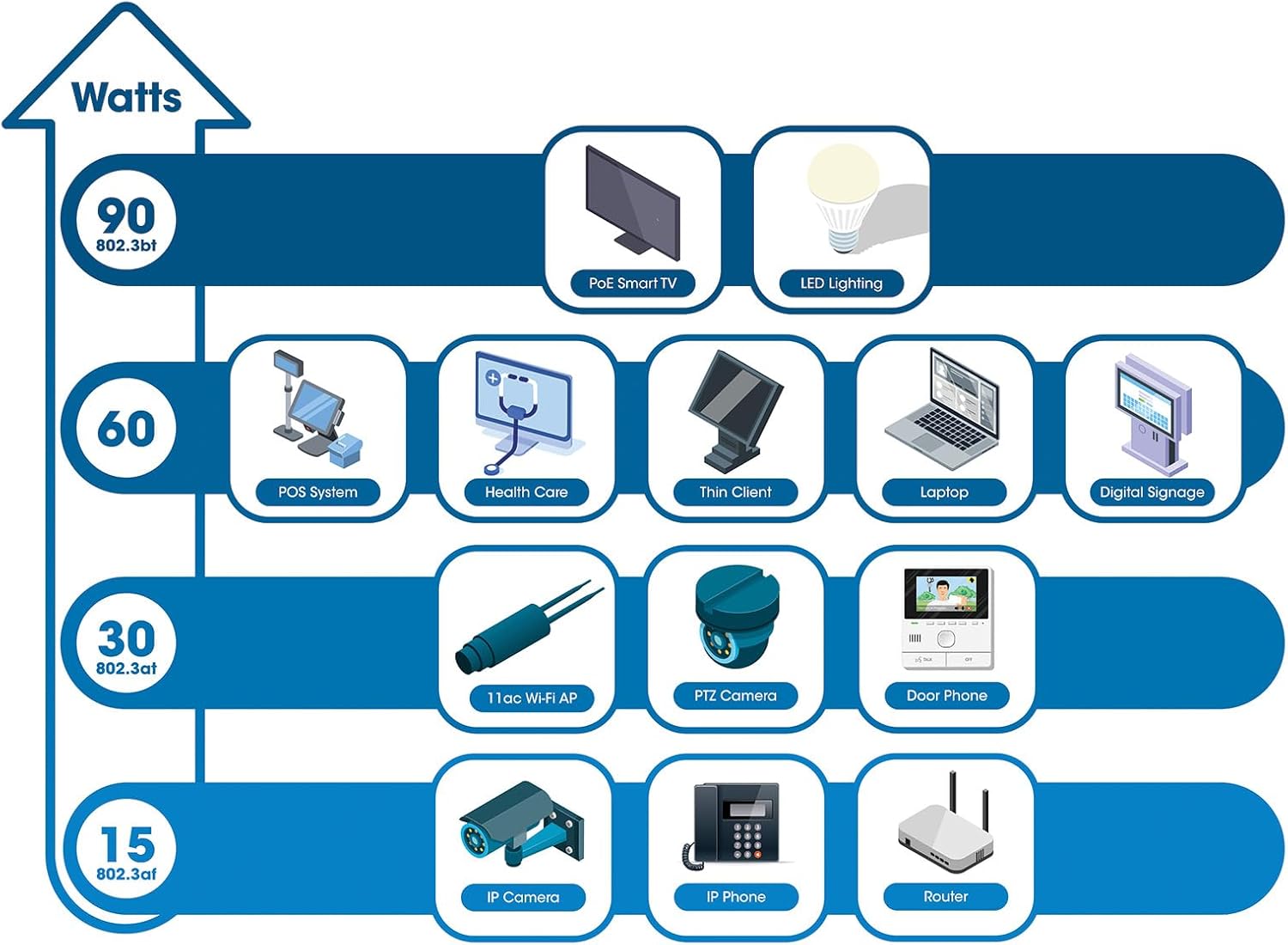
The switch provides up to 30 watts of power per port across its 48 PoE+ ports, with a total power budget of 850 watts. This allows for seamless integration of various PoE devices without the need for separate power adapters.
6.3 PoE Scheduling
The switch supports PoE scheduling, allowing administrators to define specific times for powering on, powering off, or rebooting connected PoE devices. This feature can optimize power consumption and enhance network security.


6.4 Self-Healing Functionality (PDM)
The Powered Device Monitor (PDM) feature enables the switch to proactively monitor the status of connected PoE devices. If a device becomes unresponsive, the PDM can automatically restart the PoE port to restore functionality, minimizing downtime and maintaining network integrity.
6.5 awọsanma Management
The switch supports cloud management capabilities, allowing for remote configuration, monitoring, and troubleshooting of the device from a centralized platform. Refer to the cloud management documentation for setup and usage details.
7. Itọju
7.1 famuwia imudojuiwọn
Regularly check the Intellinet Network Solutions website for the latest firmware updates. Applying firmware updates can improve performance, add new features, and address security vulnerabilities. Follow the instructions provided with the firmware update package carefully.
7.2 Ninu
To clean the switch, power it off and disconnect all cables. Use a soft, dry cloth to wipe the exterior. Do not use liquid or aerosol cleaners. Ensure ventilation openings are free from dust and debris.
7.3 Ayika riro
Ensure the switch operates within its specified temperature and humidity ranges. Avoid placing the switch in direct sunlight, near heat sources, or in areas with high dust accumulation.
8. Laasigbotitusita
This section addresses common issues you might encounter with the switch.
8.1 Ko si Agbara
- Verify the power cable is securely connected to both the switch and a working electrical outlet.
- Ensure the power switch on the rear panel is in the ON position.
- Ṣàyẹ̀wò ibi tí agbára iná ń jáde pẹ̀lú ẹ̀rọ mìíràn láti jẹ́rìí sí i pé ó ṣiṣẹ́.
8.2 No Link on a Port
- Check the Ethernet cable connection at both ends. Ensure it is securely plugged in.
- Verify the cable is not damaged. Try a different cable.
- Rii daju pe ẹrọ ti a ti sopọ ti wa ni titan ati pe o nṣiṣẹ ni deede.
- Check the port status in the switch's management interface.
8.3 Poe Device Ko Gbigba agbara
- Confirm the connected device is a PoE-compatible device.
- Ṣayẹwo Poe ipo LED fun awọn kan pato ibudo.
- Rii daju pe isuna agbara PoE lapapọ (850W) ko kọja nipasẹ gbogbo awọn ẹrọ ti a ti sopọ.
- Utilize the Powered Device Monitor (PDM) feature to automatically restart the port if the device is unresponsive.
- Check PoE settings in the switch's management interface.
9. Awọn pato
| Ẹya ara ẹrọ | Sipesifikesonu |
|---|---|
| Nọmba awoṣe | 562041 |
| Brand | OJUTU REZO INTERLINET |
| Nọmba ti Ports | 54 (48 x Gigabit PoE+, 6 x 10G SFP+) |
| Ni wiwo Iru | PoE, SFP |
| Agbara to pọ julọ (Isuna PoE) | 850 Wattis |
| Data Gbigbe Oṣuwọn | 10 Gigabits Per Second (SFP+ uplinks) |
| Iwọn Nkan | kilo 6.2 (13.64 poun) |
| Awọn iwọn Ọja (L x W x H) | 13.78 x 17.32 x 1.73 inches |
| Oke otutu Rating | 104 Iwọn Fahrenheit (40°C) |
| Isalẹ otutu Rating | 32 Iwọn Fahrenheit (0°C) |
| Awọn ẹrọ ibaramu | Desktop, Router, PoE devices (IP cameras, VoIP phones, WAPs) |
| Awọn irinše to wa | 19" rackmount brackets, Instructions, Rubber feet, power cable |
| UPC | 766623562041 |
10. Atilẹyin ọja ati Support
10.1 atilẹyin ọja Alaye
This Intellinet Network Solutions product is covered by a 3-odun olupese ká atilẹyin ọja. Jọwọ ṣe idaduro ẹri rira rẹ fun awọn iṣeduro atilẹyin ọja. Atilẹyin ọja ni wiwa awọn abawọn ninu awọn ohun elo ati iṣẹ-ṣiṣe labẹ lilo deede.
10.2 Imọ Support
For technical assistance, product documentation, or to register your product, please visit the official Intellinet Network Solutions website or contact their customer support. Contact information can typically be found on the manufacturer's webaaye tabi ni apoti ọja.