Ọrọ Iṣaaju
This manual provides detailed instructions for the Jennov 5MP PTZ WiFi Outdoor Surveillance Camera, model JS7016. It covers essential information regarding product features, installation procedures, operational guidelines, maintenance tips, and troubleshooting steps to ensure optimal performance and longevity of your device.
Important Note: This 5MP WiFi camera is designed as an additional unit for a Jennov 5MP WLAN Surveillance Camera Set. It cannot operate independently and requires connection to a Jennov NVR (Network Video Recorder) system.

Figure 1: Jennov 5MP PTZ WiFi Outdoor Surveillance Camera (Model JS7016)
Ọja Pariview
Key Awọn ẹya ara ẹrọ
- 5MP High-Resolution Video: Yaworan foo ko o ati alayetage.
- AI Human Detection & Sound-Light Alarm: Accurately identifies human figures and triggers audible and visual alerts.
- Ìtẹ̀lé Àìfọwọ́sowọ́pọ̀: The camera automatically follows detected human movement within its surveillance area.
- 360° Coverage (355° Pan & 90° Tilt): Offers extensive monitoring without blind spots, controllable via smartphone application.
- Awọn Ipo Iran Alẹ Mẹta: Includes Infrared, Full Color, and Sound-Light activated modes for clear visibility in low light.
- Audio Ọna Meji: Gbohungbohun ti a ṣe sinu ati agbọrọsọ fun ibaraẹnisọrọ akoko gidi.
- 24/7 Gbigbasilẹ Tesiwaju: Ensures constant video capture when connected to a Jennov NVR.
- Eto Rọrun & Wiwọle Lati Latọna jijin: Simple installation and remote viewing capabilities via smartphone, tablet, or computer.
- IP66 Idiwon Oju ojo: Ti a ṣe apẹrẹ fun lilo ita gbangba, sooro si eruku ati omi.
Awọn Irinṣẹ Kamẹra

Nọmba 2: Alaye view of the camera's external components and dimensions.
- Biraketi: Fun fifi kamera sori ẹrọ.
- Eriali: Fun WiFi Asopọmọra.
- Apo ti ko ni omi: Protects internal components from environmental elements.
- Awọn LED IR: Awọn imọlẹ infurarẹẹdi fun iran alẹ.
- Imọlẹ LED: For full-color night vision and alarm illumination.
- Lẹnsi Igun Gigun: Ó gba pápá gbígbòòrò kan view.
- Dual-light Sensor: Detects ambient light for automatic mode switching.
- Ibudo Agbara: Fun sisopọ ohun ti nmu badọgba agbara.
- Agbọrọsọ: For two-way audio and audible alarms.
Awọn ilana iṣeto
Atokọ iṣaju fifi sori ẹrọ
- Ensure you have a Jennov NVR system to pair this additional camera with.
- Verify stable WiFi coverage at the installation location.
- Gather necessary tools: drill, screwdriver, mounting screws, power outlet.
- Test the camera's functionality and signal strength near the NVR before permanent installation.
Fifi sori ti ara
- Yan Ibi kan: Select an outdoor location that provides the desired surveillance coverage and has access to a power outlet. Ensure the camera is mounted securely and is within WiFi range of your Jennov NVR.
- Gbe Bracket soke: Use the provided screws and anchors to securely attach the mounting bracket to the wall or ceiling.
- So Kamẹra naa: Secure the camera to the mounted bracket. Adjust the angle for optimal viewing.
- So agbara: Plug the camera's power adapter into a waterproof outdoor power outlet.

Figure 3: The camera's IP66 rating ensures durability in various outdoor conditions.
NVR Pairing (Adding the Camera)
Refer to your Jennov NVR system's manual for specific instructions on adding an additional camera. Generally, the process involves:
- Access NVR Settings: Connect a monitor to your Jennov NVR and navigate to the camera management or channel settings.
- Wa fun New Cameras: Select the option to search for new wireless cameras. The NVR will scan for available Jennov cameras in range.
- Fi Kamẹra kun: Once the JS7016 camera is detected, select it and follow the on-screen prompts to add it to an available channel.
- Jẹrisi Asopọmọra: Ensure the camera's video feed appears on the NVR monitor.
Awọn ilana Iṣiṣẹ
Once the camera is successfully paired with your Jennov NVR, you can manage and view its feed through the NVR interface or the EseeCloud smartphone application.
Latọna jijin Viewing via EseeCloud App
- Ṣe igbasilẹ Ohun elo: Download and install the EseeCloud app on your smartphone or tablet.
- Add NVR: Register an account and add your Jennov NVR system to the app using its device ID or QR code.
- Access Camera Feed: Once the NVR is added, you can view the live feed from your JS7016 camera and control its functions remotely.

Àwòrán 4: Láti ọ̀nà jíjìn viewing on various devices allows monitoring from anywhere.
AI Human Detection & Automatic Tracking
The camera utilizes advanced AI to distinguish human shapes from other moving objects, reducing false alarms. When a human is detected, the camera can automatically track their movement.
- Mu ṣiṣẹ/Pa: These features can be enabled or disabled within the NVR settings or EseeCloud app.
- Awọn itaniji: When human detection is triggered, you will receive notifications on your connected devices.

Figure 5: AI Human Detection in action, with app notification.

Figure 6: Custom detection areas can be configured to focus on specific zones.
Awọn ọna Iran Iran
The camera offers three distinct night vision modes for various low-light conditions:
- Ipo infurarẹẹdi: Provides black and white video in complete darkness using IR LEDs.
- Ipo Awọ Kikun: Activates the built-in LED light to provide color video at night.
- Sound-Light Mode: The LED light and audible alarm are triggered upon detection of movement, illuminating the area and deterring intruders.

Figure 7: Illustration of the three night vision modes.
Ona Meji Audio
The integrated microphone and speaker allow for real-time two-way communication. You can speak through the app and hear responses from the camera's location.
- Ibaraẹnisọrọ: Use this feature to greet visitors or warn intruders.
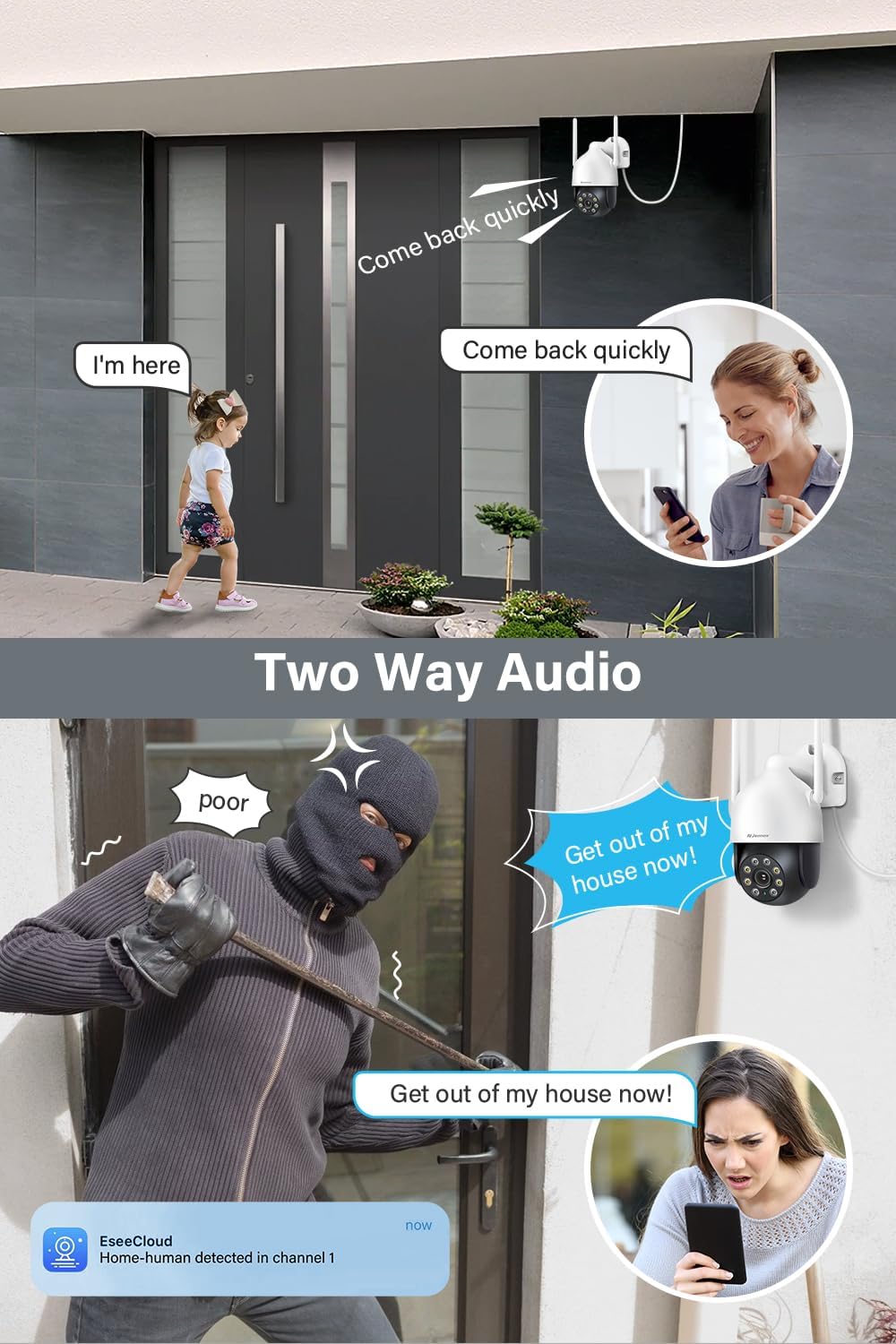
Olusin 8: Examples of two-way audio use cases.
Iṣakoso PTZ (Pan, Pulọọgi, Sun-un)
The camera's pan (355°) and tilt (90°) functions can be controlled remotely via the EseeCloud app, allowing you to adjust the viewing igun bi ti nilo.
- Iṣakoso Afowoyi: Ra lori ifiwe view in the app to move the camera.
- Awọn ipo tito tẹlẹ: Set and recall specific viewing angles for quick access.

Figure 9: Remote control of pan and tilt functions via the app.
Itoju
- Ninu igbagbogbo: Lokọọkan nu awọn lẹnsi kamẹra ati ile pẹlu asọ, damp asọ lati yọ eruku ati idoti. Maṣe lo awọn kemikali lile.
- Awọn imudojuiwọn famuwia: Check for and install firmware updates for your NVR and camera through the EseeCloud app or NVR interface to ensure optimal performance and security.
- Ṣayẹwo Ipese Agbara: Ensure the power adapter and cable are in good condition and free from damage.
- Ipo eriali: Verify that the antennas are securely attached and positioned for optimal signal reception.
Laasigbotitusita
| Oro | Owun to le Fa | Ojutu |
|---|---|---|
| Kamẹra ko ṣiṣẹ | Kò sí agbára, adaptà/kábù tí ó ní àbùkù | Check power connection, test outlet, replace adapter if necessary. |
| No video feed on NVR/App | Not paired with NVR, weak WiFi signal, NVR issue | Ensure camera is paired, check WiFi signal strength, restart NVR and camera. |
| Didara aworan ti ko dara | Lẹ́ǹsì ìdọ̀tí, ìmọ́lẹ̀ díẹ̀, ìpele ìpele nẹ́tíwọ́ọ̀kì | Clean lens, ensure adequate lighting or proper night vision mode, check network speed. |
| Wiwa išipopada ko ṣiṣẹ | Feature disabled, incorrect sensitivity, obstructions | Enable human detection in settings, adjust sensitivity, clear camera's field of view. |
| Awọn ọran ohun afetigbọ ọna meji | Microphone/speaker blocked, app volume low, network delay | Ensure clear path for audio, check app volume, verify stable network connection. |
Awọn pato
| Ẹya ara ẹrọ | Ẹ̀kúnrẹ́rẹ́ |
|---|---|
| Nọmba awoṣe | JS7016 |
| Olupese | Shenzhen Dianchen Industrial Co.,Ltd |
| Awọn iwọn (L x W x H) | 15 x 12 x 18 cm |
| Iwọn | 620 giramu |
| Agbara Iru | Cable ina |
| Voltage | 12 Volts |
| Agbara agbara | 12 Wattis |
| Asopọmọra Technology | Ailokun (WiFi) |
| Ipinnu Gbigbasilẹ fidio | 5MP (2.7K) |
| Pataki Awọn ẹya ara ẹrọ | Siren Alarm, Two-Way Audio, PTZ Control, Human Detection |
| Awọn irinše to wa | EseeCloud (software) |
| Agbara Ibi ipamọ Iranti | 256 GB (referring to NVR compatibility, not camera internal storage) |
| Eto isesise | Linux-based or proprietary operating system |
| Awọn ẹrọ ibaramu | Smartphones, Tablets, Computers (via EseeCloud app/software) |
Atilẹyin ọja ati Support
For warranty information, technical support, or service inquiries, please refer to the documentation included with your Jennov NVR system or visit the official Jennov webojula. Tọju iwe-ẹri rira rẹ bi ẹri rira fun awọn iṣeduro atilẹyin ọja.


