1. Ifihan
The Microsoft Surface Pro 10 is a versatile 2-in-1 device designed to adapt to various work styles, offering the functionality of both a tablet and a laptop. It features an Intel Core Ultra 5 processor, providing robust performance for daily tasks and advanced applications. This manual provides essential information to help you set up, operate, and maintain your device, ensuring optimal performance and longevity.
2. Ohun ti o wa ninu Apoti
Carefully unpack your Surface Pro 10 and ensure all items are present. The standard package includes:
- Microsoft Surface Pro 10 Device
- Agbara Ipese Unit
- Microsoft Surface Pro Keyboard
- Microsoft Surface Pro Slim Pen
- Quick Bẹrẹ Itọsọna
- Safety and Warranty Documents
3. Ẹrọ Loriview
Familiarize yourself with the physical components of your Surface Pro 10.

Nọmba 3.1: Iwaju view of the Surface Pro 10 with the keyboard attached, showcasing the display and keyboard layout.

Nọmba 3.2: Apa view of the Surface Pro 10 in laptop configuration, highlighting the adjustable kickstand and connected keyboard.
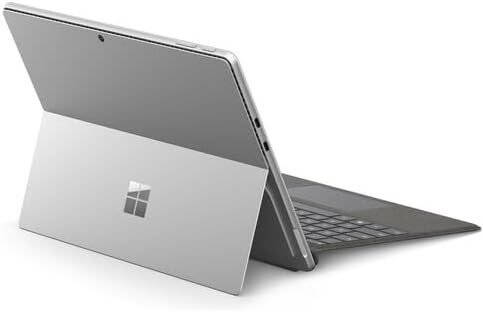
Nọmba 3.3: Ẹyìn view of the Surface Pro 10 with the kickstand deployed, revealing the device's sleek design and the iconic Microsoft logo.
Awọn eroja pataki:
- 13-inch PixelSense Flow Display: High-resolution touchscreen for vibrant visuals and touch interaction.
- Kamẹra ti nkọju si iwaju: For video calls and facial recognition (Windows Hello).
- Kamẹra ti nkọju si ẹhin: Fun yiya awọn fọto ati awọn fidio.
- Bọtini agbara: Ó wà ní ẹ̀gbẹ́, a máa ń lò ó láti tan/pa ẹ̀rọ náà tàbí láti fi sùn.
- Awọn bọtini iwọn didun: Located on the side, for adjusting audio levels.
- Awọn ibudo USB-C: For charging, data transfer, and connecting external displays or accessories.
- Ibudo Isopọ Ilẹ: For charging and connecting to Surface Dock accessories.
- Ibẹrẹ: Integrated into the back, allows for multiple viewing awọn igun.
- Awọn gbohungbohun: For voice commands and audio recording.
4. Eto
4.1 Gbigba agbara akọkọ
- Connect the power supply to the Surface Connect port or one of the USB-C ports on your Surface Pro 10.
- Pulọọgi ipese agbara sinu iṣan ogiri.
- Allow the device to charge for at least 30 minutes before first use, or until the battery indicator shows sufficient charge.
4.2 Titan / Pa a
- Lati Fi agbara: Press and hold the Power button until the Microsoft logo appears on the screen.
- Lati Paarẹ: From the Windows desktop, select Bẹrẹ > Agbara > Paade. Alternatively, press and hold the Power button for a few seconds, then slide down to shut down.
- Lati Sun: Briefly press the Power button. Press it again to wake the device.
4.3 Eto Windows Ibẹrẹ
Upon first power-on, you will be guided through the Windows 11 setup process. Follow the on-screen prompts to:
- Yan ede ati agbegbe rẹ.
- Sopọ si nẹtiwọki Wi-Fi kan.
- Gba awọn ofin iwe-aṣẹ.
- Wọle pẹlu akọọlẹ Microsoft rẹ tabi ṣẹda tuntun kan.
- Set up Windows Hello (facial recognition or fingerprint, if available).
- Tunto ìpamọ eto.
4.4 Attaching the Surface Pro Keyboard
Align the magnetic connector on the keyboard with the corresponding port at the bottom edge of your Surface Pro 10. The keyboard will snap into place magnetically. You can adjust the keyboard to lie flat or tilt it slightly for a more ergonomic typing experience.
4.5 Pairing the Surface Pro Slim Pen
The Surface Pro Slim Pen typically pairs automatically when first used with your Surface Pro 10. If not, follow these steps:
- Lọ si Bẹrẹ > Eto > Bluetooth & awọn ẹrọ > Fi ẹrọ kun > Bluetooth.
- Press and hold the top button on your Slim Pen for 5-7 seconds until the LED light flashes white.
- Select your Surface Slim Pen from the list of available devices and follow any on-screen prompts.
5. Operating Your Surface Pro 10
5.1 Switching Between Tablet and Laptop Modes
- Ipo Kọǹpútà alágbèéká: Attach the Surface Pro Keyboard and adjust the kickstand for a traditional laptop experience.
- Ipo tabulẹti: Detach the keyboard or fold it back completely. Windows will automatically switch to Tablet Mode, optimizing the interface for touch input.
5.2 Lilo awọn Touchscreen
The PixelSense Flow Display supports multi-touch gestures:
- Fọwọ ba: Yan ohun kan tabi ṣii ohun elo kan.
- Fọwọ ba Mu: Access context menus (right-click equivalent).
- Fun pọ lati Sun: Sun-un sinu tabi jade lori awọn aworan ati web awọn oju-iwe.
- Swipe from Edges: Access quick settings, notifications, or switch between apps.
5.3 Using the Surface Pro Slim Pen
The Slim Pen allows for precise input and creative tasks:
- Kikọ/Yíya: Use the pen directly on the screen in compatible apps like Microsoft Whiteboard or OneNote.
- Yiyan: Tap with the pen to select items.
- Apanirun: Use the eraser button on the pen to erase digital ink.
- Bọtini oke: Customizable for quick access to apps like OneNote or screenshots.
5.4 Ìṣàwárí Ìpìlẹ̀ Windows 11
- Ibẹrẹ Akojọ: Access apps, settings, and power options.
- Pẹpẹ iṣẹ-ṣiṣe: Pin frequently used apps and view ìmọ awọn ohun elo.
- Ile-iṣẹ iṣe: Swipe in from the right edge (or click the icon) for quick settings and notifications.
- Awọn ẹrọ ailorukọ: Swipe in from the left edge (or click the icon) for personalized information.
6. Itọju
6.1 Ninu ẹrọ rẹ
- Lo asọ asọ, ti ko ni lint die-die dampened with water or an approved screen cleaner to wipe the display.
- For the body of the device and keyboard, use a soft, dry cloth.
- Yẹra fun awọn kẹmika lile, awọn olutọpa abrasive, tabi ọrinrin pupọ.
6.2 batiri Itọju
- Yago fun gbigba agbara si batiri ni kikun nigbagbogbo.
- Tọju ẹrọ naa ni itura, aye gbigbẹ nigbati o ko ba wa ni lilo fun awọn akoko gigun.
- Use only the official Microsoft power supply or certified compatible chargers.
6.3 Software imudojuiwọn
Regularly check for and install Windows updates to ensure your device has the latest security patches, features, and performance improvements. Go to Bẹrẹ > Eto > Imudojuiwọn Windows.
7. Laasigbotitusita
7.1 Ẹrọ Ko Titan
- Ensure the device is charged. Connect the power supply and wait a few minutes before attempting to power on.
- Perform a force restart: Press and hold the Power button for 15-20 seconds, then release and press it again briefly to turn on.
7.2 Screen Issues (No Display, Flickering)
- Tun ẹrọ naa bẹrẹ.
- Ensure display drivers are up to date via Windows Update.
- If connected to an external display, try disconnecting it.
7.3 Wi-Fi tabi Bluetooth Asopọmọra Isoro
- Check if Wi-Fi or Bluetooth is enabled in Quick Settings or Windows Settings.
- Restart your Surface Pro 10 and your router/modem.
- Forget the network/device and try reconnecting.
- Update network drivers via Windows Update.
7.4 Performance Issues (Slowdowns, Freezes)
- Pa awọn ohun elo ti ko wulo ti nṣiṣẹ ni abẹlẹ.
- Check for and install all available Windows updates.
- Run a disk cleanup and optimize drives.
- Rii daju aaye ibi-itọju ọfẹ ti o to.
8. Awọn pato
The following table outlines the key technical specifications for the Microsoft Surface Pro 10 (Intel Core Ultra 5, 16GB RAM, 256GB SSD) model:
| Ẹya ara ẹrọ | Sipesifikesonu |
|---|---|
| Orukọ awoṣe | Surface Pro 10 (ZEA-00001) |
| Iduro iboju Iwon | 13 inches |
| Ipinnu iboju | 2880 x 1920 awọn piksẹli |
| Ipinnu Iboju ti o pọju | 2880x1920 |
| isise | 1.4 GHz Intel mojuto Ultra 5 |
| Dirafu lile | 256 GB SSD |
| Ramu Memory sori iwọn | 16 GB DDR5 Ramu |
| Eto isesise | Windows 11 Pro |
| Ẹya Chipset | Intel |
| Eya Kaadi Apejuwe | Ti ṣepọ |
| Alailowaya Iru | 802.11ax |
| Àwọ̀ | Platinum |
| Ọja Mefa | 11.3 x 8.2 x 0.4 inches |
| Awọn batiri | 1 batiri litiumu ion (pẹlu) |
9. Atilẹyin ọja ati Support
Your Microsoft Surface Pro 10 comes with a limited hardware warranty. For detailed warranty information, please refer to the documentation included with your device or visit the official Microsoft Support webAaye ayelujara. Fun iranlọwọ imọ-ẹrọ, awọn itọsọna laasigbotitusita, ati awọn igbasilẹ awakọ, jọwọ ṣabẹwo support.microsoft.com/surface.


