1. Ifihan
This manual provides comprehensive instructions for the Trixie TX-S Smart Automatic Pet Food Dispenser. This device is designed to automate your pet's feeding schedule, offering convenience and ensuring consistent meal times. Key features include programmable feeding times, a voice recording function, a durable stainless steel bowl, and a 3-liter food capacity.
- Ifunni Eto: Schedule automated meals for your pet, ensuring consistent feeding times.
- Gbigbasilẹ ohun: Record a personalized message to call your pet to meals.
- Ekan Irin Alagbara: Provides a hygienic and easy-to-clean feeding surface.
- Agbara 3L: Sufficient food storage for multiple pets or extended periods.
- Rọrun lati nu: Detachable parts, including the dishwasher-safe stainless steel bowl.
- Batiri Afẹyinti: Ensures continued operation during power outages (3 D mono batteries not included).
2. Alaye Aabo
Please read all safety instructions before using the dispenser to prevent injury or damage. Keep this manual for future reference.
- Use only dry pet food with this dispenser. Do not use wet, canned, or moist food.
- Ensure the power adapter is securely connected and placed where pets cannot chew on it.
- Install 3 D-size batteries (not included) for backup power to ensure continuous feeding during power interruptions.
- Do not immerse the main unit in water or any other liquid. Only the stainless steel bowl and food container are washable.
- Keep out of reach of children and supervise pets during initial use to prevent tampsisun.
- Place the dispenser on a stable, level surface.
- Unplug the dispenser before cleaning or when not in use for extended periods.
3. Ọja irinše
Familiarize yourself with the parts of your Trixie TX-S Smart Automatic Pet Food Dispenser.

Image 3.1: Disassembled view of the Trixie TX-S dispenser, illustrating the main body, removable food container, top lid, and the stainless steel feeding bowl.
- Ẹka akọkọ: Contains the control panel, dispensing mechanism, and power input.
- Food Container (Hopper): Transparent container for storing dry pet food (3L capacity).
- Ideri: Secures the food container, helping to keep food fresh.
- Ekan Irin Alagbara: Removable and dishwasher-safe bowl for pet food.
- Ibi iwaju alabujuto: Buttons for manual feed, setting, and voice recording.
- Power Adapter Port: Fun sisopọ ohun ti nmu badọgba agbara AC.
- Abala Batiri: Located at the bottom for D-size backup batteries.
4. Awọn ilana iṣeto
Follow these steps to set up your pet food dispenser for first use.
- Ṣii silẹ ati Ṣayẹwo: Ni ifarabalẹ yọ gbogbo awọn paati kuro ninu apoti. Ṣayẹwo fun eyikeyi bibajẹ.
- Assemble the Dispenser:
- Place the stainless steel bowl into its designated slot at the base of the main unit.
- Ensure the food container is securely seated on top of the main unit.
- Place the lid firmly on the food container.
- Asopọ agbara:
- Connect the AC power adapter to the dispenser's power port and then plug it into a wall outlet.
- For backup power, open the battery compartment at the bottom of the unit and insert 3 D-size batteries (not included), ensuring correct polarity.
- Fill with Food: Open the lid and pour dry pet food into the food container. Do not overfill.
- App Installation (Optional for Smart Features):
To utilize smart features like remote programming and monitoring, download the companion app. Scan the QR code or search for "Trixie Smart Pet Feeder" in your device's app store.

Image 4.1: The Trixie TX-S dispenser shown alongside "Download on the App Store" and "Get it on Google Play" logos, indicating app availability.
Follow the in-app instructions to connect the dispenser to your home Wi-Fi network and complete the setup process.
5. Awọn ilana Iṣiṣẹ
Learn how to program and use your automatic pet food dispenser.

Image 5.1: The Trixie TX-S dispenser with its food container filled with dry pet food and a small portion dispensed into the stainless steel bowl.
- Setting Programmable Meals:
- Lilo ohun elo naa: Open the Trixie Smart Pet Feeder app. Navigate to the feeding schedule section. You can set up to 6 precise meals daily, specifying the time and portion size for each meal. Save your settings.
- Manual Controls (if available): Refer to the specific button functions on the control panel for basic scheduling if app connectivity is not desired or available. (Note: The primary method for advanced scheduling is via the app.)
- Voice Recording Feature:
- Locate the "REC" or microphone button on the control panel.
- Press and hold the button. Speak your message (e.g., "Time to eat, [Pet's Name]!"). Release the button when finished.
- The recorded message will play automatically at each scheduled feeding time to alert your pet.
- Ifunni pẹlu ọwọ:
- Press the "FEED" button on the control panel for an immediate single portion dispense.
- Alternatively, use the app's manual feed option for instant dispensing.
- Monitoring Food Levels: Regularly check the transparent food container to ensure there is enough dry food. Refill as needed to prevent missed meals.
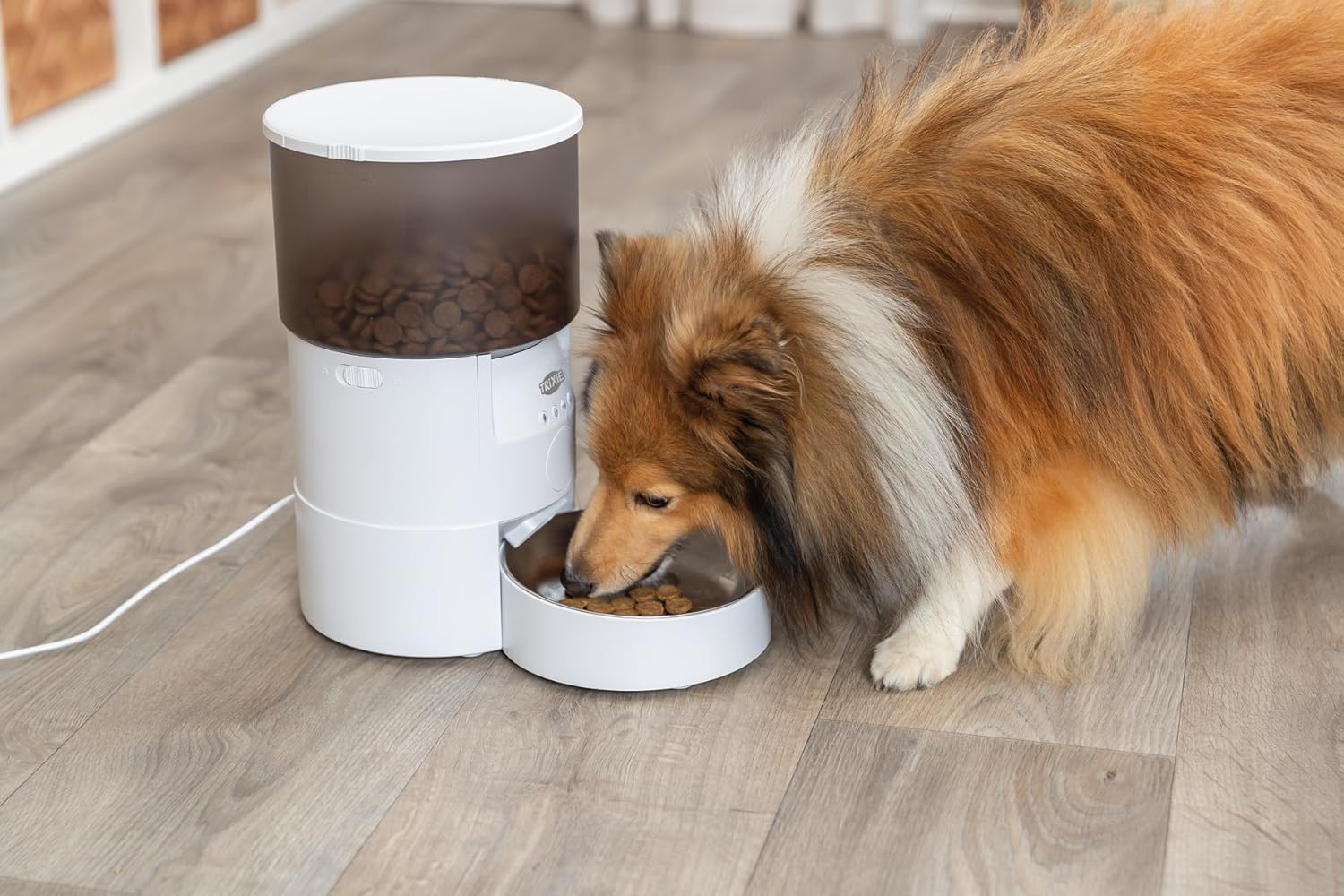
Image 5.2: A dog enjoying a meal from the Trixie TX-S automatic pet food dispenser, demonstrating its practical use.
6. Itọju ati Cleaning
Regular cleaning ensures hygiene and extends the lifespan of your dispenser.
- Itukuro fun Isọmọ:
- Unplug the dispenser from the power outlet and remove any backup batteries.
- Remove the lid and the food container from the main unit.
- Remove the stainless steel bowl from its base.
- Cleaning the Stainless Steel Bowl: The stainless steel bowl is dishwasher-safe. Alternatively, wash it by hand with warm, soapy water and rinse thoroughly.
- Cleaning the Food Container and Lid: Wash the food container and lid with warm, soapy water. Rinse thoroughly and ensure they are completely dry before reassembly to prevent food spoilage.
- Ninu Ẹka Akọkọ: Mu ese ita ti ẹyọ akọkọ pẹlu ipolowoamp cloth. Do not immerse the main unit in water. Ensure no water enters the electronic components.
- Atunjọ: Once all parts are clean and dry, reassemble the dispenser in reverse order of disassembly.
Pataki: Always ensure all parts are completely dry before adding new food to prevent mold or bacterial growth.
7. Laasigbotitusita
If you encounter issues with your dispenser, refer to the following common problems and solutions.
| Isoro | Owun to le Fa | Ojutu |
|---|---|---|
| Oúnjẹ kìí ṣe ìtajà. | Food hopper is empty. Food chute is clogged. Dispenser is not powered. | Refill the food hopper. Clear any obstructions from the food chute. Check power adapter connection and/or backup batteries. |
| Gbigbasilẹ ohun ko ṣiṣẹ. | No message recorded. Iwọn didun ju. | Re-record your voice message. Check app settings for volume control (if applicable). |
| App Asopọmọra oran. | Ọrọigbaniwọle Wi-Fi ti ko tọ. Dispenser out of Wi-Fi range. A kò fún ni ní àṣẹ láti lo àwọn ohun èlò náà. | Verify Wi-Fi password and re-enter. Move dispenser closer to your Wi-Fi router. Check app permissions in your phone settings. |
| Scheduled meals not dispensing. | Incorrect schedule settings. Dispenser lost power/time setting. | Verify and adjust the feeding schedule in the app. Ensure continuous power supply (AC + backup batteries). |
8. Awọn alaye ọja
Detailed technical specifications for the Trixie TX-S Smart Automatic Pet Food Dispenser.
| Ẹya ara ẹrọ | Ẹ̀kúnrẹ́rẹ́ |
|---|---|
| Brand | TRIXIE |
| Nọmba awoṣe | TX-S (24345) |
| Agbara | 3 lita |
| Ọja Mefa | 10L x 5W x 15H centimita |
| Iwọn Nkan | kilo 1.71 (1 kg 710 g) |
| Ohun elo | ABS Plastic, Stainless Steel Bowl |
| Àwọ̀ | Funfun |
| Àkọlé Eya | Dogs (Pugs, Beagle, Labrador, Golden Retriever, German Shepherd, Shih Tzu), Cats, Small to Medium Dogs |
| Orisun agbara | AC Adapter (main), 3 D-size batteries (backup, not included) |
| Fifọ Ailewu Parts | Irin alagbara, irin ekan |
9. atilẹyin ọja Information
TRIXIE products are manufactured with quality and care. For information regarding the warranty policy for your Trixie TX-S Smart Automatic Pet Food Dispenser, please refer to the product page on Amazon.in or contact TRIXIE customer support directly. Keep your purchase receipt as proof of purchase.
10. Onibara Support
If you require further assistance, have questions, or need to report an issue, please contact TRIXIE customer support. You can also visit the official TRIXIE store for more product information and resources.
TRIXIE Store: Visit the TRIXIE Store on Amazon


