Ọrọ Iṣaaju
The Eufy SmartTrack Link is a compact lost prevention tracker designed to help you locate your belongings. It integrates with Apple's Find My network, allowing iOS device users to track their items efficiently. This manual provides comprehensive instructions for setting up, operating, and maintaining your SmartTrack Link, ensuring you can make the most of its features.
Ohun ti o wa ninu Apoti
Daju pe gbogbo awọn nkan wa ninu apo rẹ:
- SmartTrack Link (with built-in button battery)
- Quick Bẹrẹ Itọsọna
- Cover Removal Pin
Ṣeto
1. Device Activation and Pairing
To activate your Eufy SmartTrack Link and pair it with your Apple device:
- Ensure your iOS device (iPhone, iPad, or Mac) has Bluetooth enabled and the Apple Find My app is installed.
- Follow the instructions in the included Quick Start Guide to activate the SmartTrack Link. This typically involves a simple pairing process within the Apple Find My app.
- If you encounter issues during pairing, ensure the built-in button battery is properly seated and has sufficient charge. A new battery may be required if the included one is depleted.
2. Attaching the SmartTrack Link
The SmartTrack Link features a small tag shape, approximately 3.7 cm (1.5 inches) square, with a hole for attachment. You can easily attach it to various items:
- Awọn bọtini: Use a keyring (not included) to attach it to your key set.
- Awọn apo: Secure it to a backpack zipper or strap.
- Ẹru: Attach it to luggage handles or zippers.
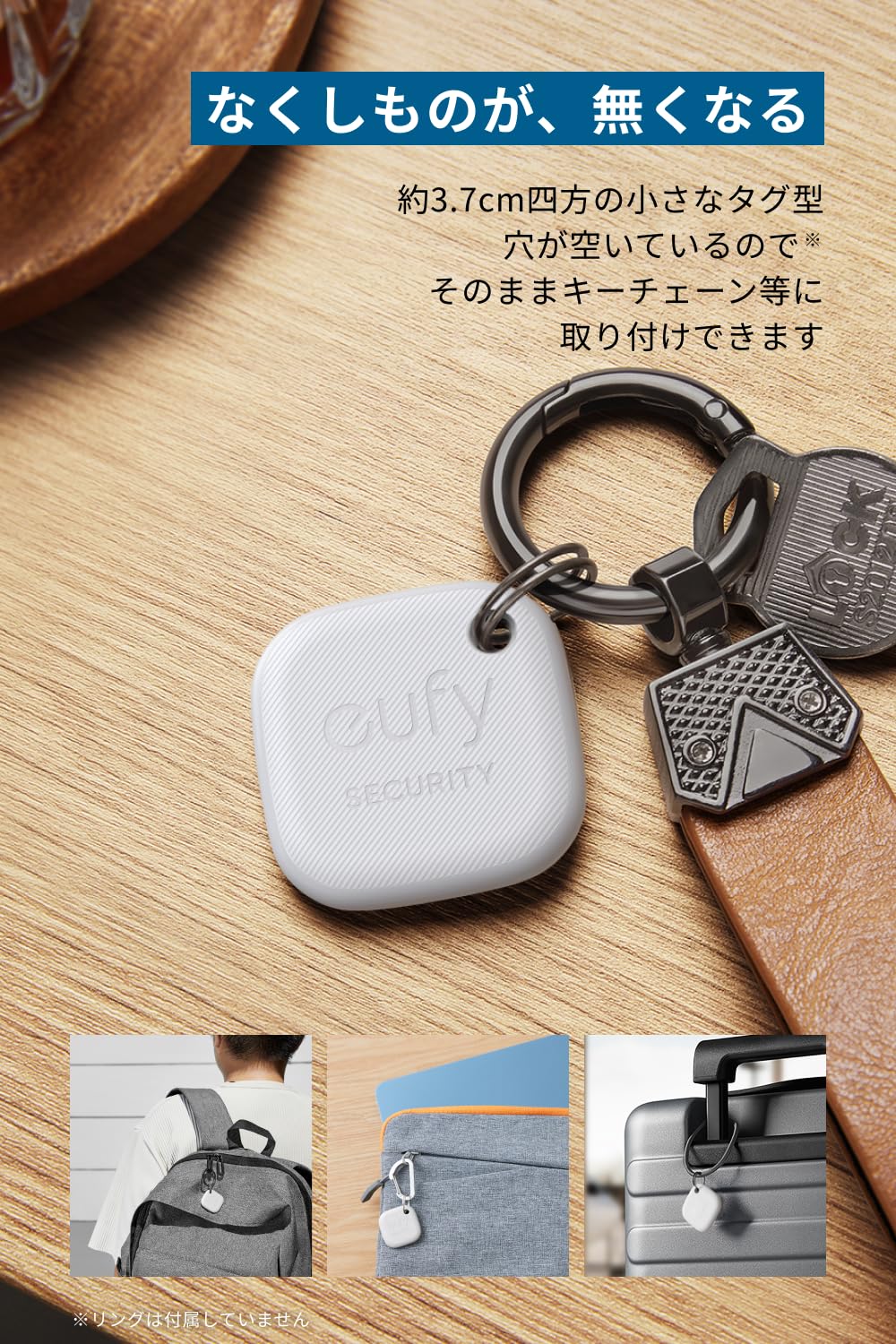
This image demonstrates the versatility of the Eufy SmartTrack Link, showing how it can be easily attached to various personal items like keys, bags, and luggage using its integrated hole.
Awọn ilana Iṣiṣẹ
1. Finding Your Belongings (Using your Smartphone)
If your SmartTrack Link is within Bluetooth range of your smartphone, you can make it ring to locate your item:
- Open the Apple Find My app on your iOS device.
- Select your SmartTrack Link from the list of items.
- Tap the "Play Sound" option to make the SmartTrack Link emit an audible alert, guiding you to its location.
2. Finding Your Smartphone (Using SmartTrack Link)
You can also use the SmartTrack Link to locate your misplaced smartphone:
- Press the button on your SmartTrack Link.
- Your smartphone will ring, even if it's on silent mode (this feature requires the Eufy Security app and specific permissions).
Akiyesi: This function is effective indoors, typically within a range of 10-15 meters, depending on environmental factors and obstacles.

This visual shows the dual functionality of the SmartTrack Link: locating items via the Find My app on a smartphone, and locating the smartphone by pressing the tracker, as indicated by a phone notification.
3. Anti-Forget Feature
The anti-forget feature alerts you if you leave your belongings behind:
- Enable this feature in the Eufy Security app.
- If your SmartTrack Link moves out of range from your smartphone, you will receive an alert notification on your phone.
4. Lost Mode and QR Code
For items lost outside of your immediate vicinity, the SmartTrack Link supports Apple's Find My network. Additionally, it features a QR code:
- If someone finds your lost item, they can scan the QR code on the back of the SmartTrack Link.
- This will allow them to contact you with information about the item's location (requires registration and Lost Mode to be active in the Eufy Security app).

The image highlights the anti-forget feature, showing a notification when the tracker is left behind, and the QR code functionality for lost items, allowing finders to contact the owner.
Itoju
Batiri Rirọpo
The Eufy SmartTrack Link uses one Lithium Metal button battery (CR2032). The battery life is approximately 6-12 months, depending on usage. When the battery is low, you may receive a notification in the Find My app or Eufy Security app.
Lati paarọ batiri naa:
- Use the included Cover Removal Pin to open the battery compartment.
- Fara yọ atijọ batiri kuro.
- Insert a new CR2032 Lithium Metal battery with the positive (+) side facing up.
- Pa yara batiri naa ni aabo.
Ninu
To maintain the device's appearance and functionality, wipe it with a soft, dry cloth. Avoid using harsh chemicals or abrasive materials.
Laasigbotitusita
Device Not Pairing or Connecting
- Rii daju pe Bluetooth ti ṣiṣẹ lori ẹrọ iOS rẹ.
- Check the battery level of your SmartTrack Link. Replace the battery if it is low or depleted.
- Restart your iOS device and try the pairing process again.
- Ensure the SmartTrack Link is within close proximity to your iOS device during pairing.
Inaccurate Location Information
- The location accuracy relies on the Apple Find My network. Ensure there are other Apple devices nearby to relay the SmartTrack Link's location.
- Environmental factors and obstacles can affect signal strength and accuracy.
Cannot Find My Smartphone Using SmartTrack Link
- Ensure your smartphone is within the Bluetooth range of the SmartTrack Link (approximately 10-15 meters indoors).
- Verify that the Eufy Security app is installed and has the necessary permissions to ring your phone.
Anti-Forget Feature Not Working
- Check the settings in the Eufy Security app to ensure the anti-forget feature is enabled.
- Ensure the app has background refresh permissions and location access set to "Always".
Awọn pato
| Brand | Eufy |
| Nọmba awoṣe | AMZ-T87B0 |
| Awọn iwọn | 3.7 x 3.7 x 0.65 cm (1.5 x 1.5 x 0.26 inches) |
| Iwọn | 10 g (0.35 iwon) |
| Batiri Iru | 1 x Lithium Metal (CR2032), included |
| Awọn ẹrọ ibaramu | iOS devices (iPhone, iPad, Mac) with Apple Find My app. Smartphone, Tablet. |
| Pataki Awọn ẹya ara ẹrọ | Lost prevention, item finding, smartphone finding, Apple Find My compatibility. |
Atilẹyin ọja ati Support
Alaye atilẹyin ọja
Eufy provides an 18-month product warranty from the date of purchase. Additionally, registered members may receive an extended warranty of 6 months, totaling up to 24 months of coverage. This warranty covers defects in materials and workmanship under normal use.
Onibara Support
For technical assistance, warranty claims, or further inquiries, please contact Eufy customer support through their official webaaye tabi alaye olubasọrọ ti a pese ninu Itọsọna Ibẹrẹ Yara rẹ.


