1. Ifihan
The OBSBOT Tiny 2 Lite is an advanced AI-powered 4K UHD PTZ webcam designed for various applications including live streaming, online meetings, and educational purposes. It features AI auto-tracking with auto-zoom, gesture control, and a high-quality 1/2" CMOS sensor for stunning video clarity. This manual provides detailed instructions for setting up, operating, maintaining, and troubleshooting your OBSBOT Tiny 2 Lite webKame.awo-ori.
2. Ọja Ipariview
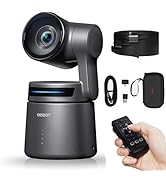
2.1 Package Awọn akoonu
- OBSBOT Tiny 2 Lite Webkamẹra
- Mini Tripod
- USB-C si okun USB-A
- USB-A to USB-C Adapter
- Afowoyi Olumulo (iwe-ipamọ yii)
2.2 Awọn ohun elo kamẹra

The OBSBOT Tiny 2 Lite features several key components:
- 4K Ultra HD Lens: The primary camera lens for capturing high-resolution video.
- Atọka kamẹra: An LED light that indicates the camera's status (e.g., active, tracking, sleep mode).
- Awọn Gbohungbohun Meji: Built-in omni-directional microphones for clear audio capture with noise reduction.
- Ibudo USB-C: The main connection port for power and data transfer to your computer.
- UNC 1/4-20 Interface: A standard tripod mount located at the bottom for attaching to the included mini tripod or other compatible mounts.
2.3 Key Awọn ẹya ara ẹrọ
- AI Auto Tracking with Auto Zoom: Utilizes a deep neural learning network algorithm for real-time tracking with improved framing and customizable composition lines. Automatically adjusts zoom to keep the subject in frame.
- Accurate Body Part Tracking: Supports close-up tracking for detailed video and upper body tracking for smooth, accurate framing.
- Customized Preset Modes: Enhance productivity with pre-configured PTZ (Pan-Tilt-Zoom) positions, AI Tracking Modes, adaptable Focus Modes, and customizable image settings.
- Iṣakoso afarajuwe 2.0: Activate various features from a distance using hand gestures, including locking/unlocking target, zooming in/out, and dynamic zoom.
- Stunning 4K Video Quality: Captures UHD 4K resolution at 30fps and 1080P at 60fps for high-quality video.
- Reliable 1/2" CMOS Sensor: Advanced sensor enhances image quality, providing superior low-light performance and optimized HDR capabilities.
- Precise, Deft Auto Focus (PDAF): Phase Detection Auto Focus technology quickly identifies and locks onto objects for consistent performance.
- Awọn ọna Ibon Iṣẹda: Supports Landscape, Portrait, and Upside-down shooting modes for versatile filming scenarios.
- OBSBOT Center App: Faagun awọn webcam's potential with PTZ control, Beauty Mode, Preset Modes setups, and other features.
- Dynamic HDR AutoLight Correction: Intelligent HDR imaging for clarity and balance in various lighting conditions.
- Dual-Mic Clarity Boost: Capture pristine audio even in noisy environments with adjustable noise reduction and voice boost.
3. Eto
3.1 Nsopọ awọn Webkamẹra
The OBSBOT Tiny 2 Lite is designed for plug-and-play operation, requiring no driver installation for basic functionality.
- Attach the mini tripod to the UNC 1/4-20 interface at the bottom of the webcam, if desired.
- Connect the USB-C end of the provided cable to the USB-C port on the OBSBOT Tiny 2 Lite.
- So opin okun miiran (USB-A tabi USB-C, lilo ohun ti nmu badọgba ti o ba jẹ dandan) si ibudo USB ti o wa lori kọnputa rẹ.
- The camera indicator light will illuminate, indicating the device is powered on and initializing.
Note: For Mac users, you may need to authorize webÀwọn àṣẹ kámẹ́rà nínú ètò rẹ. Ìlànà yìí kò ní ìṣòro ìjáde ìpamọ́ olùlò kankan.
3.2 Installing OBSBOT Center Software (Optional)
To unlock the full potential and advanced features of your OBSBOT Tiny 2 Lite, it is recommended to download and install the OBSBOT Center software from the official OBSBOT webojula.
- Visit the official OBSBOT webojula.
- Navigate to the support or download section for the OBSBOT Tiny 2 Lite.
- Download the latest version of the OBSBOT Center software compatible with your operating system.
- Tẹle awọn ilana loju iboju lati pari fifi sori ẹrọ.

4. Awọn ilana Iṣiṣẹ
4.1 AI Auto Tracking and Auto Zoom
The OBSBOT Tiny 2 Lite uses an advanced AI algorithm to track your movement and automatically adjust the zoom, keeping you perfectly framed.

The system can perform:
- Close-up Tracking: Captures detailed and high-quality video for an engaging viewiriri iriri.
- Upper Body Tracking: Focuses on your upper body, ensuring accurate and smooth tracking for optimal video quality.

4.2 Ìṣàkóso Ìfarahàn 2.0
Gesture Control 2.0 allows you to activate various features on the Tiny 2 Lite from a distance. Ensure your face is not blocked and your hand is positioned correctly.

Available gestures:
- Lock / Unlock Target: Use a specific hand gesture to lock or unlock the AI tracking on a subject.
- Sun-un / Jade: Control the camera's zoom level with a simple hand movement.
- Dynamic Zoom In / Out: Provides more fluid and continuous zoom adjustments.
Gesture Control Instructions:
| Afarajuwe | Iṣe | Awọn akọsilẹ |
|---|---|---|
| Sun-un sinu/sita | Put your hand right next to your head, then drop it after the light turns blue and flashes green again. | Do not block your face. |
| Lock/unlock the target | Put your hand right next to your head, open the palm slightly and spread the fingers naturally. | Do not block your face. |
Important Gesture Control Tips:
- Ensure your face is not blocked.
- Maintain an appropriate distance from the camera (not too far or too close).
- Keep your fingers spread naturally for recognition.
4.3 Customizable Preset Modes
The OBSBOT Tiny 2 Lite allows you to save and recall ideal PTZ positions and image settings for different scenarios.

Awọn ẹya pẹlu:
- Preset PTZ Positions: Configure and save specific pan, tilt, and zoom settings.
- AI Tracking Modes: Assign different AI tracking behaviors to each preset position.
- Adaptable Focus Mode: Adjust focus modes to suit various needs and scenarios.
- Customizable Image Settings: Fine-tune image parameters, background blur, and other visual settings.
4.4 Video Quality and Sensor
Experience stunning video quality with the Tiny 2 Lite's advanced sensor and resolution options.

- UHD 4K Clarity: Capture moments in stunning UHD 4K resolution at 30 frames per second (fps).
- 1080P at 60fps: For smoother motion, the camera also offers 1080P resolution at 60fps.
- 1/2" CMOS Sensor: The advanced 1/2" CMOS sensor enhances image quality, providing superior low-light performance and optimized HDR capabilities.

4.5 Aifọwọyi Idojukọ
The Tiny 2 Lite features Phase Detection Auto Focus (PDAF) technology for quick and reliable focusing.

4.6 Creative Shooting Modes
Awọn webcam supports various shooting orientations to adapt to any filming scenario.

- Ipo ala-ilẹ: Standard horizontal orientation.
- Ipo Aworan: Vertical orientation, ideal for mobile viewing or specific content formats.
- Upside-down Mode: Allows for flexible mounting options while maintaining correct image orientation.
4.7 Advanced Features via OBSBOT Center App
The OBSBOT Center application provides access to additional features and settings:
- Dynamic HDR AutoLight Correction: Intelligently adjusts HDR for clarity and balance in any lighting.
- Dual-Mic Clarity Boost: Fine-tune audio with adjustable noise reduction and voice boost.
- Magical Beauty Mode: Customizable beauty mode fine-tunes skin texture to facial contours.
- Ipo orun: Choose from three unique sleep mode display types for personalized privacy protection when the video stream is not active.
5. Itọju
To ensure the longevity and optimal performance of your OBSBOT Tiny 2 Lite, follow these maintenance guidelines:
- Fifọ lẹnsi naa: Use a soft, lint-free cloth specifically designed for camera lenses to gently wipe the lens. Avoid abrasive materials or harsh chemicals.
- Ninu ara: Wipe the camera body with a dry, soft cloth. If necessary, a slightly damp cloth can be used, but ensure no moisture enters the ports or openings.
- Ibi ipamọ: Nigbati ko ba si ni lilo, tọju itaja naa webcam in a clean, dry place away from direct sunlight, extreme temperatures, and excessive dust.
- Yago fun awọn isunmi ati Awọn ipa: Mu awọn webcam with care to prevent damage to the internal components and the motorized gimbal.
- Awọn imudojuiwọn sọfitiwia: Regularly check for and install firmware updates via the OBSBOT Center software to ensure the best performance and access to new features.
6. Laasigbotitusita
This section addresses common issues you might encounter with your OBSBOT Tiny 2 Lite.
6.1 Indicator Status Guide
Understanding the camera indicator light can help diagnose issues:
| Equipment Ipo | Ipo Atọka |
|---|---|
| Ibẹrẹ agbara-lori | Ina bulu n tan laiyara |
| Ko si ibi-afẹde ti a yan | Imọlẹ alawọ ewe n tẹsiwaju |
| Ṣiṣe iṣakoso idari | Atọka fun ipo lọwọlọwọ n ṣaju lẹẹmeji ni itẹlera, yoo yipada si ipo itọkasi lẹhin-idanimọ lori aṣeyọri aṣeyọri tabi ṣetọju ipo itọkasi iṣaaju-iṣaaju ni ọran ikuna idanimọ |
| Mu ipasẹ eniyan ṣiṣẹ | Imọlẹ bulu n tẹsiwaju |
| Isonu afojusun | Imọlẹ ofeefee n tẹsiwaju |
| Mu ipo ẹgbẹ ṣiṣẹ | Imọlẹ eleyi ti n tẹsiwaju |
| Famuwia Igbegasoke | Bulu/ofeefee filasi ni omiiran |
| Igbesoke famuwia kuna | Imọlẹ pupa n tan laiyara |
| Ẹrọ ti o jẹ aṣiṣe, gẹgẹbi ikuna gimbal, awọn aṣiṣe AI, ati bẹbẹ lọ. | Imọlẹ pupa n tẹsiwaju |
| Ipo orun | Imọlẹ pa |
6.2 Wọpọ Oran ati Solusan
- Ko si Aworan/Ijade fidio:
- Rii daju pe okun USB ti sopọ ni aabo si awọn mejeeji webkamẹra ati kọmputa rẹ.
- Gbiyanju ibudo USB ti o yatọ lori kọnputa rẹ.
- Tun kọmputa rẹ bẹrẹ.
- Check if the camera is selected as the video input device in your application (e.g., Zoom, OBS Studio).
- Verify that the camera indicator light is on. If it's off, check power connection.
- Ìtọpinpin AI Kò Ṣiṣẹ́:
- Ensure you are within the recommended tracking range (typically 0.5m to 2.5m).
- Check lighting conditions; very dim or overly bright backlighting can affect tracking.
- Ensure no objects are obstructing the camera's view ti nyin.
- Confirm that AI tracking is enabled in the OBSBOT Center software.
- Perform the 'Lock/Unlock Target' gesture to re-engage tracking.
- Video Lag or Choppy Footage (especially with OBS Studio):
- Ensure your computer meets the minimum system requirements for 4K video processing.
- Gbiyanju lati so awọn webcam to a different, high-bandwidth USB port (e.g., USB 3.0/3.1/3.2).
- Ṣe imudojuiwọn awọn awakọ eya aworan kọnputa rẹ.
- In OBS Studio or similar software, check video settings (resolution, FPS) and try reducing them to 1080P@30fps to see if performance improves.
- Ensure no other applications are heavily utilizing your CPU or GPU.
- Check for and install the latest firmware for your OBSBOT Tiny 2 Lite via OBSBOT Center.
- If using OBS Studio, experiment with different video capture device settings and buffer options.
- Gesture Control Not Responding:
- Ensure your hand gestures are clear and performed within the camera's field of view.
- Avoid blocking your face during gestures.
- Ensure adequate lighting for gesture recognition.
- Confirm Gesture Control 2.0 is enabled in the OBSBOT Center software.
- Audio Issues (No Sound/Poor Quality):
- Ensure the OBSBOT Tiny 2 Lite microphone is selected as the audio input device in your application.
- Check microphone volume levels in your computer's sound settings and within the OBSBOT Center app.
- Rii daju pe awọn gbohungbohun ko ni idinamọ.
- Adjust noise reduction and voice boost settings in OBSBOT Center.
7. Awọn pato
Detailed technical specifications for the OBSBOT Tiny 2 Lite webkamẹra:
| Ẹya ara ẹrọ | Sipesifikesonu |
|---|---|
| Awọn iwọn | 48.37 x 46.46 x 64.2 mm |
| Iwọn | 91.4 g (0.2 lbs) |
| Agbara | 5V/0.6A |
| Sensọ Aworan | 1/2" CMOS |
| Awọn piksẹli to munadoko | 48M |
| Iho | f/1.8 |
| FOV (D) | 79.4° (4:3) |
| FOV (H) | 67.2° (4:3) |
| Ipari Idojukọ deede | 26 mm |
| Ijinna Idojukọ Kere | 10 cm |
| Digital Sisun | 1-4X |
| Idojukọ Iru | AF/MF (Auto Focus/Manual Focus) |
| HDR | Atilẹyin |
| Supported Frame Rate (MJPEG) | 3840x2160@30 25 24 20 15, 1920x1080@60 50 30 25 24 20 15, 1280x720@60 50 30 25 24 20 15 |
| Supported Frame Rate (YUV) | 640x480@30 25 24 20 15, 640x360@30 25 24 20 15 |
| Input Audio | Built-in dual omni-directional mics |
| Awọn ọna ohun | Noise-Reduction/Automatic Gain Control |
| 2-axis Gimbal Controllable Range | Pan: ±140°, Tilt: -30°~70° |
| Mechanical Range | Pan: ± 150°, Pulọọgi: ± 90° |
| Iyara Iṣakoso Max | 120°/s |
| Ayika ti nṣiṣẹ | 0°C-40°C (32°F-104°F) |
8. Atilẹyin ọja ati Support
8.1 Lẹhin-tita Service
OBSBOT is committed to providing exceptional customer experience. If you encounter any issues during the use of your OBSBOT Tiny 2 Lite, please do not hesitate to contact our customer support team.
8.2 Kan si Alaye
For support, warranty claims, or technical assistance, please visit the official OBSBOT webaaye tabi tọka si alaye olubasọrọ ti a pese pẹlu apoti ọja rẹ.
Jọwọ ṣe idaduro ẹri rira rẹ fun awọn idi atilẹyin ọja.


