1. Ifihan
This manual provides detailed instructions for the AULA F75 75% Wireless Mechanical Keyboard and the AULA SC580 Wireless Gaming Mouse. Please read this manual carefully before using the product to ensure proper operation and to maximize your user experience.

Image 1.1: The AULA F75 Wireless Mechanical Keyboard and SC580 Wireless Gaming Mouse Combo.
2. Ohun ti o wa ninu Apoti
- AULA F75 Alailowaya Mechanical Keyboard
- AULA SC580 Alailowaya Awọn ere Awọn Asin
- USB-C Cable (for charging and wired connection)
- 2.4GHz USB olugba
- Keycap Puller
- Yipada Puller
- Spare Switches (as gift)
- Itọsọna olumulo
3. Keyboard Features (AULA F75)
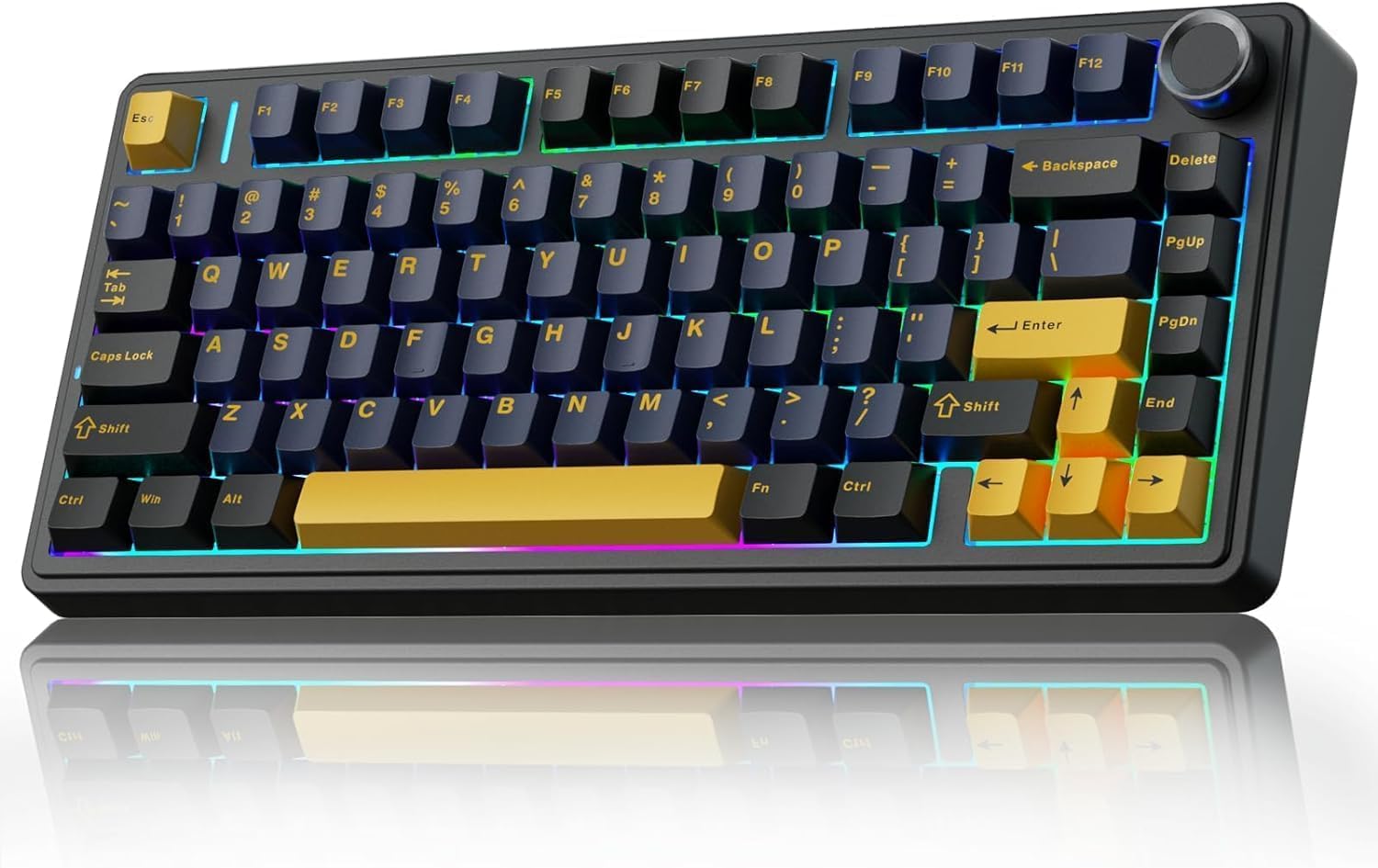
Image 3.1: The AULA F75 Wireless Mechanical Keyboard.
3.1 Tri-mode Connection
- Bluetooth 5.0: Connects to up to three devices simultaneously.
- Alailowaya 2.4GHz: Utilizes a dedicated USB receiver for low-latency connection.
- Okun USB: Direct connection via USB-C cable for charging and data.
The F75 keyboard is compatible with PC, laptops, tablets, mobile phones, PS, and XBOX. It features a 4000mAh battery for extended wireless use.

Image 3.2: The compact 75% layout of the AULA F75 keyboard, highlighting its BT5.0/3.0, 2.4GHz, and Type-C connection options.
3.2 Apẹrẹ ti o le yipada gbona
- Supports 3-pin or 5-pin mechanical switches.
- Allows for easy switch replacement without soldering.
- Equipped with pre-lubricated stabilizers and LEOBOG Graywood V3 switches for a smooth typing experience.

Image 3.3: The hot-swappable feature of the AULA F75 keyboard, showing included tools and spare switches.
3.3 Gasket Structure & PCB Single Key Slotting
- Gasket structure enhances resilience and stability, providing a softer, more elastic feel.
- Five layers of sound-dampening material (silicone pad, sound-absorbing cotton, IXPE shaft bottom pad, PET voice actor pad, PO base cotton) reduce cavity noise.
- PCB single key slotting further optimizes the typing sound and feel.

Image 3.4: Diagram illustrating the advanced gasket structural design and five layers of sound dampening in the AULA F75 keyboard.
4. Mouse Features (AULA SC580)

Aworan 4.1: Oke view of the AULA SC580 Wireless Gaming Mouse.
4.1 Tri-mode Connection & Compatibility
- Alailowaya 2.4GHz: For stable, low-latency connection.
- Bluetooth 5.0 (x2): Connects to two Bluetooth devices.
- Okun USB-C: For direct connection and charging.
- Can save up to 4 devices and switch quickly via the bottom switch button.
- Compatible with Windows 7/8/10/XP/Vista, Mac OS, Linux, and Android systems.

Image 4.2: The AULA SC580 mouse demonstrating its tri-mode connectivity across various devices.
4.2 Adjustable DPI Levels & High Polling Rate
- Awọn ipele DPI mẹta ti a le ṣatunṣe: 800/1600/2400/3200/6400/10,000 DPI.
- DPI can be adjusted via the DPI button on the mouse or custom software.
- Oṣuwọn Idibo 1000Hz: Ensures low-latency and responsive performance.

Image 4.3: The AULA SC580 mouse highlighting its 6 adjustable DPI levels up to 10,000.

Aworan 4.4: Pariview of AULA SC580 mouse features including tri-mode connection, DPI, custom macro, battery life, polling rate, weight, and ergonomic design.
5. Awọn ilana iṣeto
5.1 Keyboard Setup (AULA F75)
- Agbara Tan: Wa agbara switch lori keyboard ki o si gbe e si ipo 'ON'.
- Aṣayan Ipo: Use the side button or shortcut keys (refer to keyboard specific function keys) to select your desired connection mode: 2.4GHz, Bluetooth, or Wired.
5.1.1 Nsopọ nipasẹ 2.4GHz Alailowaya
- Ensure the keyboard is in 2.4GHz mode.
- Pulọọgi olugba USB 2.4GHz sinu ibudo USB ti o wa lori kọnputa rẹ.
- The keyboard should automatically connect. If not, press and hold the designated 2.4GHz pairing key (refer to keyboard manual for specific key combination) until the indicator light flashes, then release.
5.1.2 Nsopọ nipasẹ Bluetooth
- Ensure the keyboard is in Bluetooth mode.
- Press and hold one of the Bluetooth pairing keys (e.g., Fn + 1, Fn + 2, or Fn + 3) until the indicator light flashes rapidly, indicating pairing mode.
- Lórí ẹ̀rọ rẹ (PC, tablet, fóònù), lọ sí àwọn ètò Bluetooth kí o sì wá àwọn ẹ̀rọ tuntun.
- Yan "AULA F75" lati inu akojọ awọn ẹrọ to wa lati so pọ.
5.1.3 Connecting via USB-C Wired
- Connect one end of the USB-C cable to the keyboard's USB-C port.
- So opin miiran ti okun USB-C si ibudo USB ti o wa lori kọnputa rẹ.
- Awọn bọtini itẹwe yoo yipada laifọwọyi si ipo ti firanṣẹ ati bẹrẹ gbigba agbara.
5.2 Mouse Setup (AULA SC580)
- Agbara Tan: Wa agbara yipada ni isalẹ ti Asin ki o si gbe e si ipo 'ON'.
- Aṣayan Ipo: Use the switch button on the bottom of the mouse to select your desired connection mode: 2.4GHz, Bluetooth 1, Bluetooth 2, or Wired.
5.2.1 Nsopọ nipasẹ 2.4GHz Alailowaya
- Ensure the mouse is in 2.4GHz mode.
- Plug the 2.4GHz USB receiver (usually stored in the mouse's bottom compartment) into an available USB port on your computer.
- Asin yẹ ki o sopọ laifọwọyi.
5.2.2 Nsopọ nipasẹ Bluetooth
- Ensure the mouse is in Bluetooth 1 or Bluetooth 2 mode.
- Press and hold the pairing button (refer to mouse manual for specific button) until the indicator light flashes rapidly.
- Lori ẹrọ rẹ, lọ si awọn eto Bluetooth ki o wa awọn ẹrọ titun.
- Select "AULA SC580" from the list of available devices to pair.
5.2.3 Connecting via USB-C Wired
- Connect one end of the USB-C cable to the mouse's USB-C port.
- So opin miiran ti okun USB-C si ibudo USB ti o wa lori kọnputa rẹ.
- Asin yoo yipada laifọwọyi si ipo ti firanṣẹ ati bẹrẹ gbigba agbara.
6. Awọn ilana Iṣiṣẹ
6.1 Keyboard Operation (AULA F75)
- Ipo Yipada: Use the dedicated switch or Fn key combinations to cycle between 2.4GHz, Bluetooth (BT1, BT2, BT3), and Wired modes.
- Bọtini Iwọn didun: Rotate the metal knob in the top right corner to adjust system volume. Press the knob to mute/unmute.
- Function Keys (Fn Combinations): The F75 keyboard features various Fn key combinations for media control, backlight adjustment, and other functions. Refer to the keycap legends for specific commands (e.g., Fn + F1-F12 for media, Fn + arrow keys for backlight).
- Iṣakoso ina Back: Adjust RGB lighting effects, brightness, and speed using designated Fn key combinations.
- Awọn Iyipada Gbigbona: To replace a switch, gently pull off the keycap using the keycap puller. Then, use the switch puller to carefully remove the switch. Align the pins of the new switch with the holes on the PCB and press firmly until it clicks into place. Replace the keycap.
6.2 Mouse Operation (AULA SC580)
- Atunse DPI: Press the DPI button (usually located behind the scroll wheel) to cycle through the 6 available DPI levels (800/1600/2400/3200/6400/10,000). The indicator lights will change to reflect the current DPI setting.
- Ipo Yipada: Use the switch on the bottom of the mouse to select between 2.4GHz, Bluetooth 1, Bluetooth 2, and Wired modes.
- Àwọn Macro Àṣà: Utilize the official AULA software (downloadable from the AULA website) to program custom macros and button assignments for enhanced gaming and productivity.
7. Itọju
- Ninu: Use a soft, dry cloth to wipe down the keyboard and mouse. For deeper cleaning, use a can of compressed air to remove dust and debris from between keycaps. For the keyboard, keycaps can be removed with the included keycap puller for thorough cleaning.
- Itọju Batiri: To prolong battery life, avoid fully discharging the devices frequently. Charge them when the battery indicator is low. If storing for an extended period, charge to about 50% and power off.
- Ibi ipamọ: Tọju awọn ẹrọ naa ni itura, aye gbigbẹ kuro lati orun taara ati awọn iwọn otutu to gaju.
8. Laasigbotitusita
- Ẹrọ ti ko sopọ:
- Ensure the device is powered on and in the correct connection mode (2.4GHz, BT, Wired).
- Fún 2.4GHz, rí i dájú pé a ti so olugba USB mọ́ ọn dáadáa.
- For Bluetooth, ensure Bluetooth is enabled on your host device and the device is in pairing mode. Try re-pairing.
- For wired, ensure the USB-C cable is properly connected to both the device and the computer.
- Ṣayẹwo awọn ipele batiri ki o gba agbara ti o ba jẹ dandan.
- Lag tabi Ge asopọ:
- Move the 2.4GHz receiver closer to the device or use a USB extension cable.
- Dín ìdènà láti ọ̀dọ̀ àwọn ẹ̀rọ alailowaya mìíràn kù.
- Rii daju pe ẹrọ naa ti gba agbara ni kikun.
- Keys or Mouse Buttons Not Responding:
- Restart the device and your computer.
- For keyboard, if a specific key is not working, try hot-swapping the switch with a spare one.
- Ensure no debris is lodged under the keycap or button.
- Imọlẹ ẹhin Ko Ṣiṣẹ:
- Ensure the backlight is not turned off via Fn key combinations.
- Check battery level; low battery might disable backlighting.
9. Awọn pato
9.1 AULA F75 Keyboard Specifications
| Ẹya ara ẹrọ | Ẹ̀kúnrẹ́rẹ́ |
|---|---|
| Brand | AULA |
| Awoṣe | F75 |
| Asopọmọra | Bluetooth 5.0, 2.4GHz Alailowaya, USB-C Ti firanṣẹ |
| Keyboard Iru | 75% Mechanical |
| Yipada | LEOBOG Graywood V3 (Hot-Swappable 3/5-pin) |
| Ilana | Gasket Agesin |
| Agbara Batiri | 4000mAh |
| Imọlẹ afẹyinti | RGB |
| Ohun elo | Ṣiṣu |
9.2 AULA SC580 Mouse Specifications
| Ẹya ara ẹrọ | Ẹ̀kúnrẹ́rẹ́ |
|---|---|
| Brand | AULA |
| Awoṣe | SC580 |
| Asopọmọra | Bluetooth 5.0 (x2), 2.4GHz Wireless, USB-C Wired |
| Awọn ipele DPI | 800/1600/2400/3200/6400/10,000 |
| Idibo Oṣuwọn | 1000Hz |
| Awọn ẹrọ ibaramu | PC, Laptop, Mac, Android |
10. Atilẹyin ọja ati Support
AULA products are designed for reliability and performance. For warranty information, technical support, or further assistance, please visit the official AULA brand store or contact AULA customer service through their official channels.
O le wa alaye diẹ sii ati awọn orisun atilẹyin ni aaye naa AULA Brand Store.


