1. Ifihan
Thank you for choosing the BOTSLAB HK30 Car Dash Cam. This manual provides detailed instructions for the installation, operation, and maintenance of your new dash camera system. Please read this manual thoroughly before using the product to ensure proper function and safety. Keep this manual for future reference.
2. Alaye Aabo
- Ma ṣe ṣiṣẹ kamera dash tabi wọle si awọn eto rẹ lakoko iwakọ. Nigbagbogbo fa kuro lailewu ṣaaju ṣiṣe eyikeyi awọn atunṣe.
- Rii daju pe kamera dash ti gbe sori ẹrọ ni aabo ati pe ko ṣe idiwọ fun awakọ naa view tabi dabaru pẹlu imuṣiṣẹ apo afẹfẹ.
- Use only the original power adapter and cables provided with the device. Using unauthorized accessories may damage the product and void the warranty.
- Avoid exposing the dash cam to extreme temperatures, direct sunlight for prolonged periods, or excessive moisture.
- Ma ṣe gbiyanju lati tunto tabi tun ẹrọ naa funrararẹ. Kan si atilẹyin alabara fun iranlọwọ.
- Regularly format the memory card to ensure optimal recording performance.
3. Package Awọn akoonu
Jọwọ ṣayẹwo package fun awọn nkan wọnyi:
- BOTSLAB HK30 Dash Cam Unit
- Ṣaja ọkọ ayọkẹlẹ (Okun Alagbara)
- Mounting Bracket (with adhesive pad)
- Itọsọna olumulo
- Optional: Rear Camera (if purchased as a bundle)
- Optional: GPS Module
4. Ọja Ipariview
The BOTSLAB HK30 is a multi-channel dash cam designed to provide comprehensive coverage of your driving environment. It features a main front camera with 4K resolution, and supports additional cameras for rear and interior views (sold separately or as part of a bundle).

Image: The main BOTSLAB HK30 dash cam unit, showing the front lens and the Botslab branding.
Awọn ẹya pataki pẹlu:
- 4K Front Camera: Captures high-resolution video of the road ahead.
- 140° Fife Viewigun Angle: Ó ń pèsè ìbòjú tó gbòòrò, ó sì ń dín àwọn ibi tí kò ní ìfọ́jú kù.
- Oju Alẹ Awọ: Enhances visibility and clarity in low-light conditions.
- GPS ti a ṣe: Records speed and location data for your journeys.
- G-Sensọ: Titiipa fidio laifọwọyi files upon impact to prevent overwriting.
- Gbigbasilẹ Loop: Tẹsiwaju igbasilẹ nipa ìkọlélórí awọn Atijọ files nigbati kaadi iranti ba ti kun.
- Abojuto Parking: Offers 24-hour surveillance with time-lapse recording and collision-triggered normal recording (requires buck line kit, sold separately).
- Ohun elo Iṣakoso: Connects to your smartphone for easy settings adjustment, live view, and video download.

Image: An illustration demonstrating the 140-degree wide viewing angle of the dash cam, showing its ability to capture a broad perspective of the road.
5. Eto ati fifi sori
5.1 Ifi kaadi iranti
Before first use, insert a high-speed (Class 10 or higher) microSD card (up to 256GB recommended) into the dash cam's memory card slot. Ensure the card is inserted correctly until it clicks into place. Format the card via the dash cam's settings menu or the mobile app before initial recording.
5.2 Iṣagbesori Dash Cam
- Nu agbegbe ferese oju ibi ti o pinnu lati gbe kamera dash naa. Rii daju pe ko ni eruku ati girisi.
- Attach the adhesive pad to the mounting bracket, then firmly press the bracket onto the chosen spot on your windshield, ideally behind the rearview digi fun aipe view and minimal obstruction.
- Slide the dash cam unit onto the mounted bracket until it locks securely.
- Adjust the camera lens angle to ensure it captures the road ahead clearly, with approximately 60% road and 40% sky visible.
5.3 Asopọ agbara
- Connect the provided car charger cable to the dash cam's power input port.
- So ìkángun kejì ti ẹ̀rọ amúlétutù ọkọ̀ náà mọ́ ibi tí agbára 12V ti ọkọ̀ rẹ wà (ìhò tí ó ń tàn sígá).
- Route the power cable neatly along the edge of the windshield and dashboard to conceal it and prevent interference with driving.
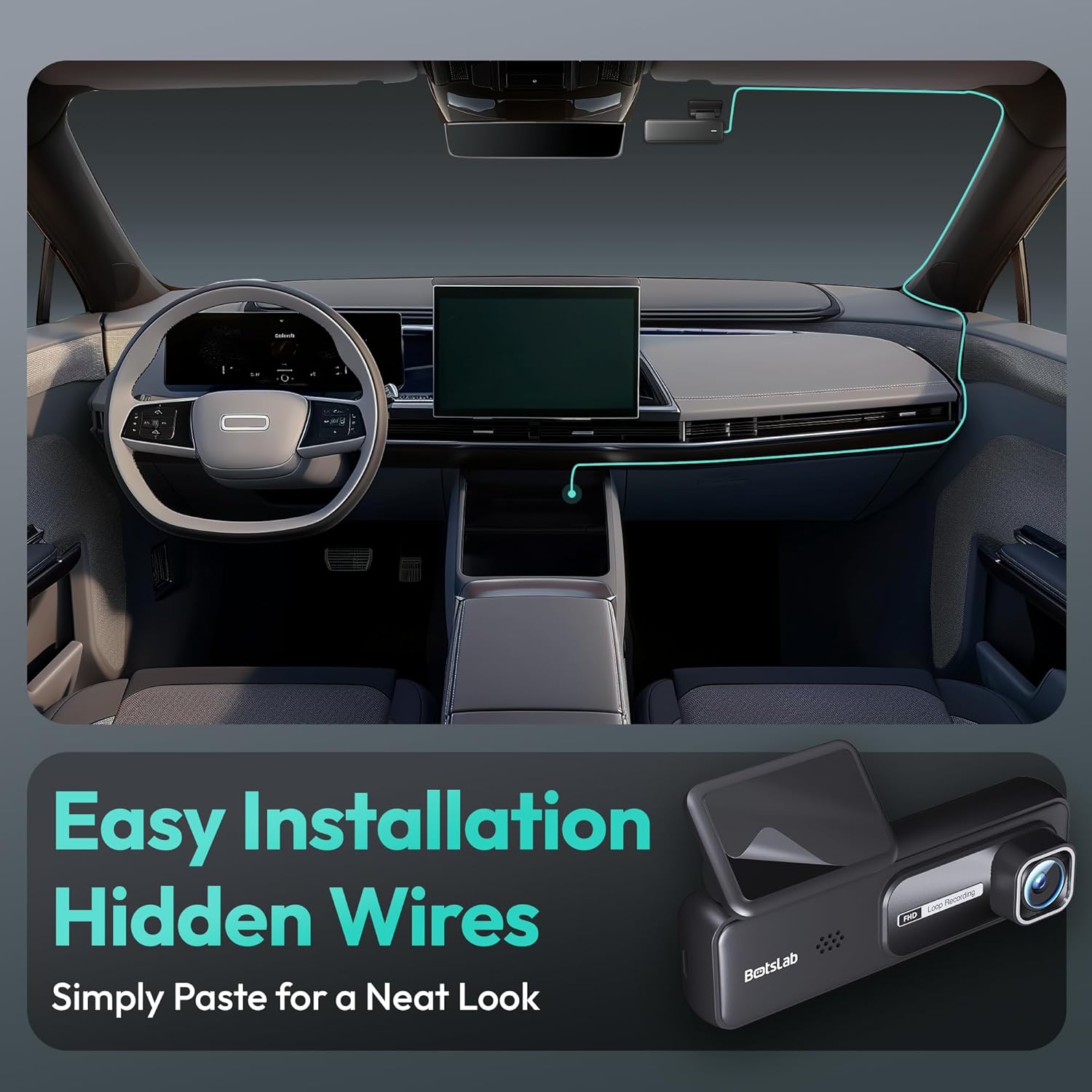
Image: A visual guide illustrating the process of easy dash cam installation with hidden wires, showing how to route the cable neatly along the car's interior for a clean look.
5.4 GPS Module Connection (if applicable)
If your package includes a separate GPS module, connect it to the designated port on the dash cam. Ensure the GPS module is placed in an area with a clear view ti ọrun fun ti aipe ifihan agbara gbigba.
6. Awọn ilana Iṣiṣẹ
6.1 Gbigbasilẹ Laifọwọyi
Once powered on and connected to your vehicle's ignition, the dash cam will automatically start recording when the engine is started. It will stop recording and power off shortly after the engine is turned off.
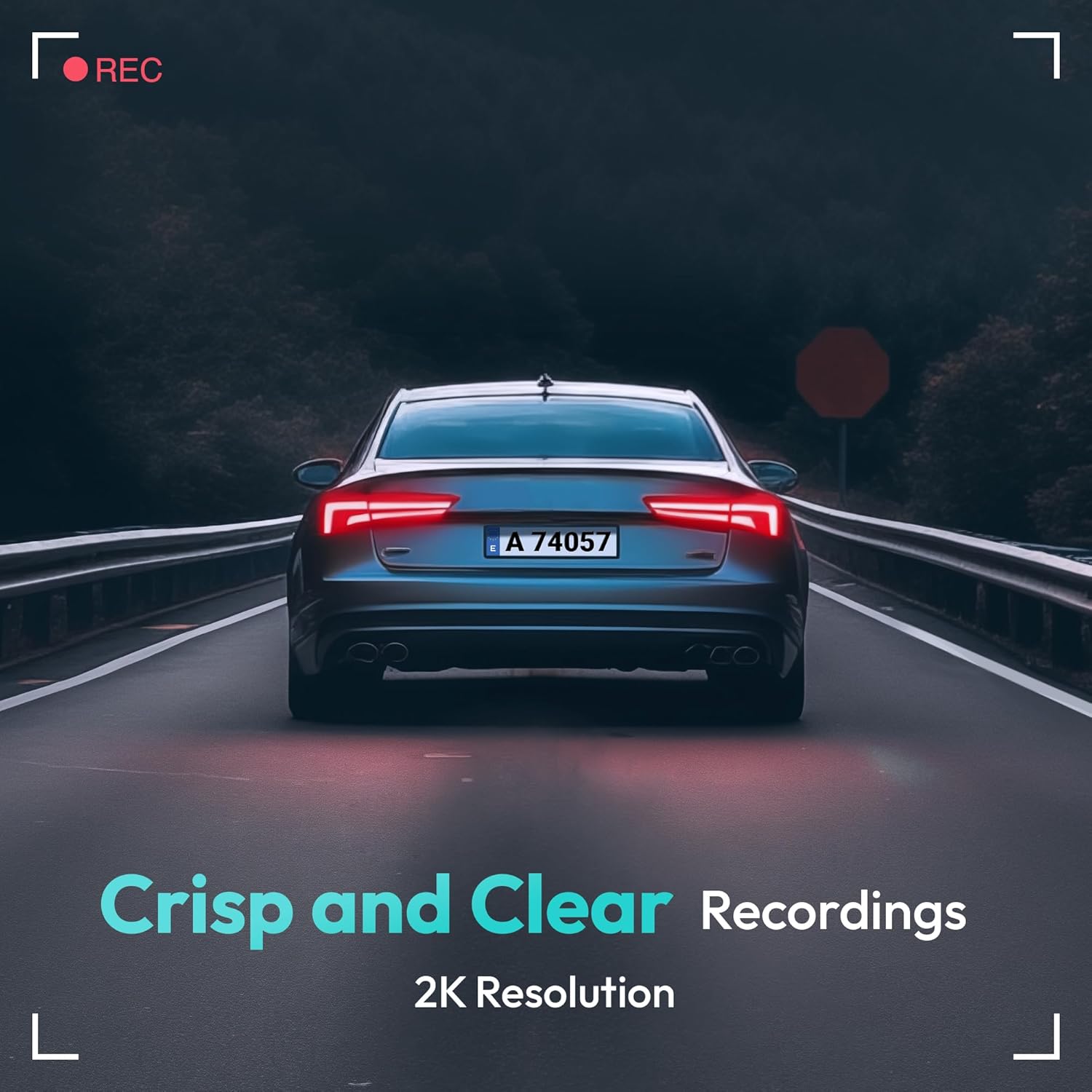
Image: A visual representation highlighting the crisp and clear recording capabilities of the dash cam, indicating 2K resolution for detailed footage.
6.2 Loop Gbigbasilẹ
The dash cam records video in continuous loops (e.g., 1, 3, or 5-minute segments). When the memory card is full, the oldest unlocked fileÀwọn ìgbàsílẹ̀ tuntun yóò máa yí àwọn ìgbàsílẹ̀ padà láìsí ìfọwọ́sowọ́pọ̀. Èyí yóò mú kí ìgbàsílẹ̀ máa lọ lọ́wọ́ láìsí ìfọwọ́sowọ́pọ̀ pẹ̀lú ọwọ́.
6.3 G-Sensor (Emergency Recording)
The built-in G-Sensor detects sudden impacts or collisions. When an impact is detected, the current video segment will be automatically locked and saved to a protected folder on the memory card, preventing it from being overwritten by loop recording. These files are crucial for accident evidence.
6.4 Parking Abojuto
For 24-hour parking surveillance, a hardwire kit (buck line) is required (sold separately). Once installed, the dash cam can utilize:
- Gbigbasilẹ akoko-akoko: Records continuously at a low frame rate to save storage space while providing a full overview ti pa iṣẹlẹ.
- Collision-Triggered Recording: If an impact is detected while parked, the dash cam will wake up and record a short video segment, which will be locked.

Image: An illustration depicting the 24/7 parking monitoring feature, highlighting time-lapse recording and collision-triggered normal recording capabilities, with a shield icon indicating protection.
6.5 App Control and Connectivity
Download the official BOTSLAB app from your smartphone's app store. Connect your phone to the dash cam's Wi-Fi network (SSID and password usually found on the device or in the manual). Through the app, you can:
- View ifiwe fidio kikọ sii.
- Adjust dash cam settings (resolution, G-sensor sensitivity, loop recording duration, etc.).
- Sisisẹsẹhin ti o ti gbasilẹ fidio.
- Ṣe igbasilẹ fidio files taara si foonu rẹ.
- Ṣe imudojuiwọn famuwia.
6.6 GPS Tracking and Playback
With the GPS module connected, the dash cam records your vehicle's speed and location data. This information can be viewed during video playback using the dedicated PC viewer software (available for download from the BOTSLAB website) or within the mobile app, often overlaid on a map (e.g., Google Maps).
7. Itọju
7.1 Ninu ẹrọ naa
Use a soft, dry cloth to clean the dash cam's lens and body. Do not use liquid cleaners or abrasive materials, as they may damage the device.
7.2 Iṣakoso kaadi iranti
It is recommended to format the microSD card once a month to maintain optimal performance and prevent data corruption. Back up any important files ṣaaju ki o to kika.
7.3 famuwia imudojuiwọn
Periodically check the BOTSLAB official website or the mobile app for available firmware updates. Firmware updates can improve performance, add new features, or fix bugs. Follow the instructions provided with the firmware update carefully.
8. Laasigbotitusita
| Isoro | Owun to le Fa | Ojutu |
|---|---|---|
| Kamẹra Dash ko ni agbara lori. | No power supply; faulty cable; vehicle's power outlet issue. | Check power cable connection; try another power outlet; ensure vehicle ignition is on. |
| Gbigbasilẹ duro tabi di. | Memory card full or corrupted; slow memory card; firmware issue. | Format memory card; use a high-speed (Class 10+) card; update firmware. |
| Didara fidio ko dara. | lẹnsi idọti; fiimu aabo tun wa lori lẹnsi; eto ipinnu ti ko tọ. | Clean the lens; remove protective film; set recording resolution to highest available. |
| A ko ri ifihan agbara GPS. | GPS module not connected; poor satellite reception. | Ensure GPS module is connected; move vehicle to an open area with clear sky view. |
| Ko le sopọ si Wi-Fi/App. | Incorrect Wi-Fi password; phone too far from device; app not updated. | Verify Wi-Fi password; ensure phone is close to dash cam; update app. |
9. Awọn pato
| Ẹya ara ẹrọ | Ẹ̀kúnrẹ́rẹ́ |
|---|---|
| Orukọ awoṣe | HK30 |
| Ipinnu Yaworan fidio | Front: 4K (1944p), Rear/Interior: 1080P (if applicable) |
| Viewigun igun | 140° (iwaju) |
| Asopọmọra Technology | USB, Ailokun (Wi-Fi) |
| Pataki Awọn ẹya ara ẹrọ | App Control, G-Sensor, Loop Recording, Parking Monitor, Color Night Vision |
| Ibi ipamọ | MicroSD Card (up to 256GB, Class 10 or higher) |
| Iṣagbesori Iru | Afẹfẹ afẹfẹ |
| Orisun agbara | Ṣaja ọkọ ayọkẹlẹ (12V) |
| Ọja Mefa | 2 x 5.5 x 5.5 inches |
| Iwọn Nkan | 9.6 iwon |
10. Atilẹyin ọja ati Support
BOTSLAB products come with a limited warranty. Please refer to the warranty card included in your package or visit the official BOTSLAB website for detailed warranty terms and conditions. For technical support, troubleshooting assistance, or any inquiries, please contact BOTSLAB customer service through the contact information provided on their official website or within the mobile application.
Webojula: www.botslab.com (Eksample ọna asopọ, jọwọ tọkasi lati gangan ọja iwe fun ti o tọ URL)