1. Ifihan
The Yale Assure Lock 2 Touch is a key-free smart entry deadbolt designed for enhanced home security and convenience. It features a biometric keypad with fingerprint scanning, allowing for quick and secure access. This model, YRD430-F-BLE-BSP, includes Bluetooth connectivity for app control and does not require Wi-Fi for its primary functions. The lock also offers auto-unlock, auto-lock, and DoorSense® features for added peace of mind. This manual provides detailed instructions for installation, operation, maintenance, and troubleshooting to ensure optimal performance of your Yale Assure Lock 2 Touch.
Video: Yale Assure Lock 2: A Lock as Unique as You. This video provides a general overview of the Yale Assure Lock 2 series, highlighting its key features and benefits.
2. fifi sori
The Yale Assure Lock 2 Touch is designed for simple DIY installation, replacing most standard US entry door deadbolts with just a screwdriver. No specialized locksmith skills are required.
2.1. Prepare Your Door
Before beginning installation, ensure your door meets the compatibility requirements. The lock supports door thicknesses of 1-3/8" to 2-1/4" (35mm to 57mm) and bore holes of 2-1/8" or 1-1/2" (54mm or 38mm). The backset should be 2-3/8" or 2-3/4".

Image: Simple Installation. This image illustrates the required door dimensions and measurements for proper installation of the Yale Assure Lock 2 Touch.
Remove your existing deadbolt using a screwdriver. Ensure the deadbolt latch is in the retracted, unlocked position before installation.

Image: Simple DIY Install. This image shows the ease of installing the Yale Assure Lock 2 Touch, emphasizing that it can be done with basic tools.
2.2. Install the Lock Components
- Install the deadbolt latch into the door, ensuring it is centered and secured with the provided screws.
- Install the strike plate into the door frame with the remaining screws.
- Position the keypad on the front of the door, ensuring the cable is routed correctly under the deadbolt latch and the keypad is flush and straight.
- Install the mounting bracket on the inside of your door, guiding the keypad wire through the hole in the bracket.
- Secure the mounting bracket using the appropriate long screws (silver, black, or blue) based on your door thickness. Ensure the keypad is sitting flush on the front of the door.
- Attach the cable from the keypad to the connector on the inside of the lock, routing the wire under the wire guide without crimping it.
- Place the tailpiece in the horizontal position and pass it through the mounting bracket and deadbolt latch. Hook the bottom of the interior lock to the latch on the mounting bracket.
- Screw in the two pre-installed screws inside the lock's battery cover. When tightening, the lock will adjust itself to sit flush on the door.
Video: Yale Assure Lock 2 Key-Free Installation. This video provides a step-by-step guide for installing the Yale Assure Lock 2 Key-Free model.
3. Isẹ
The Yale Assure Lock 2 Touch offers multiple convenient ways to unlock and lock your door.
3.1. Fingerprint Ṣii silẹ
Unlock your door quickly and securely using your unique fingerprint. The integrated fingerprint scanner provides 99% accuracy and less than 0.5 seconds recognition time.

Image: Your Fingerprint, The Key You Won't Lose. This image demonstrates the fingerprint unlocking feature of the Yale Assure Lock 2 Touch.
3.2. Keypad Entry
Enter your personalized code on the illuminated keypad for access. You can share unlimited codes with family, friends, and service personnel.

Image: Multiple ways to unlock so that you can get rid of your keys. This image highlights the keypad as one of the key-free entry methods.
3.3. Iṣakoso Àpù Ìwọ̀lé sí Yale
Control your lock remotely using the Yale Access App on your smartphone or Apple Smart Watch. This allows for hands-free auto-unlock as you approach your door.
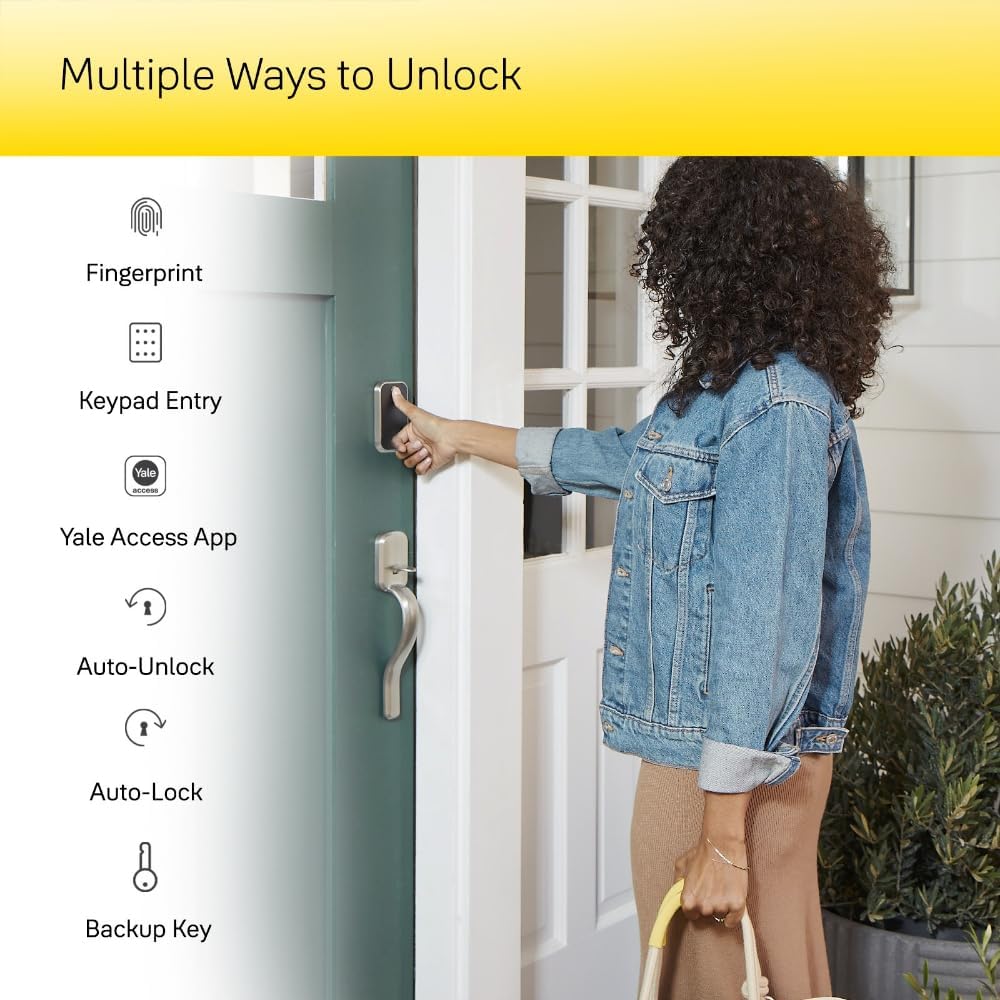
Image: Multiple Ways to Unlock. This image visually represents the various unlocking methods, including the Yale Access App.
3.4. Auto-Lock and Auto-Unlock
- Ṣii silẹ laifọwọyi: The lock can automatically unlock via Bluetooth as you approach, providing a hands-free entry experience.
- Titiipa Aifọwọyi: Never worry about forgetting to lock your door again. The Auto-Lock feature ensures your door is always secured after a set period.

Image: Let Yale Get the Door with Auto-Lock and Unlock. This image illustrates a user benefiting from the auto-unlock feature while carrying items.
3.5. Guest Access Management
Easily share temporary, scheduled, or permanent access codes with trusted individuals through the Yale Access App. This allows for trackable entry without the need for physical keys.

Image: Share Guest Access. This image illustrates the convenience of sharing access with others using the smart lock.
Video: Entry Code Set-Up In Yale Access App. This video guides users through the process of setting up entry codes for guests using the Yale Access App.
4. Itọju
4.1. Batiri Rirọpo
The Yale Assure Lock 2 Touch requires 4 AA alkaline batteries (included). The Yale Access App provides a battery indicator to monitor battery life. Replace batteries when the indicator shows low power to ensure continuous operation.
4.2. Emergency Power
In case of complete battery depletion, the lock features a 9V emergency charger port. Simply connect a 9V battery to this port to temporarily power the lock and gain entry.

Image: Never worry about getting locked out. Features a 9V emergency charger. This image shows the location and use of the 9V emergency battery port.
5. Laasigbotitusita
- Titiipa ko dahun: Ensure batteries are correctly installed and charged. Use the 9V emergency charger if batteries are completely drained.
- Fingerprint scanner issues: Ensure your finger is clean and dry. Re-enroll your fingerprint if issues persist.
- Bọtini bọtini ko tan ina: Check battery levels. The keypad should illuminate upon touch.
- App connectivity problems (Bluetooth): Ensure your smartphone is within Bluetooth range of the lock. Restart the app and/or your phone.
- Auto-Lock/Unlock not working: Verify that DoorSense® is correctly installed and calibrated. Check app settings for Auto-Lock/Unlock schedules and proximity settings.
- Entry codes not working: Confirm the code is correct and active. Check the guest access schedule in the Yale Access App.
6. Awọn pato
| Ẹya ara ẹrọ | Ẹ̀kúnrẹ́rẹ́ |
|---|---|
| Brand | Yale |
| Orukọ awoṣe | Yale Assure Lock 2 Fọwọkan |
| Nọmba awoṣe | YRD430-F-BLE-BSP |
| Titiipa Iru | Biometric, Deadbolt, Keypad |
| Pataki Awọn ẹya ara ẹrọ | Auto-Lock, Back-Lit Keypad, Battery Indicator, Fingerprint, Passcode Unlock |
| Ilana Asopọmọra | Bluetooth |
| Ọna Iṣakoso | Ohun elo, Fọwọkan |
| Ohun elo | Zinc |
| Àwọ̀ | Súédì Dúdú |
| Ara | Ko si Key |
| Awọn Iwọn Nkan (L x W x H) | 0.9 x 2.5 x 3.75 inches |
| Iwọn Nkan | 3.59 iwon |
| Awọn batiri | Awọn batiri AA 4 nilo (pẹlu) |
| Niyanju Lilo | Ilẹ̀kùn Òde, Ilẹ̀kùn Ìwájú |
7. Atilẹyin ọja ati Support
Fun alaye atilẹyin ọja, atilẹyin imọ-ẹrọ, tabi iranlọwọ siwaju sii, jọwọ ṣabẹwo si Yale osise website or contact Yale customer service. You can also find additional resources and FAQs on the Ile itaja Yale lori Amazon.


