1. Ifihan
This manual provides essential instructions for the installation, operation, and maintenance of your GLEDOPTO ESP32 WLED Digital LED Controller (Model GL-C-015WL-D). Please read this manual thoroughly before using the product to ensure proper function and safety.
2. Alaye Aabo pataki
- The controller chip is ESP32. Verify firmware version information carefully before upgrading. Incorrect firmware upgrades can damage the product.
- Rii daju igbewọle voltage (5-24V DC) matches your power supply and LED strip requirements.
- Do not exceed the maximum output current of 10A per channel or 15A total.
- Operate the device within the specified temperature range of -20 to 45 °C.
- Ọja yii jẹ apẹrẹ fun lilo inu ile nikan.
- Ge asopọ agbara ṣaaju ṣiṣe eyikeyi onirin tabi itọju.
3. Ọja Ipariview
3.1 Package Awọn akoonu
- 1 x GLEDOPTO ESP32 WLED Digital LED Controller with Mic / UART (Model: GL-C-015WL-D)
- 1 x Itọsọna olumulo
- 1 x 3cm Damper
3.2 Key Awọn ẹya ara ẹrọ
- ESP32 Chip: High-performance processing and stable network connectivity.
- Gbohungbohun ti a ṣepọ: Captures ambient sounds for music synchronization and dynamic lighting effects.
- UART Download Port: Facilitates firmware upgrades and debugging without complex hardware operations.
- Simple Wiring & Expandability: Easy connection ports and an added IO33 port for customization.
- Rich Dynamic Modes: Over 100 dynamic lighting effects available.
- Ibamu gbooro: Supports various addressable LED strips including WS2811, WS2812, WS2812B, FL19038, SK6812, SM16703P, SM16703SP3, TM1814, WS2813, WS2815, and FCOB.
- Lilo Agbara Kekere: Integrated switching regulator for ESP32 power and a MOSFET relay to disable output power when WLED is off.
4. Awọn pato
| Nọmba awoṣe | GL-C-015WL-D |
| Iṣagbewọle Voltage | DC 5-24V |
| Max Addressable ICs | 800 |
| Ijade lọwọlọwọ fun ikanni | Iye ti o ga julọ ti 10A |
| Lapapọ Ijade lọwọlọwọ | Iye ti o ga julọ ti 15A |
| Awọn iwọn | 108 x 45 x 18 mm |
| Awọn iwọn otutu ti nṣiṣẹ | -20 si 45 °C |
| Supported LED Strip ICs | WS2811, WS2812, WS2812B, FL19038, SK6812, SM16703P, SM16703SP3, TM1814, WS2813, WS2815, FCOB, etc. |
| Asopọmọra | WiFi (ESP32) |
| Pataki Awọn ẹya ara ẹrọ | Dimmable, Microphone Function, UART Port |
5. Eto ati fifi sori
5.1 Adarí Layout

5.2 Awọn itọnisọna Wiring
Follow these steps for proper wiring of your LED strip to the controller:

- Connect the positive (+) terminal of your power supply to the V+ input on the controller.
- Connect the negative (-) terminal of your power supply to the V- input on the controller.
- Connect the VCC wire from your LED strip to the V output terminal on the controller.
- Connect the DATA wire from your LED strip to the D (GPIO16) output terminal on the controller. This is the default output. The other D (GPIO2) can be used after configuration in the app.
- Connect the GND wire from your LED strip to the G output terminal on the controller.
5.3 Quick Connect Port Design
The controller features a quick connect port design for convenient wiring:

- Ṣii asopọ naa si oke.
- Fi waya ti a ti gé sinu ibudo naa.
- Press down on the connector to secure the wire.
6. Isẹ
6.1 bọtini Awọn iṣẹ
The controller has two physical buttons for basic control:

- Bọtini Tun bẹrẹ: Pressing this button will temporarily power off the controller module. Releasing it will power it back on. This is useful for restarting the controller after configuring the microphone or other settings.
- Bọtini ijade:
- Tẹ kukuru: Fi agbara ẹrọ si tan tabi pa.
- Tẹ Gigun (iṣẹju 1): Switches between available colors or effects.
- Tẹ gun (awọn aaya 10): Resets the WLED controller and activates the WLED-AP hotspot for initial setup or re-configuration.
6.2 App Iṣakoso
The GLEDOPTO controller is primarily managed through the WLED application, offering extensive control over your LED strips.
6.2.1 Awọn ipa Dynamic
The WLED app provides access to over 100 dynamic lighting effects, allowing for personalized ambiance.

6.2.2 Segmented Color Control
Customize individual segments of your LED strip to display different colors simultaneously.

Iṣẹ́ 6.2.3 Gbohungbohun
The built-in microphone allows the LED lights to synchronize with music or ambient sounds, creating immersive audio-reactive lighting experiences.


6.3 Ìṣọ̀kan Alexa
The controller supports integration with Amazon Alexa for voice control. Follow these steps to connect:
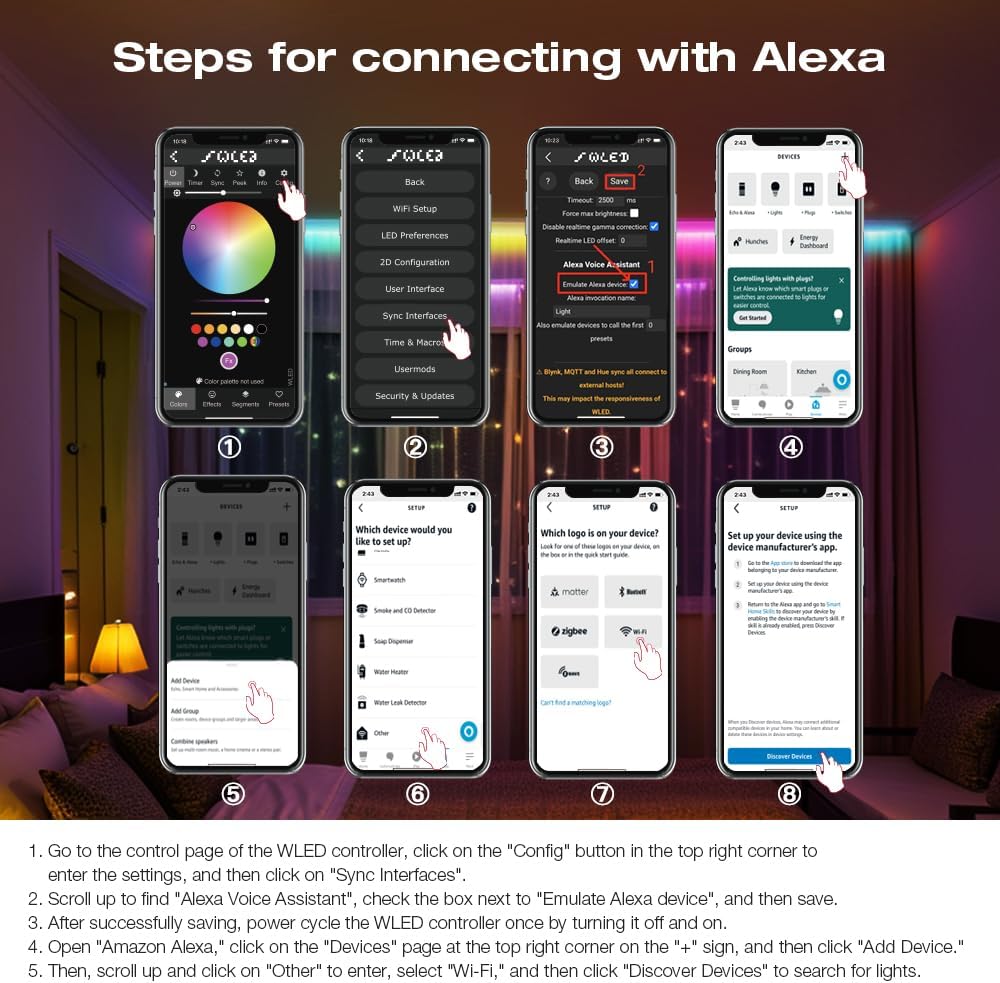
- Go to the control page of the WLED controller in the app, click on the "Config" button in the top right corner to enter the settings, and then click on "Sync Interfaces".
- Yi lọ sí òkè láti wá "Alexa Voice Assistant", ṣàmì sí àpótí tó wà lẹ́gbẹ̀ẹ́ "Emulate Alexa device", lẹ́yìn náà fipamọ́.
- Lẹ́yìn tí o bá ti fipamọ́ dáadáa, lo agbára láti yí olùdarí WLED padà lẹ́ẹ̀kan nípa pípa á àti títẹ̀ ẹ́.
- Open the Amazon Alexa app, click on the "Devices" page at the top right corner on the "+" sign, and then click "Add Device".
- Lẹ́yìn náà, yí lọ sí òkè kí o sì tẹ "Omíràn" láti wọlé, yan "Wi-Fi", lẹ́yìn náà tẹ "Discover Devices" láti wá àwọn ìmọ́lẹ̀.
7. Awọn imudojuiwọn famuwia
The integrated UART port allows for convenient firmware updates. Refer to the official WLED documentation or GLEDOPTO support resources for detailed instructions on how to perform firmware updates. Always ensure you are using the correct firmware version for your ESP32 chip to prevent damage.
8. Itọju
- Jeki oludari ni mimọ ati ofe kuro ninu eruku. Lo asọ ti o gbẹ, asọ fun mimọ.
- Yago fun ṣiṣafihan oludari si ọrinrin tabi awọn iwọn otutu to gaju.
- Rii daju pe fentilesonu to dara ni ayika ẹrọ lati ṣe idiwọ igbona.
9. Laasigbotitusita
- Controller not powering on: Check power supply connections and ensure the input voltage is within the 5-24V DC range.
- Okun LED ko tan ina: Verify all wiring connections (VCC, DATA, GND) are secure and correct. Ensure the LED strip type is supported by the controller.
- Ko si Wi-Fi asopọ: Perform a long press (10 seconds) on the Opt button to reset the controller and activate the WLED-AP hotspot for re-configuration. Ensure your router is operating on a 2.4GHz band.
- Awọn iṣoro isọdọkan Alexa: Double-check that "Emulate Alexa device" is enabled in the WLED app settings and that you have power cycled the controller after saving. Ensure the Alexa app is discovering devices on the correct network.
- Awọn awọ tabi awọn ipa ti ko tọ: Verify the LED strip type and IC settings in the WLED app.
10. Atilẹyin ọja ati Support
For warranty information and technical support, please refer to the GLEDOPTO official webojula tabi kan si alagbata rẹ. Tọju iwe-ẹri rira rẹ fun awọn ẹtọ atilẹyin ọja.


