1. Ifihan
Thank you for choosing the Diyeeni 10.1-inch Android 11 Car Stereo. This advanced multimedia player is designed to enhance your driving experience with its powerful Android 11 operating system, 8-core processor, and a wide array of features including navigation, multimedia playback, and smartphone integration. This manual provides essential information for the proper installation, operation, and maintenance of your new car stereo.

Figure 1: Diyeeni 10.1-inch Android 11 Car Stereo Front View
2. Package Awọn akoonu
Please check the package contents carefully upon unpacking. If any items are missing or damaged, contact your retailer.
- 1 x Diyeeni 10.1-inch Car Stereo
- 4 x Iṣagbesori skru
- (Additional accessories such as wiring harnesses, GPS antenna, USB cables, and user manual may be included depending on the specific package.)
3. Alaye Aabo
- A ṣe iṣeduro fifi sori Ọjọgbọn: Nítorí ìṣòro tó wà nínú ẹ̀rọ iná mànàmáná ọkọ̀ ayọ́kẹ́lẹ́, a gbani nímọ̀ràn láti fi ẹ̀rọ tó jẹ́ ti ọ̀jọ̀gbọ́n síbẹ̀ kí ó má baà ba ẹ̀rọ náà tàbí ọkọ̀ rẹ jẹ́.
- Ibi ti ina elekitiriki ti nwa: Ensure the unit is connected to a 12V DC power supply with a negative ground.
- Asopọmọra: Do not short-circuit any wires. Insulate all connections properly.
- Aabo awakọ: Má ṣe lo ẹ̀rọ náà lọ́nà tí yóò mú kí o má ṣe wakọ̀. Máa fi ààbò ojú ọ̀nà sí ipò àkọ́kọ́.
- Iwọn otutu: Yago fun ṣiṣafihan ẹyọkan si awọn iwọn otutu to gaju tabi oorun taara fun awọn akoko gigun.
- Ọrinrin: Pa ẹrọ kuro lati omi ati ọrinrin pupọ.
4. Awọn pato
| Nkan Iru | Sitẹrio ọkọ ayọkẹlẹ |
| Ohun elo | Metal, ABS, LCD |
| Chip | 9863 8-core Processor |
| Eto isesise | Android 11 |
| Iranti | 4GB Ramu, 64GB ROM |
| Ẹya Bluetooth | BT5.0 |
| Ipinnu Ifihan | 1280x720 |
| Iwon iboju | 10.1 Inch Capacitive Screen |
| Redio | FM, RDS |
| Yipada View Atilẹyin | AHD, 720P |
| DSP | 48-band Sound Processing |
| Asopọmọra | 4G Full Internet Connectivity, 5G WiFi, USB |
| Pataki Awọn ẹya ara ẹrọ | Touchscreen, Backup Camera Input, HiFi Sound, Navigation, CarPlay, Android Auto, Steering Wheel Control |
| Iwọn Nkan | 3.08 iwon |
| Package Mefa | 13.39 x 7.87 x 3.15 inches |
| Orukọ awoṣe | Diyeeninbzudo6y73 |
5. Eto
5.1. fifi sori
The Diyeeni car stereo is designed for double DIN installation. Due to the variety of vehicle models and wiring configurations, it is highly recommended to have the unit installed by a qualified professional. Incorrect installation can lead to damage to the unit or vehicle electrical system.
- Igbaradi: Ge asopọ ebute batiri odi ti ọkọ ṣaaju ki o to bẹrẹ iṣẹ itanna eyikeyi.
- Yọ Ẹka ti o wa tẹlẹ: Carefully remove your vehicle's existing car stereo and trim panels.
- Asopọmọra Waya: Connect the provided wiring harness to your vehicle's wiring. Ensure all connections (power, ground, speakers, antenna, reverse camera, GPS antenna, 4G antenna, USB) are secure and correctly matched. Refer to your vehicle's wiring diagram if necessary.
- Iṣagbesori: Secure the car stereo into the double DIN slot using the provided mounting screws and brackets.
- Idanwo: Before reassembling the dashboard, reconnect the battery and perform a basic function test.
- Ṣe atunto: Nígbà tí a bá ti fìdí gbogbo iṣẹ́ múlẹ̀, tún kó àwọn paneli gige dashboard náà jọ.

Figure 2: Rear Connectors of the Car Stereo
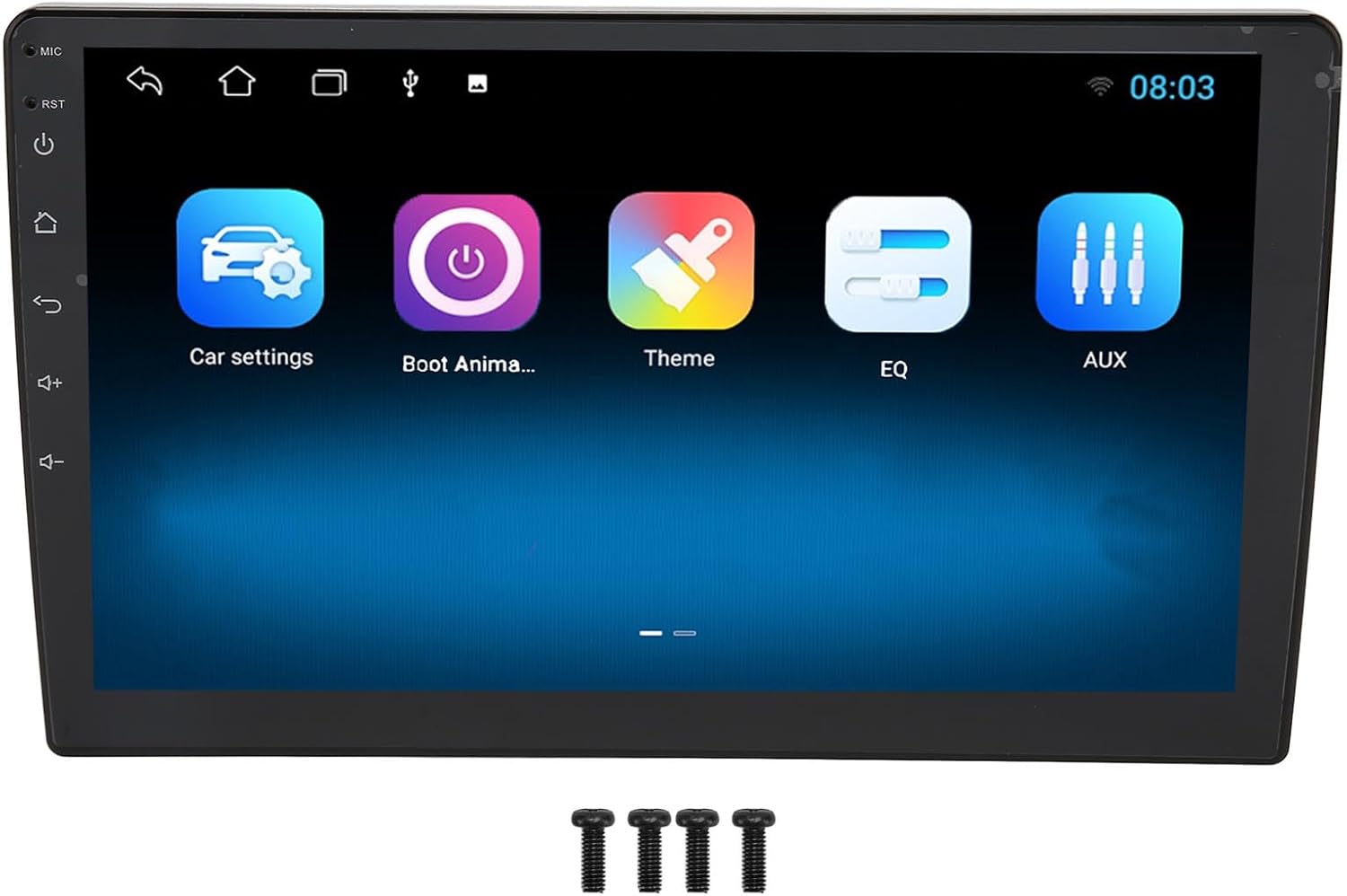
Figure 3: Car Stereo with Mounting Screws
5.2. Agbara akọkọ Lori
After successful installation, turn on your vehicle's ignition. The car stereo should power on automatically. Follow any on-screen prompts for initial setup, such as language selection and time zone.
6. Awọn ilana Iṣiṣẹ
6.1. Home Screen Overview
The home screen provides access to all main functions and applications. Swipe left or right to navigate through different screens. Tap on an icon to launch the corresponding application.
6.2. Lilọ kiri
The unit features a built-in 5G module for online and offline maps. Ensure the GPS antenna is properly connected for optimal performance.
- Wiwọle si Lilọ kiri: Tap the "Navigation" or "Maps" icon on the home screen.
- Àwọn Máàpù Ayélujára: Connect to Wi-Fi or insert a 4G SIM card (if supported by your model) to use online mapping services.
- Awọn maapu aisinipo: Download map data for your region for navigation without an internet connection.
- Eto Ilana: Enter your destination and follow the on-screen and voice-guided directions.

olusin 4: GPS Lilọ kiri Interface
6.3. CarPlay & Android Auto
Connect your smartphone to access CarPlay (for iOS devices) or Android Auto (for Android devices) for a seamless integration of phone features.
- Asopọmọra: Connect your phone via a USB cable to the unit's USB port or wirelessly via Bluetooth/Wi-Fi (if supported by your phone and unit).
- Iṣẹ ṣiṣe: Once connected, you can use voice commands (Siri/Google Assistant), make calls, send messages, play music, and use navigation apps directly from the car stereo screen.
6.4. Bluetooth Asopọmọra
Pair your mobile phone with the car stereo via Bluetooth for hands-free calling and audio streaming.
- Pipọpọ:
- Go to the "Bluetooth" application on the car stereo.
- Mu Bluetooth ṣiṣẹ lori foonu alagbeka rẹ ki o jẹ ki o ṣe awari.
- Wa fun available devices on the car stereo and select your phone.
- Jẹrisi koodu sisopọ lori awọn ẹrọ mejeeji.
- Npe ni Ọwọ: Use the built-in microphone to make and receive calls.
- Streamingi Streaminganwọle Audio: Mu orin lati inu foonu rẹ nipasẹ awọn agbohunsoke sitẹrio ọkọ ayọkẹlẹ.
6.5. Radio (FM/RDS)
Access the "Radio" application to listen to FM stations. The RDS (Radio Data System) feature provides additional information where available.
- Ṣiṣayẹwo: Use the scan function to automatically search for available stations.
- Fifipamọ awọn tito tẹlẹ: Long-press a frequency to save it as a preset.
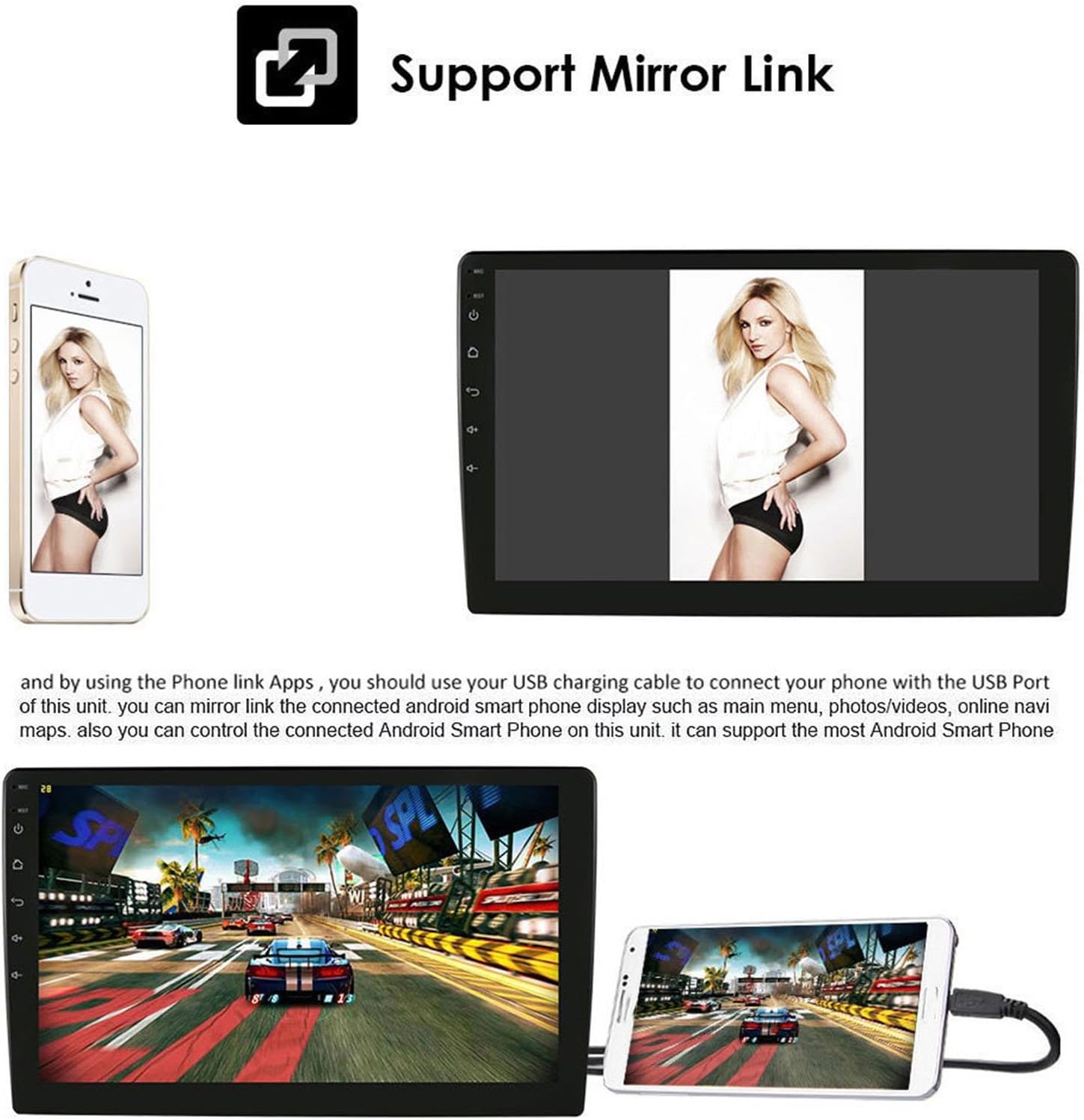
6.6. Ìjápọ̀ Dígí
Mirror Link allows you to display your smartphone's screen content directly onto the car stereo display.
- Asopọmọra: Connect your smartphone to the car stereo via a USB charging cable.
- Iṣẹ ṣiṣe: View your phone's main menu, photos, videos, and online maps. You can also control the connected Android smartphone from the car stereo unit.
olusin 5: Mirror Link-iṣẹ
6.7. Audio Settings (DSP)
The unit features DSP (Digital Signal Processor) with 48-band sound processing for high-fidelity audio. Access the "EQ" or "Sound Settings" application to customize your audio experience.
- Agbẹgbẹ: Adjust frequency bands to fine-tune the sound output.
- Iwọntunwọnsi/Fader: Adjust audio distribution between speakers.
- Iṣakoso Subwoofer: If connected, adjust subwoofer output.
6.8. Iṣakoso kẹkẹ idari
If your vehicle supports steering wheel controls, you can configure them to operate the car stereo functions.
- Iṣeto: Go to "Car Settings" or "Steering Wheel Control" in the system settings.
- Mapping Buttons: Follow the on-screen instructions to map your steering wheel buttons to specific functions (e.g., volume up/down, track skip, mode).
6.9. Reverse Camera
When an AHD 720P reverse camera is connected and the vehicle is shifted into reverse gear, the car stereo will automatically display the rear view, aiding in safer parking.
6.10. Internet Connectivity (4G/Wi-Fi)
The unit supports 4G full internet connectivity and has a built-in 5G Wi-Fi module.
- Wi-Fi: Connect to available Wi-Fi networks by going to "Settings" > "Network & Internet" > "Wi-Fi".
- 4G Asopọmọra: If your model supports a SIM card, insert a compatible 4G SIM card to enable mobile data.
- Awọn igbasilẹ App: Once connected to the internet, you can download, install, and manage various applications from the app store.
7. Itọju
- Ninu iboju: Lo asọ rirọ, ti ko ni lint lati pa iboju naa rọra. Fun agidi smudges, die-die dampen awọn asọ pẹlu omi tabi a iboju-ninu ojutu. Yẹra fun awọn kẹmika lile.
- Gbogbogbo Itọju: Keep the unit free from dust and debris. Avoid placing heavy objects on the unit.
- Awọn imudojuiwọn sọfitiwia: Ṣe àyẹ̀wò lẹ́ẹ̀kọ̀ọ̀kan fún àwọn àtúnṣe sọ́fítíwè nípasẹ̀ àwọn ètò ètò láti rí i dájú pé iṣẹ́ wọn dára jùlọ àti wíwọlé sí àwọn ẹ̀yà tuntun.
8. Laasigbotitusita
| Isoro | Owun to le Fa | Ojutu |
|---|---|---|
| Ẹka ko ni agbara lori. | Wáyà tí kò tọ́, fíúsì tí ó fẹ́, ìṣòro bátìrì ọkọ̀. | Ṣayẹwo agbara ati ilẹ awọn isopọ. Ṣayẹwo awọn fuses ọkọ. Rii daju pe batiri ti gba agbara. |
| Ko si ohun lati awọn agbohunsoke. | Speaker wires disconnected, volume too low, audio settings incorrect. | Verify speaker connections. Increase volume. Check EQ and balance/fader settings. |
| Ifihan GPS ko lagbara tabi ko pe. | Eriali GPS ko so mọ daradara tabi ko ni idinamọ. | Rí i dájú pé eriali GPS so pọ̀ dáadáa, kí a sì gbé e sí ibi tí kò sí ìdíwọ́ (fún àpẹẹrẹ, dasibodu). |
| Awọn oran asopọ Bluetooth. | A ko le ri foonu naa, asopọ ti ko tọ, idamu. | Ensure phone's Bluetooth is on and discoverable. Re-pair the device. Clear previous pairings. |
| Iboju ifọwọkan ko dahun. | Didi eto, glitch sọfitiwia igba diẹ. | Restart the unit (if possible, use a reset button if available). If persistent, contact support. |
9. Atilẹyin ọja ati Support
For warranty information, please refer to the documentation provided at the time of purchase or contact your retailer. If you encounter any issues not covered in this manual or require further assistance, please contact Diyeeni customer support through the official webojula tabi rẹ ra Syeed.
Please have your model number (Diyeeninbzudo6y73) and purchase details ready when contacting support.