1. Ifihan
This manual provides instructions for the DIGITUS M.2 External Enclosure, Model DA-71156. This device allows you to convert an M.2 NVMe or SATA SSD into a portable external storage solution using a USB 3.1 Gen2 Type-C interface. It supports various M.2 module sizes and offers high-speed data transfer.

Aworan 1.1: Pariview of the DIGITUS M.2 External Enclosure highlighting key features like USB-C, USB 3.1 standard, plug and play functionality, 10 Gbps data transfer rate, tool-free design, and operating temperature range (0°C to +50°C).
2. Package Awọn akoonu
Jẹrisi pe gbogbo awọn ohun kan wa ninu package:
- External SSD Enclosure, M.2 - USB Type-C
- USB Cable (Type-C to Type-A), 25 cm
- Itọsọna fifi sori iyara (QIG)
- Rubber fasteners for M.2 SSD (typically two)
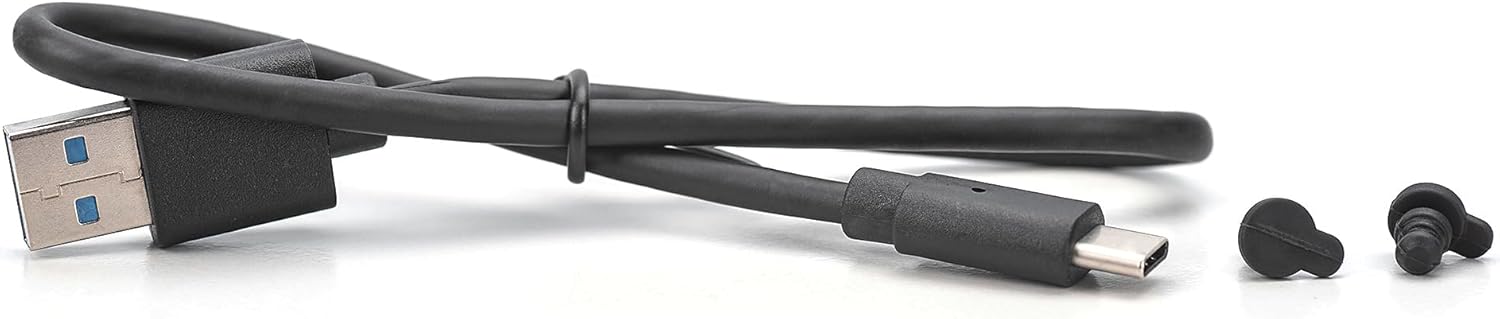
Image 2.1: Included USB cable (Type-C to Type-A) and rubber fasteners for securing the M.2 SSD within the enclosure.
3. Awọn ẹya ara ẹrọ
- Gbigbe Data Iyara Giga: USB 3.1 Gen2 interface supports up to 10Gbps for NVMe SSDs and 6Gbps for SATA SSDs. Backward compatible with USB 3.0, 2.0, and 1.1.
- Ibamu gbooro: Supports M.2 SSDs in B+M key format (SATA) and M key format (NVMe) with sizes 2230, 2242, 2260, and 2280.
- Agbara Ibi ipamọ nla: Compatible with solid-state drives up to 8TB.
- Fifi sori ẹrọ Ọfẹ: Easy insertion of M.2 modules without the need for tools.
- Iṣe Ti o munadoko: Equipped with a robust JMS581DL chipset for reliable operation.
- Apẹrẹ ti o tọ: Aluminum housing (Pantone 430C) with a ribbed surface for effective passive heat dissipation.
- E gbe: Compact dimensions (101x32x10 mm) and lightweight (97g) for mobile use.
- Plug-and-Play: No drivers required; powered directly via the USB port.
- Atilẹyin OS gbooro: Compatible with Windows (11, 10, 8, 7, XP, 2000), macOS, Linux (2.4.x or higher), Google Chrome OS (9.x or higher), Android, and iOS (iPhone 15 onwards).

Image 3.1: The aluminum housing of the enclosure, designed for durability and heat dissipation, supporting up to 8TB capacity.

Image 3.2: Illustration of the enclosure's compatibility with various M.2 SSD lengths (2230, 2242, 2260, 2280) and key types (B&M Key for SATA, M Key for NVMe).
4. Setup: SSD Installation
The DIGITUS M.2 External Enclosure features a tool-free design for easy SSD installation.
- Slide and Remove Tray: Locate the lock button on the end of the enclosure. Slide the push button and gently pull out the black internal tray from the aluminum housing.
- Fi SSD sii: Carefully remove the black retaining buckle from the tray. Insert your M.2 SSD into the card slot on the tray, ensuring the connectors align correctly.
- SSD ti o ni aabo: The fixing buckle's angle can be adjusted by 45 degrees. Place the motherboard gently and push it into the hard disk box on the upper side. Use one of the provided rubber fasteners to secure the M.2 SSD in place at the appropriate length (2230, 2242, 2260, or 2280).
- Ti Àpótí Pa: Slide the assembled tray back into the aluminum housing until it clicks securely into place.

Image 4.1: Step-by-step guide for the tool-free installation of an M.2 SSD into the enclosure.

Image 4.2: The enclosure with the internal tray fully extended, demonstrating an M.2 SSD correctly installed and secured.
5. Awọn ilana Iṣiṣẹ
Once the M.2 SSD is installed in the enclosure, it is ready for use.
- Sopọ si Ẹrọ: Use the provided USB Type-C to Type-A cable to connect the enclosure to a compatible USB port on your computer, laptop, tablet, or smartphone. The enclosure is powered directly via the USB port.
- Idanimọ aifọwọyi: The enclosure is plug-and-play. Your operating system should automatically detect the new storage device.
- Initialize/Format (New SSDs): If you are using a brand new M.2 SSD, it may need to be initialized and formatted before it can be used. Refer to your operating system's disk management tools for this process.
- Gbigbe Data: O le gbe lọ bayi files to and from the M.2 SSD as you would with any other external drive. The integrated LED indicator will show the SSD's status during operation.

Image 5.1: The enclosure connected to a laptop, demonstrating its plug-and-play functionality and high-speed data transfer capabilities across various platforms.
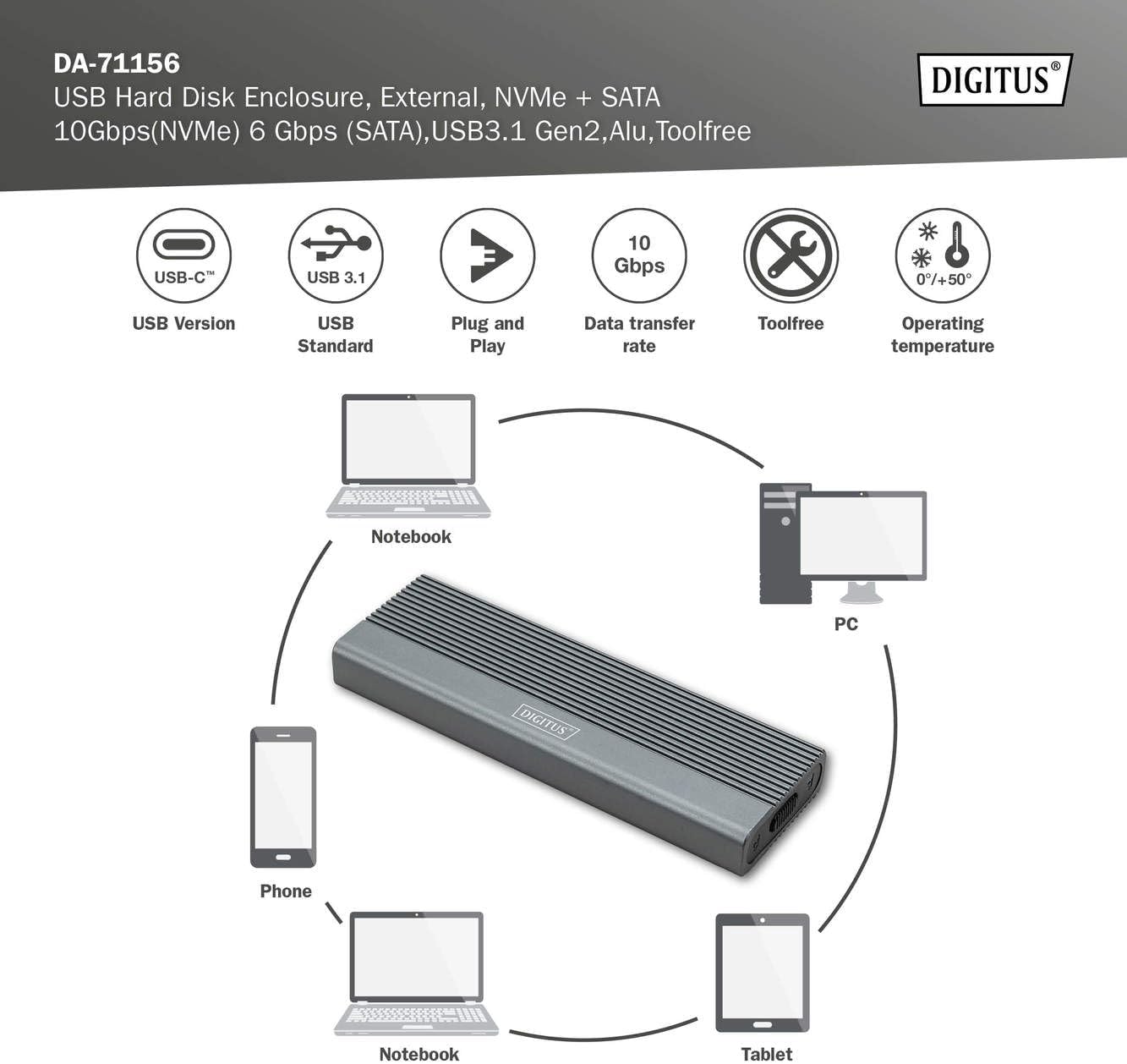
Image 5.2: The enclosure's universal compatibility, connecting to notebooks, PCs, phones, and tablets.
6. Itọju
To ensure the longevity and optimal performance of your DIGITUS M.2 External Enclosure:
- Ninu: Lo aṣọ rírọrùn tí ó gbẹ láti nu ìta àpótí náà. Yẹra fún àwọn ohun èlò ìfọmọ́ omi tàbí àwọn ohun èlò ìpara.
- Mimu: Handle the enclosure with care. Avoid dropping it or subjecting it to strong impacts.
- Iwọn otutu: Operate the enclosure within the specified temperature range of 0°C to +50°C. Avoid extreme temperatures.
- Ibi ipamọ: When not in use, store the enclosure in a cool, dry place away from direct sunlight and moisture.
- Ge asopọ: Always safely eject or unmount the drive from your operating system before physically disconnecting the USB cable to prevent data corruption.
7. Laasigbotitusita
If you encounter issues with your DIGITUS M.2 External Enclosure, consider the following:
- Wakọ Ko ṣe awari:
- Ensure the USB cable is securely connected to both the enclosure and your device.
- Gbiyanju ibudo USB ti o yatọ lori ẹrọ rẹ.
- Ṣe ìdánwò pẹ̀lú okùn USB mìíràn tí ó bá wà.
- Verify that the M.2 SSD is correctly seated and secured within the enclosure.
- For new SSDs, check your operating system's disk management utility to see if the drive needs to be initialized and formatted.
- Ensure your M.2 SSD is compatible (NVMe or SATA, B+M key or M key, supported sizes).
- Gbigbe Data lọra:
- Ensure you are connected to a USB 3.1 Gen2 (10Gbps) or at least USB 3.0 (5Gbps) port on your host device. Older USB 2.0 ports will result in significantly slower speeds.
- Verify that your M.2 SSD itself is capable of high speeds.
- Ti awọn ohun elo miiran ti o le nlo awọn orisun eto tabi ṣiṣe awọn gbigbe lẹhin.
- Enclosure Overheating:
- The aluminum housing is designed for passive heat dissipation. Ensure adequate airflow around the enclosure.
- Prolonged heavy data transfer can cause the enclosure to become warm, which is normal. If it becomes excessively hot, disconnect it and allow it to cool.
8. Awọn pato
| Nọmba awoṣe | DA-71156 |
| Ohun elo | Aluminiomu |
| Àwọ̀ | Grẹy |
| Ni wiwo | USB 3.1 Gen2 Iru-C |
| Data Gbigbe Oṣuwọn | Up to 10 Gbps (NVMe), 6 Gbps (SATA) |
| Awọn SSDs ibaramu | M.2 NVMe (M Key) & M.2 SATA (B+M Key) |
| Supported M.2 Sizes | 2230, 2242, 2260, 2280 |
| Agbara Ibi ipamọ ti o pọju | 8 TB |
| Chipset | JMS581DL |
| Ọja Mefa | 101 x 32 x 10 mm (3.98 x 1.26 x 0.39 inches) |
| Iwọn Nkan | 97 g (0.16 kg / 5.6 ounces) |
| Awọn iwọn otutu ti nṣiṣẹ | 0°C si +50°C |
| OS ibaramu | Windows, macOS, Linux, Chrome OS, Android, iOS |
9. Atilẹyin ọja ati Support
For warranty information and technical support, please refer to the documentation provided with your purchase or visit the official Digitus webojula. Jeki ẹri rira rẹ fun awọn iṣeduro atilẹyin ọja.